
Reading a clip on the timeline
A clip on the timeline tells you what it is, what it holds and what’s been done to it, without being selected. This page is the key to those marks. Each mark’s control has its own page, linked from here.
- Where
- The timeline's lanes
- Agent tools
set_selectionset_audio
The clip block
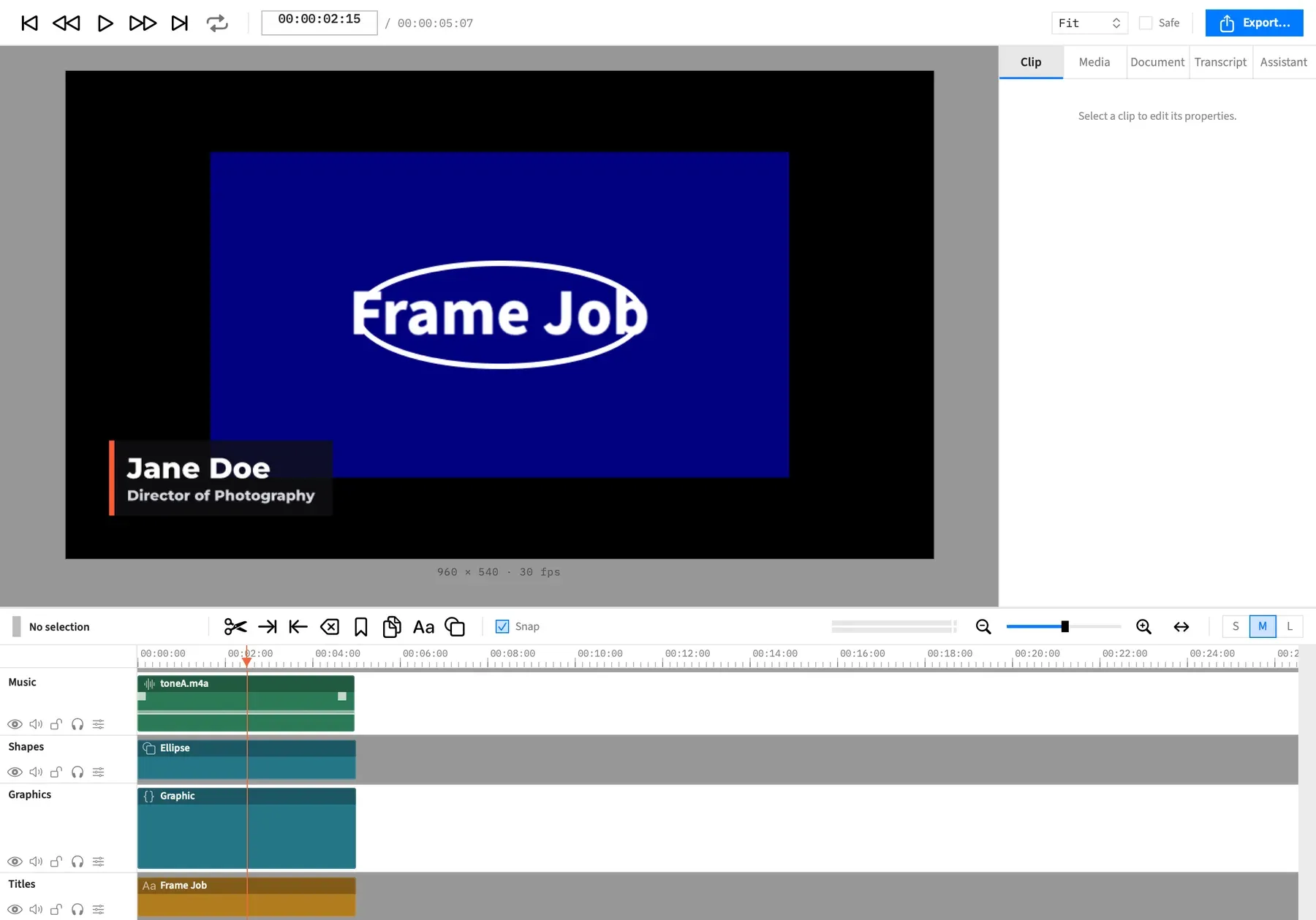
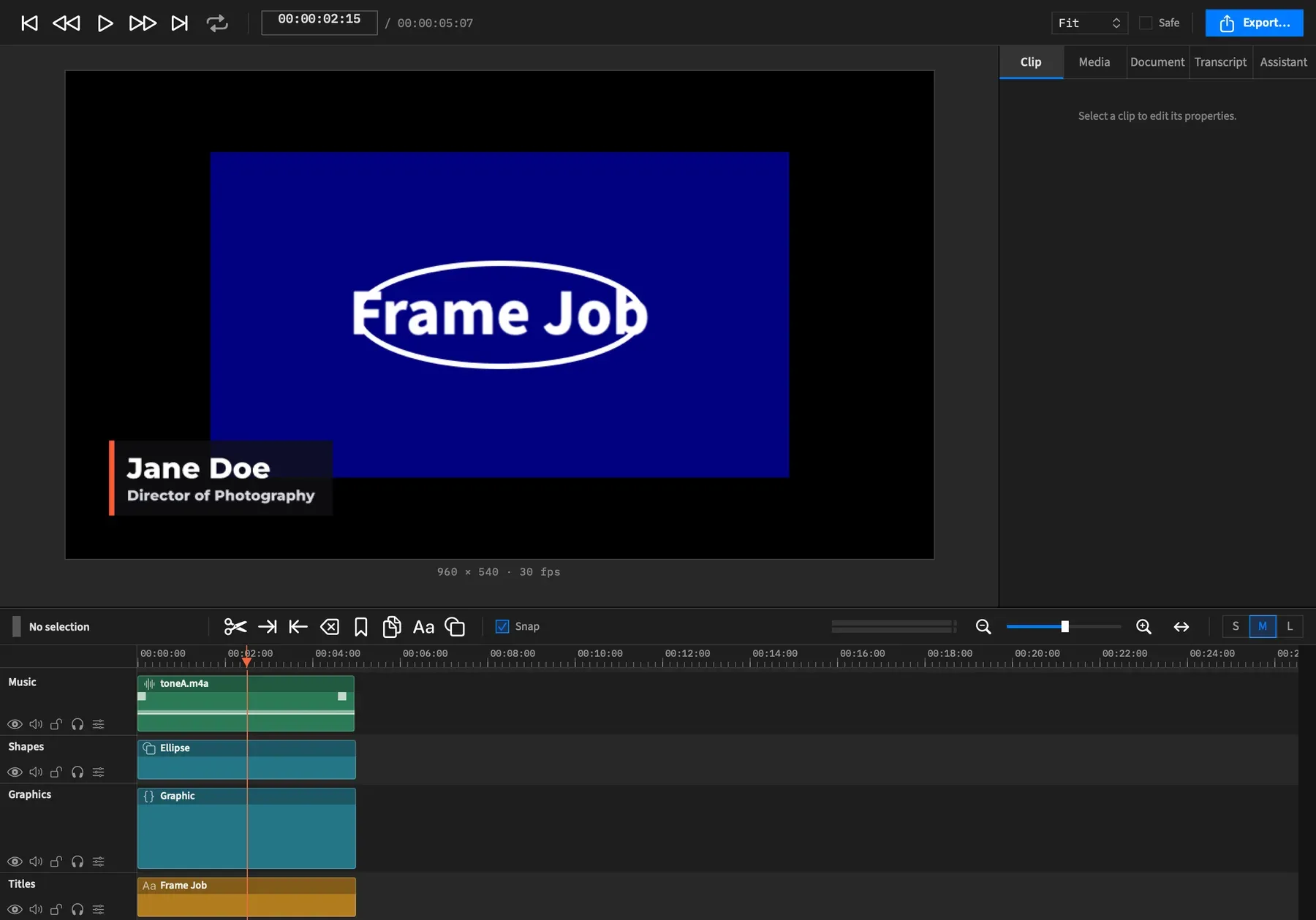
Section titled “The clip block”Each clip draws as one block with 2 pt rounded corners and a thin border, so you can always see where one clip ends and the next begins.
From top to bottom, a block holds its name strip, its action lane if it has actions, its filmstrip and its waveform. The filmstrip sits under a tint of the clip’s own colour and the waveform is drawn on that colour, so a clip reads as one coloured object rather than a row of photographs.
The action lane shows a band for each action. The selected action’s span is also tinted down the whole height of the clip, in the action colour: mint in dark mode, a deeper green in light mode.
Colour by kind
Section titled “Colour by kind”A clip’s colour and the symbol on its name strip tell you its kind.
| Kind | Colour | Symbol |
|---|---|---|
| Video | Slate | A strip of film |
| Audio | Green | A waveform |
| Image | Violet | A photo |
| Freeze frame | Violet | A snowflake |
| Text | Amber | Letters |
| Shape | Teal | A square on a circle |
| Graphic | Teal | Curly braces |
| Nest | Grey | A stack of squares |
| Adjustment | Rose | Overlapping filter circles |
The kind comes from what the clip shows, not only from its file. A video file’s clip with its picture switched off reads as audio, in green with the waveform symbol. That’s how the sound half of a Detach Audio pair looks.
A label never changes the block’s colour, because the colour says what the clip is and a label is something you said about it.
The name strip
Section titled “The name strip”The darker strip along the top of a clip carries, from left to right, its kind symbol, a link symbol if it’s linked, its name, a wave if it has a During motion, and its label dot.
A clip with a name of its own shows that. Otherwise it shows what it holds: a nest’s name, the file’s name, the text itself, or the shape’s kind. A clip with none of those reads as its kind, such as Graphic or Adjustment. A name too long for the strip ends in an ellipsis.
On a narrow clip the strip leaves out what won’t fit. The kind symbol stays longest, and the dot and the wave are left out when they’d run into the symbols.
The label dot
Section titled “The label dot”A labelled clip shows a small dot in its label colour at the right end of the name strip. See Clip names and labels.
Motion marks
Section titled “Motion marks”Two small marks show a clip’s active motion presets:
- A wedge along the bottom of the name strip, from the left end for an In preset and from the right end for an Out preset. It’s as long as the preset’s duration at the current zoom, and it rises towards its inner end, so you can see how far into the clip the motion runs. It’s never shorter than 2 pt or wider than the clip.
- A small wave at the right end of the strip, to the left of any label dot, for a During movement.
Picture and sound
Section titled “Picture and sound”Below the name strip, a clip shows what it holds: its picture as a filmstrip, its sound as a waveform, or both.
Filmstrip
Section titled “Filmstrip”Thumbnails run along the picture part of a video or image clip, each 34 pt wide and cropped to fill its tile.
A file’s strip holds one frame for each second, so a thumbnail shows that point in the clip to within a second or so. It follows the clip’s trims, speed, reverse and speed ramps. A filmstrip of a log file with a Camera Log set, or of an HDR file in PQ or HLG, shows the converted picture, matching the preview, not the flat image in the file.
The strip covers the first 600 seconds of a file. Later in a longer file, the clip shows its plain colour.
An image has one thumbnail, repeated along the whole clip at any zoom.
A freeze frame repeats the thumbnail of the second it holds along its whole length.
Text, shape, graphic, nest and adjustment clips have no thumbnails.
Waveform
Section titled “Waveform”A clip with sound draws it as a waveform, below the filmstrip when the clip has both. The waveform follows the clip’s source time through speed changes and ramps. A nest clip draws no waveform, even when it has sound.
The waveform draws faded when the clip or its track is muted, or when another track’s solo silences it. A track’s mute button stays unlit under another track’s solo, so the waveform is the place to look to see what’s in the mix. See How audio works and Mute and solo tracks.
Filling in after import
Section titled “Filling in after import”Filmstrips and waveforms are made once for each file and kept with the project, so they fill in a moment after you add a file. See On-device media analysis.
Lines over a clip
Section titled “Lines over a clip”Up to four thin lines show how a clip changes over time, and each has its own control.
The volume line
Section titled “The volume line”A thin white line over the waveform shows the level you hear from the clip, with its volume, fades, ducking and volume actions folded in. The top of the audio part is +30.1 dB and the bottom is −60 dB, and a silenced clip’s line lies along the bottom. Small squares in the action colour mark where a volume action ends.
Nest clips don’t draw it. To change the level from the timeline, see The volume line.
The duck line
Section titled “The duck line”A thin yellow line over a clip set to duck by speech shows where the rest of the mix goes down and comes back. The top of the audio part is the mix at full level and the bottom is silence.
A duck set to Clip Length draws no line, because it lasts as long as the clip. See Duck by Speech.
The Hide While Silent line
Section titled “The Hide While Silent line”A teal line across the picture part of a clip with Hide While Silent on shows where the clip fades out in each pause and back in before speech. The top is fully shown and the bottom is fully hidden. The line appears once Frame Job has analysed the speech in the file the clip follows.
The rate line
Section titled “The rate line”A clip with a speed ramp draws its rate as a white line with a dark edge across its action lane, here and in the Clip tab’s lane. The bottom of the lane is the clip’s own slowest rate and the top its fastest, so a small ramp looks as tall as a big one. Read the numbers in the Speed section.
The timeline draws it at the Medium and Large track heights, not at Small.
Fade handles
Section titled “Fade handles”Small white squares at the top corners of a clip’s audio part set its fades. Drag one inward to fade in or out. The square sits at the corner with no fade, and at the end of the fade once there is one.
The fade’s length snaps to whole frames and stops at the clip’s length. It doesn’t snap to clip edges. The handles write the same two values as the Fades section, so see Audio fades for the rest.
The transition zone
Section titled “The transition zone”The overlap between two clips draws as a hatched zone with a solid edge down each side. The transition’s kind is written in it when the whole word fits. On a short transition the word is left out, and the Transition section still names it. See Transitions.
Selected clips
Section titled “Selected clips”A selected clip gets a 2 pt coral ring, and most commands act on it. When the clip is wide enough to trim and its track is unlocked, it also shows a trim grip at each end. See Select clips.
Linked clips
Section titled “Linked clips”A picture and the sound Detach Audio split from it each show a link symbol after their kind symbol. Select one and the other gets a dashed ring in your Mac’s accent colour, because moving one moves both. See Detach and Attach Audio.
Dimmed clips
Section titled “Dimmed clips”A clip draws dimmed when its track is hidden, or when both its picture and its sound are switched off. A muted clip isn’t dimmed. Only its waveform fades.
Adjustment clips
Section titled “Adjustment clips”An adjustment clip is a plain rose block with only its name strip and action lane. It has no filmstrip or waveform, and its track is as tall as a picture track.
Good to know
Section titled “Good to know”- A short track leaves marks out. The filmstrip needs 10 pt of height, the waveform, duck line and Hide While Silent line 8 pt, the fade handles 10 pt and the volume line 12 pt. A text clip at the Small track height is little more than its name strip.
- A locked track draws a faint hatch across its whole lane, over its clips. Clips on it show no trim grips, and their fade handles don’t drag.
- On a matte track, clips draw at half strength with a dashed outline.
- Inside an open nest, a Hide While Silent line that follows a file outside the nest stays flat along the top, though the clip still fades.