
Set up the Assistant
The Assistant runs on your own Anthropic API key. Save the key once in Settings and the Assistant tab is ready in every editor window.
- Menu
- Frame Job ▸ Settings…
- Keys
- ⌘,
- Where
- Settings ▸ Assistant
- Needs
- Your own Anthropic API key.
Your own Anthropic key
Section titled “Your own Anthropic key”There’s no Frame Job account and no relay in between. The Assistant talks to Anthropic with your key, and Anthropic bills what it uses to your account.
Frame Job shows its own estimate of what each turn and each month costs. See What it costs. The Anthropic Console shows what you were actually billed.
Open Settings
Section titled “Open Settings”Choose Frame Job ▸ Settings… (⌘,). Assistant is the second of the window’s four sections, under MCP and above Transcription.
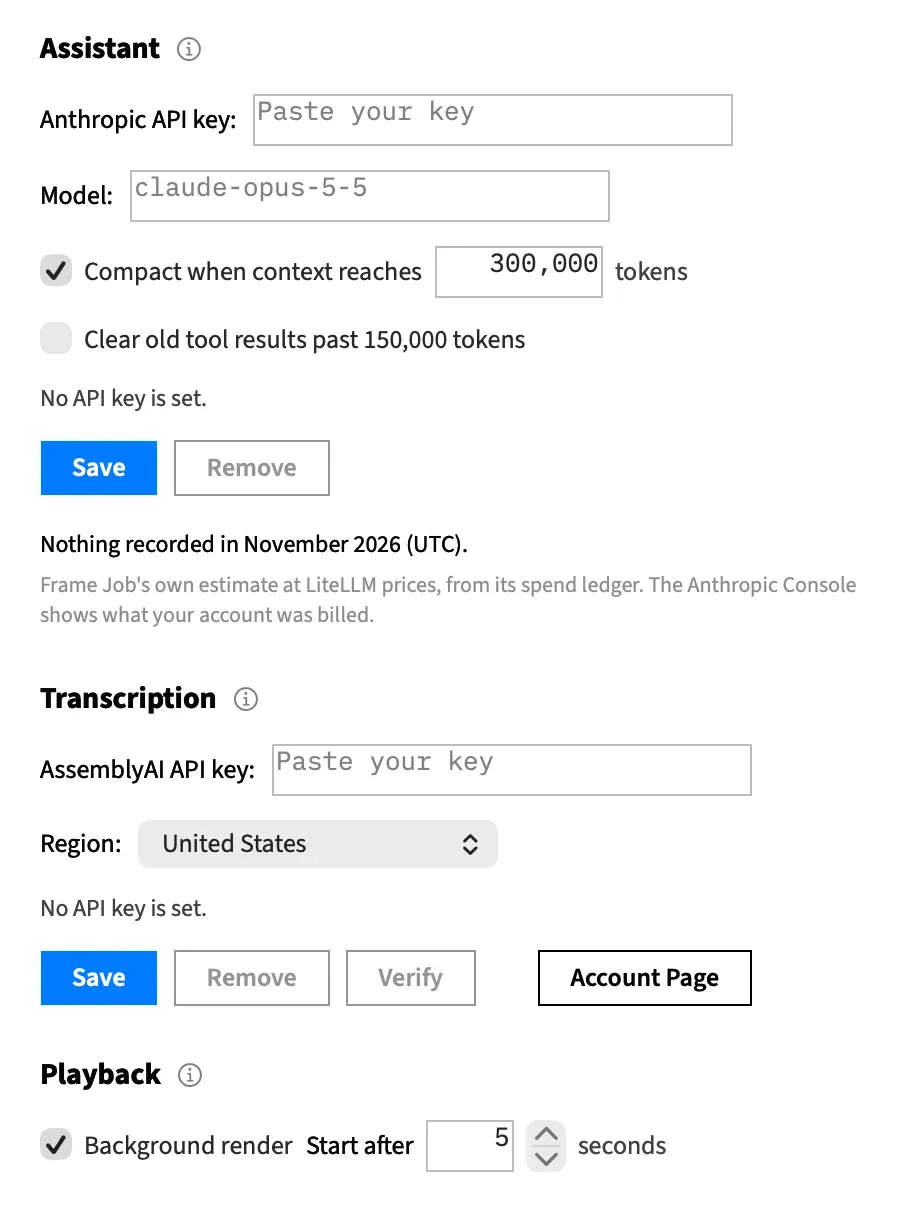
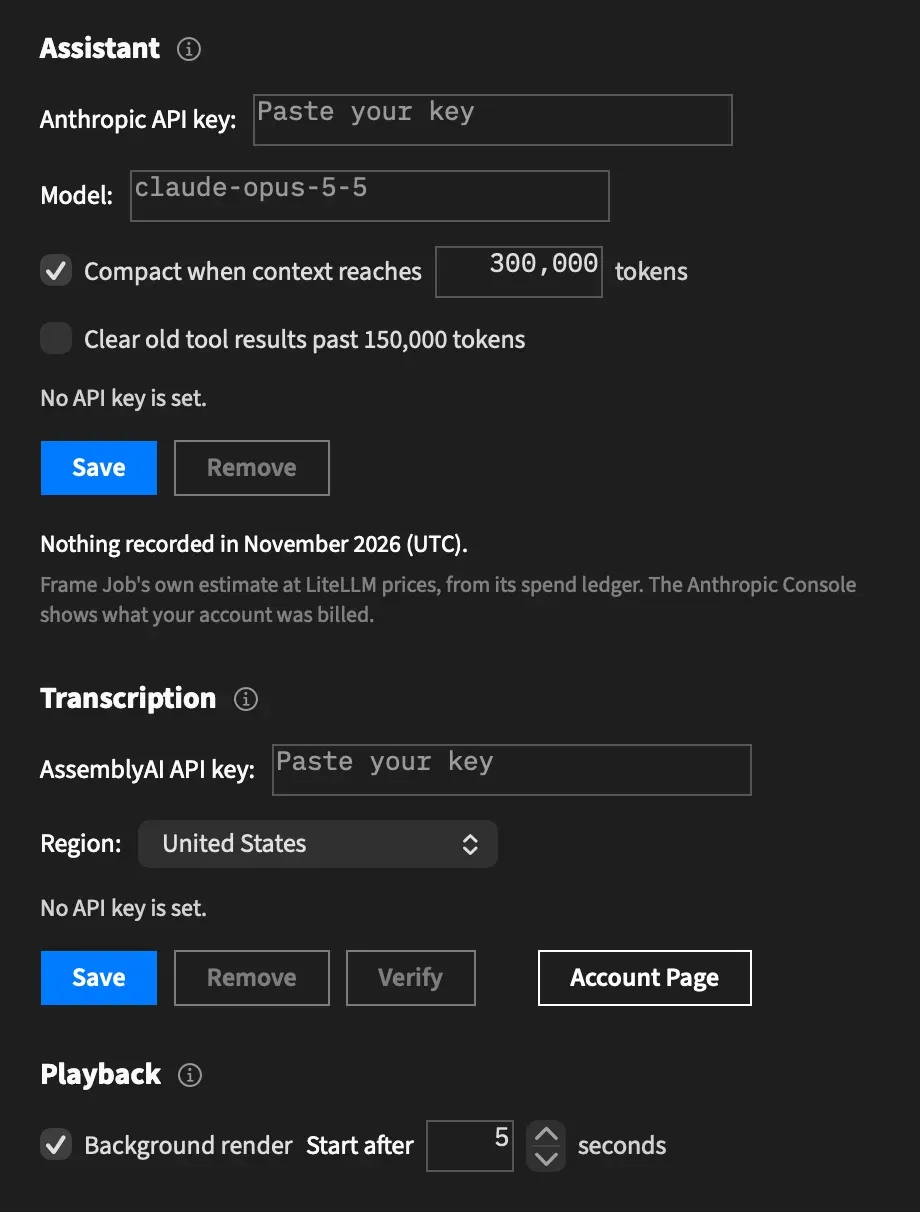
From top to bottom, the section holds:
- the heading, with its ⓘ
- Anthropic API key:
- Model:
- Compact when context reaches
- Clear old tool results past 150,000 tokens
- the status line, then Save and Remove
- this month’s spend and a note on where the figure comes from. See What it costs.
Save your key
Section titled “Save your key”Create an API key in the Anthropic Console first. Settings has no link to your Anthropic account, so you’ll need to go there yourself.
-
Paste your key into Anthropic API key:. With no key saved, the field reads “Paste your key”.
-
Click Save, or press ↩ in the field.
Spaces and line breaks around the key are dropped. The field empties, the status line reads “Key saved.”, and the message field appears in every Assistant tab.
A saved key is never shown again. The field shows a row of dots instead, and the row is always the same length, so it says nothing about your key. To change the key, paste the new one and save. It replaces the old one.
Save with an empty field beeps and changes nothing.
No Verify
Section titled “No Verify”AssemblyAI’s key has a Verify button, but this one doesn’t. Frame Job doesn’t contact Anthropic until you send a message from the Assistant tab, so that’s the test.
A key Anthropic won’t accept shows in the transcript straight away as API error <status>: <message>, with no retries.
Remove your key
Section titled “Remove your key”Click Remove. It’s only enabled while a key is saved. The saved key is deleted and the status line reads “Key removed.”
Every window’s message field gives way to the no-key prompt straight away, unless the environment still supplies a key.
The status line
Section titled “The status line”A line above Save and Remove tells you the key’s state and what your last press did.
| The line says | What it means |
|---|---|
| “No API key is set.” | There’s no key in the field, saved or in the environment. This is a state, not an error, so it’s in the ordinary muted colour. It goes as soon as you type in the field. |
| “Key saved.” | Save worked. |
| “Key removed.” | Remove worked. |
| “The API key could not be saved: …” | The key file couldn’t be written or removed, and the line gives the reason in stronger text. |
The last line appears for a failed Remove too, with the same opening words. A failed Save still empties the field, so paste the key again once you’ve fixed the cause. After a failed Remove, the saved key stays. Neither ends a conversation.
Choose a model
Section titled “Choose a model”Type a model id into Model:, or leave it blank for the default, claude-opus-5-5, which the field shows as its placeholder.
There’s no list to pick from, and Frame Job doesn’t check what you type. An id Anthropic doesn’t know shows up as an error in the transcript when you next send a message.
The change counts when you press ↩ or leave the field. Changing to a different model ends open conversations.
Compact when context reaches
Section titled “Compact when context reaches”Tokens are the units Anthropic counts text in, and a turn is everything the Assistant does between your message and the end of its reply. When a turn ends with the conversation at or past this many tokens, the conversation is replaced by a summary. See Long conversations for what that keeps and what it loses.
| Setting | Default | Range |
|---|---|---|
| The checkbox | On | Untick it to never compact |
| The token field | 300,000 | 20,000 to 900,000 |
The field is enabled only while the box is ticked. A new number counts when you press ↩ or leave the field. Anything outside the range beeps, the field goes back to the stored number, and nothing is written.
Clear old tool results
Section titled “Clear old tool results”Clear old tool results past 150,000 tokens is off by default. Tick it and Anthropic drops old tool results from what the model sees once the conversation passes 150,000 tokens, even partway through a turn. Only the checkbox is yours to set. The 150,000 is fixed.
The results of the five most recent tool uses always stay, tool search results are never cleared, and each clearing takes out at least 50,000 tokens. Each clearing also costs a fresh prompt-cache write: Anthropic stores the shortened conversation again and charges for that.
What a change does
Section titled “What a change does”A conversation keeps the key and model it started with, so changing either has to end it.
| You change | Open conversations | The note in the transcript |
|---|---|---|
| The key, by saving or removing | End, in every window | “The API key changed; the next message starts a new conversation.” |
| The model, to a different one | End, in every window | “The model is now …; the next message starts a new conversation.” |
| Compaction or clearing | Carry on | None |
When a conversation ends this way:
- The transcript stays, and your next message starts a new conversation.
- The Spend row and the context meter start over.
- A running turn ends, and a question waiting for your answer is declined.
A window with no conversation open has nothing to end, so it gets no note.
Save always counts as a change, even if you paste the same key again. Model: doesn’t: retyping the current model, or blanking the field while the default is in use, ends nothing.
Chat settings apply at once
Section titled “Chat settings apply at once”There’s no Save button for the compaction and clearing settings. A change reaches every open conversation and keeps each one going. A new compaction threshold applies at the end of the current turn, and a change to clearing applies from the next message.
What the info button says
Section titled “What the info button says”The ⓘ beside the Assistant heading sums up the section:
- The Assistant sends your messages, the project’s details and the frames it renders to Anthropic, using your own key, and what it costs is billed to that key.
- It asks before saving a project or writing a file to a path it chose. That holds for the tools it asks about first. Graphics, fonts and pictures it adds go into the project without asking.
- The key is kept in a file only you can read, and it’s never shown again once saved.
- Leave the model blank for
claude-opus-5-5. Changing the key or the model starts a new conversation. - Compaction replaces the conversation with a summary at the end of a turn past the threshold, which is 20,000 to 900,000 tokens and 300,000 by default. Earlier renders don’t survive it.
- Clearing lets Anthropic drop old tool results from what the model sees, even partway through a turn, but never tool search results. Each clearing costs a fresh prompt-cache write.
- Changing either setting keeps the conversation.
Where the key is kept
Section titled “Where the key is kept”A saved key lives in a file named anthropic-key in ~/Library/Application Support/Frame Job/, beside AssemblyAI’s key file. Only your user account can read it: the file’s mode is 0600, and Frame Job creates the folder at 0700 if it isn’t there yet.
The key goes to the Assistant’s helper when a conversation starts, on the helper’s standard input, and nowhere else. It’s never a tool argument, a launch argument or an answer to a tool. See Where Frame Job keeps its files for the rest of that folder.
Out of reach of tools
Section titled “Out of reach of tools”No tool reads or writes the key, the model or the chat settings. An agent connected over MCP can’t see or change them, and neither can the Assistant.
A key from the environment
Section titled “A key from the environment”With no saved key, Frame Job uses the ANTHROPIC_API_KEY environment variable, read from the environment Frame Job was started in. In practice this only applies when you launch Frame Job from a shell that sets the variable.
- A saved key always comes first.
- An empty variable counts as no key.
- A key from the variable isn’t saved, so Remove stays dimmed unless you’ve saved one too.
- With the variable set, removing a saved key leaves the message field in place, and the next conversation uses the variable’s key.
The same rule gives AssemblyAI’s key the variable RC_ASSEMBLYAI_KEY.
The no-key prompt
Section titled “The no-key prompt”Without a key, the Assistant tab still opens. In place of the message field it says “Add your Anthropic API key in Settings to use the assistant.” and offers Open Settings…, which opens the Settings window. View ▸ Assistant stays enabled so the tab can tell you this.
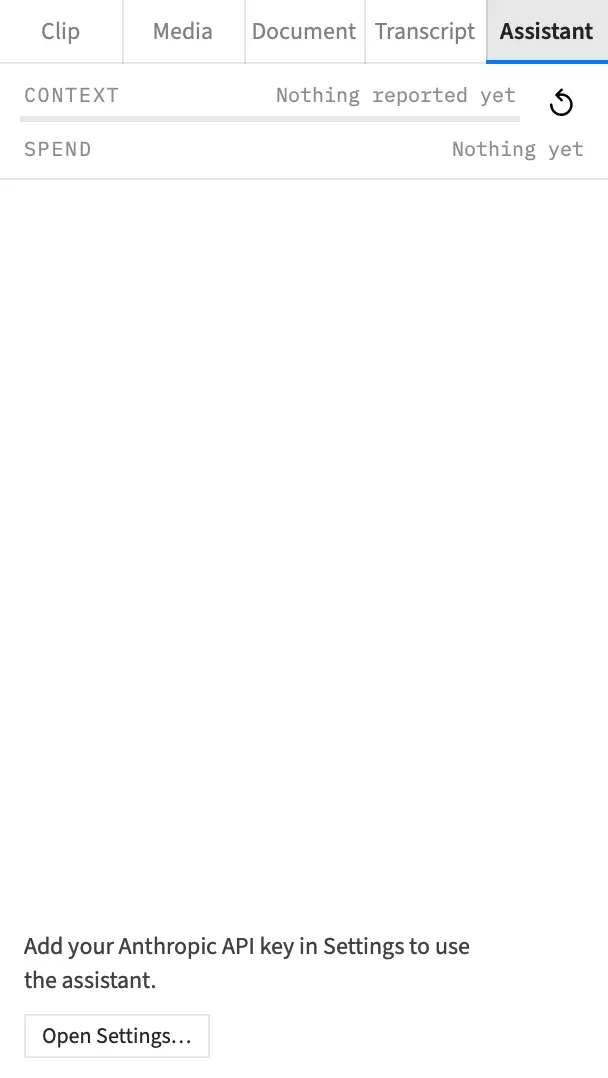
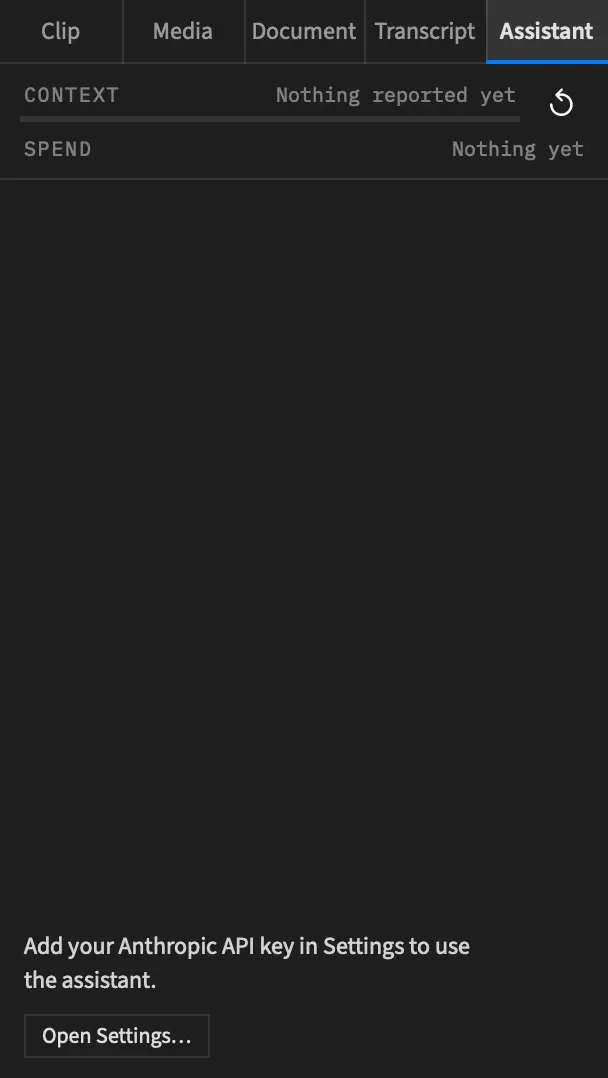
Saving the key brings the message field back at once.
If the key goes some other way, say you delete the file by hand while Frame Job runs, the message field stays. An open conversation carries on with the key it started with. The next conversation fails to start, with “No Anthropic API key is set. Set one in Frame Job ▸ Settings… ▸ Assistant.”
If the helper is missing
Section titled “If the helper is missing”The Assistant runs in a small helper program inside the app, at Contents/Helpers/framejob-agent. Frame Job looks for it when a conversation starts. If it can’t start one, a line appears in red in the transcript and your text stays in the message field. A helper that stops later says so in red too.
| The transcript says | What it means |
|---|---|
| “The assistant helper is not in this build.” | This copy of Frame Job has no helper it can run. Install Frame Job again. |
| “Could not start the assistant helper: …” | The helper is there but won’t run, and the line gives the reason. |
| “The assistant helper stopped. Clear the conversation to start a new one.” | The helper stopped during a conversation. See Clear the conversation. |