
The export sheet
One sheet turns the timeline into a movie, an audio file or an animated image. It shows you the size, rate, length and codec of the file before anything is written.
- Menu
- File ▸ Export…
- Keys
- ⌘E
- Where
- The accent Export… button at the right end of the toolbar
- Agent tools
exportexport_statuscancel_export
Open the export sheet
Section titled “Open the export sheet”-
Choose File ▸ Export…, press ⌘E, or click Export… at the right end of the toolbar. Playback pauses and the sheet opens over the editor window.
-
Choose a format, then change whichever other controls you need.
-
Read the readout line and the footnote under the controls. They say what the file will be.
-
Choose Export… or Add to Queue, then pick where to save the file.
While the timeline is empty, File ▸ Export… is greyed out and there’s no sheet to open. A timeline of nothing but text, shapes, images and graphics still exports. You can’t edit the project while the sheet is open.
An export always writes the whole timeline, even when you’re working inside a nest.
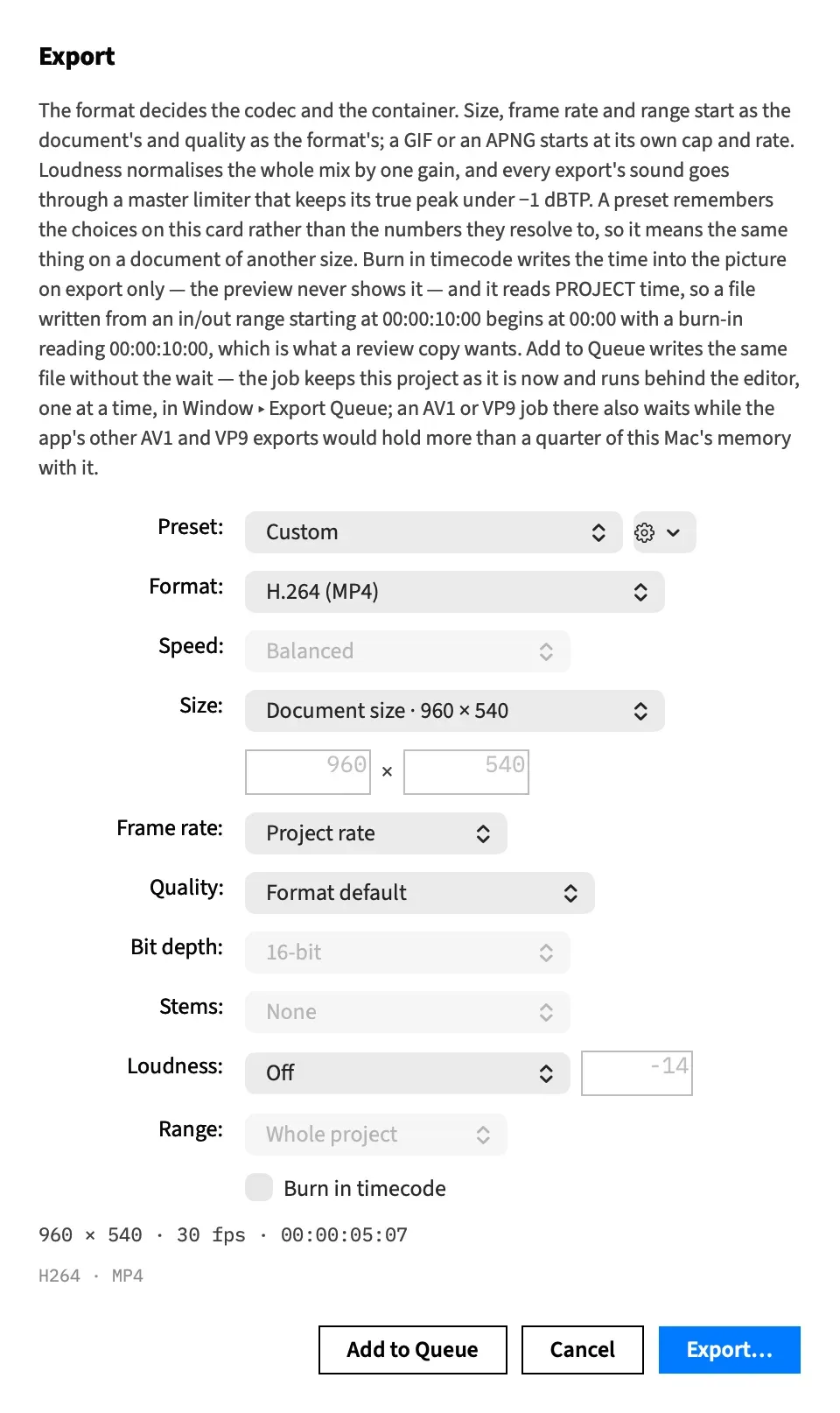
The controls
Section titled “The controls”The paragraph under the sheet’s title sums up the main rules. The controls run from top to bottom:
| Control | What it does | Default |
|---|---|---|
| Preset: | Applies a set of choices you saved. The gear beside it saves and deletes them. See Export presets. | Custom |
| Format: | The encoding, a container and a codec together. See Choose a format. | H.264 (MP4) |
| Dynamic Range: | Which picture an HDR project writes. The row is there only in an HDR project. See Export HDR. | HDR (HLG) |
| Speed: | How long the AV1 encoder works on each frame. See Encoder speed. | Balanced |
| Size: | The frame size, or Custom… with width and height fields on the row below. See Export size. | The format’s first row |
| Frame rate: | Project rate, or a fixed rate. See Export frame rate. | Project rate |
| Quality: | Format default, or a bit-rate tier. See Export quality. | Format default |
| Bit depth: | 16-bit or 24-bit, for a WAV or an AIFF. See Export bit depth. | 16-bit |
| Stems: | Also writes each track’s sound as its own file. See Audio stems. | None |
| Loudness: | Off, a loudness target, or Custom… with a LUFS field. See Export loudness. | Off |
| Range: | Whole project, or In/out range when one is set. See Export a range. | Whole project |
| Burn in timecode | Draws the project timecode into the exported picture. See Burn in timecode. | Off |
Every export’s sound goes through a master limiter, whatever you choose here. See Export loudness.
Unavailable controls
Section titled “Unavailable controls”A control the chosen format can’t use is greyed out rather than hidden, and its value isn’t sent. So a greyed-out control never affects the file.
| Control | Available on |
|---|---|
| Dynamic Range: | HEVC 10-bit (MP4), AV1 (MP4), AV1 (WebM), VP9 (WebM), ProRes 422 (MOV) and ProRes 4444 (MOV). On any other format it’s greyed out and shows SDR version, which is what that format writes. |
| Speed: | AV1 (MP4) and AV1 (WebM) |
| Size:, Frame rate: and Burn in timecode | Every format but the three audio-only ones |
| Quality: | Every format but ProRes, WAV, AIFF, GIF and APNG |
| Bit depth: | Audio only (WAV) and Audio only (AIFF) |
| Stems: | The three audio-only formats |
| Loudness: | Every format but GIF and APNG |
Speed:, Bit depth: and Stems: go on showing your last choice while they’re greyed out, and it comes back when you pick a format that uses it.
Range: doesn’t depend on the format. It’s greyed out when the project has no in/out range. It’s greyed out inside a nest too, even when the nest has a range, and its tooltip says why: an export writes the whole timeline, so it can’t use a range that belongs to the nest. Leave the nest with ⌘↑ and set a range on the timeline.
The readout line
Section titled “The readout line”The line under the controls says what size, rate and length the file will have. These are the file’s real numbers, so a GIF’s fitted size or an evened edge shows here.
| Kind of file | The readout looks like |
|---|---|
| A movie | 1920 × 1080 · 30 fps · 00:01:12:05 |
| An audio-only file | Audio only · 00:01:12.200 |
| A GIF or APNG | The movie line, followed by · 360 frames, no audio |
When the sheet can’t work out a valid file, the readout says what to fix and Export… and Add to Queue are greyed out. An empty custom field gives “Type a width and a height, or pick a size from the list.” or “Type a loudness target in LUFS, or pick one from the list.” A range over the 600-frame limit and a custom size that breaks the same-shape rule show their own sentences.
Estimated time
Section titled “Estimated time”On AV1 (MP4), AV1 (WebM), VP9 (WebM) and VP9 with Alpha (WebM) a second line estimates how long the export will take, for example Estimated time: about 25 s. The other formats show no estimate.
| How long | It reads |
|---|---|
| Under a minute | Seconds, in steps of 5: about 25 s |
| Under an hour | Whole minutes: about 3 min |
| An hour or more | about 1 h 5 min |
The estimate follows the format, Speed:, the size, the frame rate and the range.
It’s only an estimate. The figures behind it are the median of three measured exports at 1080p and at 4K, of real 4K camera footage on an idle Apple M2 Max. On 30-second exports at 2560 × 1440, which weren’t part of those measurements, it came within 14 % of the real time. A slower Mac, a busy one or a heavy timeline takes longer.
The footnote
Section titled “The footnote”The small line under the readout names what the file is made of. It lists these in order, leaving out whatever doesn’t apply:
- The codec, such as
H264,AV1orPRORES422. - The container, unless it’s the same word as the codec, as in
GIF. - The AV1 speed, such as
Balanced. 24-bitfor a 24-bit WAV or AIFF.- The number of stems, such as
3 stems. - The video rate, when you’ve picked a Quality tier. AV1 and VP9 rates read
usually ≤ …, because the rate is a soft cap. - The audio rate, when you’ve picked a Quality tier, such as
192 kbps audio. - The loudness target, such as
−14 LUFS. alpha, when the format keeps transparency.
So a plain export reads H264 · MP4, an AV1 file AV1 · MP4 · Balanced or AV1 · WEBM · Balanced, and a transparent web movie VP9 · WEBM · alpha. With High quality and a loudness target at 1080p and 30 fps, an H.264 file reads H264 · MP4 · 8.0 Mbps · 256 kbps audio · −14 LUFS.
The remembered choice
Section titled “The remembered choice”The sheet reopens on the last choices you exported with. Choosing Export… or Add to Queue records them, and Cancel doesn’t. With nothing remembered, it opens on H.264 at the document’s own size.
The remembered choice belongs to the app, not the project, so every document’s sheet opens on it.
- Only what the format could use is remembered. After a WAV, for example, there’s no size or frame rate to bring back. Speed:, Bit depth: and Stems: are the exception, and are remembered on every format.
- A remembered size row that the popup doesn’t show falls back to a row with the same numbers, or else to the format’s default.
- A remembered In/out range falls back to Whole project on a document with no range.
- Dynamic Range: isn’t remembered. It opens on HDR (HLG) every time.
To keep a set of choices under a name, save an export preset.
Export or Add to Queue
Section titled “Export or Add to Queue”The sheet ends in three buttons.
| Button | What it does |
|---|---|
| Cancel | Closes the sheet. Nothing is written and nothing is remembered. |
| Export… | Opens a save panel, then writes the file behind a progress sheet. It doesn’t join the queue and never waits for memory. |
| Add to Queue | Opens the same save panel, then puts the job in the Export Queue. The job keeps the project as it is now, and you can go on editing. |
Export… and Add to Queue are greyed out while the sheet can’t work out a valid file, for example with an empty custom field or a range over the 600-frame limit, or when the file would have no length.
The save panel suggests the project’s name with the format’s extension, such as Board v1.2.mp4. Its message says what’s being written: “Export the timeline as a movie.”, “Export the timeline as an animated GIF.” or “Export the timeline’s audio.”
Good to know
Section titled “Good to know”- An audio-only format on a timeline with no sound stops after the save panel with “There is nothing on the timeline to export — add a clip first.”
- A custom size of a different shape from the canvas greys out Export… on the movie formats that keep transparency, and the readout says why. See Transparent exports.
With an agent
Section titled “With an agent”export starts the job and returns at once, and export_status reports how it’s going, with the sheet’s time estimate as estimated_seconds. cancel_export stops it. Every agent export goes through the Export Queue, never behind a progress sheet, and on an empty timeline export stops with an error instead of starting a job.
export takes the sheet’s choices, with exact rates in place of Quality: tiers, but not Frame rate:, so it writes the document’s rate, or GIF’s and APNG’s own. It can also set a ceiling for the master limiter other than the sheet’s fixed one, and it replaces an existing file at its path. See Export: start, then poll.