
Action bands and the action lane
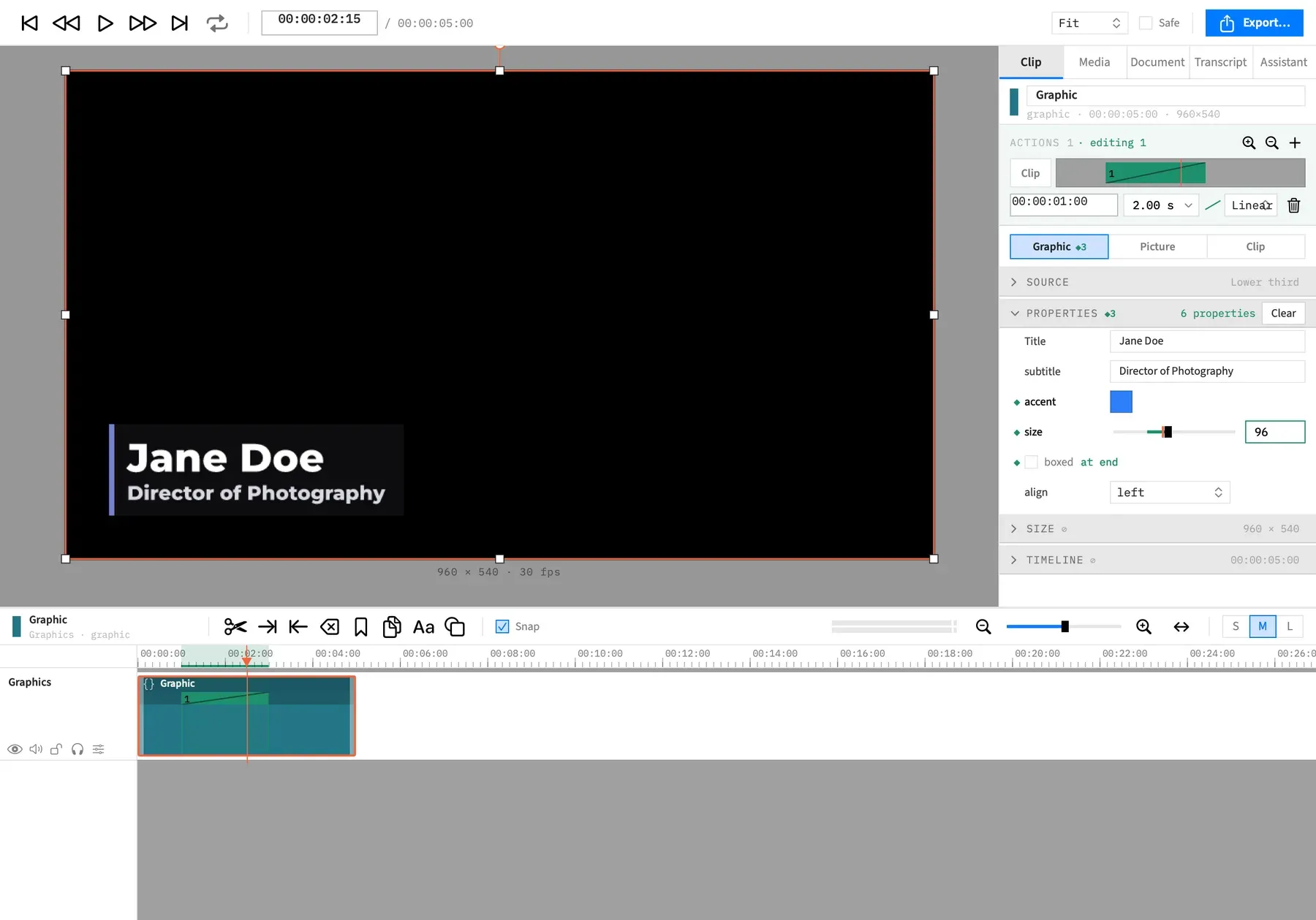
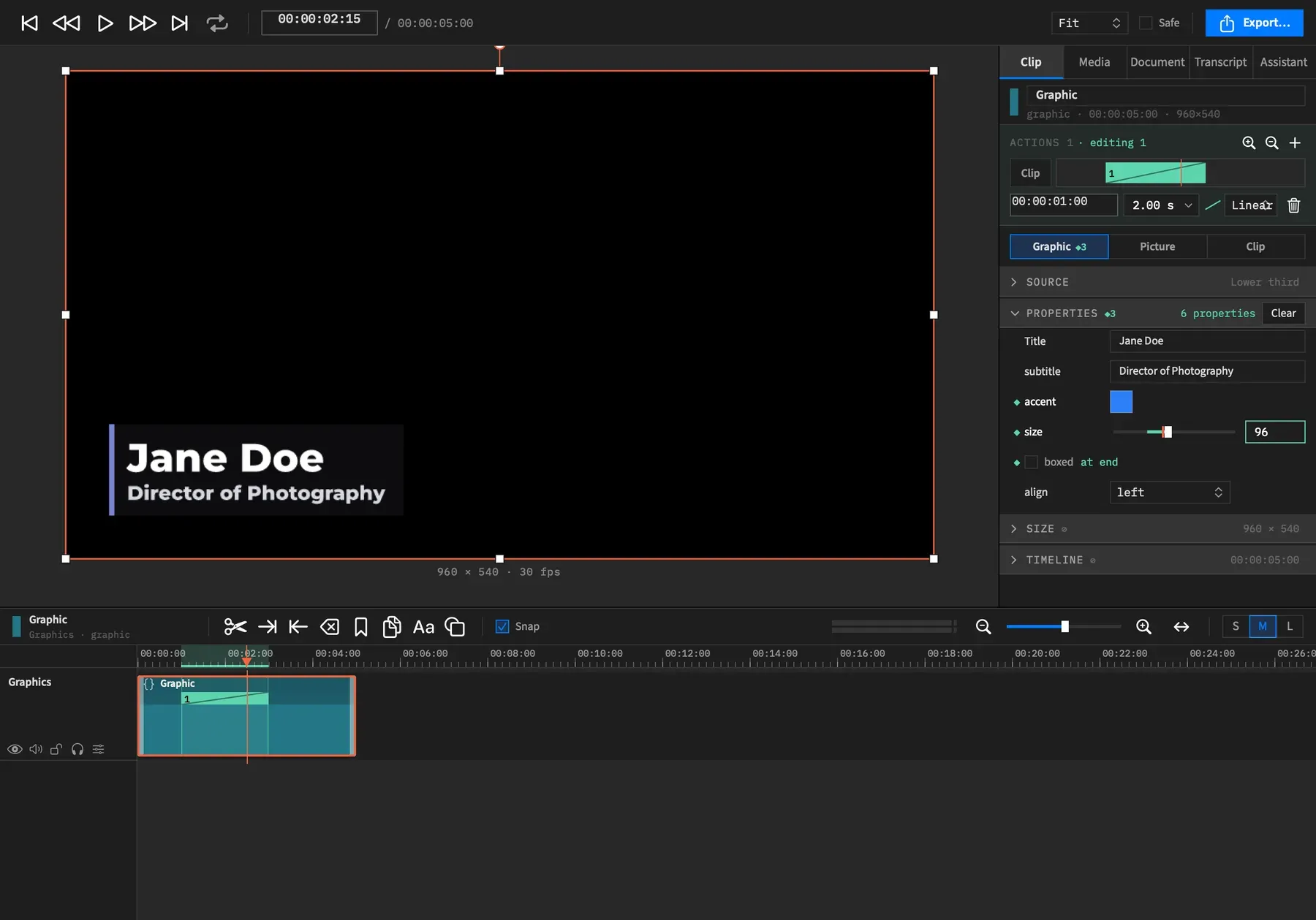
Every action on a clip shows up in two places: as a band on the clip in the timeline, and as a band in the action lane at the top of the Clip tab. Both are numbered the same way, and you can click or drag a band in either. This page tells you how to read them and what the lane’s buttons and fields do.
- Menu
- Clip ▸ Add ActionView ▸ Timeline Track Height
- Keys
- ⌥⌘KZ
- Where
- Timeline, under a clip's name stripClip tab ▸ action lane
- Agent tools
add_actionset_actionset_action_endremove_action
Bands on the timeline
Section titled “Bands on the timeline”A clip that has an action shows a lane directly under its name strip, with one band per action. Each band spans the action’s time on the clip, and is at least 2 pt wide however short the action is.
Actions are numbered in time order, so a band’s number is its place on the clip, and moving an action past another changes both numbers. The number is the same on the timeline and in the Clip tab.
Click a band to select the clip and that action. The playhead moves to the action’s end, so the preview shows the state you’re editing. Drag a band’s body to move the action, or a grip to resize it. See Select an action and Move, resize or remove an action.
The selected action’s band is solid. A wash runs down the clip under its span, and the span is shaded on the ruler.
A band on a locked track doesn’t respond. It doesn’t highlight, and clicking it selects the clip, not the action.
Band detail by track height
Section titled “Band detail by track height”How much a band shows depends on View ▸ Timeline Track Height.
| Track height | Lane height | A band shows |
|---|---|---|
| Small | 5 pt | A plain bar. |
| Medium | 12 pt | Its number, a zoom glyph for a zoom action, and the curve on the selected band. |
| Large | 18 pt | All of that, plus the properties it changes, such as scale, x, y or speed. A graphic’s animated properties are listed with the clip’s other properties. |
The zoom glyph is a small magnifier. It appears on any action that changes exactly scale, x and y, however the action was made.
From Medium, a clip whose rate moves also draws its rate line over the bands. While the line is there, a selected Speed band doesn’t draw its curve. See Speed ramps.
Band hover
Section titled “Band hover”Point at a band, on the timeline or in the Clip tab’s lane, and it brightens and shows a 5 pt grip at each end. The pointer is an open hand over the body and a resize arrow over a grip.
A band 15 pt wide or narrower has no grips, so you can only move it. On the timeline, zoom in to make it wider.
The action lane in the Clip tab
Section titled “The action lane in the Clip tab”The action lane is a small timeline of the selected clip. It’s pinned at the top of the Clip tab, between the clip’s name and the sub-tabs, so it stays put while you scroll the sections below. The whole clip always fits the lane’s width, however long it is.
Header row
Section titled “Header row”The header reads ACTIONS, then the number of actions or “none”. While action N is selected, it adds “· editing N”. The three buttons at its right end are:
| Button | Tooltip | What it does |
|---|---|---|
| Zoom-in magnifier | Zoom to Region (Z) | Lets you draw a rectangle on the canvas to zoom to. See Zoom to Region. |
| Zoom-out magnifier | Zoom Back | Adds an action that returns the clip to its own scale and position. See Zoom Back. |
| Plus | Add Action (⌥⌘K) | Adds an action at the playhead. See Add an action. |
While you drag a band in the lane, a readout takes the place of the header’s text, with times counted from the clip’s start. The buttons stay.
Lane row
Section titled “Lane row”The Clip chip sits at the left. It’s highlighted while no action is selected, and clicking it deselects the action, so the Clip tab goes back to editing the clip itself.
To its right is the whole clip, with its actions as numbered bands and the playhead as a thin line. Click or drag a band here as you would on the timeline. These bands show their number, the zoom glyph and the selected band’s curve whatever the track height, and never list properties. A clip whose rate moves draws its rate line here too.
A clip with no actions shows “no actions · ⌥⌘K adds one”.
What else the lane shows
Section titled “What else the lane shows”Under the bands, the lane draws the same marks the timeline draws for the clip, so you can place an action around them:
| Mark | Where | Shown when |
|---|---|---|
| Hatching | At the clip’s start, as long as the overlap | The clip has a transition and overlaps the clip before it. |
| Fades | Triangles along the bottom, at either end | The clip has sound and a fade in or out. |
| Motion wedges | Triangles hanging from the top, at either end | The clip has an active In or Out motion preset. |
Detail row
Section titled “Detail row”This row appears only while an action is selected. Its fields have no labels, so read them from left to right as they’re listed here. Each change is one undo step.
| Control | What it does | Range |
|---|---|---|
| Start | Where the action starts, as a timecode measured from the clip’s own start. | |
| Length | How long the action takes, in seconds, snapped to whole frames. | 0.01 to 36,000 s, with quick picks of 0.25, 0.5, 1 and 2. A longer value is held to the clip’s length. |
| Curve | How the action eases from its start to its end state, with a glyph of the curve beside it. | Linear, In, Out, In Out |
| Trash button | Removes the action. ⌫ does the same. |
If Frame Job can’t take a typed Start or Length, for example because the action would overlap another or run past the clip’s end, it beeps and gives the reason at the foot of the inspector, after “Refused:”. The line stays until the project next changes or you click it.
Several clips selected
Section titled “Several clips selected”With several clips selected the lane reads “Select one clip to edit its actions.”, and there’s no count, Clip chip, bands or detail row.
The three buttons stay. Add Action still works, and puts the action on the first selected clip under the playhead without selecting it. Zoom to Region and Zoom Back need a single clip, so they beep.
The gutter mark
Section titled “The gutter mark”While an action is selected, each row of the Clip tab it animates has a ◆ in its left gutter. Hover over the ◆ and it turns into ×, with the tooltip “Remove from action N”. Click it to take that row out of the action, as one undo step, Remove from Action. The row’s right-click menu has the same command.
See Set what an action animates to for all the marks and what they mean.