
Position, scale, rotation and opacity
The Transform section holds the numbers behind a clip’s place in the frame. Use it when you want an exact value, or when a button can do the work of a drag.
- Where
- Clip tab ▸ Picture ▸ TransformHandles on the canvas
- Agent tools
set_video
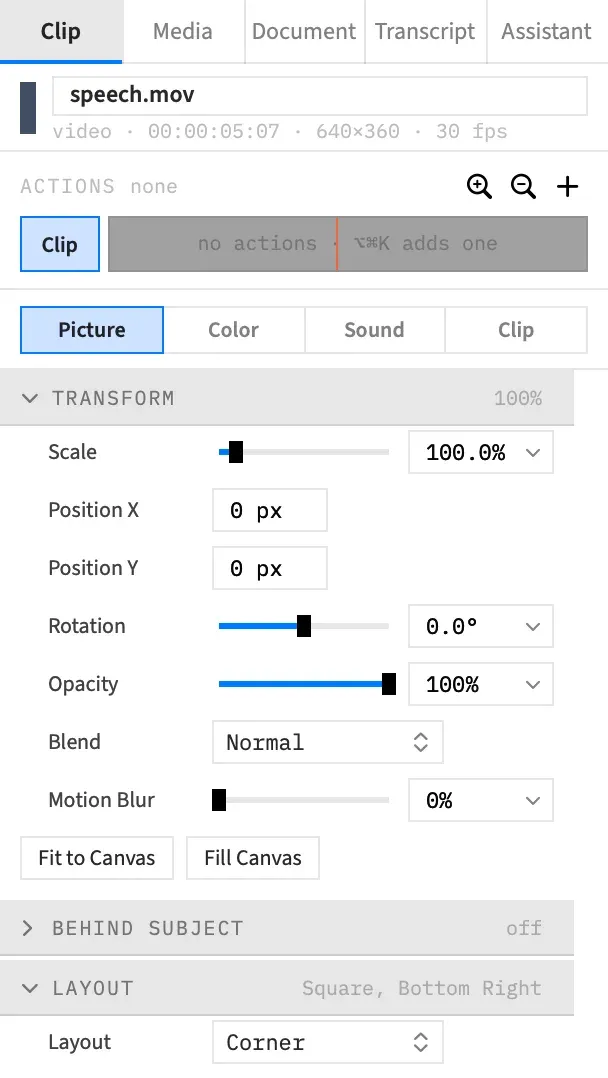
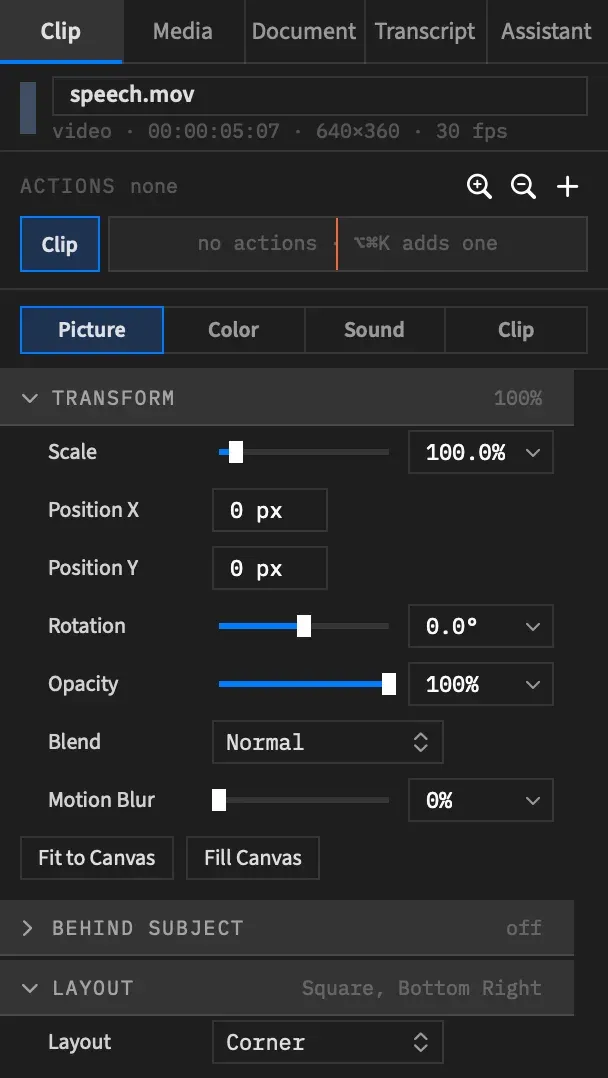
The Transform section
Section titled “The Transform section”Every clip that draws has Transform, text and shapes included, and it’s the one section on the Picture tab that starts open. Closed, its summary reads the scale, and the rotation when there is one: 150% · 45°.
| Row | What it does | Default | Range | Quick picks |
|---|---|---|---|---|
| Scale | The clip’s size | 100 % | 1 to 1000 % | 25, 50, 75, 100, 150, 200, 400 |
| Position X | Distance right of the canvas centre | 0 px | −20,000 to 20,000 px | |
| Position Y | Distance below the canvas centre | 0 px | −20,000 to 20,000 px | |
| Rotation | The clip’s angle | 0° | −180° to 180° | −90, −45, 0, 45, 90, 180 |
| Opacity | How solid the clip is | 100 % | 0 to 100 % | 0, 25, 50, 75, 100 |
| Blend | How the clip combines with what’s under it. See Blend modes. | Normal | Eight modes | |
| Motion Blur | Smear on fast movement. See Motion blur. | 0 % | 0 to 100 % | 0, 25, 50, 100 |
Under the rows are Fit to Canvas and Fill Canvas. Inspector fields covers typing in a field, its slider and its quick picks.
To do the same by hand on the picture, see Move, scale and rotate.
At 100 % a video or picture draws at its native pixels, one source pixel to one canvas pixel, so a 1920 × 1080 clip on a 3840 × 2160 canvas covers a quarter of it. The field shows one decimal place.
A new clip bigger than the canvas doesn’t start at 100 %. Fit new clips to canvas on the Document tab is on unless you change it, and while it’s on the clip starts at the scale that fits.
Scale pivots on the centre of the uncropped picture. It works on every clip that draws, text, shapes and graphics included.
Position
Section titled “Position”Position places the clip’s centre in canvas pixels, measured from the centre of the canvas. At 0, 0 the clip sits in the middle. Position X runs right and Position Y runs down, so negative values go left and up.
Both are typed fields, shown in whole pixels, with no slider. To place a clip by eye, drag it on the canvas. On a cropped clip the fields still measure the centre of the uncropped picture.
Rotation
Section titled “Rotation”Rotation turns the clip about its centre, and a positive angle turns it clockwise on screen. The field shows one decimal place, and the rotation grip on the canvas sets the same value by hand.
Opacity
Section titled “Opacity”Opacity sets how see-through the clip is: at 100 % it’s solid, and at 0 % it’s fully transparent.
Fit and fill
Section titled “Fit and fill”Both buttons scale each selected clip and centre it, setting its position to 0, 0.
- Fit to Canvas makes the whole picture fit inside the canvas, so you may see the background at two edges.
- Fill Canvas makes the picture cover the whole canvas, so its edges may run off two sides.
Each clip gets its own scale from its own size, and all of them together are one undo step. A shape uses its box, a graphic its size and a nest its own canvas.
Good to know:
- Text clips are skipped, because their size comes from the words. So is any clip with no known size. If that leaves nothing to scale, Frame Job beeps.
- Both buttons measure the uncropped picture, so a cropped clip can leave a gap after Fill Canvas.
- Rotation stays as it is and isn’t counted, so a rotated clip may not fit or fill the way it would upright.
- A scale past the 1 to 1000 % range isn’t applied, so a very small picture on a large canvas can get an error from Fill Canvas instead.
Reset in the section’s header puts position, scale, rotation, opacity, blend and motion blur back to their defaults in one step. It shows only while the section differs from its default.
It leaves the crop alone, which has its own Reset. To put back a single row, right-click its label and choose Reset to default.
Animate these values
Section titled “Animate these values”With an action selected, Scale, Position, Rotation, Opacity and Motion Blur set the action’s end state, and the clip ramps there along the action’s curve. Blend switches at the action’s end instead. Reset is hidden while you edit an action. Clear appears there once the action changes one of these rows, and takes the section out of the action.
See Set what an action animates to.
No stretching
Section titled “No stretching”Scale is uniform for pictures. A video, image or nest always keeps its proportions, and there’s no separate width and height. Scale and the canvas handles keep a graphic’s proportions too.
Three kinds of clip can change on one axis: a shape, through its box’s width and height, text, through its wrap width, and a graphic, through Width and Height in its Size section, which draw it at the new size rather than stretching it. See Shape fill, stroke and size, Text box and wrapping and Graphic size and timing.
With an agent
Section titled “With an agent”set_video sets these with x, y, scale, rotation, opacity and blend. Some of its numbers differ from the inspector’s:
| Key | Takes |
|---|---|
scale |
0.01 to 10, where 1 is native pixels, the inspector’s 100 % |
opacity |
0 to 1 |
x, y, rotation |
Any finite number, with no limit like the inspector’s |
A value outside its range gets an error rather than being pulled back into the range. See Tools: picture and grade.