
Make a speed ramp
Clip ▸ Speed Ramp… makes a whole speed ramp in one step. Pick a shape and a rate, and the sheet adds the Speed actions for you. The clip keeps its start and its length, and plays more or less of its file.
- Menu
- Clip ▸ Speed Ramp…
- Agent tools
add_speed_ramp
Make a ramp
Section titled “Make a ramp”-
Select one clip. Clip ▸ Speed Ramp… is available only when exactly one video or audio clip is selected. It has no keyboard shortcut.
-
To ramp part of the clip, set an in/out range inside it first. See The span.
-
Choose Clip ▸ Speed Ramp….
-
Choose a Shape and a Rate. For Speed Dip and Speed Burst, choose a Hold too.
-
Read the readout, then choose Apply.
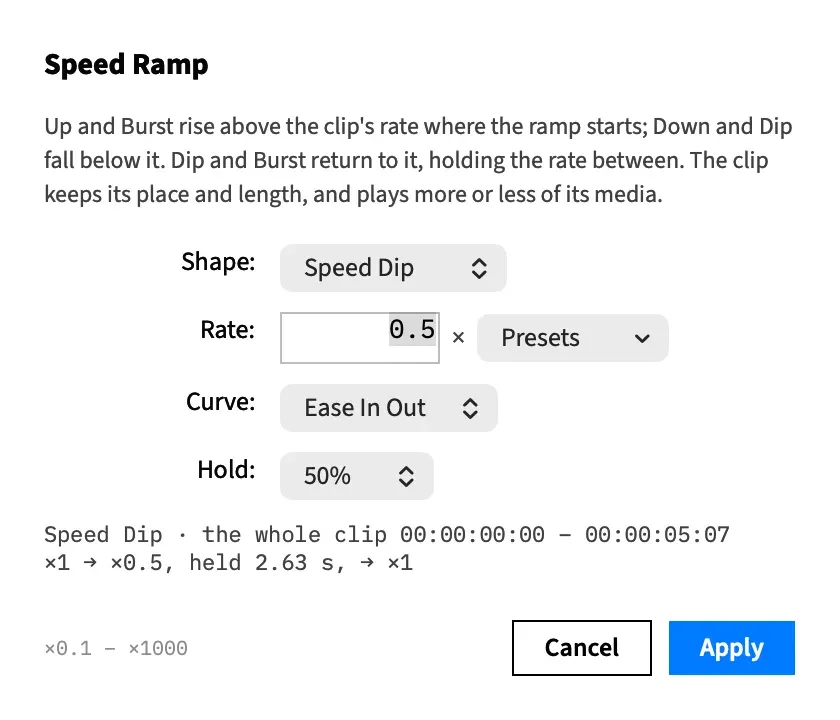
Apply adds the actions as one undo step named after the shape, such as Speed Dip. When captions move with it, the step’s name adds “and Re-time Captions”.
The result is ordinary Speed actions, one for Ramp Up and Ramp Down and two for Speed Dip and Speed Burst. They show as bands on the action lane and you can edit them by hand like any other action.
The span
Section titled “The span”The ramp covers the timeline’s in/out range if that range lies entirely inside the clip. Otherwise it covers the whole clip, and an in/out range that runs past either edge of the clip is ignored.
The readout says which one you’ve got.
The shapes
Section titled “The shapes”| Shape | What it makes | Rate must be | Default rate |
|---|---|---|---|
| Ramp Up | One action over the span, rising from the current rate to your rate and holding it after. | Above the rate where the span starts | ×2 |
| Ramp Down | One action over the span, falling to your rate and holding it after. | Below the rate where the span starts | ×0.5 |
| Speed Dip | Two actions: a ramp down to your rate at the start of the span, a hold, and a ramp back to the starting rate at its end. | Below the rate where the span starts | ×0.5 |
| Speed Burst | Two actions: a ramp up to your rate at the start of the span, a hold, and a ramp back to the starting rate at its end. | Above the rate where the span starts | ×2 |
“Up” and “down” describe the rate where the span starts, not time. That rate is the clip’s own rate, or the rate an earlier Speed action ended on, so a ramp can’t start slow and rise to the clip’s own rate. For that, set the clip to the slow rate first, then use Ramp Up.
Speed Dip is the default because it plays less of the file, so it fits a clip that already uses its whole file. Anything that rises past the starting rate needs footage beyond the clip’s current end. If a clip has none spare, trim its end first.
The controls
Section titled “The controls”| Control | What it does | Default |
|---|---|---|
| Shape | One of the four shapes above. Choosing a shape resets Rate to that shape’s default. | Speed Dip |
| Rate | The rate the ramp reaches, from ×0.1 to ×1000. Presets offers 0.25×, 0.50×, 1×, 1.5×, 2×, 4×, 10× and 100×, the same as the Speed sheet. | Set by Shape: ×0.5 for Speed Dip |
| Curve | How each new action eases: Ease In Out or Linear. | Ease In Out |
| Hold | For Speed Dip and Speed Burst, how much of the span stays at your rate: None, 25%, 50% or 75%. Dimmed for Ramp Up and Ramp Down, which hold nothing. | 50% |
The sheet opens on these defaults every time.
With Hold, the rest of the span is split evenly between the two ramps, each rounded down to whole frames and at least one frame long. On a 6-second span at 50%, each ramp takes 1.5 s and the rate holds for 3 s. At None the two ramps meet.
The readout
Section titled “The readout”The sheet tries the ramp on every change, including each keystroke in Rate, and shows what it would make.
The first line gives the shape and the span in timecode, such as Speed Dip · the whole clip 00:00:02:00 – 00:00:08:00. It says the range instead when the ramp covers the in/out range.
The second line gives the rates, such as ×1 → ×0.5, held 3.00 s, → ×1. If the ramp can’t be made, the second line gives the reason instead and Apply is unavailable.
When Apply is unavailable
Section titled “When Apply is unavailable”Nothing changes in any of these cases. The readout gives the reason. It can quote clip and action ids, which aren’t the numbers on the bands, and times in ticks, Frame Job’s own unit of time, where 600,000 ticks make a second. The checks run in this order, so fixing one can show the next.
| The problem | What to do |
|---|---|
| The span overlaps an action already on the clip. This counts any action, including one that would sit inside a dip’s or burst’s hold. The reason names it, and it’s never replaced. | Set an in/out range clear of the action, or move or remove it. |
| A Speed Dip or Speed Burst span is shorter than two frames. | Widen the in/out range. |
| The rate is on the wrong side of the starting rate, such as a Ramp Up to a rate that isn’t faster. | Change Rate or Shape. The reason gives the starting rate. |
| The clip is linked to its detached sound. | Choose Attach Audio first. |
| The ramp would play past the end of the file. | Use the largest rate that fits, which the reason names, or trim the clip’s end. |
Good to know
Section titled “Good to know”- Taking a clip with sound past ×12 asks once first, on the sheet. Set Speed closes the sheet and applies the ramp, and Cancel leaves the sheet open. See Sound at high speed.
- Captions on a Captions track are re-timed in the same step. See Captions follow a speed change.
With an agent
Section titled “With an agent”add_speed_ramp takes clip, rate and a shape: ramp_up, ramp_down, speed_dip or speed_burst. It isn’t tied to the in/out range. Give from and to together, measured from the clip’s start, to set the span, or neither for the whole clip. A span running past the clip’s end isn’t accepted, which can’t happen from the sheet.
It can also use any action curve and any hold from 0 to 0.9, and a larger hold comes down to 0.9. A hold on ramp_up or ramp_down is an error. So is a rate of zero or less, and any other rate outside ×0.1 to ×1000 is brought inside that range.
The result gives the new actions’ ids in new_actions, adds audio_left_out and audio_note when a clip goes past ×12, and adds captions_retimed and captions_removed when captions moved. See add_speed_ramp.