
Select an action
Select an action to change what it animates to. While one is selected, the fields in the Clip tab show and set what the clip reaches at the action’s end, not the clip’s own values.
- Keys
- Esc
- Where
- A band on the timelineClip tab ▸ action lane
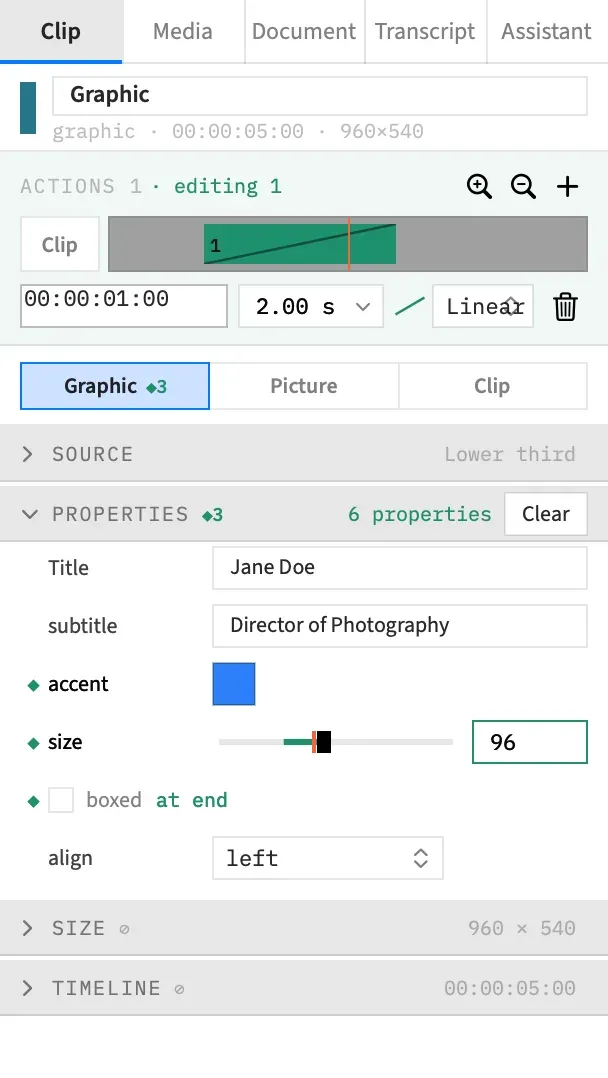
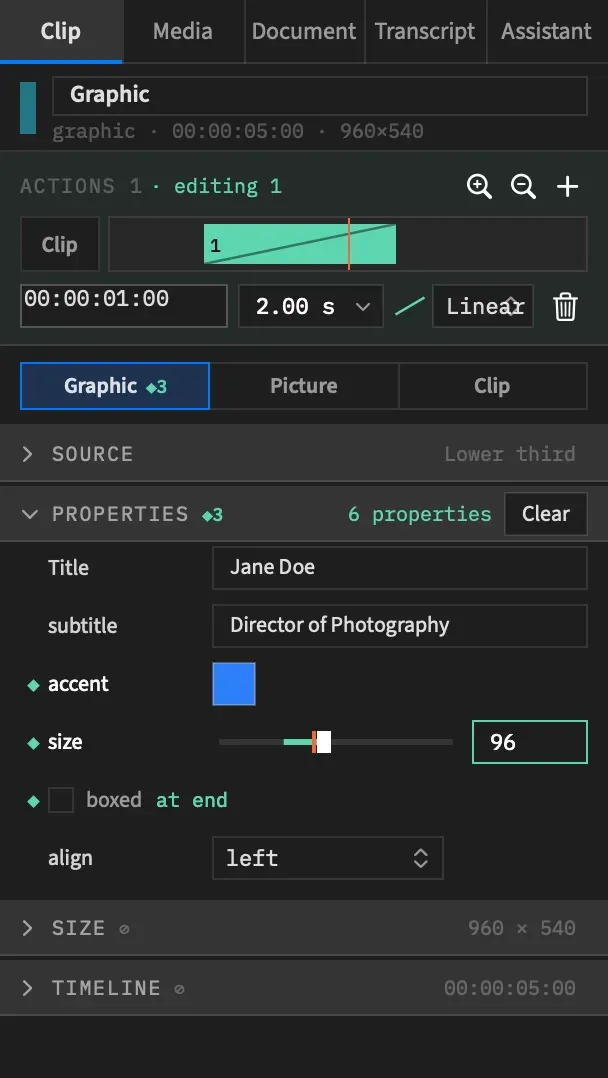
Click a band
Section titled “Click a band”Click an action’s band on the timeline or in the Clip tab’s action lane. The action is selected, and the Clip tab then edits its end values.
The playhead moves to the action’s end, so the preview shows the state you’re editing. When the action ends with the clip, the playhead stops one frame short, because the clip’s very end has no picture.
Clicking a band on a clip that’s part of a multi-clip selection selects only that clip and its action.
On the timeline the action is selected when you press. In the Clip tab’s lane it’s selected when you let go, so a drag in the lane selects the band when you drop it. See Move, resize or remove an action.
Adding selects the action
Section titled “Adding selects the action”An action made with Add Action, Zoom to Region or Zoom Back is selected as it’s added. The playhead doesn’t move for this.
Play or scrub into a span
Section titled “Play or scrub into a span”While a clip is the only one selected, moving the playhead into one of its actions selects that action. Playing, scrubbing and stepping all count.
Selecting a clip counts too. If the playhead is already inside one of its actions, that action is selected along with the clip.
The playhead has to enter the span. An edit that puts a span under a still playhead selects nothing, and neither does an undo or a redo.
How a selected action looks
Section titled “How a selected action looks”On the timeline:
- The action’s band is solid.
- A wash runs down the clip under the action’s span.
- The span is shaded on the ruler.
In the Clip tab:
- The action lane is tinted, and its header adds “· editing N” after the count.
- The band is solid, and the Clip chip is no longer highlighted.
- A detail row appears with the action’s start, length, curve and trash button.
The Clip chip
Section titled “The Clip chip”The Clip chip sits at the start of the action lane. It’s highlighted while no action is selected, which tells you the fields edit the clip. Click it while an action is selected to leave the action.
Leave an action
Section titled “Leave an action”Do any of these, and the Clip tab shows the clip’s own values again:
- Press Esc.
- Click the Clip chip.
- Select a different clip.
Moving the playhead out of the span doesn’t leave the action. It stays selected, and the fields keep editing its end state.
After Esc or the Clip chip, the playhead can stay inside the span without selecting the action again. It’s selected the next time the playhead leaves and comes back.
With no action selected, Esc does whatever it would do otherwise.
Selection is not an edit
Section titled “Selection is not an edit”Selecting an action isn’t an undo step, and it isn’t saved with the project. A project always opens with no action selected.
Good to know
Section titled “Good to know”- Only a single selected clip can have a selected action. Select a second clip and the action is deselected. The action lane then reads “Select one clip to edit its actions.”
- Where two bands sit under the pointer, the one painted on top wins, which is the later one.
- Clicking a band that touches the next action puts the playhead on the first frame of that next action, but the one you clicked stays selected.
- Removing the selected action deselects it.