
Remove Background
Remove Background keeps the person in a video or picture and makes the rest transparent, so whatever is on the tracks behind shows through. You don’t need a green screen.
- Menu
- Clip ▸ Remove Background
- Where
- Clip tab ▸ Picture ▸ Background
- Needs
- Nothing. The masks are made on your Mac, with no key and no upload.
- Agent tools
set_videoanalyze_cutoutget_media_analysis
Turn it on
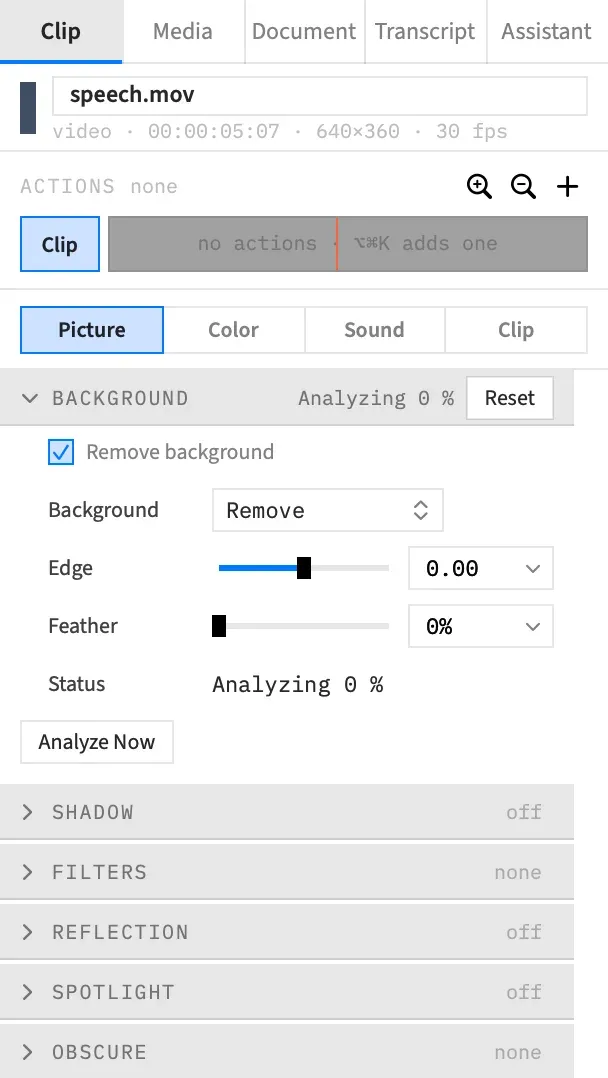
Section titled “Turn it on”Select a clip and choose Clip ▸ Remove Background, or tick Remove background in the Clip tab’s Background section. The menu item has no keyboard shortcut. Frame Job starts making the masks straight away, and you don’t need to do anything else. Put whatever should show through on a track behind the clip.
It works on clips of a video file that has a picture, freeze frames of one, and image clips. Text, shape, graphic, adjustment and nest clips can’t be cut out, and the section appears only when every selected clip can.
With several clips selected:
| Control | What it does |
|---|---|
| Clip ▸ Remove Background | When every clip that can be cut out already is, it turns them all off. Otherwise it turns on the ones without it, and each clip that has it keeps its own values. Selected clips that can’t be cut out are left alone. |
| Remove background checkbox | Ticking it gives each clip without it the defaults. Unticking it removes it from all of them. |
The menu item shows a check when every target is cut out, a dash when some are, and nothing when none are. It’s greyed when no selected clip can be cut out. Either way, the change is one undo step, Remove Background.
The section comes right after Chroma Key and is closed by default. Its header reads “off” when no selected clip has Remove Background. Otherwise it reads the Status, or “on” with several clips selected. Reset turns Remove Background off.
Subject, Background, Edge and Feather stay greyed until every selected clip has Remove Background on. A selection where only some clips have it keeps them greyed.
Tune the cutout
Section titled “Tune the cutout”Subject
Section titled “Subject”This row shows only when every selected clip is a picture. See Pictures.
| Choice | What it keeps |
|---|---|
| Person (default) | The person |
| Foreground | Every foreground subject it finds, whether that’s a person, a pet or an object |
It reads mixed when the selected pictures differ. A clip of a video file or a freeze frame always keeps the person.
Background
Section titled “Background”Remove, the default, draws the subject alone. Keep draws the whole clip, but Frame Job still knows where the subject is, so another clip can go behind them. The masks are made either way.
Keep is how a title goes behind a person in frame, and it’s what Text Behind Subject gives a clip with no cutout.
Pulls the outline in or pushes it out. Below 0 pulls in, and above 0 pushes out. The range is −1 to 1, the default is 0, and the quick picks are −0.5, −0.25, 0, 0.25 and 0.5.
A mask is more or less sure of each point in the picture. Edge sets how sure it has to be. With Feather at 0:
| Edge | The outline sits where the mask is |
|---|---|
| −1 | 7/8 sure it’s the person |
| −0.5 | 3/4 sure |
| 0 | Half sure |
| 0.5 | 1/4 sure |
| 1 | 1/8 sure |
Across a band of pixels where the mask fades from background to person, Edge at −1 or 1 moves the outline about three eighths of the band’s width. Raising Edge never removes anything a lower value kept.
Feather
Section titled “Feather”How soft the outline is. The range is 0 to 100 %, the default is 0 %, and the quick picks are 0, 10, 25 and 50.
Inside an action
Section titled “Inside an action”With an action selected, Edge and Feather set the value at the action’s end and animate toward it. Background switches at the action’s end, and its row shows “at end”.
The Remove background checkbox, Subject and the section’s Reset always change the clip itself, even with an action selected, and the checkbox and Subject rows show ⊘. You can’t turn a cutout off at the end of an action.
How the masks are made
Section titled “How the masks are made”A mask is the outline of the subject in one frame. You never start this yourself. When you turn Remove Background on, or change what a cutout clip plays, Frame Job makes masks for the frames that clip plays, in the background, while you go on working.
Masks are made on this Mac with person segmentation from Apple’s Vision framework, at its balanced setting. Nothing is uploaded, and no key is needed. They’re kept per media in the project’s cache, so a frame that’s been analysed is never analysed again. See On-device media analysis.
Until a frame has its mask, the clip draws whole in the preview, as if Remove Background were off. A paused frame redraws by itself once its mask is ready, and a playing preview picks new masks up on its next frame.
Status
Section titled “Status”Status says where the clip’s masks stand, and why a clip is drawing whole.
| Status | What it means |
|---|---|
| Analyzing N % | The masks are being made. The figure stops at 99 until they’re done. |
| Ready | Every frame the clip plays has its mask. |
| No person found | Every frame was looked at and no person is in the clip, so it draws whole. A frame counts as holding a person when at least 0.5 % of its mask is above half. |
| No subject found | A picture with Subject set to Foreground was looked at and no subject was found, so it draws whole. |
| Failed: and the reason | The masks couldn’t be made. The media file may be missing or unreadable, or the masks couldn’t be written. Fix the cause and choose Analyze Now. |
| No picture to analyze | The clip plays no frame of its file. |
| Off | Remove Background is off. |
| — | Several clips are selected. |
Analyze Now
Section titled “Analyze Now”Masks start on their own, so you’ll mostly want this after a failure. Analyze Now asks again for the masks the clip needs, then retries a run that failed. It’s enabled only while a clip is analysing or has failed.
Pictures
Section titled “Pictures”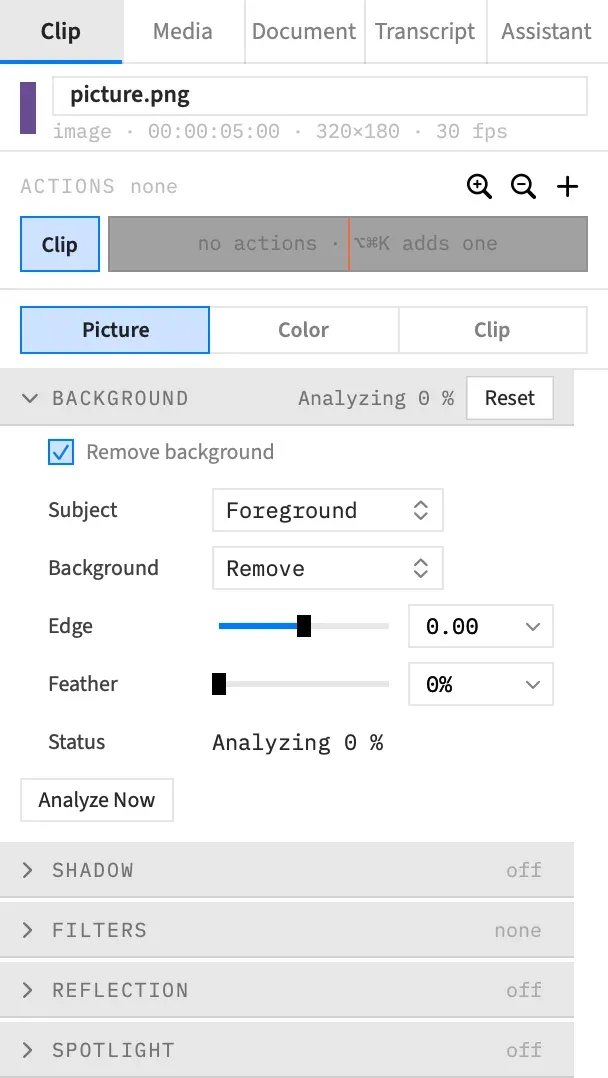
A picture gets one mask, made once on this Mac from the picture as the preview draws it, the right way up. When it’s done, Status goes from Analyzing to Ready, or to No person found or No subject found.
Person uses the same person segmentation as a video. Foreground uses the Vision framework’s foreground instance mask, which keeps every foreground subject it finds. If it finds none, Status reads No subject found and the picture draws whole.
Exports
Section titled “Exports”With Background on Remove, an export draws the subject alone in every frame, GIF and APNG included. It waits until every mask its range needs is made, with no time limit, and the Exporting sheet reads “Preparing” and the file’s name until then. You can cancel it while it waits.
If a mask can’t be made, the export fails with “Clip n’s person masks could not be made: …” and writes no file. For a picture with Subject set to Foreground, the message says “foreground masks”.
A single frame doesn’t wait as long. File ▸ Save Frame… (⌥⌘E) waits up to 30 seconds for the masks it needs. If they aren’t ready by then, it saves the frame with the clip whole, and a sheet titled “Saved without Remove Background” names the files drawn whole. An agent’s render_frame waits the same 30 seconds, and its reply names any clip it drew whole.
Good to know
Section titled “Good to know”- Once its masks are made, a clip draws whole only when no frame it plays has a person, or when a picture with Subject set to Foreground has no subject. If the person leaves the picture for part of a clip, those frames have little or nothing to keep, so what’s behind shows through.
- The recorder panel can do this for you. See Polish when a recording lands.
With an agent
Section titled “With an agent”An agent turns this on with set_video, as the checkbox does, and sets the same options there. See Tools: picture and grade.
analyze_cutout can wait up to 60 seconds for a clip’s masks to settle, and it reports the subject’s mean centre in the picture, which the app doesn’t show. For a video, get_media_analysis says which stretches of the file hold a person. See Tools: reading analysis.