
Set what an action animates to
An action moves a clip towards its end state: the values the clip reaches when the action finishes. An action made with Add Action has an empty end state, so it changes nothing until you say what it animates to.
- Where
- Clip tab, with an action selectedThe canvas, with an action selectedRight-click a row in the Clip tab
- Agent tools
set_action_end
Edit the end state
Section titled “Edit the end state”-
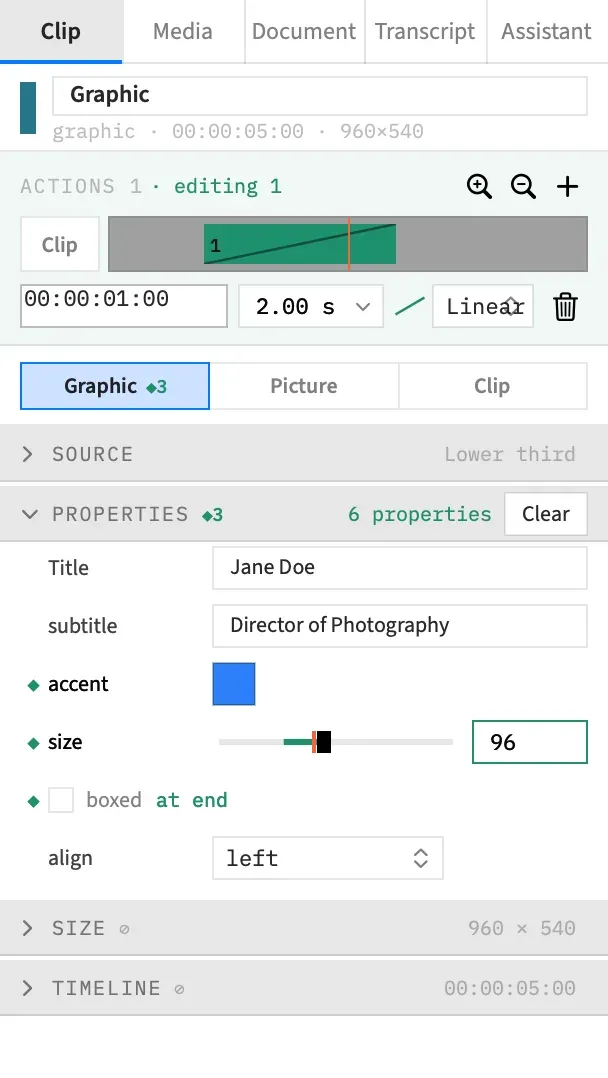
Select the action. Clicking its band also moves the playhead to the action’s end, so the preview shows the state you’re editing.
-
Change any row in the Clip tab. Type a value, drag a slider, pick from a pop-up or choose a colour.
-
Move the playhead through the action, or play it, to see the clip travel to what you set.
While an action is selected, every field shows the value the clip reaches at the action’s end, and every edit writes that value. Changing a row adds it to the action, and the row gets a ◆.
Your edits follow the selected action, not the playhead. If the playhead wanders out of the action’s span, the action stays selected and the fields keep showing its end. If it moves into another action’s span on the clip, that action becomes the selected one.
To edit the clip itself again, press Esc or click the Clip chip at the start of the action lane.
What happens along the way depends on the kind of value. Numbers and most colours ramp along the action’s curve, and switches, pop-ups and text hold and then change at the end. See How values change over an action.
Edit on the canvas
Section titled “Edit on the canvas”With an action selected, the canvas writes the end state too. Moving, scaling, rotating or cropping the clip, dragging a text clip’s wrap width and dragging an obscure region all change that action’s end, not the clip.
The box on screen still shows the frame at the playhead, while a drag starts from the end state and changes it by the distance you drag. With the playhead partway through the action, the box moves only part of the way. Work with the playhead at the action’s end, which is where clicking the band puts it, and the box lands where you let go.
Two things on the canvas always edit the clip itself:
- A drag on a multi-clip selection. Only a single selected clip can have a selected action.
- Resizing a shape’s box, or dragging a line’s or arrow’s end points. A shape’s own properties can’t animate. Moving a shape still writes the action’s end.
Switch a property off
Section titled “Switch a property off”Untick a switch inside an action and that property turns off when the action ends. Drop shadow, a text clip’s Outline and Backdrop, and sound switches such as Limit peaks all work this way, and so does a single band of the EQ.
The property stays on through the action, then goes off as it ends. The row shows ◆ and “at end”.
This is different from taking the row out of the action, which stops the action changing the property at all.
Read the row marks
Section titled “Read the row marks”Each row in the Clip tab has a narrow gutter to the left of its label. The mark there says how the row relates to the selected action.
| Mark | What it means | How else you can tell |
|---|---|---|
| ◆ | This action animates the row. | The label turns strong, and a field or pop-up gets a border in the action colour. |
| ◇ | Another action on the clip animates the row. | Its tooltip reads “Changed by action N”. |
| ○ | The row follows a value this action animates. Gain follows Volume, for example. | |
| ⊘ | Actions don’t animate this row, so an edit here changes the clip. | The label turns faint. |
With an action selected, a blank gutter usually means the row can animate and nothing is animating it yet. It isn’t a promise: a few controls carry no mark and still change the clip, such as In, Out and Reverse in the Timing section.
◇ also shows when no action is selected, on every row an action on the clip animates. It’s a quick way to see what’s moving before you pick an action.
The Normalize button changes the clip whatever is selected, and so do the buttons that add or remove a filter or an obscure region. While an action is selected a small boxed clip tag follows them, and the tag’s tooltip reads “Actions don’t animate this. It changes the clip.”
The “at end” tag
Section titled “The “at end” tag”A control that can’t blend says “at end” beside it once the action animates it. It holds its old value until the action ends, then switches.
Pop-ups, checkboxes, segmented controls and text fields all work this way. Most colours ramp, but a few can’t blend, such as a cursor’s ripple colour, and those say “at end” too.
See the value change as it plays
Section titled “See the value change as it plays”With an action selected, the field reads the value at the action’s end. The rest of the row shows how it gets there.
On a slider, the rail fills in the action colour from the value at the action’s start to the knob. A coral tick marks the value at the playhead. The tick shows whenever the playhead is inside the clip and that value differs from the knob, even with no action selected.
On a row with no slider, a coral tag gives that value in words, such as “now 1.50×”. It shows while the playhead is inside the clip and the value there differs from the field.
Read the sections and sub-tabs
Section titled “Read the sections and sub-tabs”Section headers carry the same marks as their rows:
- ◆N counts what the selected action animates in that section.
- ◇ means another action animates a row in the section.
- ⊘ means every row in the section is ⊘, and the section also says “Actions don’t animate this. Edits here change the clip.”
The summary at the right of a header turns the action colour when the action animates the section.
Sub-tab counts
Section titled “Sub-tab counts”Each sub-tab’s label shows ◆N when the selected action animates N things on it, so you can see what an action does without opening every tab.
| Sub-tab | What counts |
|---|---|
| Picture | Each property. A zoom action reads ◆3, for its scale and its two position values. |
| Color | Light and Color together count as one. Look, Wheels, Curves and Qualifier count as one each, however many values inside them change. On an adjustment clip, Strength counts as one too. |
| Sound | Each property. |
| Text | Each property. |
| Graphic | Each property the action animates. See Animate graphic properties. |
| Clip | A speed change, as ◆1. See Build a ramp by hand. |
| Shape | Nothing, ever. A shape’s own properties can’t animate. |
Sections open by themselves
Section titled “Sections open by themselves”Selecting an action opens the sections it animates on the sub-tab you’re looking at, and they stay open for as long as that action is selected. A sub-tab you switch to later opens its own animated sections the first time it shows.
Close one by hand and it stays closed while that action is selected. Opening by itself doesn’t change your own layout: leave the action and the sections it opened go back to how you had them.
Take a property out of the action
Section titled “Take a property out of the action”Taking a property out stops the action changing it. The row falls back to what the clip held before the action, and the action itself stays.
| To take out | Do this | Undo step |
|---|---|---|
| One row | Hover over its ◆ and click the × that replaces it. The tooltip reads “Remove from action N”. | Remove from Action |
| One row | Right-click it and choose Remove from action N. | Remove from Action |
| A whole section | Click Clear in the section’s header. Its tooltip reads “Remove this section from action N”. | Clear |
| Everything | Remove the action. | Remove Action |
Clear and Reset
Section titled “Clear and Reset”Clear and Reset share one place in a section’s header, and at most one of them shows.
- While an action is selected, a section with rows that can animate shows Clear if the action animates anything in it, and neither button if it doesn’t.
- A section of ⊘ rows keeps Reset, because its edits go to the clip.
- There, and in any section with no action selected, Reset shows only while the section differs from its defaults.
Right-click a row
Section titled “Right-click a row”Right-click a row’s label, slider, checkbox, pop-up or the space beside them. Each item shows only where it applies, and a row with nothing to offer has no menu. A text field keeps its own right-click menu.
| Item | When it shows | What it does |
|---|---|---|
| Remove from action N | The selected action animates the row | Takes the row out of the action. |
| Go to action M | The row shows ◇ | Selects the action that animates the row, and moves the playhead to that action’s end. |
| Set end value to default | An action is selected, and the row has a default and can animate | Sets the value at the action’s end to the row’s default. On a Qualifier range, that turns the range off at the end. |
| Reset to default | Any other row with a default | Puts the row back to its default. |
The two default items are greyed while the row already holds its default.
Set end value to default and Remove from action N aren’t the same. The first makes the clip animate to the default. The second stops the action touching the row.
Good to know
Section titled “Good to know”- Typing the number a field already shows isn’t an edit, so it doesn’t add the row to the action.
- Some rows always change the clip, whatever is selected. Most are marked ⊘, and the buttons that add or remove a filter or region show a boxed clip tag. What an action can animate lists them.
- Adding or removing a filter or an obscure region changes the clip even inside an action, though dialling a value inside one animates. If the action already animates that list, the whole list then switches at the action’s end rather than ramping.
- With several clips selected, the fields edit the clips themselves. The action lane reads “Select one clip to edit its actions.”
- An end value Frame Job won’t take shows the reason at the foot of the inspector. See When an edit is refused.
- Selecting an action isn’t an undo step, but each change to its end state is.
With an agent
Section titled “With an agent”set_action_end does what the fields do. It needs the clip, the action and the values to end at, grouped as video, audio, text and graphic, with speed beside them. What you send merges into what the action already holds. A key set to null takes that property out of the action, and a path listed in off switches the property off at the action’s end.
It can also do one thing the fields can’t: send a value past a row’s usual range, which is only held to that range as the clip is drawn. There are two exceptions: a graphic’s properties are checked when they’re set, and a Speed action’s rate is held to ×0.1–×1000 when it’s set.
A few things can’t be an action’s target, because they belong to the clip: its motion preset (video.motion), Hide While Silent (video.hide_silent), a text clip’s word timing (text.words), and a cutout’s subject and quality (video.cutout.subject, video.cutout.quality). Set those with set_video or set_text. See set_action_end.