
Looks
A look is a finished colour treatment you put on a clip in one click and then dial back to taste. It sits on top of your own grade, so it doesn’t move the Light, Color, Wheels or Curves controls, and taking it off leaves them as they were.
- Menu
- Clip ▸ Look
- Where
- Clip tab ▸ Color ▸ Look
- Agent tools
set_videoset_action_end
Apply a look
Section titled “Apply a look”-
Select one or more clips.
-
Open the Color sub-tab of the Clip tab, and open Look, its last section. It starts closed.
-
Click a tile.
-
Drag Amount until the look sits right.
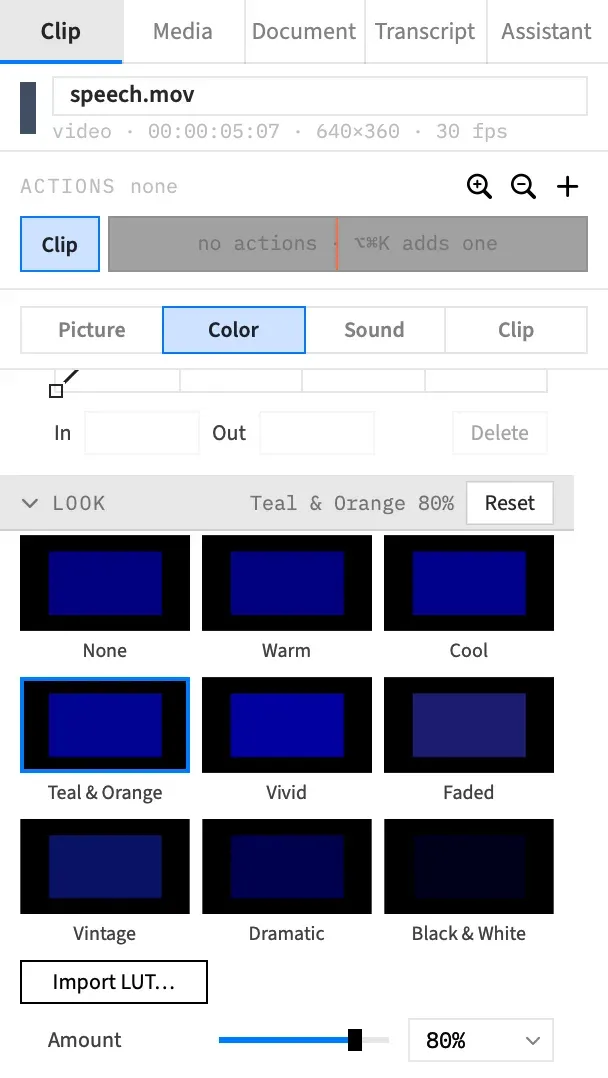
The look goes on every selected clip as one undo step, Look. A clip that already had a look keeps its amount, and a clip with no look gets 100%.
The Look gallery
Section titled “The Look gallery”The gallery is a 3 × 3 grid: None first, then the eight looks. Each tile is a thumbnail of the first selected clip with that look on it, so you choose by eye. The tile of the look every selected clip shares is outlined in the accent colour, and None is outlined when no selected clip has a look. When the clips disagree, no tile is outlined.
Under the grid comes an Imported group, if the project holds any LUTs, and then Import LUT…. See .cube LUTs.
The eight looks
Section titled “The eight looks”Each look is Frame Job’s own, built from the same kinds of adjustment as its tone controls. Most also push a tint into the shadows, the highlights or both.
| Look | What it does |
|---|---|
| Warm | A warmer white balance, a little more vibrance and golden highlights. |
| Cool | A cooler white balance, a touch more contrast and blue shadows. |
| Teal & Orange | Teal shadows and orange highlights, with more contrast and vibrance. |
| Vivid | More contrast and strong vibrance, with deeper blacks and brighter whites. |
| Faded | Low contrast, muted colour, softer highlights and lifted blacks, for a washed-out picture. |
| Vintage | Muted and warm, with a fade, green-tinted shadows and yellow-tinted highlights. |
| Dramatic | Darker, contrasty and desaturated, with cool shadows. |
| Black & White | All colour removed, with more contrast, brighter whites and deeper blacks. |
Live thumbnails
Section titled “Live thumbnails”Each tile shows what clicking it would give you. It’s the real frame as an export would draw it, with that tile applied to the selected clips, at the amount they’d keep. A clip at 40% shows you every tile at 40%.
The frame is the one at the playhead when the playhead is inside the first selected clip. Otherwise it’s that clip’s first frame.
A refresh starts about 0.3 seconds after the playhead stops or an edit lands. That wait begins again each time the frame changes, so the tiles don’t refresh while playback or a scrub moves through the clip. They only render while the Look section is open, so closing the section cancels any render in progress.
The thumbnails always show the graded picture, even with Show Ungraded on.
Amount
Section titled “Amount”Amount sets how much of the look applies, from 0 to 100%. Use the slider, type in the field, or choose 0, 25, 50, 75 or 100% behind the field’s chevron.
The row only appears when every selected clip has a look. At 0% the look stays on the clip and draws nothing, so you can bring it back later at any amount.
Amount is the one Look control that animates. Select an action and the value you set goes to the action’s end, so the look fades in or out. See Animate a grade.
Remove a look
Section titled “Remove a look”Do any one of these:
- Click the None tile.
- Click Reset in the section’s header. It’s there when a selected clip has a look and no action is selected.
- Choose Clip ▸ Look ▸ None.
The look comes off every selected clip as one undo step, Look. The rest of the grade stays.
Apply a look from the menu
Section titled “Apply a look from the menu”Clip ▸ Look does what the gallery does: the eight looks, then any imported LUTs, then None.
A checkmark marks the look every selected clip carries, and a dash marks one that only some of them carry. None is checked when no selected clip has a look. No item has a keyboard shortcut.
The menu is available when a selected clip can take a grade. If the selection also holds clips that can’t, such as a title, those clips are left alone. The Color sub-tab doesn’t show for a selection like that, so the menu is the way to reach the gallery’s looks.
The Look summary
Section titled “The Look summary”The section’s header tells you what’s on the selection, even with the section closed.
| The header reads | What it means |
|---|---|
| Warm 80% | Every selected clip has that look at that amount. A LUT shows its name, such as Warm Print 80%. |
| none | No selected clip has a look. |
| mixed | The selected clips differ, in their look or in its amount. |
Looks on stills and adjustment clips
Section titled “Looks on stills and adjustment clips”A look works on video, image and still clips, and on adjustment clips. The gallery and the menu don’t offer one for text, shapes, graphics or nests.
On an adjustment clip, the look grades everything behind the clip, for as long as the clip lasts. The clip’s Strength scales it along with the rest of its grade, and a qualifier narrows it to the colours the qualifier selects. That’s also the way to put a look over a title, or over several clips at once.
Good to know
Section titled “Good to know”- A clip has one look at a time. Picking another replaces it, whether it’s a built-in look or a LUT.
- You can’t save your own look. To reuse a whole grade, see Keep a grade for later.
- A look comes after Light, Color, the wheels and the curves, so it grades your corrected picture. It comes before the Sepia, Noir, Vignette and Invert filters.
- With an action selected, a tile and None still change the clip’s own look, not the action. Reset is hidden then, and the header shows Clear instead when the action animates Amount.
- Show Ungraded takes the look out of the preview only. Nothing about the clip changes, and an export still has the look.
- Paste Attributes copies a clip’s look and its amount along with the rest of its picture settings. See Copy a grade.
With an agent
Section titled “With an agent”An agent sets a look by its kind with set_video, for example {look: {kind: "teal_orange", amount: 0.6}}, and removes it with {look: null}. The kinds are warm, cool, teal_orange, vivid, faded, vintage, dramatic and black_white, and lut for an imported LUT.
amount runs from 0 to 1. Left out, a clip keeps the amount it had, or takes 1 if it had no look. An amount on its own needs a clip that already has a look. A misspelt kind or an amount outside 0 to 1 gives an error and changes nothing.
An agent can also do something the gallery can’t: put a different look at an action’s end with set_action_end. A change to another look switches at the end of the action instead of blending, its amount included. See Tools: picture and grade.