
Reverse a clip
Reverse plays a clip back to front, picture and sound together. The Mac’s playback can’t run video backwards, so the first time you reverse a file, Frame Job renders a backwards copy of it and the clip plays from that.
- Where
- Clip tab ▸ Clip sub-tab ▸ Timing
- Agent tools
set_reversed
Reverse a clip
Section titled “Reverse a clip”-
Select the clip, or several clips.
-
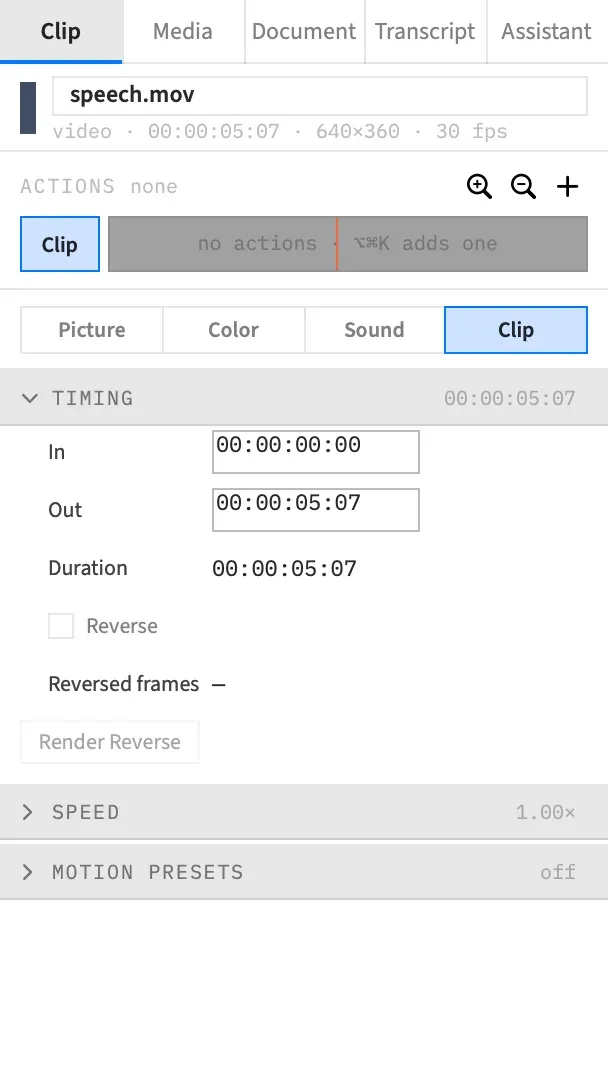
In the inspector, go to the Clip tab and its Clip sub-tab, and open Timing if it’s closed.
-
Tick Reverse.
If the file has no backwards copy yet, the Reversing sheet appears while Frame Job makes one. When it closes, the clip plays backwards. If a copy already exists, the clip plays backwards straight away.
Untick Reverse to play the clip forwards again. Each change is one undo step, called Reverse.
Where Reverse lives
Section titled “Where Reverse lives”Reverse is for clips of a video or audio file. Text, shapes, graphics, adjustment clips, nests, pictures and freeze frames have no Reverse rows.
With one clip selected, Timing shows In, Out and Duration above the Reverse rows. With several clips of video or audio files selected, it shows only the Reverse rows, and the section’s summary is their total length.
| Row | What it does |
|---|---|
| Reverse | Plays the clip back to front, or forwards again. |
| Reversed frames | Shows the state of the backwards copy. |
| Render Reverse | Starts a stopped or failed render again. |
With several clips selected, Reverse applies to all of them as one undo step. If they disagree, the row is tagged mixed and the box shows the first clip’s state. Clicking it then sets every clip the same way.
Reversed frames
Section titled “Reversed frames”This row tells you where the backwards copy has got to.
| It reads | What it means |
|---|---|
| — | The clip isn’t reversed. |
| Rendering… | The copy is being made, or is about to be. |
| Rendered | The copy exists and the clip plays from it. |
| Not rendered | The render was cancelled or failed. Render Reverse is available. |
| Media missing | The clip’s file is missing or has no length. |
Across several clips, the row shows the state that needs attention first: Not rendered, then Rendering…, Media missing, Rendered.
The Reversing sheet
Section titled “The Reversing sheet”The sheet appears when a reversed clip needs a copy that doesn’t exist, unless that file’s render was cancelled or failed. Ticking Reverse is the usual reason. Opening a project whose package has lost its cache folder is another.
It shows a progress bar, the line “Rendering a reversed copy of “name”…” or “Rendering reversed copies of 3 files…”, and the name of the file being worked on. When it finishes, the sheet closes and the clip plays backwards.
Editing commands are unavailable while the sheet is up. If an agent reverses another clip in the meantime, that clip’s render starts when the sheet closes.
Cancel the render
Section titled “Cancel the render”Choose Cancel. The sheet reads “Stopping…” until the render has stopped, then says:
Stopped. Clips that are still reversed show a slate until their frames are rendered — press Render Reverse in the Timing section of the Clip tab to try again.
Choose Close to carry on. Files that had already finished are kept, and the clip stays reversed.
When a file can’t be reversed
Section titled “When a file can’t be reversed”The sheet says how many files failed, for example “2 files could not be reversed. Those clips show a slate rather than play forwards.” Below that it names the first file and the reason. Choose Close to carry on. Files that rendered are kept.
The slate
Section titled “The slate”Until a clip’s copy exists, it shows a slate instead of playing forwards: a dark plate with diagonal stripes, in the clip’s place on the canvas. The clip plays no sound either. A clip with no picture stays silent and draws nothing.
Render Reverse
Section titled “Render Reverse”Nothing restarts a stopped render by itself. Render Reverse is how you try again, and it’s available only when Reversed frames reads Not rendered.
Each press renders one file, shared by every reversed clip of that file. If several files are waiting, press it once for each file until no selected clip reads Not rendered.
Unticking Reverse on every clip of a file and ticking it again also starts a new render.
The clip stays in place
Section titled “The clip stays in place”Reversing never moves a clip. It keeps its start, its length and its in point.
The in point is counted in the direction the clip plays, so reversing a trimmed clip shows the other end of the file. Take a 10 s file trimmed to its first 3 s. Reversed, the clip plays the file’s last 3 s, from 10 s back to 7 s. To play a different part, slip the clip.
Reverse with speed and ramps
Section titled “Reverse with speed and ramps”Reverse works with Speed, Fit to, the ⌥ rate stretch and speed ramps. The in point and the ramp both count in the direction the clip plays, so a reversed ramped clip ramps through the file backwards.
The backwards copy
Section titled “The backwards copy”Frame Job renders one copy per file. It’s kept in the project package’s cache folder with the other things Frame Job can rebuild, and every reversed clip of that file shares it. The same file can play forwards on one clip and backwards on another.
The copy stays after you untick Reverse, so ticking it again doesn’t render anything. New Project from Range brings the copies its clips play along with it.
The copy belongs to one version of the file, in one place. If the file changes or moves, or you relink the clip to another file, Frame Job renders a new copy and removes the old one.
Depth and colour
Section titled “Depth and colour”The copy is rendered at 10 bits, at the source’s exact size, with the colour information from the source file, so an HDR or log clip still looks right when reversed. See Precision and bit depth.
It’s written as HEVC Main 10. A source with an odd width or height takes ProRes 422 instead, which makes a file several times larger.
Good to know
Section titled “Good to know”Still images
Section titled “Still images”A picture on the timeline looks the same backwards, so it has no Reverse rows and nothing to render. The same goes for a freeze frame.
Linked clips
Section titled “Linked clips”Frame Job won’t reverse a clip linked to its detached sound. The foot of the inspector says which clips are linked. Choose Clip ▸ Attach Audio (⇧⌥⌘D) first. See Detach and Attach Audio. With several clips selected, the others still reverse.
Commands that need a forward clip
Section titled “Commands that need a forward clip”- Generate Captions skips a reversed clip, because its words would come out backwards.
- Auto Zoom, Add Shortcut Overlays and Speed Up Typing won’t work on one.
With an agent
Section titled “With an agent”set_reversed takes the clip and reversed, true or false, so it says which way to play and isn’t a toggle. The Reversing sheet appears in the project’s window, as it does when you tick Reverse, and the clip shows the slate until the copy exists. See set_reversed.