
What a graphic is
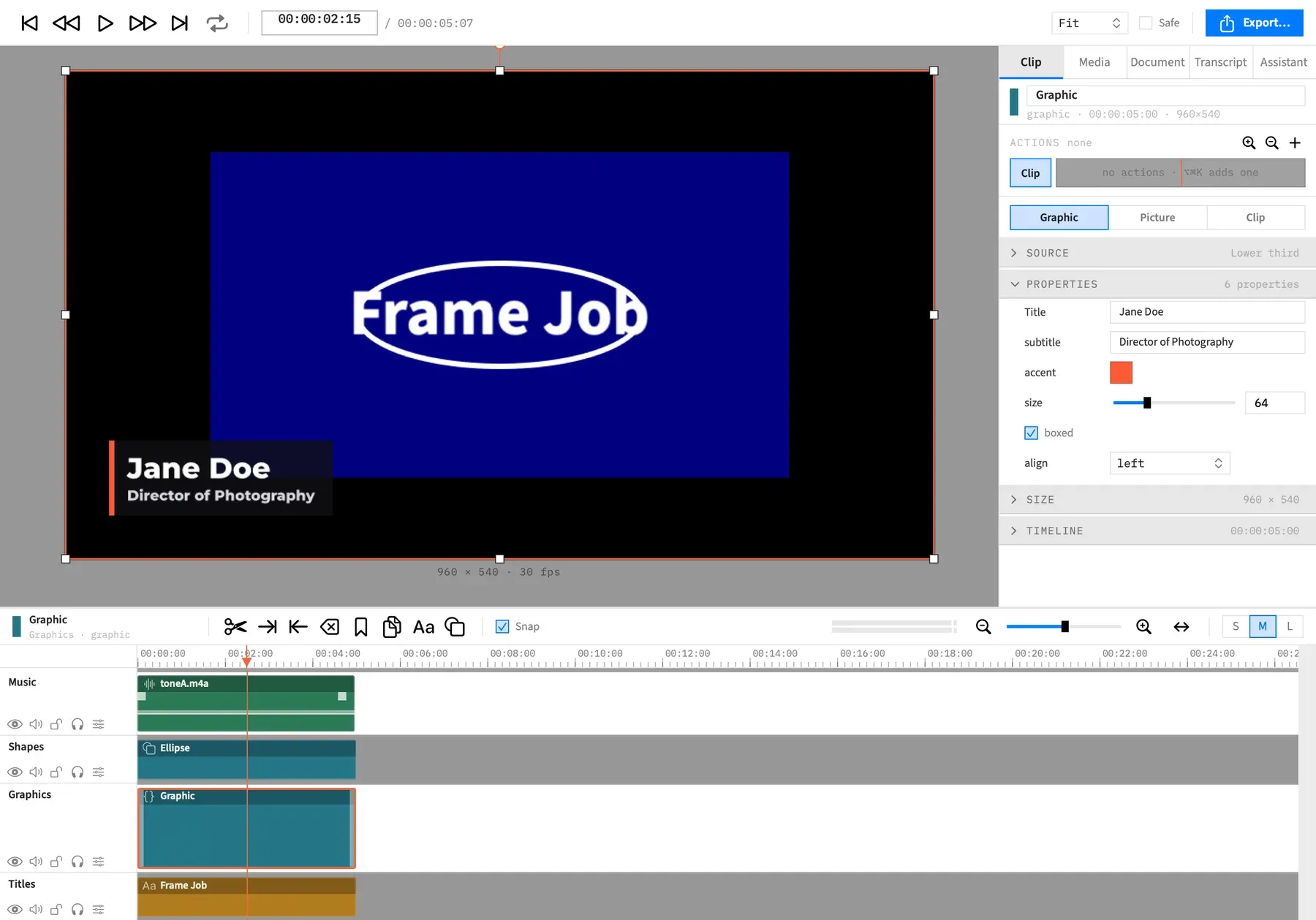
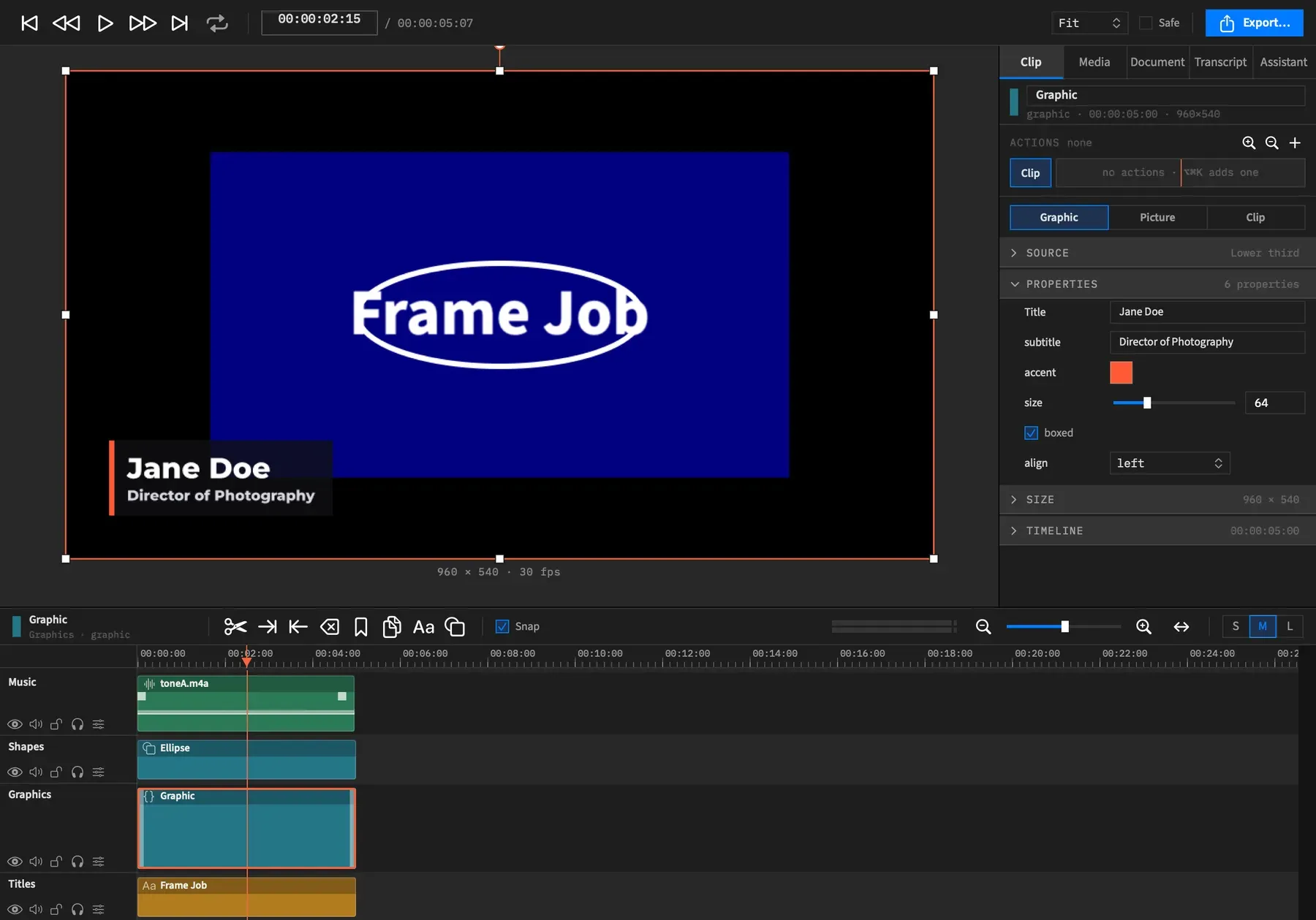
A graphic is a motion graphic, such as a lower third, a chart or a countdown, drawn fresh on every frame by a small JavaScript module kept inside your project. You change what it shows with ordinary controls in the inspector, and you don’t need to touch any code unless you want to.
- Menu
- Insert ▸ Graphic…
- Where
- Clip tab ▸ GraphicClip tab ▸ Graphic ▸ Source ▸ Reveal in Finder
- Agent tools
insert_graphicadd_graphic_clipwrite_graphicget_graphic
Graphic clips
Section titled “Graphic clips”A graphic clip sits on a track like any other clip, and the graphic is the clip’s content. It isn’t an effect you apply to another clip, and it isn’t a video or image file. It’s transparent wherever it draws nothing, so a lower third on a track above your footage shows the footage around it.
Frame Job comes with 23 ready-made graphics. You can also bring in a module of your own, write one, or have an agent write one. To put one on the timeline, see Insert a graphic.
A graphic is drawn at its own size, not stretched from a fixed picture. Change that size in the Size section and text and shapes redraw sharply. Scaling the clip in the Picture sub-tab is different: that scales the picture already drawn.
Modules
Section titled “Modules”A module is one file, graphics/<name>.js, in your project. It draws a picture, as SVG (a text format for vector drawings), for any frame Frame Job asks for.
A module is code. It has no keyframes of its own and no expression language: its render function works out each frame, and actions animate its properties from the timeline. Frame Job can’t open a Lottie file or a motion template from another app. From File… in the Insert Graphic sheet takes a .js module or a .fjgraphic package, so to bring an animation across, write it as a module or have an agent write it.
A module runs shut off from the outside world. It can’t reach the network or the clock, and the only random numbers it can use are its own seeded ones. It also can’t see the fonts installed on your Mac: graphics draw only with the fonts that come with Frame Job and the ones you add to the project, so a project draws the same on any Mac.
Module names
Section titled “Module names”A module’s name is its file name without .js, such as lower-third or title-2. A name can use lowercase letters, digits and -, must start with a letter or a digit, and can be up to 63 characters long.
Frame Job skips a .js file in the folder with any other name, and the clip’s Source section warns about it.
Properties
Section titled “Properties”A module declares the properties it takes, and the inspector turns each one into a control. A property is a number, a true-or-false setting, a colour, a choice from a menu, text or a picture. See Graphic properties for each type’s control.
A value you don’t set draws with the module’s own default. Like other clip settings, properties can change over time: see Animate graphic properties.
Clips sharing one module
Section titled “Clips sharing one module”Many clips can be drawn by one module. Each clip keeps its own property values, its own size and its own timeline, so one lower third module can show a different name on every clip.
Editing the module changes every clip it draws. To change one clip’s look alone, select it and choose Duplicate as New Graphic… in the Source section, which gives it a copy of the module to itself.
Same frame, same pixels
Section titled “Same frame, same pixels”A graphic always draws the same pixels for the same frame. What it draws depends only on the frame, the clip’s size and timing, the project’s canvas size and frame rate, its property values, and the fonts and pictures it uses, so the preview and an export show the same graphic. There’s no clock or outside randomness to make it differ between runs.
Gradients don’t band
Section titled “Gradients don’t band”Graphics are drawn in 256 levels per colour. Where a gradient has to round to those levels, Frame Job adds a fixed, very fine pattern of less than half a level, so a dark gradient shades smoothly instead of in steps. The pattern depends only on the pixel’s position, so it doesn’t crawl from frame to frame. Flat colours, pictures, text and transparency are drawn exactly, and there’s nothing to set.
The pattern stays in a saved frame and in a ProRes export. A 10-bit export such as HEVC 10-bit (MP4) smooths most of it away but keeps the in-between shades, so the gradient stays smooth. An 8-bit H.264 or HEVC export smooths it away too, and the steps come back, so choose 10-bit or ProRes for a dark gradient. For the depth each format keeps, see Precision and bit depth.
The graphics folder
Section titled “The graphics folder”Each project keeps its graphics in a graphics folder inside the .framejob package. To see it, select a graphic clip and choose Reveal in Finder in the Source section.
| In the folder | What it is |
|---|---|
<name>.js |
The modules |
fonts/ |
Fonts added to the project |
assets/ |
Pictures added to the project |
history/ |
Earlier versions of each module, which you should leave to Frame Job |
API.md, API.d.ts |
The reference and its type definitions, for an editor or an agent working in the folder |
Frame Job creates the folder the first time something is written to it, so opening a project never adds one. Every save includes the folder, autosave too.
Changing a file in the folder isn’t an edit to the project. The change takes effect at once, ⌘Z won’t undo it, and the project isn’t marked as edited.
Graphics in an untitled project
Section titled “Graphics in an untitled project”An unsaved project can use graphics. They’re kept in a temporary folder and move into the package when you first save. If that folder is empty, the save doesn’t create one in the package.
An untitled project restored from autosave gets its graphics back. Otherwise the temporary folder is removed when the window closes, so close an untitled project without saving and its graphics go with it.
Templates are copied in
Section titled “Templates are copied in”Inserting a bundled template writes your own editable copy into the project’s graphics folder, under a name that isn’t taken. The first Lower third is lower-third, the next lower-third-2, and so on. Each insert makes a new copy, so an existing graphic is never overwritten and each copy can be edited on its own. Two copies with one title are listed under This Project as “Lower third — lower-third” and “Lower third — lower-third-2”.
Undo removes the clip, but not the copied file. To use one copy on several clips, insert it from This Project, which copies nothing.
A graphics-only timeline
Section titled “A graphics-only timeline”A timeline of nothing but graphics, text, shapes and images still plays and exports. It doesn’t need a video clip, and there’s nothing to set.
Graphics in HDR projects
Section titled “Graphics in HDR projects”In an HDR (HLG) project, graphics are drawn at HDR reference white, 203 cd/m², like titles and shapes. A white graphic matches SDR white and doesn’t reach into the highlights. See A project’s dynamic range.
Limits
Section titled “Limits”- A graphic draws at most 8192 pixels on a side.
- A clip stores at most 64 property values.
- The Properties section shows only when all the selected clips share one module, and Timeline only for a single clip.
- A module’s code has 250 ms for each frame in the preview and 2 s in an export. A frame that runs over shows a red error card in the preview and stops an export.
- File ▸ Rename Graphic… is dimmed while a nest is open.
- File ▸ Delete Graphic… won’t delete a module while any clip uses it, including a clip inside a nest.
- Only the last 10 versions of each module are kept.
- Frame Job watches the first 16 module, font and picture files one by one. In a folder with more files, a change to a later one may not show straight away. See Edit a module.
- The frames Frame Job holds in memory use at most a quarter of your Mac’s memory, and less when memory is short. See Graphics playback and memory.