
The Picture tab
The Picture tab is where you place a clip in the frame and style what it draws. It’s one sub-tab of the inspector’s Clip tab, and the sections it shows depend on what you’ve selected.
- Where
- Clip tab ▸ Picture
- Agent tools
set_video
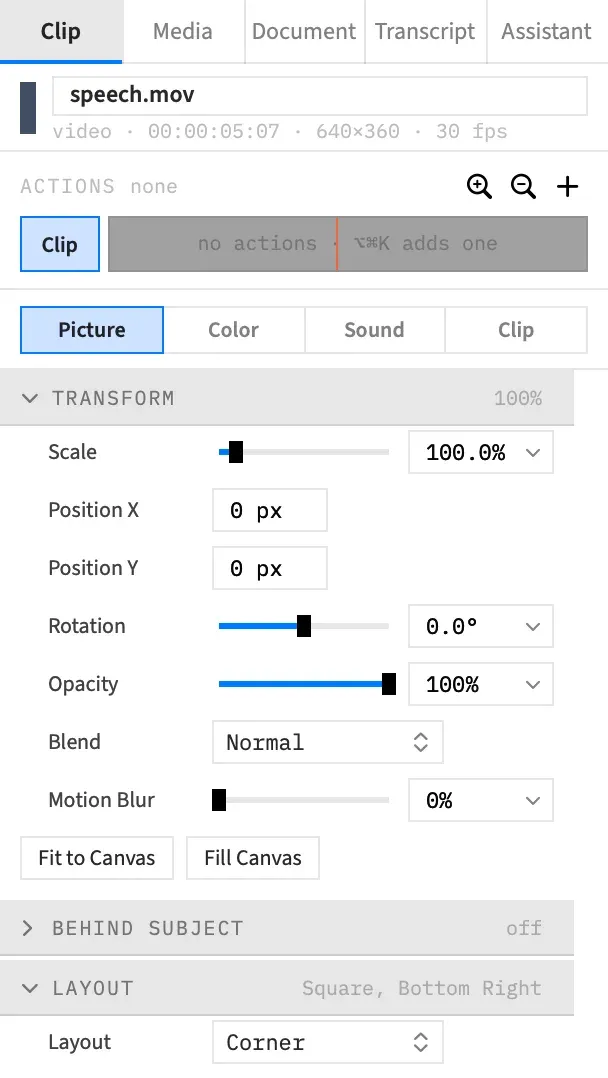
Open the Picture tab
Section titled “Open the Picture tab”Select a clip, open the inspector’s Clip tab and choose Picture. A video or image clip opens on it, while a text clip opens on Text, a shape on Shape and a graphic on Graphic.
The sub-tabs you get depend on the clip:
| Selected | Sub-tabs |
|---|---|
| Video clip, image clip or freeze frame | Picture, Color, Clip |
| Text clip | Text, Picture, Clip |
| Shape clip | Shape, Picture, Clip |
| Graphic clip | Graphic, Picture, Clip |
| Nest clip | Picture, Clip |
| Adjustment clip | Color, Clip |
| Clip of an audio-only file | Sound, Clip |
Sound joins the list, before Clip, on any clip with live audio, such as a video clip with its sound on or a nest with sound inside.
A selection with an adjustment clip in it has no Picture sub-tab, because an adjustment clip draws nothing of its own.
Sections in order
Section titled “Sections in order”The sections run top to bottom in this order. Blend and Motion Blur are rows inside Transform.
| Section | What it’s for | Shown for |
|---|---|---|
| Transform | Scale, position, rotation, opacity, blend and motion blur | Every clip that draws |
| Behind Subject | Drawing a clip behind the person in the shot | Every clip that draws except adjustment and nest clips, and only while no nest is open |
| Layout | How a camera and a screen recording share the frame | One selected clip of a video file with a known picture size |
| Hide While Silent | Fading a camera out while nobody’s talking | Every clip that draws except nests |
| Crop | Trimming the picture’s edges | Video clips, image clips and freeze frames |
| Corner Radius | Rounding the picture’s corners | Video clips, image clips and freeze frames |
| Chroma Key | Keying out a green screen | Video clips, image clips and freeze frames |
| Background | Removing the background behind a person or subject | Clips of a video file, freeze frames of one, and image clips |
| Cursor | Styling a recorded pointer | Clips of a video file with a cursor file its picture doesn’t already show |
| Shadow | A drop shadow | Every clip that draws |
| Filters | A stack of up to four filters | Every clip that draws |
| Reflection | A mirrored copy under the clip | Every clip that draws |
| Spotlight | Dimming the clip outside one area | Every clip that draws |
| Obscure | Blurring or pixelating regions of the picture | Every clip that draws |
Every clip that draws includes text, shapes, graphics and nests. A section that doesn’t apply isn’t there at all, rather than greyed out. With several clips selected, a section shows only when it applies to all of them.
A graphic clip can be moved, scaled, faded and blended here. It has no Crop, Corner Radius or Chroma Key, and no Color sub-tab.
How sections behave
Section titled “How sections behave”Fold a section. Click its header to open or close it. Transform starts open and the rest start closed, and Frame Job remembers what you open and close. A closed section still shows a short summary of its settings.
Reset a section. Reset appears in a section’s header only while the section differs from its default. It puts the whole section back. To put back a single row, right-click its label and choose Reset to default.
Edit several clips at once. With several clips selected, a field shows the first clip’s value, with a mixed badge when the others differ. An edit applies to every selected clip.
Pick a colour. A colour swatch opens the macOS Colors panel, with opacity.
Edit inside an action. With an action selected, the rows that can animate read and write the action’s end state, and the sections it animates open by themselves. In a section with such rows, Reset is hidden, and Clear appears once the action changes something there. Clear takes that section out of the action. See Set what an action animates to.
Inspector fields covers typing, sliders and the quick picks in a field’s menu.
Good to know
Section titled “Good to know”A nest clip has no picture of its own, so most of this tab doesn’t reach it. Position, scale, rotation and opacity apply to the clips inside. Blend and Motion Blur are greyed, and Shadow, Filters, Reflection, Spotlight and Obscure show but have no effect on the nest clip. Set those on the clips inside the nest. A nest’s opacity fades each clip inside separately, rather than the group as one picture.
With an agent
Section titled “With an agent”set_video changes the placement and look of as many clips as you name. You send only the settings to change, at any depth, and everything you leave out keeps its value. An optional group such as shadow clears when you set it to null, and the filters and obscure lists are replaced whole.
An unknown key or a bad value gets an error naming it, and nothing is dropped or pulled back into its range. Animating a property takes an action, and reaching a clip inside a nest takes scope. See Tools: picture and grade.