
Inspector fields
Every control in the inspector works the same way, whichever tab or section it’s in. Learn these once and they apply everywhere.
- Keys
- ↩Tab⎋
- Where
- Every row of the inspectorA section header, for ResetRight-click a row
- Agent tools
set_action_end
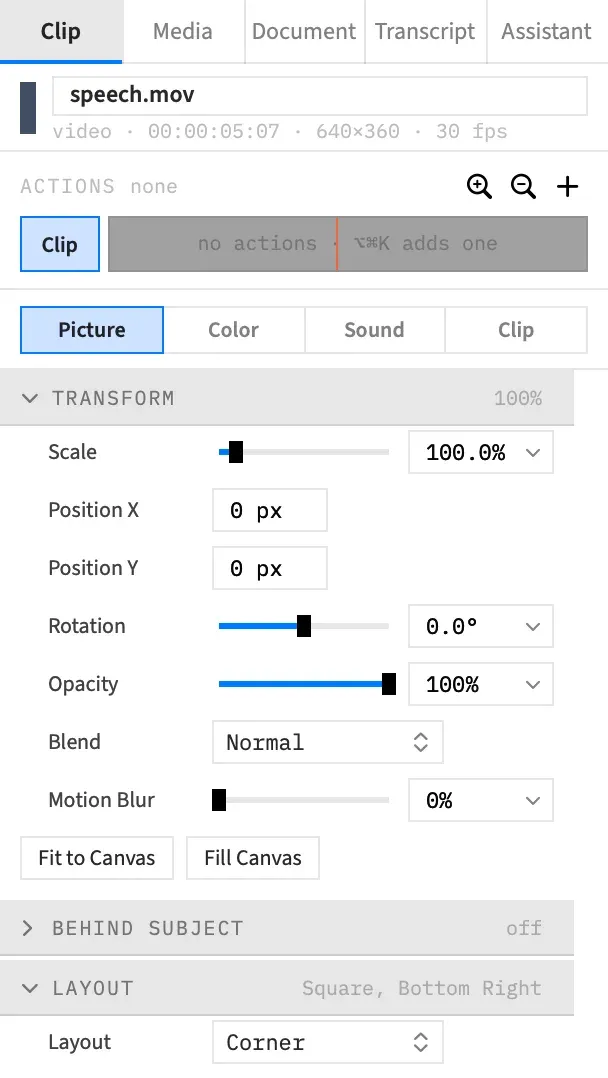
Type a value
Section titled “Type a value”Click a number field. The value and its unit, such as 24 px, change to the bare number, selected so your typing replaces it. You can type the unit too if you like.
| To | Do this |
|---|---|
| Apply the value | Press ↩, keypad Enter or Tab, or click anywhere else |
| Throw your typing away and keep the old value | Press ⎋ |
All of these give the keyboard back to the editor, so Space plays straight away. Tab ends your typing. It doesn’t move to the next field unless Full Keyboard Access is on. See Keys and typing.
- A number past the field’s range is held to the end of the range.
- Text that isn’t a number changes nothing, and the field goes back to the value it had. Decimals take a full stop, whatever your Mac’s region.
- An unchanged value isn’t an edit, so clicking into a field and leaving makes no undo step.
Three other kinds of field work a little differently:
| Field | How it behaves |
|---|---|
| One-line text, such as a clip’s name | Takes the whole width of its row, and long text scrolls inside it. ↩, Tab or a click elsewhere applies it. |
| Timecode, such as In and Out in the Clip tab’s Timing section | Takes a time such as 1:23, 83.5 or 1:23:04. A time Frame Job can’t read beeps and the field goes back. Unlike a number field, it has no range of its own. The clip’s rules decide what it can take, and a time they won’t allow beeps. |
| Multi-line text, such as the Text sub-tab’s Content | ↩ applies and ⇧↩ starts a new line. See Multi-line fields. |
A greyed control is dimmed and takes no clicks. It usually depends on something else in its section, such as a shadow’s Blur waiting for Drop shadow to be on.
Use a quick pick
Section titled “Use a quick pick”A field with common values has a chevron at its right. Click the chevron for a menu of those values, each spelled as the field shows it at rest, with a checkmark on the current one. The Shadow section’s Opacity, for example, offers 0%, 25%, 50%, 75% and 100%.
Anything you were typing in the field is applied before the menu opens. A value past the field’s range is held to the end of the range, as a typed one is. Picking the value the field already holds changes nothing and makes no undo step.
Drag a slider
Section titled “Drag a slider”Click a slider to jump to that value, or drag to follow the pointer. The preview follows as you go, and the whole press, from mouse-down to mouse-up, is one undo step. A press that never changes the value makes no step.
A slider and its field show the same value, but the field can reach further. Volume’s slider stops at 400%, for example, while its field goes higher. A value past the slider’s end pins the knob at the end of the rail.
On a row the selected action changes, a slider also shows where the value starts. A tick marks the value at the playhead when it isn’t where the knob is. See Set what an action animates to.
Choose a colour
Section titled “Choose a colour”Click a colour swatch to open the macOS colour panel. The panel has an opacity control, and the value follows it live, so a drag in the panel changes the picture as you go. A colour you can see through shows a checkerboard in its swatch.
The panel edits the swatch you clicked last. Click another swatch to move it there.
Edit several clips at once
Section titled “Edit several clips at once”With several clips selected, the inspector shows the first clip’s values. A row whose clips disagree adds a small mixed badge beside its control, and resting the pointer on it reads “The selected clips have different values”.
The control stays live. An edit gives every selected clip the same value, as one undo step, and the badge goes.
A row writes only to the clips it applies to. With a video clip and a text clip selected, a text setting changes the text clip and leaves the video clip alone.
The Color tab works the same way.
Reset a section
Section titled “Reset a section”A Reset button appears on a section’s header only while that section differs from its default. Click it to put the whole section back, as one undo step. Clicking the button doesn’t fold the section, though a click anywhere else on the header does.
Not every section has one. While you’re editing an action, a section the action can animate hides Reset, and the same place shows Clear while the action changes something in that section. A section no action can animate keeps its Reset.
Right-click a row
Section titled “Right-click a row”Right-click a row’s label, slider, checkbox or pop-up, or the space beside them, for the items that apply to that row. A number field keeps its own right-click and doesn’t open this menu.
| Item | When it shows | What it does |
|---|---|---|
| Remove from action N | The selected action changes this row | Takes the row out of that action |
| Go to action M | Another action changes this row | Selects that action |
| Reset to default | The row has a default | Puts the row back to its default |
| Set end value to default | Takes the place of Reset to default while an action is selected, on a row that animates | Sets the row’s value at the action’s end to the default |
The last two are greyed while the row already holds its default. A row with nothing to offer has no menu.
What the marks in a row’s left gutter mean is on Set what an action animates to. An agent sets an action’s end values with set_action_end. See Tools: animation.