
Clip volume
The Volume section sets a clip’s level and tells you how loud the clip is before and after that level. It’s the first section on the Sound tab.
- Where
- Clip tab ▸ Sound ▸ Volume
- Agent tools
set_audionormalize_clip
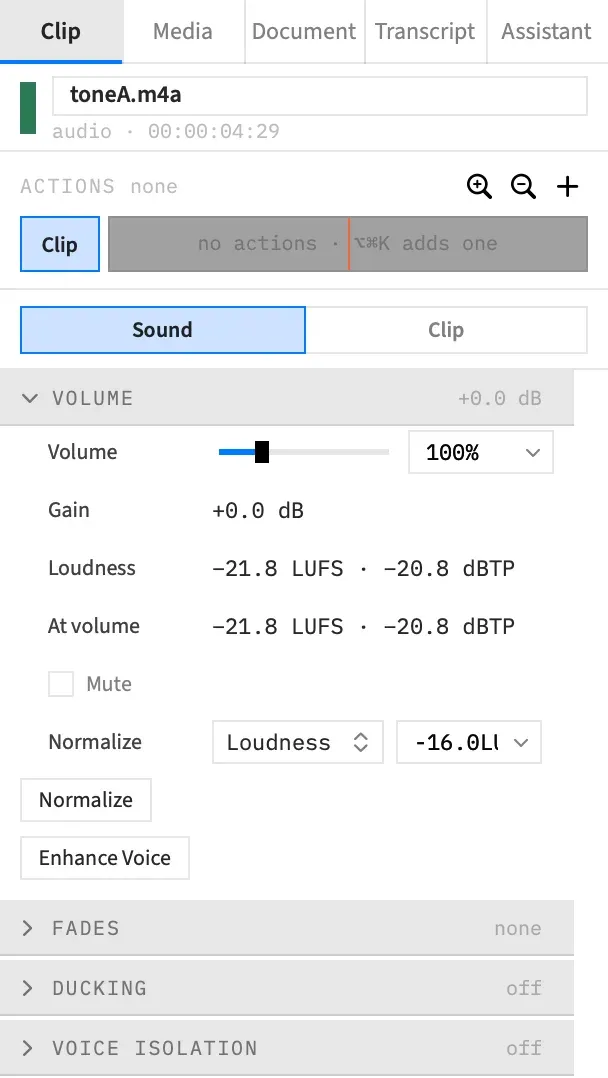
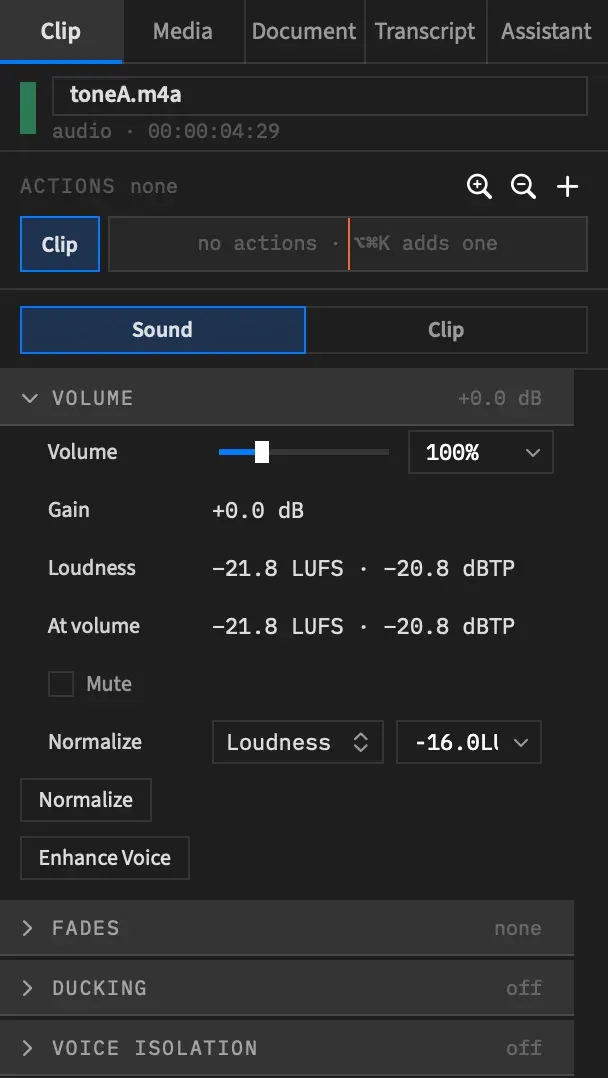
Set the volume
Section titled “Set the volume”Select the clip and open the Volume section. Drag the Volume slider, type in its field, or choose a value from the field’s chevron: 0, 50, 100, 150, 200 or 400 %.
| Control | Default | Range |
|---|---|---|
| Volume | 100 % | 0 to 3200 % (+30.1 dB) |
The slider stops at 400 %. To go higher, type in the field, up to 3200 %. Above 400 % the slider’s knob stays at the right end. The high ceiling is there so that a quiet microphone recording can be brought up.
To change the level partway through a clip, add a point on the volume line. With an action selected, Volume writes the level the action ends on, not the clip’s own.
Mute a clip
Section titled “Mute a clip”Tick Mute to silence the clip without changing its volume. It’s off by default.
A muted clip’s waveform is drawn faded and its volume line lies along the bottom. To silence a whole track, use Mute and solo tracks.
With an action selected, Mute switches at the action’s end, and the row shows “at end”.
Read the level
Section titled “Read the level”Three rows report the clip’s level. You can’t edit them.
Gain is the Volume in decibels, such as “+3.0 dB”, or “silent” at 0 %. At 100 % it reads “+0.0 dB”.
Loudness
Section titled “Loudness”Loudness is the clip’s integrated loudness and true peak at volume 100 %, such as “−41.7 LUFS · −18.5 dBTP”. It’s measured to BS.1770-4 over the part of the file the clip plays.
On a stereo file, the reading includes the channel choice, Mix to mono and Pan. A mono clip counts as dual mono, as an export plays it, which reads about 3 dB louder than the file alone.
It leaves out Volume, fades, ducking, Mute and solo, the track’s volume, and EQ, Hum and the rest of the clip’s processing.
A clip at another speed, or a ramped one, reads within about 0.5 LU of what plays. A file with more than two channels is measured from a two-channel mix of it.
At volume
Section titled “At volume”At volume is the same reading with the clip’s Volume applied, and through its Limiter when that’s on. With the limiter on, the true peak reads no higher than the ceiling. The row follows a Volume drag as you move.
The fast reading can’t hear EQ, Hum, Voice Isolation, Noise Reduction, the Gate, the Leveller, the De-esser, the Compressor or a Voice Effect. On a clip using any of them:
- If Normalize in Loudness mode or Enhance Voice has measured the clip as it is now, the row reads that measurement.
- Otherwise the figure is the one before the processing and starts with “≈”. Its tooltip says so.
At volume doesn’t measure on its own, so “≈” stays until you press one of those two.
What the readouts can show instead
Section titled “What the readouts can show instead”| It reads | Because |
|---|---|
| “measuring…” | The clip’s sound analysis hasn’t finished. |
| “—” | Several clips are selected, or a nest is, or the clip can’t be measured. |
| “— LUFS” beside a peak | The clip plays for under 0.4 s, or it’s quieter than −70 LUFS throughout. |
| “silent” (At volume) | Volume is 0 %. |
Reset the section
Section titled “Reset the section”Reset in the section’s header puts Volume back to 100 % and turns Mute off. It leaves the Normalize row alone, and it leaves the Limiter alone, including one Normalize turned on.
Good to know
Section titled “Good to know”- Normalize and Enhance Voice sit at the bottom of this section. Both set Volume for you, and both leave Mute alone.
- On a nest clip, Volume and Mute scale everything inside it.
- A muted clip that ducks still lowers the others. See Ducking.