
Shape clips
A shape clip draws a rectangle, an ellipse, a line or an arrow over your video. Use one to frame something, point at it, or put a plate behind a title.
- Where
- Add Shape in the timeline barClip tab ▸ ShapeDrag a shape's handles on the canvas
- Agent tools
add_shape_clipset_shape
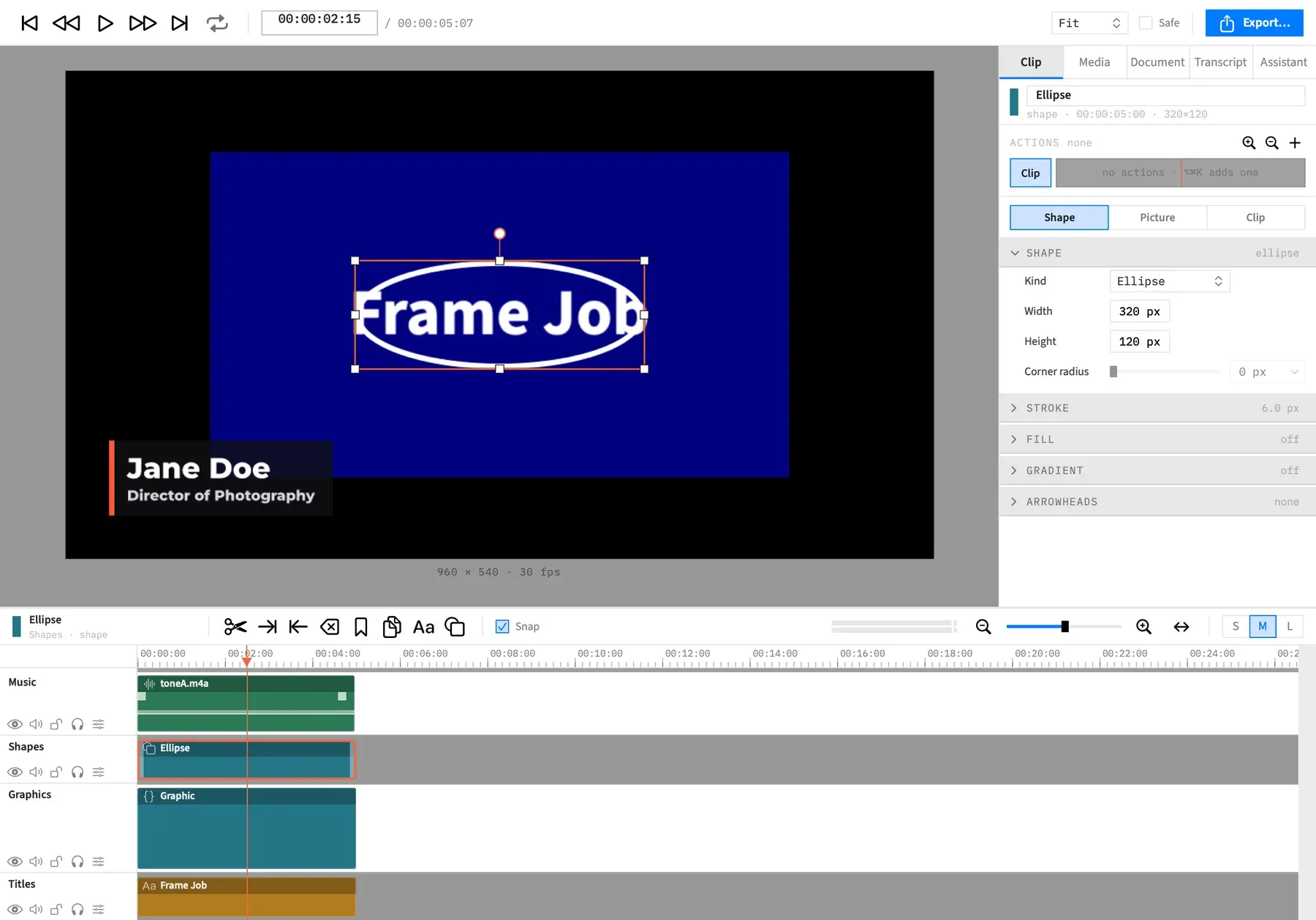
Add a shape clip
Section titled “Add a shape clip”-
Move the playhead to where the shape should start.
-
Click Add Shape in the timeline bar.
-
Choose Rectangle, Ellipse, Line or Arrow.
Add Shape has no menu item and no key. Clip ▸ Add Background ▸ Solid Color also makes a shape clip, a white rectangle the canvas’s size on a new track at the back. See Backgrounds.
The shape goes on the front-most track if there’s room at the playhead, and otherwise on a new track in front of everything. With a nest open, it goes in the nest. Adding it is one undo step, named after the kind, such as “Add Rectangle”.
A new shape:
- lasts 5 seconds, and has no source file, so you can trim it to any length
- is a 320 × 120 px box with a 6 px white stroke and no fill, so it shows up over any footage
- is selected, so the Shape sub-tab opens on it
Everything about how it’s drawn is on Shape fill, stroke and size.
The four kinds
Section titled “The four kinds”You can change a shape’s kind at any time with Kind.
Rectangle
Section titled “Rectangle”A rectangle that fills its box. A rounded rectangle is a Rectangle with a corner radius, not a separate kind.
Ellipse
Section titled “Ellipse”An ellipse that fills its box. Make the box square for a circle.
A straight line. A new line runs diagonally across its box, from bottom left to top right. Drag the round handle at either end to move that end. See Lines and arrows.
A line with an arrowhead. A new arrow runs diagonally across its box like a line, with its head at the end turned on.
Resize with the handles
Section titled “Resize with the handles”Dragging a shape’s handle changes the size of its box, not a scale factor, so the stroke stays the same thickness. The box’s new size shows in the Width and Height fields.
| Gesture | What it does |
|---|---|
| Drag a corner handle | Resizes the box and keeps its aspect ratio. |
| ⇧-drag a corner handle | Frees the aspect ratio, so width and height move independently. |
| Drag a side handle | Changes only the width or only the height. |
| ⌥-drag a handle | Resizes about the centre rather than pinning the opposite handle. |
The drag holds each side of the box between 4 and 20,000 px.
⇧ is special to shapes here. A video or picture has one uniform scale, so ⇧ changes nothing on those. For the rest of the canvas gestures, see Move, scale and rotate.
A box resize always changes the clip itself, even with an action selected. To animate a shape’s size, use Scale in the Transform section, which enlarges the whole drawing, stroke included.
Picture sections
Section titled “Picture sections”A shape clip has three sub-tabs: Shape, Picture and Clip. Its Picture sub-tab has these sections, in this order:
- Transform
- Behind Subject, on the top-level timeline only, so not while a nest is open
- Hide While Silent
- Shadow
- Filters
- Reflection
- Spotlight
- Obscure
Crop, Corner Radius, Chroma Key and Background aren’t offered, and neither is the Color sub-tab. To round a shape’s corners, use Corner radius on the Shape sub-tab.
With an agent
Section titled “With an agent”add_shape_clip puts a shape on the track and at the time you name, and can give it its length and look in the same step. It can also make a shape larger than the canvas, which starts scaled to fit when Fit new clips to canvas is on. An arrow starts with its head on, so pass arrow_end: false for a bare diagonal. See Tools: adding clips.