
Import media
Importing puts a file in the project’s Media tab, ready to place on the timeline. Frame Job reads the file from where it already is, so nothing is copied and the project stays small.
- Menu
- File ▸ Add Media…
- Keys
- ⇧⌘I
- Where
- Media tab ▸ Add Media…Drag from the Finder onto the Media tab
- Agent tools
import_mediaadd_media
Add media
Section titled “Add media”-
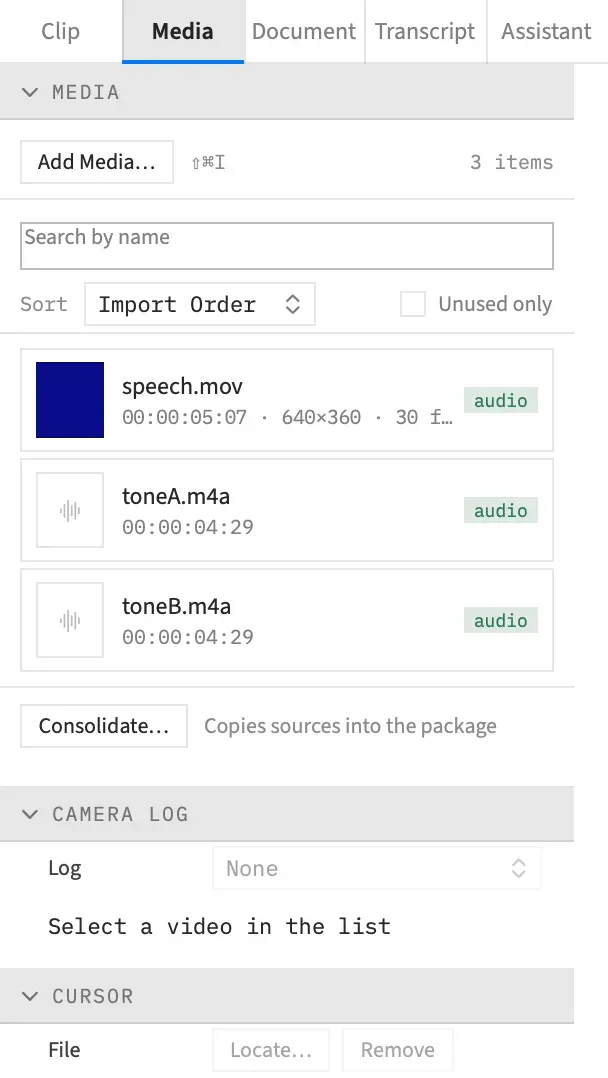
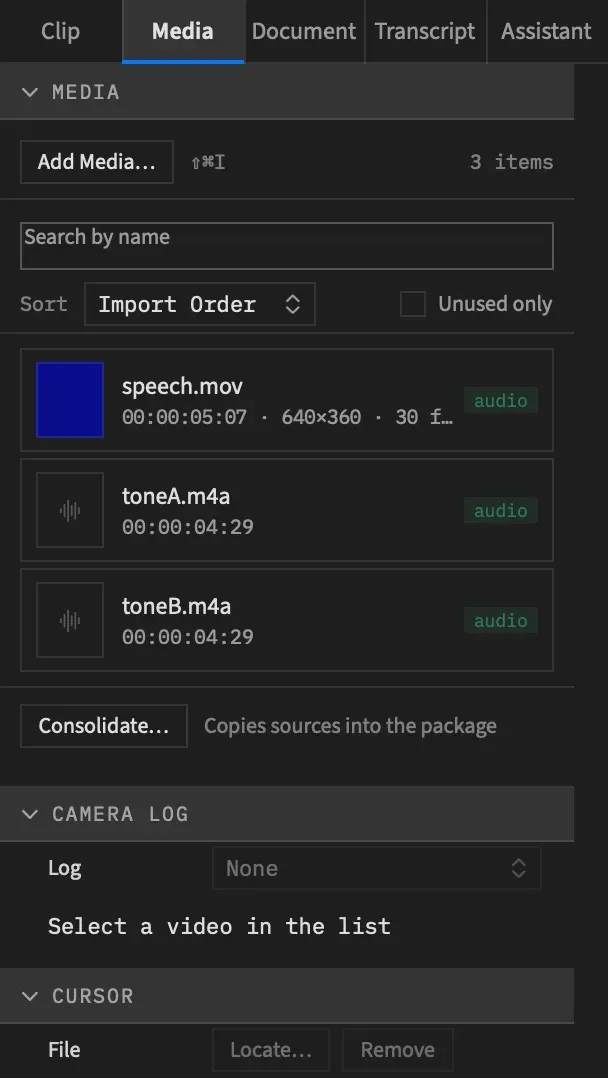
Choose File ▸ Add Media… (⇧⌘I), or Add Media… at the top of the Media tab.
-
Pick one or more files, and choose Open.
Frame Job checks every file, then adds the ones it can read to the Media tab together, as one undo step. The step is called Add Media, or Add 3 Media Files for three.
The files are in the Media tab, not on the timeline. Place them from there. Thumbnails and waveforms are built in the background, so they fill in a moment later.
Adding a file that’s already in the list changes nothing. A file Frame Job can’t read shows an alert naming it, and the rest are still added.
Drop on the Media tab
Section titled “Drop on the Media tab”Drag files or folders from the Finder onto the Media tab to add them to this project. It works like Add Media…, with one difference: a drop has no list of allowed types, so Frame Job tries every file you drop. That’s how a format the panels don’t list gets in.
A folder adds the media files directly inside it: movies, sound files, pictures, .cube LUTs, and WebM or Matroska files. They’re added in the order the Finder lists them by name, so Clip 2.mov comes before Clip 10.mov. Frame Job looks one level down only. Folders inside it, packages such as another Frame Job project, hidden files and files that aren’t media are left out, with no alert. A media file in the folder that Frame Job can’t read still shows its alert, and the rest are added. A folder with nothing to add does nothing. A folder Frame Job can’t read shows the alert “Nothing in folder was added: it could not be read.”, and the rest of the drop is still added.
Files dropped with a folder are added with its files, in the order you dropped them, all as one undo step.
A Finder drop anywhere else on the window, such as the canvas or the timeline, doesn’t add to this project. It opens the file as a new project of its own, as a drop on the Dock icon does. See Open a project.
What each way takes
Section titled “What each way takes”The Add Media… and File ▸ Open… panels only let you pick the types they list. To bring in anything else, drop it on the Media tab.
| Files | Add Media… | File ▸ Open…, or a drop on the window or the Dock | A drop on the Media tab |
|---|---|---|---|
| Movies | Yes | Yes | Yes |
| M4A, MP3, WAV and AIFF | Yes | Yes | Yes |
| PNG, JPEG and HEIC | Yes | Yes | Yes |
.cube LUTs |
Yes | No | Yes |
| TIFF, GIF, BMP, HEIF, WebP and AVIF | No | No | Yes |
| CAF, FLAC and other sound macOS plays | No | No | Yes |
A .cube is imported, never opened. It sits in the Media tab and you apply it to clips as a look, or to a file as its Camera Log. It never goes on the timeline.
Caption files aren’t media. Bring an .srt or a .vtt in with Import Captions. Every format and codec Frame Job reads is listed in Supported file formats.
Referenced, not copied
Section titled “Referenced, not copied”A project remembers each file’s path and a Finder bookmark, and reads the file from there. The package stays small, but it depends on your footage staying put. If you move a file, the bookmark often finds it again.
When you want a package that holds everything it needs, use Consolidate Media.
WebM and Matroska files, and anything converted with ffmpeg, are the exception: Frame Job reads those from a copy it keeps in its own folder. See WebM and Matroska files and Convert files with ffmpeg.
A project always opens
Section titled “A project always opens”A project opens even when files it uses have moved or been deleted. Clips whose file is gone keep their place on the timeline and show a slate, and their rows in the Media tab wear the missing badge.
Those clips still export, showing the slate and with no sound. To bring them back, see Relink missing media.
Codecs this Mac can’t decode
Section titled “Codecs this Mac can’t decode”Before it adds a video, Frame Job decodes its first frame. If nothing on this Mac can decode it, the file is left out and an alert names the codec.
| The alert says | What it means |
|---|---|
| “file is VP8 video, which this Mac cannot decode.” | VP8 doesn’t import. |
| “file is AV1 video, which needs an M3 or later Mac.” | AV1 needs a hardware decoder, which this Mac doesn’t have. |
| “file is VP9 Profile 1 video, which this Mac cannot decode; VP9 Profiles 0 and 2 import.” | VP9 Profiles 1 and 3 don’t import. Profiles 0 and 2 do. |
Any other codec gets the same sentence with its four-character code in place of a name. There’s no way past these, and ffmpeg isn’t offered.
A file in a codec this Mac does decode still imports when some of its data is damaged.
Import errors
Section titled “Import errors”| The alert says | What it means |
|---|---|
| “Could not read file.” | The file is damaged, or it isn’t a format Frame Job reads. |
| “file has no video or audio the app can open.” | The file holds neither. |
| “Timed out reading file.” | The check took more than 30 seconds, usually because the file is on a stalled network volume. |
| ““Film.cube” is not a LUT Frame Job reads: line 2: LUT_3D_SIZE 200 is outside 2–65.” | The .cube can’t be read. The alert names the line and the problem. |
If you have ffmpeg installed, Frame Job may offer to convert a file before it shows the first two of these. See Convert files with ffmpeg.
Good to know
Section titled “Good to know”- A project holds at most 1,024 media files.
- Undoing an import takes the files out of the project and leaves them on disk.
With an agent
Section titled “With an agent”import_media does what Add Media… does, for a file, or the media files in a folder, and it never stops to ask a question. It takes the path, absolute or starting with ~, and for a file gives back the new media id with what it found in the file: its kind, length, size, frame rate, and whether it has video, sound or transparency. Given a folder, it adds the files a drop of that folder would, and lists what it added and what it left out. Place the files with add_clip.
add_media is different: it adds an entry from a description you supply and doesn’t look at the file. Only the path is needed, and a path already in the list changes nothing. Use it only to replay a project’s own JSON. See Tools: media.