
Make Vertical Version
Make Vertical Version makes a tall or square version of a landscape edit, for TikTok, a reel, a short or a square post. It changes the canvas and automatically reframes the whole timeline in one step, keeping the subject in shot, so you don’t have to frame each clip yourself.
- Menu
- File ▸ Make Vertical Version…
- Needs
- Nothing. Faces, people and shot changes are found on your Mac, with no key and no upload.
- Agent tools
make_vertical_version
Make a vertical version
Section titled “Make a vertical version”-
Choose File ▸ Make Vertical Version…. It has no keyboard shortcut. It’s available when the project has a clip, no nest is open, no other sheet is up and nothing is recording.
-
Pick a Shape.
-
Choose what to Follow, and set Zoom and Where Empty if you want to.
-
Leave Make a copy ticked to keep this project as it is, or untick it to change this project.
-
Read the summary under the controls. It says what will happen before anything does.
-
Choose Make (Return), or Cancel (Esc) to leave everything as it was.
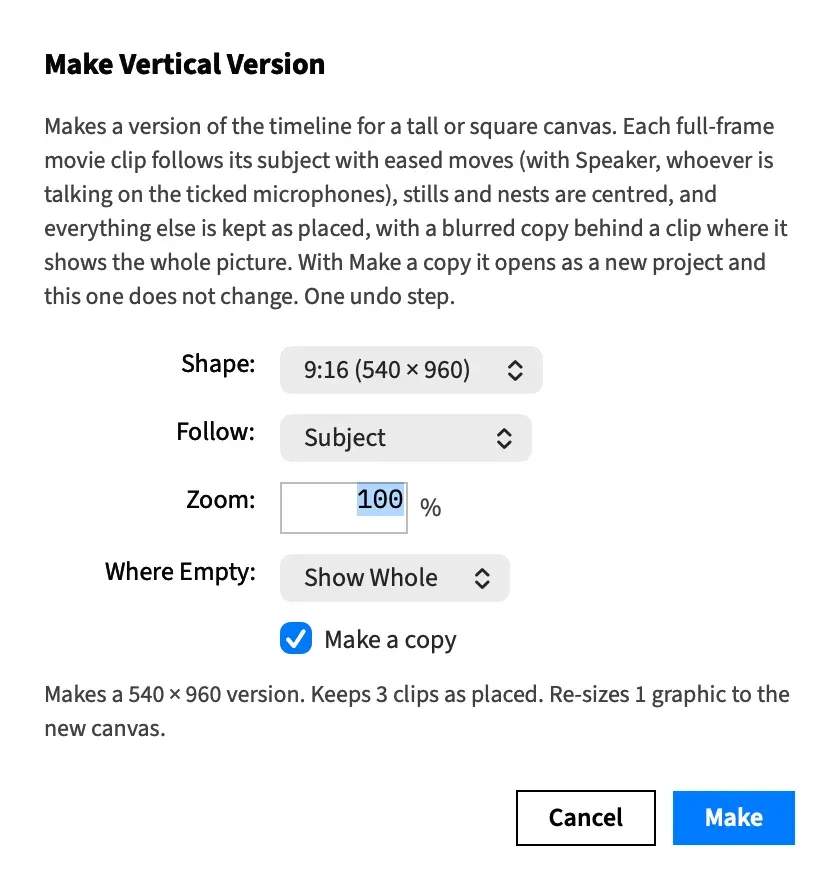
Each clip is treated by what it is: full-frame movies follow their subject, screen recordings follow the pointer, camera layouts are laid out again, and so on. What Make Vertical changes goes through it clip by clip.
The command always covers the whole timeline. To make a short from one stretch of a longer show, lift it out with New Project from Range first, then run this in the new project.
The controls
Section titled “The controls”Each row shows the size it makes, such as 9:16 (1080 × 1920). The new canvas keeps the old short side, rounded down to an even number, and the height follows from the shape.
| Shape | From 1920 × 1080 |
|---|---|
| 9:16 | 1080 × 1920 |
| 4:5 | 1080 × 1350 |
| 1:1 | 1080 × 1080 |
A shape the canvas already has isn’t in the list.
Follow
Section titled “Follow”What each movie clip keeps in the frame.
| Choice | What the frame follows |
|---|---|
| Subject | A face. Where there’s no face, a person. Where there’s neither, the region the eye goes to. |
| Faces | Faces only. |
| People | People only. |
| Salient Region | Only the region the eye goes to. |
| Speaker | Whoever is talking, for a wide shot with a microphone per person. See Follow the speaker in a vertical. |
| Center | The middle of the picture, for the whole clip. Needs no analysis, so the summary is ready at once. |
These are the choices of Follow Subject, plus Speaker. The two commands share one remembered choice, saved when you choose Make. It starts on Subject. If you last chose Speaker, Follow Subject, which doesn’t offer it, opens on Subject.
How tight the frame is, from 100 to 400 %, in whole numbers. 100 % is the smallest scale at which a picture covers the new canvas. Higher values frame closer.
Zoom starts at 100 % each time you choose the command and isn’t remembered. The one exception is the sheet that comes back after a Speaker analysis, which keeps what you set. The summary updates when you leave the field.
Where Empty
Section titled “Where Empty”What a followed clip shows while there’s nothing to follow.
| Choice | What the frame shows |
|---|---|
| Show Whole | The whole picture on a blurred copy of itself. This is the default. |
| Center | The middle of the picture. |
It’s dimmed while Follow is Center. It’s the same remembered choice as Follow Subject’s.
Make a copy
Section titled “Make a copy”Ticked, the vertical version opens as a new untitled project and this project doesn’t change. The copy is named after this project with the shape, such as “Interview (9:16)”, “Interview (4:5)” or “Interview (1:1)”. It carries the project’s caches and analysis. Save it when you want to keep it.
Unticked, this project itself becomes the vertical version.
The box is ticked each time you choose the command, and your choice isn’t remembered. Only the sheet that comes back after a Speaker analysis keeps what you chose.
Read the summary
Section titled “Read the summary”Under the controls, the sheet says what Make will do, and it changes as you change a control. It opens with the new size, “Makes a 1080 × 1920 version.”, and goes on with whichever of these apply:
| The summary says | What it means |
|---|---|
| “Follows 3 clips.” | Every clip that’s followed, so it includes the clips the next two rows count. |
| “Follows the cursor in 2 clips, their own zooms and pans replaced.” | Screen recordings that follow the pointer. |
| “Follows whoever is talking in 1 clip.” | Wide shots framed on the speaker. |
| “Re-lays 2 camera layouts for the new canvas.” | Camera layout switches made again. |
| “Shows 1 clip whole on a blurred copy.” | Clips with nothing to follow at any point. |
| “Keeps 4 clips as placed.” | Clips moved and scaled to the new canvas, not framed. |
| “Re-fills 1 background.” | Blurred copies and background plates resized to cover the new canvas. |
| “Removes 1 blurred copy the framing replaces.” | Old blurred copies that are no longer needed. |
| “Re-sizes 1 graphic to the new canvas.” | Graphics exactly the old canvas’s size. |
| “Updates 1 graphic module to the current template.” | Older copies of a bundled template, in a copy only. |
| “Adds a Backgrounds track for the blurred copy.” | A new track at the back for the blurred copies. |
| “Adds 1 more track behind it where clips overlap.” | A further track, for copies that overlap in time. |
| “2 actions re-eased at a cut.” | A shot change landed inside actions a clip already had, so each was split there and eased again on either side. |
| “2 actions carry a framing move.” | A framing move couldn’t fit between a clip’s own actions, so those actions carry it. |
| “Re-lays 1 caption track for the new canvas.” | Word captions paged again for the narrow frame. |
After those come single lines for what needs your attention:
- One line per camera layout switch: “Re-laid: Side by Side → Stacked at 00:00:10:00.”
- One line per clip that isn’t followed, or is only partly followed, with the reason: “Clip 6 is not followed: its media file is missing, so it is kept as placed.” or “Clip 2 is followed, but it is shown whole on a blurred copy where no subject is found.”
- One line per caption track that’s kept as it was, and one per graphic module left as it is.
If the movies have already been analysed, the summary reads “Reading the analysis…” for a moment, and Make is dimmed until it’s done.
If Frame Job can’t make the new version, the summary says why and Make stays dimmed. When an analysis has to run first, Frame Job beeps after it instead and says why at the foot of the inspector. A project at its limit of 64 tracks, nests included, is one such case, because Make Vertical needs a track for the blurred copies.
When the movies need analysing
Section titled “When the movies need analysing”Following a subject needs to know where the faces, people and shot changes are. When the movies haven’t been analysed yet, the summary says so: “Finds the faces, people and shot changes in 3 files on this Mac first, then makes a 1080 × 1920 version.”
Make then shows the Analyzing sheet while that runs on your Mac, and makes the version when it’s done. Stop makes nothing: no project opens and this one doesn’t change.
Center needs no analysis, and a recording that follows its pointer is never analysed. With Speaker, the sheet comes back after the analysis so you can confirm who is on each microphone.
If an analysis fails, Frame Job beeps, makes nothing and names the file at the foot of the inspector.
Make another shape
Section titled “Make another shape”What was found stays in this project’s cache and is carried into the copy, so making another shape afterwards needs no analysis. Choose the command again on the landscape project and pick the next shape.
Undo Make Vertical
Section titled “Undo Make Vertical”The whole change is one undo step. In the copy, Edit ▸ Undo Make Vertical gives back the landscape edit. In place, it takes the command back on this project.
Keep the picture sharp
Section titled “Keep the picture sharp”A vertical canvas shows part of a landscape picture enlarged. A 1080p source framed on 1080 × 1920 is enlarged ×1.78, which can look soft on a phone, and a Zoom above 100 % enlarges it further. Shoot 4K for footage you mean to make vertical.
Good to know
Section titled “Good to know”- Make Vertical works on the top-level timeline. A nest is treated as one clip, and what’s inside it isn’t reframed.
- If the project changes while the sheet is open or the analysis runs, nothing is made. Frame Job beeps and the foot of the inspector says “the project changed while the Make Vertical Version sheet was open, so nothing was made. Choose Make Vertical Version again.” or “the project changed while Make Vertical was analyzing, so nothing was made. Choose Make Vertical Version again.”
- If the step wouldn’t change the copy, the copy is closed and nothing is made: “Make Vertical did not apply to the copy, so nothing was made.”
With an agent
Section titled “With an agent”make_vertical_version makes the same version from a named shape. It differs from the sheet in a few ways:
- It can save the copy straight to a place you choose, and the assistant asks first when it does.
- It can leave caption tracks as placed, where the sheet always pages them again.
- It waits up to 60 s for an analysis. Past that nothing is made, and calling it again carries on.
- It takes Zoom as 1 to 4 rather than a percentage.
See Tools: framing and vertical.