
On-device media analysis
Frame Job studies your files so its commands know where the cuts fall, who’s in frame and when someone is talking. All of it happens on this Mac, with no upload, no network request and no key.
- Menu
- Clip ▸ Split at Shot ChangesClip ▸ Follow Subject…Clip ▸ Remove BackgroundClip ▸ Switch by Speaker…File ▸ Make Vertical Version…
- Where
- The Analyzing sheetClip tab ▸ Picture ▸ Background
- Needs
- Nothing. Every analysis runs on your Mac, with no key and no upload.
- Agent tools
get_media_analysisanalyze_cutoutsplit_at_shotsreframe_clipdetect_silenceset_media_speechset_videonew_project_from_rangemake_vertical_version
This page explains the analysis itself. How to use a result is on the page of the feature that uses it.
What Frame Job works out
Section titled “What Frame Job works out”| Result | When it’s made | What uses it |
|---|---|---|
| Filmstrips, waveforms and loudness | When a file arrives | The timeline and the audio tools |
| Voice detection | When a file arrives | Remove Silences, Enhance Voice, Duck by Speech and others |
| Shots | When something asks | Split at Shot Changes, Follow Subject, Make Vertical Version |
| Faces | When something asks | Follow Subject, Make Vertical Version, Switch by Speaker, Show Subjects |
| People and salient regions | When something asks | Follow Subject, Make Vertical Version, Show Subjects |
| Person masks | When a clip needs them | Remove Background, Text Behind Subject |
| Foreground masks | When a picture needs one | Remove Background, Text Behind Subject |
| Sound events | When an agent asks | Agents only |
Analysis happens on demand
Section titled “Analysis happens on demand”Importing a file doesn’t analyse its picture. Frame Job does that when something asks for it: Split at Shot Changes, Follow Subject, Make Vertical Version, Switch by Speaker, Remove Background, Text Behind Subject or an agent.
Only the part that’s needed is read:
- Follow Subject, Make Vertical Version and an agent reframing a clip ask for the part of the file each clip plays, plus a second either side.
- Split at Shot Changes reads the parts its clips play, and skips any stretch of the file between them that no clip uses.
- A part that’s already been analysed isn’t read again, so a second request over the same footage starts at once.
If two analyses of one file run at different times, what they find is added together. Neither replaces the other.
The Analyzing sheet
Section titled “The Analyzing sheet”When a menu command needs an analysis that isn’t in the project yet, the Analyzing sheet comes up while it’s made. When everything is already there, the sheet doesn’t appear and the command goes straight ahead.
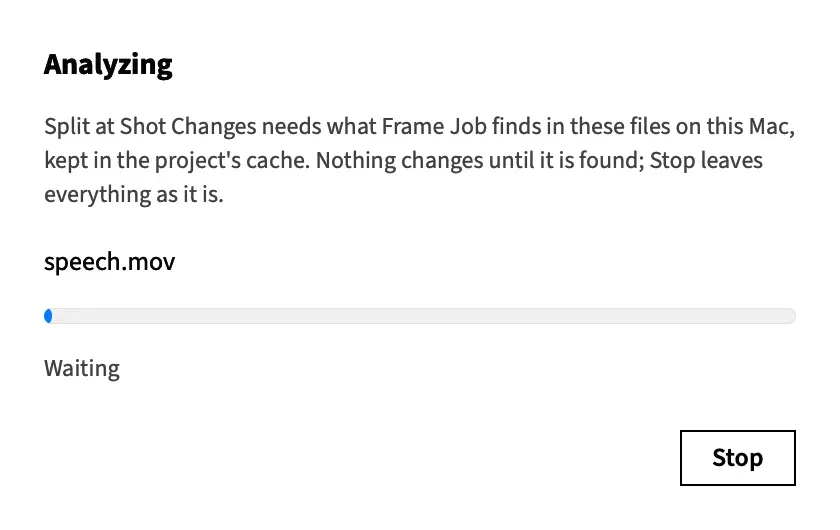
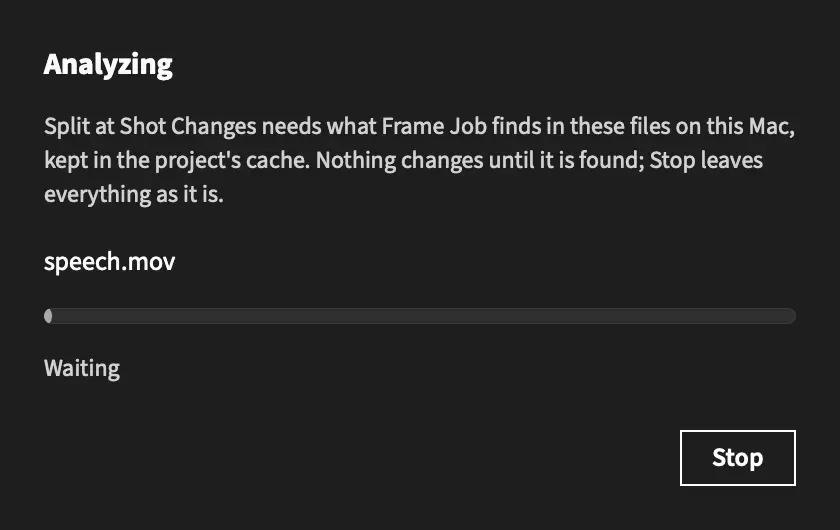
The sheet has one row for each file that needs work, with its name, a bar and a status:
| Status | What it means |
|---|---|
| Waiting | Frame Job hasn’t read the file’s first frame yet. |
| A percentage | The share of the work done so far. |
| Done | This file has finished. |
For Follow Subject and Make Vertical Version, a file can have a row for each thing being found, such as “speech.mov — Faces”, “speech.mov — Shot changes” and “speech.mov — People and salient regions”.
These commands use the sheet:
- Clip ▸ Split at Shot Changes
- Clip ▸ Follow Subject…, after you press Follow in its own sheet
- File ▸ Make Vertical Version…, after you press Make in its own sheet
- Clip ▸ Switch by Speaker…, before its own sheet, when it needs to find faces because it’s working from one microphone
When every row is done, the sheet closes by itself and the command carries on. Every editor action is off while the sheet is up.
If the project changes while the sheet is up, which an agent can do, the command makes no edit. The inspector says so and asks you to choose the command again.
Remove Background doesn’t use this sheet. It makes its masks while you go on working, and shows its progress in Status in the Clip tab’s Background section.
Stop an analysis
Section titled “Stop an analysis”Choose Stop, or press ⎋. The sheet closes, the command is cancelled and no edit is made. What was already saved stays in the project, so choosing the command again carries on from there.
Minimising the window also stops the work. When you bring the window back, the sheet starts again on whatever hadn’t finished.
When an analysis fails
Section titled “When an analysis fails”If an analysis can’t finish, the command stops instead of editing with half an answer. Frame Job beeps, and the foot of the inspector names the file and the reason, for example: “The shots analysis of “interview.mov” failed: …”
If a file is missing or can’t be read, Split at Shot Changes and Switch by Speaker stop before the sheet opens, and Follow Subject says so in its own sheet. Make Vertical Version keeps a clip whose file is missing as it’s placed and goes on with the rest. See Relink missing media.
Analysis runs in the background
Section titled “Analysis runs in the background”You can keep working while an analysis runs, except while the Analyzing sheet is up.
- Picture analysis runs at low priority, one job at a time across all your open projects.
- Sound analysis has its own queue, so one sound job can run beside one picture job.
- Frame Job saves what it has found every 30 seconds, and at the end of each stretch of the file it reads. If a job stops part-way, everything saved so far is kept and the next request continues from there.
- A job that nothing wants any more is dropped if it hasn’t started, and cancelled if it has. Closing a project does this to its jobs.
What each analysis finds
Section titled “What each analysis finds”Frame Job finds the hard cuts in a video by comparing each frame’s colours with the frames before it. This is plain arithmetic, with no machine learning.
- A gradual dissolve isn’t reported as a cut.
- A single flash frame isn’t a cut.
- A dissolve between flat-coloured pictures, such as slides or title cards, can show as one cut.
Split at Shot Changes cuts your clips at these moments.
Frame Job looks for faces ten times a second of the file’s own time, using Apple’s Vision framework. For each face it keeps its box, how far it’s turned and tilted, and how open the mouth is.
Faces are listed from left to right. They carry no identity, so Frame Job doesn’t know that a face in one sample is the same person in the next, and it never puts names to faces.
People and salient regions
Section titled “People and salient regions”At the same ten samples a second, Frame Job finds:
- People, as a box around each person’s head and shoulders.
- Salient regions, as boxes around the parts of the picture the eye goes to first. In a talking-head shot that’s usually the speaker, and on a slide it’s often the text.
Each sample is judged on its own, so no person is followed from one moment to the next. See Subjects in the picture for how Frame Job uses them, and Show Subjects to see faces, people and salient regions over the preview.
Person masks
Section titled “Person masks”A person mask is an outline of a person, made for every frame of the video that a clip plays. Remove Background and Text Behind Subject draw with these masks, and they’re made when a clip has one of those on.
A frame counts as holding a person when at least 0.5 % of its mask is above half strength. The masks are kept at the size Vision makes them, one for every frame, so a long clip’s masks take up room in the package: about 62 MB for a minute of 1080p video.
Foreground masks on pictures
Section titled “Foreground masks on pictures”On a still picture, Frame Job can mask the foreground subject, whether or not it’s a person. Turn on Remove Background, then choose Foreground in the Subject row of the Clip tab’s Background section. The row appears when every selected clip is a picture, and Person is the default.
Either way a picture gets one mask, made from the picture as it’s drawn, the right way up.
Sound events
Section titled “Sound events”Frame Job can listen to a file’s first sound track and score how likely six kinds of sound are: laughter, applause, cheering, crowd, music and speech. It uses Apple’s Sound Analysis, in overlapping windows 1.5 seconds long that start every 0.75 seconds. Each score runs from 0 to 1, and there’s no score where a window runs past the end of the sound.
Only an agent can ask for these, and no menu or pane uses them. Treat the scores as hints, never as a finding on their own.
The file needs sound, and an audio file works. Frame Job won’t read sound events for a clip that plays in reverse, because its sound runs backwards.
What’s built when a file arrives
Section titled “What’s built when a file arrives”After you open a project, import a file or relink one, Frame Job builds these in the background, and the timeline fills in as they finish:
- Filmstrip thumbnails for every file with a picture, which its clips show on the timeline. See Reading a clip on the timeline.
- The waveform, at 100 peaks a second.
- The loudness record, in 10 ms steps, which Normalize, Enhance Voice and the loudness read-outs use.
- Sound-matching features, which Synchronize Audio uses.
- Voice detection.
At most two files’ sound is read at a time, so a big import doesn’t hold up playback or a speed ramp’s sound. Anything already built for an unchanged file is never built again. A file with no sound has no waveform, loudness or voice detection, and a .cube LUT file gets none of these.
Until one of these is ready, the controls that need it wait or read “measuring…”. A command that needs it says the file is still being analysed and asks you to try again in a moment.
If a waveform or loudness pass fails, Frame Job tries again after 2 seconds and again after 10. After that it tries the next time you open the project.
Voice detection
Section titled “Voice detection”Frame Job scores every 32 ms of a file’s sound for speech, using the Silero voice model bundled with the app. That’s how later commands tell a voice from noise. These use it:
- Remove Silences, in its Voice mode
- Enhance Voice and Match Audio
- The Leveller
- Duck by Speech
- Synchronize Audio
- Switch by Speaker
- Speed Up Typing
- Cut by deleting words and Shorten a pause
- The Transcript tab, to place where a word on this Mac’s reading really starts and to find the pauses between paragraphs
If the voice model can’t be used, Remove Silences says so and judges quiet by level instead.
Results are kept per file
Section titled “Results are kept per file”Anything Frame Job finds is kept for the file, not for a clip, in the project’s cache, a folder of things it can make again. Every clip of a file shares it, and a second request over the same part is ready at once. Picture analysis and sound events live in the .framejob package under cache/analysis/.
A result counts only for the file it was made from, which Frame Job checks by the file’s size, modification time and length. Relink to a different file, or change the file on disk, and it’s analysed again. An unchanged file isn’t.
Picture analysis and sound events also record the macOS build they were made on. After a macOS update, or on a Mac running a different build, they’re made again the next time something asks. The same goes when a Frame Job update changes what one of them stores.
Results travel with the project
Section titled “Results travel with the project”The caches live inside the .framejob package, so they go wherever it goes. Moving, copying or consolidating a package keeps them. See The .framejob package for what’s inside.
A new project made from this one starts with them too, so nothing is analysed twice. New Project from Range and the Make a copy option of Make Vertical Version carry these, for each file the new project keeps:
- Filmstrips, waveforms and loudness
- Voice detection and sound-matching features
- On-device transcripts
- Everything on this page that’s found in the picture or sound
- The reversed render of any clip that plays backwards
Your media files are never copied. Neither is speed-ramp audio, or a voice-isolated or voice-effect render, and those are made again when they’re needed. A cloud transcript stays behind unless its copy on AssemblyAI has already been deleted.
Good to know
Section titled “Good to know”- Show Subjects never starts an analysis. Where nothing has been found it reads “Not analyzed — Clip ▸ Follow Subject… analyzes it”.
- A package with a missing or damaged cache still opens, and what’s built when a file arrives is built again. Picture analysis is made again when something next asks, but a lost cloud transcript costs money to make again.
- Until an untitled project is first saved, its caches sit in a temporary folder. The first save copies them into the package.
With an agent
Section titled “With an agent”An agent can read the results themselves with get_media_analysis, for a whole file or for the part one clip plays, and it’s the only way to reach sound events. It shows no sheet. It waits at most 60 seconds, then stops and says how much it covered. What it covered is kept, so asking again carries on. A long file is read in windows, because one reply has a size limit. Each reply says whether it came from the cache alone, and what the result was made with.
analyze_cutout makes a clip’s masks and says where they stand. See Tools: reading analysis.