
Actions
An action makes a clip change over time: a zoom into a screen recording, a fade of the volume, a title that slides and changes colour. You say where the clip ends up, and the action’s span and curve say how it gets there. Actions do the job keyframes do in other editors. There’s no keyframe tool as such.
- Menu
- Clip ▸ Add Action
- Keys
- ⌥⌘K
- Where
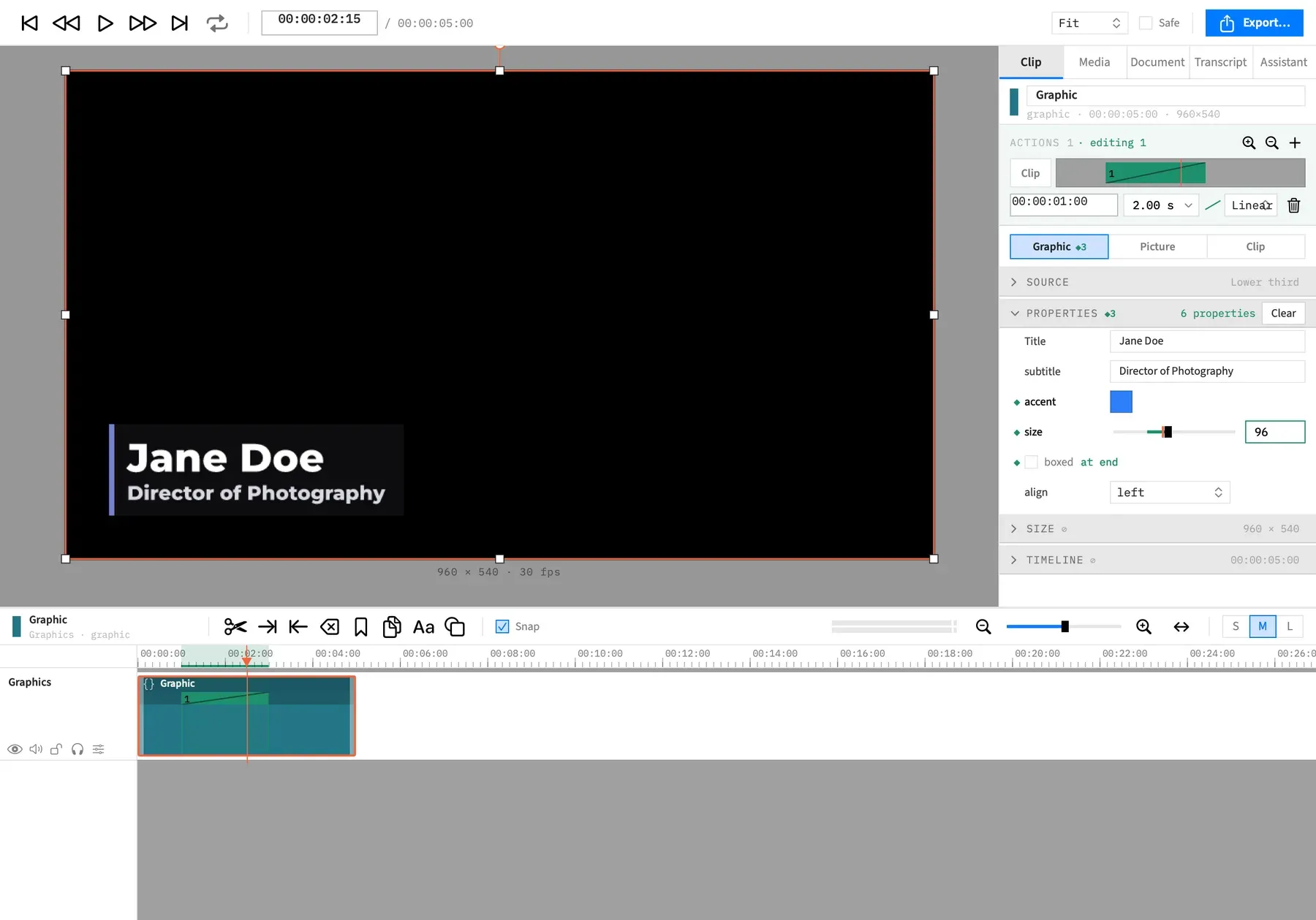
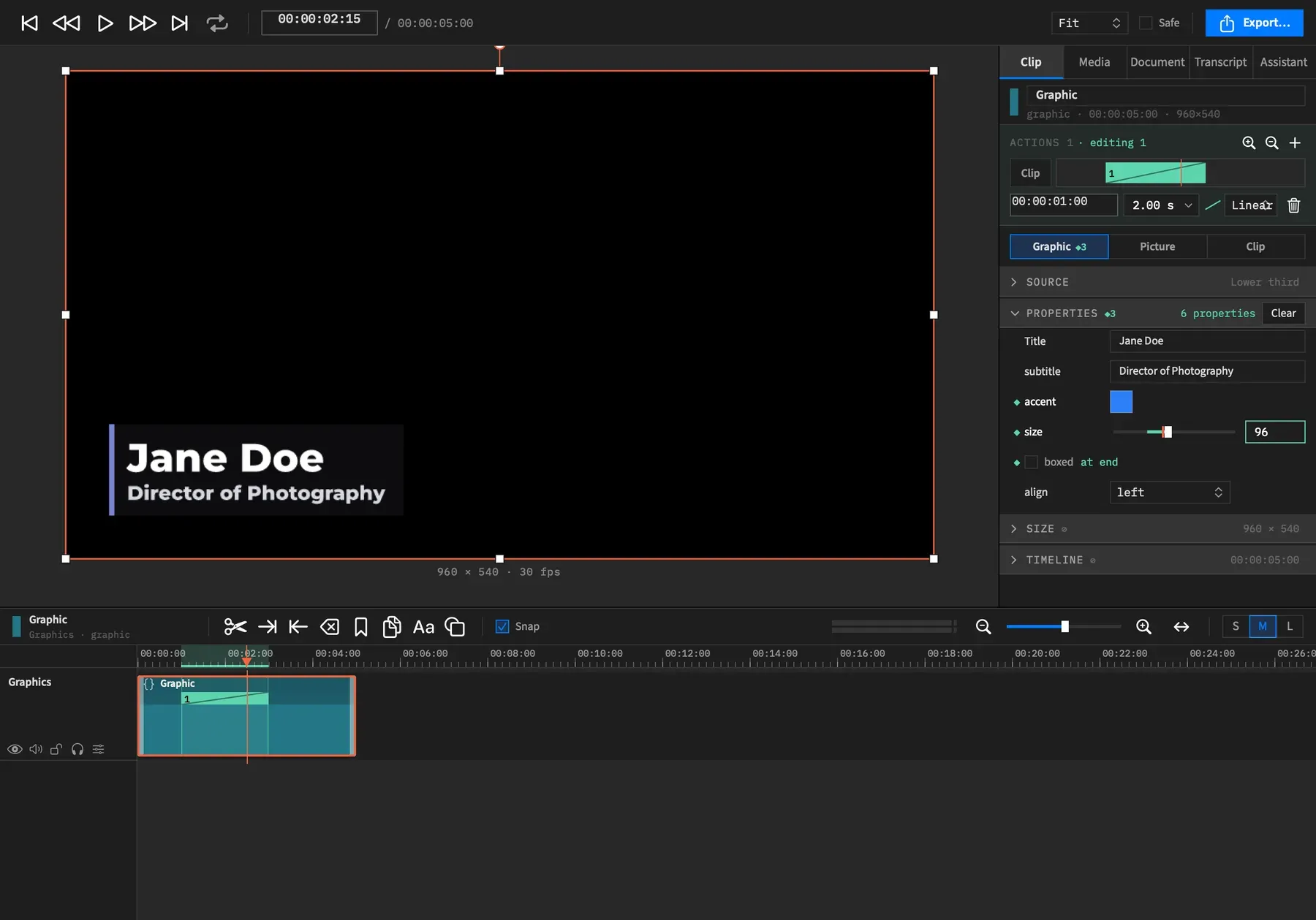
- Clip tab ▸ action laneA band on the clip in the timeline
- Agent tools
add_actionset_actionset_action_endremove_action
What an action is
Section titled “What an action is”An action is a span of time on one clip. Over that span, the clip’s properties move from whatever they were when the span began to the action’s end state, along the action’s curve.
Actions take the place of keyframes. You don’t set a value at each moment. You set what the clip ends at, and the span and the curve do the rest.
Actions on one clip can’t overlap, and you can’t make one that runs past the clip’s end. A later trim can leave an action running past the end, and only the part inside the clip plays. See How edits move actions.
To make one, see Add an action, then Set what an action animates to.
The end state is held
Section titled “The end state is held”When the span is over, the clip keeps the end state until a later action changes it. An action that takes the scale to 200% leaves the clip at 200% for the rest of its length. The clip doesn’t drift back on its own.
To go back, add a second action whose end state names the old value. Zoom Back does this for a zoom.
Clip time
Section titled “Clip time”An action’s times are measured from the clip’s own start, not from the start of the timeline. An action that starts at 2 seconds starts 2 seconds into the clip, wherever the clip sits. Move the clip and its actions go with it.
The start field in the action lane shows this time.
Several actions on a clip
Section titled “Several actions on a clip”A clip can have as many actions as fit end to end. They run in time order, and each one starts from the state the earlier ones left behind.
An action only changes what its end state names. If action 1 takes the scale to 200% and action 2 names only the opacity, the scale stays at 200% through action 2 while the opacity moves.
Action numbers
Section titled “Action numbers”Actions are numbered in time order, and an action has the same number on the timeline and in the Clip tab. The number is a position, not a name, so adding an action before an existing one moves the later ones up by one. If two actions ever share a start, the older one comes first.
Easing curves
Section titled “Easing curves”A curve sets how a value moves across the span. The same four curves serve actions, zooms, speed ramps and transitions.
| Curve | In the action lane | How it moves | Halfway through the span, the value is |
|---|---|---|---|
| Linear | Linear | At a constant speed | 50% of the way there |
| Ease In | In | Starts slowly, ends fast | 25% of the way there |
| Ease Out | Out | Starts fast, ends slowly | 75% of the way there |
| Ease In Out | In Out | Slow at both ends | 50% of the way there |
The action lane’s curve pop-up shows the short names, with a small drawing of the curve beside it. See Move, resize or remove an action. A transition’s Curve pop-up shows the full names. See The Transition section.
Default curves
Section titled “Default curves”A new action from Add Action is Linear. A zoom action, from Zoom to Region or Zoom Back, is Ease In Out.
How values change over an action
Section titled “How values change over an action”What happens to a property depends on what kind of value it is. What an action can animate goes through them section by section.
Numbers
Section titled “Numbers”Numbers ramp along the action’s curve. That covers position, scale, rotation, opacity, crop, volume, a filter’s amount, a grade’s sliders and a graphic’s number properties.
An agent can aim a number past what the property can hold. Frame Job keeps the value in the action as written and brings it into range as the clip is drawn, so an opacity aimed at 200% reaches 100% before the action ends and stays there.
Colours
Section titled “Colours”Most colours ramp too, through OKLab, which keeps the blend’s midpoints even. A cursor’s Ripple color switches at the end instead. See Colours blend in OKLab.
Switches, pop-ups and text
Section titled “Switches, pop-ups and text”An on/off box, a filter’s kind, a font and a graphic’s string, boolean or image property have nothing in between. They hold their value for the whole span, then switch to the end value when the action ends. Once the action changes one, its row in the Clip tab is tagged “at end”.
The same goes for a section you turn on inside an action, such as a shadow or an outline. Its numbers have nothing to ramp from, so it appears whole when the action ends.
Filters and obscure regions are lists, and they ramp entry by entry while both ends have the same number of entries.
| If | Then |
|---|---|
| Both ends have the same number of entries | Each entry’s numbers ramp to the entry in the same place at the other end |
| One entry changes kind, or a region changes shape | Only that entry switches at the end, and the others still ramp |
| The list’s length changes | The whole list switches at the end |
Colour curves
Section titled “Colour curves”Curves in the Color sub-tab always animate. Two curves with the same number of points ramp point by point, and a neutral curve lines up with the other curve’s points. Two curves with different numbers of points blend their values over the action.
With an agent
Section titled “With an agent”add_action, set_action, set_action_end and remove_action do everything the Clip tab does with an action. An agent names the curves linear, ease_in, ease_out and ease_in_out. See Tools: animation.