
Wheels
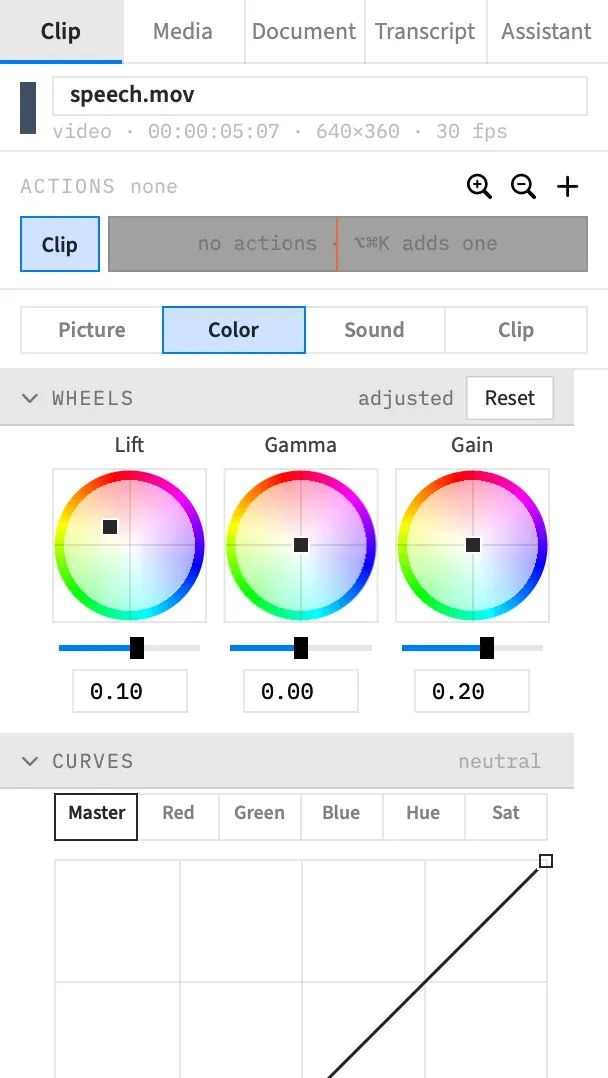
The wheels balance a picture by tone. Lift works on the shadows, Gamma on the middle tones and Gain on the highlights, so you can cool the shadows, warm the highlights or take a colour cast out of one part of the picture.
- Keys
- ⌥-dragDouble-click
- Where
- Clip tab ▸ Color ▸ Wheels
- Agent tools
set_videoset_action_end
The Wheels section
Section titled “The Wheels section”-
Select a video clip, an image, a still or an adjustment clip. An adjustment clip’s wheels grade everything behind it.
-
Open the Color sub-tab of the Clip tab. See The Color tab for which clips have it.
-
Open Wheels. It starts closed, and its header reads neutral until a wheel moves, then adjusted.
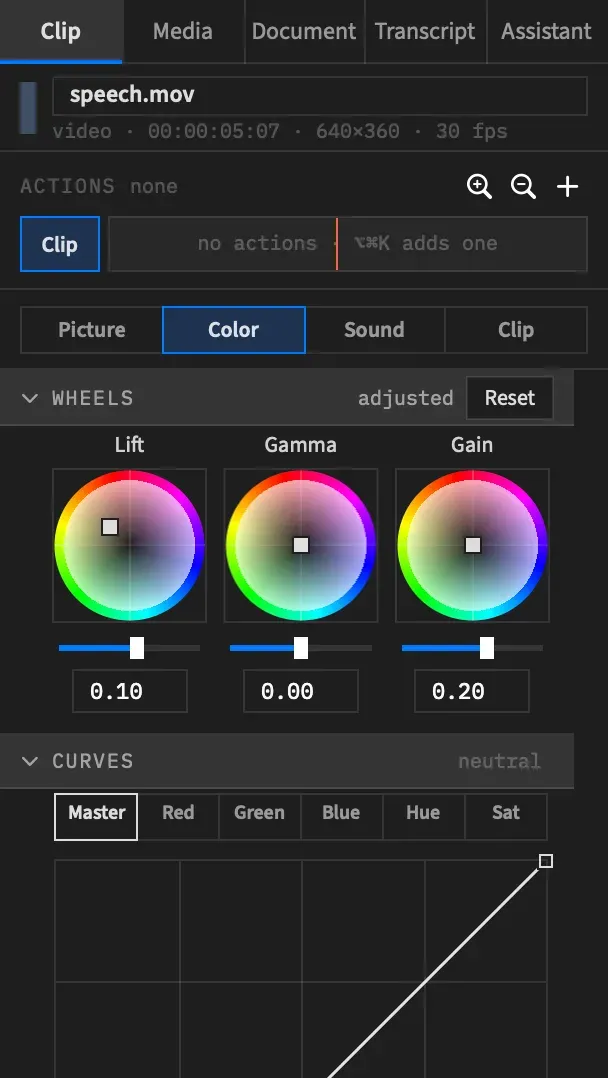
Each of the three columns has a colour disc that pushes its range toward a colour, and a strip and a number field for its brightness. Every value starts at 0, which leaves the picture unchanged.
The wheels apply after Color and Light, and before the curves and the look. Their order is fixed.
What each wheel moves
Section titled “What each wheel moves”| Wheel | What it moves | Brightness at +1 | Brightness at −1 |
|---|---|---|---|
| Lift | Moves black and holds white, so it mostly affects the shadows. | Black rises to 25 %. | Everything below 20 % goes to black. |
| Gamma | Moves the middle tones and holds both ends. | A 50 % grey rises to about 71 %. | A 50 % grey falls to 25 %. |
| Gain | Moves white and holds black, so it mostly affects the highlights. | Every level is multiplied by 1.5. | Every level is halved, so white falls to 50 %. |
A push follows the same rule. On Lift it tints the blacks and leaves white alone, and on Gain it tints the whites and leaves black alone.
Push a range toward a colour
Section titled “Push a range toward a colour”Press anywhere on a disc and drag. The direction you drag picks the hue, and the distance from the centre sets the strength. To warm the highlights, for example, drag Gain’s puck a little toward orange, between the red at the top of the disc and the yellow on its left.
The square puck moves by however far the pointer moves. It doesn’t jump to where you pressed, and a press with no drag changes nothing. Dragging one disc radius gives the full push, and past the rim the puck slides along the rim.
A puck changes only that wheel’s colour, never its brightness. One drag is one undo step, named after the wheel, such as Undo Lift.
Set a wheel’s brightness
Section titled “Set a wheel’s brightness”The strip and the field under each disc set that wheel’s master brightness, from −1 to +1. The default is 0.
- Click the strip off the knob and the value jumps there.
- Drag the knob and it moves from where it stands, with no jump.
- Type in the field for an exact value. It shows two decimals and has no unit. Return, Tab or a click elsewhere saves it, and Esc keeps the old value. A number past either end is set to −1 or 1, and anything that isn’t a number is ignored.
A drag is one undo step and so is a typed value, each named after its wheel.
Make a fine adjustment
Section titled “Make a fine adjustment”Hold ⌥ while you drag a puck or a strip to move at a tenth of the speed. On a strip, a press with ⌥ held moves the value relative to where it stands, with no jump.
On a disc you can press or let go of ⌥ at any point in a drag. On a strip, letting go of ⌥ before the mouse sends the knob back under the pointer.
The same key slows a point on a curve and a handle on a qualifier.
Read the push
Section titled “Read the push”Hover a disc to see its push as a hue angle and a strength, such as Hue 34° · 0.25. A centred puck reads Neutral.
The angle counts from red at 0°, with green at 120° and blue at 240°. The strength runs from 0 at the centre to 1 at the rim. The push has no number field, so this is the only place in the inspector to read it as a number.
Wheels match the vectorscope
Section titled “Wheels match the vectorscope”Each disc is turned so that a hue sits where the vectorscope draws it. Dragging toward a colour moves the trace toward that colour.
Red sits 103° counter-clockwise from 3 o’clock, just left of the top. Going counter-clockwise from there you’ll find yellow on the left, green at the lower left, cyan near the bottom, blue on the right and magenta at the upper right. Every 75 % target on the vectorscope falls within about 12° of its place on the disc.
Reset the wheels
Section titled “Reset the wheels”| To reset | Do this |
|---|---|
| One wheel’s push | Double-click its disc. The puck returns to the centre and the wheel’s brightness stays. |
| One wheel’s brightness | Double-click its strip. The value returns to 0 and the push stays. |
| All three wheels | Choose Reset in the section’s header, or right-click the wheels and choose Reset to default. Reset appears once a wheel has moved, while no action is selected. |
Each of these is one undo step, even when the first click of a double-click on the strip moved the knob. A double-click is named after its wheel, and resetting all three shows as Undo Wheels.
Grade several clips at once
Section titled “Grade several clips at once”Select the clips and use the wheels as usual. Each control changes only its own values. A puck gives every selected clip that wheel’s push and leaves each clip’s brightness and other wheels alone. A strip or a field does the same for that wheel’s brightness.
The controls show the first clip’s values. When the clips differ on any wheel, a mixed badge appears. One badge covers all three wheels.
Animate the wheels
Section titled “Animate the wheels”With an action selected, a puck, a strip or a field sets the action’s end value, and the wheels ramp there from their values at the action’s start. See Animate a grade.
While the action animates the wheels, a disc shows a hollow square at the start value and the puck in the action colour. A strip fills in the action colour from the start value. A coral mark shows the value under the playhead when it differs.
The three wheels count as one row of the action. Moving any of them puts one ◆ in the gutter beside all three, and removing the row takes all three out of the action. Right-click them for Remove from action N or Set end value to default, or choose Clear in the section’s header.
Good to know
Section titled “Good to know”There’s no Offset wheel. For an overall lift, use Brightness in the Color section.
With an agent
Section titled “With an agent”An agent can set the wheels with set_video as exact numbers, and an agent is the only way to enter a push by number. Each wheel takes a push as x and y and a brightness as master, all from −1 to 1. Its angles count the way the tooltip does, with red at 0° along positive x, and aren’t turned to match the disc.
Any wheel or value it leaves out stays as it is. Frame Job won’t take a push past the rim from set_video, and says so rather than moving it to the rim. An action’s end set with set_action_end is different: the value is kept, and the push stops at the rim while the action plays. See Tools: picture and grade.