
Build a ramp by hand
Building a speed ramp by hand gives you full control of each change of speed, where it starts, how long it takes and how it eases. Use it when the four shapes in Clip ▸ Speed Ramp… don’t fit.
- Menu
- Clip ▸ Add Action
- Keys
- ⌥⌘K
- Where
- The action laneClip tab ▸ Clip ▸ Speed section ▸ Rate
- Agent tools
add_actionset_action_endset_actionremove_action
Build a ramp
Section titled “Build a ramp”-
Select the clip and put the playhead where the change of speed should start.
-
Choose Clip ▸ Add Action (⌥⌘K), or the + in the action lane’s header. The new action is 1 s long, uses the Linear curve, and is selected.
-
Move or resize its band so it covers the change, and set its curve.
-
In the Clip tab’s Speed section, set Rate to the rate this action should end on.
-
Repeat for each change of speed. Each action starts from the rate the last one ended on.
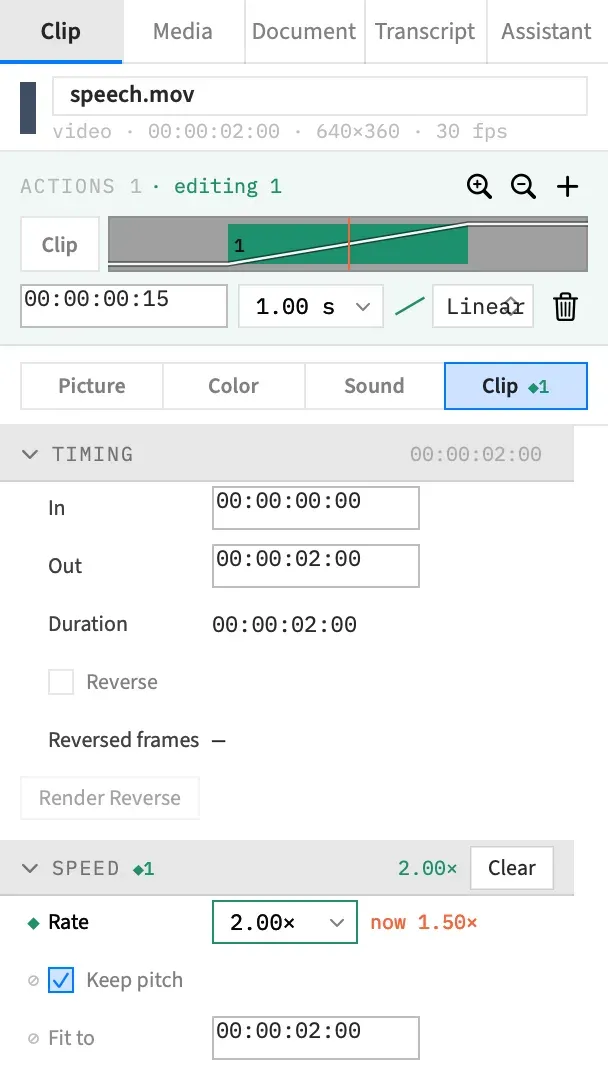
Add Action is available when a selected clip is under the playhead. An action needs a full second free, so Frame Job beeps and gives the reason at the foot of the inspector if it would run past the clip’s end or overlap another action. Move the playhead earlier, or clear the way.
Set the rate
Section titled “Set the rate”While an action is selected, the Speed section edits that action rather than the clip. Rate shows the rate the action ends on. Type a rate from ×0.1 to ×1000, or pick 0.50×, 1.00×, 2.00× or 4.00× from its menu. Doing this turns any action into a Speed action.
If the action doesn’t set a rate yet, Rate shows the rate the clip is playing at the end of that action. The coral now beside the field shows the rate at the playhead, when that differs. There’s no Reset while an action is selected, so to end the action at ×1, enter 1.
To take the rate out of an action and keep the action, choose Clear in the section header. This is one undo step, and it can’t be done if the clip would then play past the end of its file. See Clear a rate from an action for the other ways to do it.
Keep pitch and Fit to still belong to the clip, so their rows are marked ⊘. A length typed in Fit to changes the clip, not the action. See Rows that stay the clip’s.
A rate too high for the file isn’t accepted, and the reason at the foot of the inspector names the largest that fits. Setting a rate above ×12 on a clip with sound asks first.
Set the curve
Section titled “Set the curve”The curve is how an action eases from its starting rate to its end rate. Select the action and choose from the curve pop-up in the detail row under the Clip tab’s action lane. It has no label of its own, and shows the curve’s name:
| Curve | How the rate moves |
|---|---|
| Linear | Steadily, from start to end. This is what a new action uses. |
| In | Slowly at first. |
| Out | Slowly at the end. |
| In Out | Slowly at both ends. |
Changing a curve changes how much of the file the ramp plays, so a change won’t go through if the ramp would then play past the end of the file. The undo step is Action Curve.
Move and resize an action
Section titled “Move and resize an action”Drag the middle of a band on the action lane to move it. Drag either end to resize it. The grips are the outer 5 pt of a band, and they show when you hover over a band wider than 15 pt.
Bands drag the same way on the timeline and in the Clip tab’s lane. A drag snaps to whole frames and stops at the next action and at the clip’s end. An action can’t be shorter than one frame.
You can also type in the detail row: the first field is where the action starts, measured from the clip’s start, and the second is its length.
The undo steps are Move Action and Resize Action. Captions over the clip move in the same step, which adds “and Re-time Captions” to the name. See Captions follow a speed change.
Moving or resizing a Speed action changes how much of the file the clip plays. If a drag would take the clip past the end of its file, the band stays at the last place that fits. If a typed value would, nothing changes and the reason names the latest clip end that fits.
The playhead selects the action
Section titled “The playhead selects the action”With one clip selected, playing or scrubbing into an action selects it. The Speed section then edits that action. Clicking a band also selects it, and parks the playhead at the action’s end so the preview shows the rate you’re setting.
An action stays selected when the playhead moves out of it, until the playhead enters another action or you go back to the clip. So check the lane’s header before you change Rate. It reads “editing” and the action’s number while an action is selected.
Back to editing the clip
Section titled “Back to editing the clip”Press Esc, or choose the Clip chip at the left of the Clip tab’s action lane. The Speed section edits the clip itself again.
The playhead can stay inside the action, and it won’t be selected again until the playhead leaves and comes back.
Remove an action
Section titled “Remove an action”Select the action and press ⌫, or choose the trash button in the detail row. With an action selected, ⌫ removes the action and not the clip. See Move, resize or remove an action.
A Speed action can’t be removed if the clip would then play past the end of its file, which happens when the action was slowing the clip down. The reason at the foot of the inspector names the latest clip end that fits.
The undo step is Remove Action, or Remove Action and Re-time Captions when captions move.
Split inside an action
Section titled “Split inside an action”To split a clip partway through a Speed action, put the playhead inside the action and split as usual. The split keeps the picture continuous at the cut, with no repeated or skipped frame. Each half gets its own Speed action, and the second half starts at the rate the clip had reached.
Two things can change, depending on the curve:
- With Out or In Out, the rate can jump at the cut.
- With In or In Out, the second half can end on a different frame of the file.
See Split inside a Speed action for how the rates are worked out.
Good to know
Section titled “Good to know”A clip linked to its detached sound can’t have its Speed actions changed until you choose Attach Audio.
With an agent
Section titled “With an agent”add_action adds the action, and set_action_end with speed in its patch, such as { "speed": 3 }, sets the rate it ends on. speed: null takes the rate out again. set_action moves or resizes an action and sets its curve, and remove_action removes it. See Speed in an action.