
Generate Captions
Generate Captions transcribes the speech in your clips and lays it out on a new caption track as ordinary text clips, either as two-line subtitles or as large word-by-word captions. These are Frame Job’s auto captions. On this Mac is free, needs no key and uploads nothing.
- Menu
- File ▸ Generate Captions…
- Needs
- On this Mac: the language’s speech model, which the sheet can download.AssemblyAI: your own API key, unless every file is already transcribed.
- Agent tools
transcribe
Generate captions
Section titled “Generate captions”-
If you only want part of the project captioned, select those clips or mark an in/out range.
-
Choose File ▸ Generate Captions…. It has no keyboard shortcut. Playback pauses and the sheet opens.
-
Set Language, Engine, From and Style, and look at the preview under the style. If the language reads “— not installed”, choose Download on the row under it and wait for it to finish. AssemblyAI needs your key.
-
Check the summary line under the rows. It says how much audio the run covers.
-
Choose Generate. The same card becomes a progress bar.
The captions go on a new track at the front, as one undo step. A run with nothing to report closes the sheet by itself.
The menu item is greyed out when nothing on the open timeline can be transcribed. It needs at least one clip that plays sound from a media file, forwards, with its audio on. See What can be transcribed.
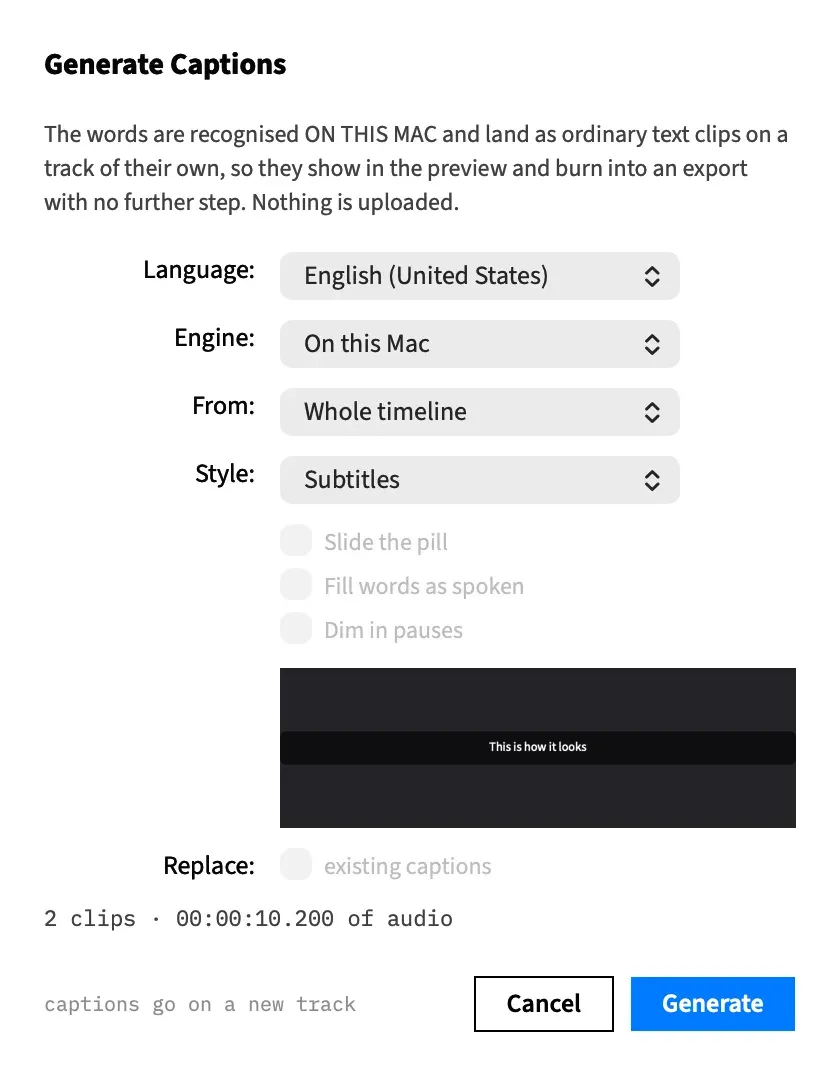
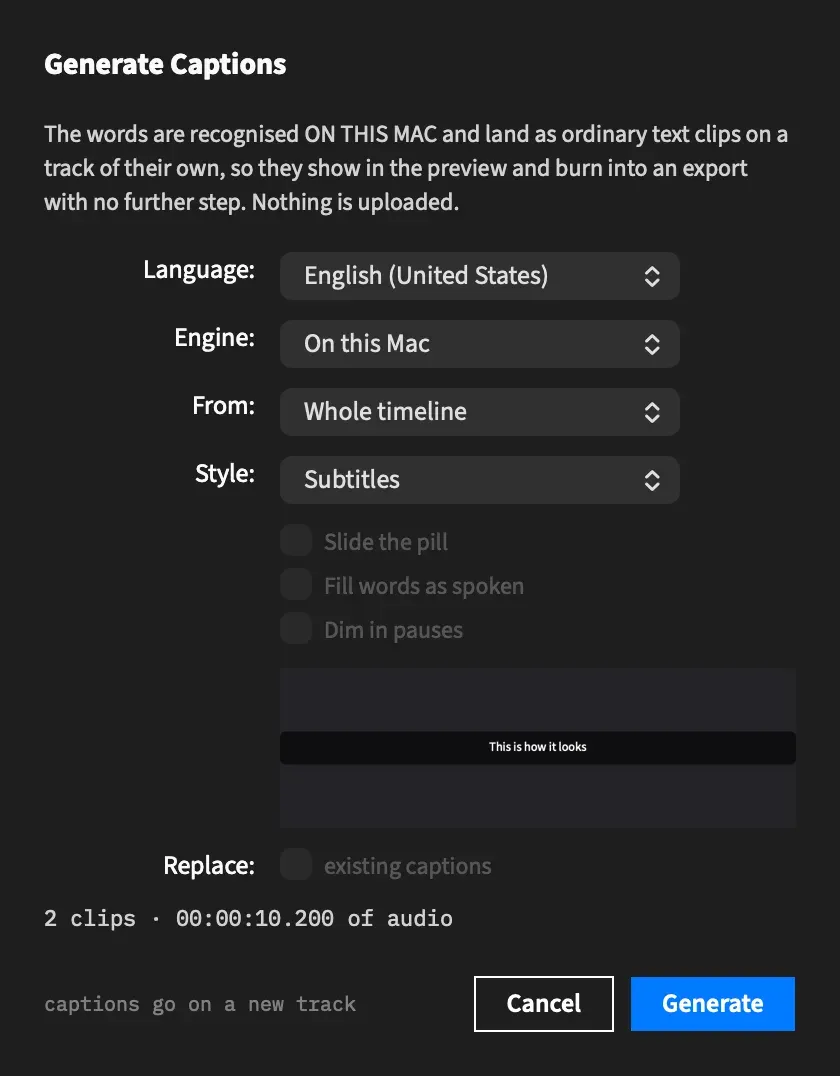
The sheet’s rows
Section titled “The sheet’s rows”From top to bottom:
| Row | What it does | Default |
|---|---|---|
| Language: | The spoken language. | On this Mac: your Mac’s own language, or the nearest one on the list. AssemblyAI: Detect automatically. |
| Download | Shown only when the chosen on-device language isn’t installed. See Choose a language. | Hidden |
| Engine: | Where the words are recognised. | The engine you chose last time, On this Mac the first time |
| Speakers: | AssemblyAI only. “split by speaker, coloured in Subtitles”. | Off |
| Vocabulary: | AssemblyAI only. Names and jargon to expect, separated by commas. | Empty |
| Transcribe again: | AssemblyAI only. “ignore any cached transcript”. | Off |
| From: | What to transcribe. | Selected clips if the selection holds a clip you can hear, else In/out range if a marked range holds one, else Whole timeline if it holds one, else Selected clips if the selection holds anything transcribable, else Whole timeline |
| Style: | How the captions look. | The style you chose last time, Subtitles the first time |
| Three look boxes | Slide the pill, Fill words as spoken and Dim in pauses. See Looks for word captions. | Each as you last left it, off the first time |
| Sample preview | A sample page in the chosen style. | |
| Replace: | Swaps out earlier caption tracks instead of adding another. | Off |
Transcribe with AssemblyAI explains the three AssemblyAI rows.
Choose what to transcribe
Section titled “Choose what to transcribe”From: offers Selected clips, In/out range and Whole timeline. A choice that holds nothing transcribable is greyed.
In/out range takes every clip that overlaps the range, whole, so captions can run past the range’s edges. Clips that can’t be read don’t count towards any of the three.
In/out range and Whole timeline count only clips you can hear: a clip that’s muted, turned down to silence, or on a muted or soloed-out track is left out. Selected clips reads every selected clip it can, heard or not, so select a muted clip to caption it.
Frame Job doesn’t notice two clips holding the same speech. On a show with cameras and microphones all playing, Whole timeline can give you the same words more than once. Mute the cameras, or select each person’s microphone and choose Selected clips.
Choose an engine
Section titled “Choose an engine”Engine: chooses where the words are recognised.
| Engine | What happens |
|---|---|
| On this Mac | Recognition runs here and nothing is uploaded. The language’s model has to be installed. See Transcribe on this Mac. |
| AssemblyAI | The audio of each file is uploaded and transcribed in the cloud, on your own key. See Transcribe with AssemblyAI. |
The sentence at the top of the sheet changes with the engine to say what will happen to your audio. The Speakers:, Vocabulary: and Transcribe again: rows are hidden, not greyed, while the engine is On this Mac, and they appear when you choose AssemblyAI.
Choose a language
Section titled “Choose a language”The list depends on the engine, and changing the engine refills it.
- On this Mac: every language this Mac’s recogniser supports. One with no model reads “— not installed”, and choosing it puts a Download row under Language:. Transcribe on this Mac covers installing one.
- AssemblyAI: Detect automatically, then 21 rows: 18 languages, with English listed four ways.
Choose a style
Section titled “Choose a style”Style: picks subtitles or one of the five word caption styles.
| Style | Typeface | Case |
|---|---|---|
| Subtitles | Source Sans 3 | As written |
| Highlight | Montserrat Black | Upper case |
| Pill | Montserrat ExtraBold | Upper case |
| Karaoke | Montserrat ExtraBold | As written |
| Build | Anton | Upper case |
| One Word | Bebas Neue | Upper case |
Subtitles cues use the Caption preset and hold at most two lines of 42 characters, for at most 6 seconds. See Subtitles. Every other style fills each page by its measured width and carries each word’s timing, so the word being said can be drawn differently.
You choose a style when you generate. It isn’t a preset you can apply in the inspector afterwards, so restyling means generating again. See Restyle a caption track.
Check the sample preview
Section titled “Check the sample preview”Under the style and its look boxes is a sample page, drawn at this canvas’s size, so you can see the style before you run anything. With Subtitles, it reads “This is how it looks” on a dark box when there are no kept AssemblyAI words to use. Word caption styles says how it behaves for a word style.
Replace existing captions
Section titled “Replace existing captions”By default, captions go on a new track, as the sheet’s footnote says, and earlier caption tracks stay where they are. Tick Replace: “existing captions” to swap out earlier caption tracks over the same clips instead. Removing them and placing the new captions happen in the same undo step.
The box only works for a word style, with a track it may replace, and it’s dimmed and unticked otherwise. While it’s live, a line under it names what will go, such as “Replaces “Captions” (12 captions).” Restyle a caption track has the full rule.
Read the summary and the note
Section titled “Read the summary and the note”Under the rows, a summary line gives the size of the run, for example 3 clips · 00:04:12.000 of audio. With nothing to do, it reads “Nothing to transcribe”. When there are clips to read but none you can hear, it reads “Nothing heard can be transcribed. Select a clip.” With AssemblyAI it prices the run instead. See Transcribe with AssemblyAI.
Under that, a note explains anything stopping the run. With nothing transcribable, it reads “Only a clip whose media has sound can be transcribed, and never one played in reverse.”
Generate is greyed until the run can go ahead: while nothing can be transcribed, or while the chosen on-device language isn’t installed. With AssemblyAI it also needs a key, unless every file is already transcribed.
Follow a run
Section titled “Follow a run”While a run goes, the card shows a progress bar, “Transcribing 3 clips…” and a detail line. With AssemblyAI it reads “Transcribing 3 clips with AssemblyAI…”.
On this Mac, the detail line names the clip being recognised. With AssemblyAI, it names the stage, and the bar is shared between files by their length.
| Detail line | Where the file’s share of the bar gets to |
|---|---|
| “Extracting interview.mov” | 25% |
| “Uploading interview.mov · 12 MB of 40” | 65% |
| “Submitting interview.mov” | Holds at 65% |
| “Waiting for AssemblyAI · 35 s” | 95% |
| “Saving interview.mov” | 100% |
The wait advances on the clock, and it holds at 95% rather than pretending to finish.
Cancel a run
Section titled “Cancel a run”Choose Cancel while a run goes. The detail line reads “Stopping…” until the run ends, then the card reads “The transcription was cancelled.” and the button becomes Close. Nothing is placed. If the sheet closes mid-run, that stops the run too.
Before a run starts, Cancel closes the sheet.
The run report
Section titled “The run report”Placing the captions is one undo step, Generate Captions.
A clean run closes the sheet by itself. Otherwise the card stays open with Close and says what happened:
- How many captions were added and on which track, for example “12 captions added on “Captions”.”
- How many were shortened to fit.
- Which clips were skipped and why, for example “clip 7: no speech was recognised in it”. The captions from the other clips are still placed.
- On a canvas taller than wide, how many Subtitles captions wrap to more than two lines.
A cloud run can add more: a fallback model, the languages it detected, a delete AssemblyAI hasn’t confirmed, or a transcript that couldn’t be kept. See Transcribe with AssemblyAI and What goes to AssemblyAI.
A run that fails shows the error on the same card, and nothing is placed.
| The card says | What it means |
|---|---|
| No speech was recognised in the audio that was transcribed. | Every clip was read, and none held any words. |
| The transcription failed: … | No captions came out, and at least one clip couldn’t be read. It gives the first three reasons. |
| The project closed before the captions could be placed. | The project was gone by the time the run ended. |
What the sheet remembers
Section titled “What the sheet remembers”Generate Captions reopens with your last Engine:, your last Style: and the three look boxes as you left them. Each is saved the moment you change it, whether or not you go on to generate.
Everything else starts fresh each time, including Language:, From:, Replace: and the three AssemblyAI rows.
With an agent
Section titled “With an agent”transcribe does what the sheet does, with these differences:
- It always gets the captions back, with each word’s timing for a word style, whether or not it places them. With
place: falseit places nothing, so an agent can read a transcript and check it first. That changes nothing in the project and makes no undo step. - It takes the clips by id, muted or not, or every clip you can hear if it names none. With none named and nothing to hear, the call stops with a message.
replaceonly works with a word style and when the captions are being placed. Anywhere else the call stops with a message, and a placed run lists the tracks it removed underreplaced.speakers,vocabularyandrefreshare the three AssemblyAI rows, and each stops the call withoutengine: "assemblyai".- It never reads or writes what the sheet remembers. It uses the on-device engine and Subtitles unless it asks for something else, every time.
- It never downloads a language model. A language that isn’t installed stops the call, and a person has to install it from the sheet.
See transcribe.