
Insert a graphic
Insert ▸ Graphic… is where you put a motion graphic on the timeline. You can pick one of the 23 bundled templates, a graphic already in your project, or a file of your own, and watch it play before you place it.
- Menu
- Insert ▸ Graphic…
- Agent tools
list_graphicsinsert_graphicadd_graphic_cliprender_graphicwrite_graphicimport_graphic
Insert a graphic
Section titled “Insert a graphic”-
Move the playhead to where the graphic should start.
-
Choose Insert ▸ Graphic…. The item has no keyboard shortcut, and it’s dimmed until the project’s window is open.
-
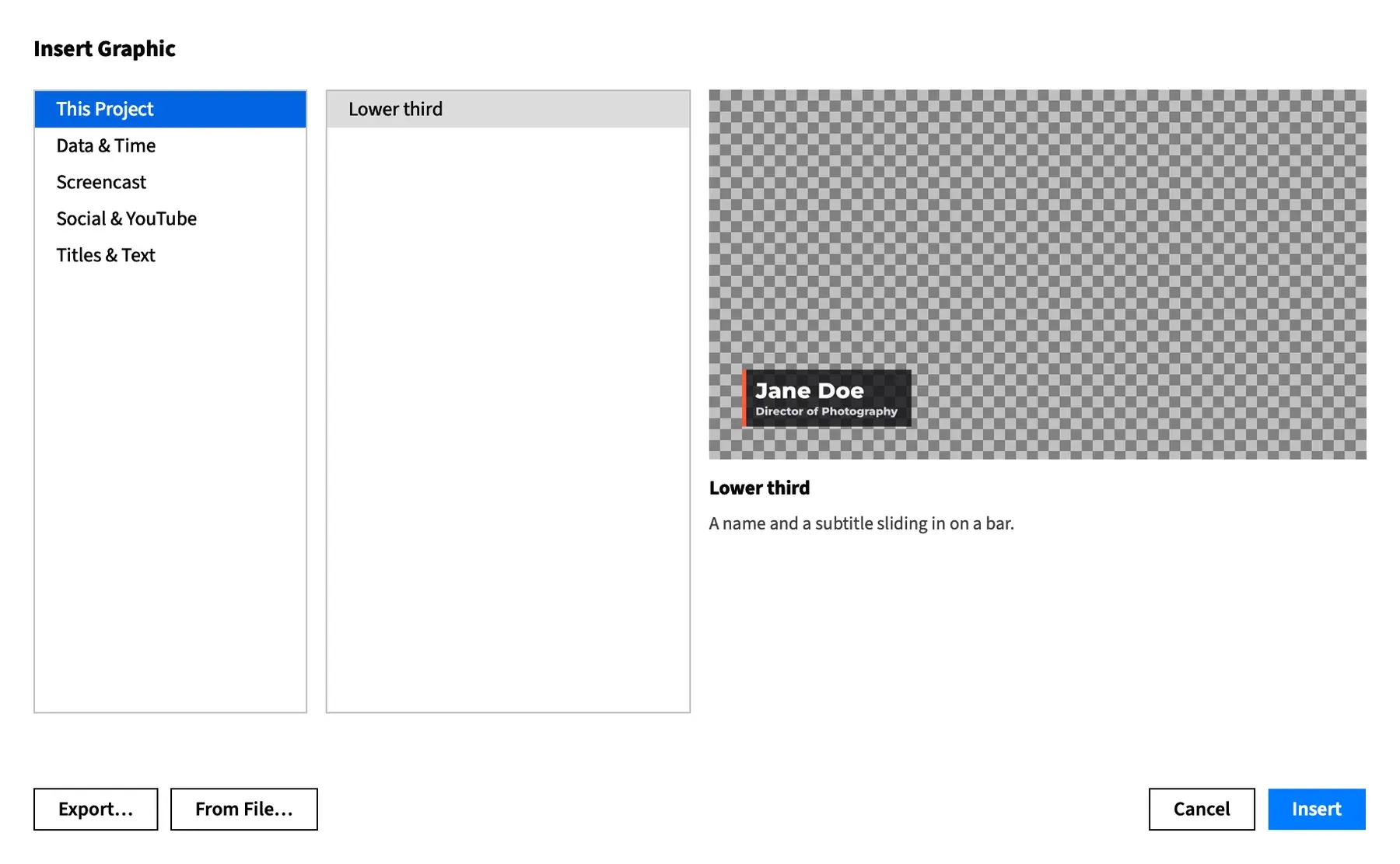
Choose a category on the left, then a graphic in the middle. The preview on the right plays it.
-
Choose Insert, press Return, or double-click the graphic in the list.
Frame Job places the clip, selects it and closes the sheet. The inspector’s Clip tab shows the new clip on its Graphic sub-tab, ready for you to fill in.
Placing the clip is one undo step, Insert Graphic. If the graphic was a template, Frame Job first copied it into your project, and undo leaves that file where it is. See Templates are copied in.
Cancel or Esc closes the sheet and changes nothing.
The Insert Graphic sheet
Section titled “The Insert Graphic sheet”The sheet has three panes, over a message line. The bottom bar has Export… and From File… at the left, and Cancel and Insert at the right. It opens on the first category’s first graphic.
Insert is dimmed when no graphic is chosen. Export… saves the chosen graphic to give to someone else, and it’s dimmed for a module that doesn’t compile and while another export is running: see Share a graphic.
Categories
Section titled “Categories”The left list files the graphics by category. This Project comes first when your project holds a module, then the bundled categories in alphabetical order:
- Data & Time
- Screencast
- Social & YouTube
- Titles & Text
This Project lists every module in the project’s graphics folder. A module of your own always appears there, whatever category it names for itself, and never in a bundled category. Bundled templates lists what’s in each category.
The sheet reads what’s in your project when it opens. A module you add while it’s open appears the next time you open it.
The graphics list
Section titled “The graphics list”The middle list shows the chosen category’s graphics, sorted by title. A title comes from the module’s own name for itself. Without one, Frame Job makes a title from the file name, so lower-third becomes Lower Third.
When two graphics under This Project share a title, each shows its module name as well, as in “Lower third — lower-third-2”.
A module that doesn’t compile is still listed, in grey. Choose it and the preview shows its red error card, so you can find out why it won’t insert.
The looping preview
Section titled “The looping preview”The chosen graphic plays on a loop over a checkerboard, so you can see what’s transparent. The preview has your project’s canvas shape, and the graphic’s title and a one-line description sit under it. A module of your own gets that line from its own description. Hold the pointer over a description that’s cut off to read all of it.
The preview uses the graphic’s default properties, at the project’s frame rate. A slow graphic skips frames rather than falling behind. A module that fails shows its red error card here.
Insert from This Project
Section titled “Insert from This Project”Choosing a graphic under This Project places another clip drawn by that module, as it is. Nothing is copied, so this is how you use one graphic on several clips. Each clip keeps its own property values, but editing the module changes every clip it draws. See Clips sharing one module.
Insert from a file
Section titled “Insert from a file”-
Choose From File…. The sheet closes and a file panel opens.
-
Choose a
.jsmodule, or a.fjgraphicpackage.
Frame Job copies a .js file into the project under a new name and places a clip drawn by it, as Insert does. The file must be UTF-8 text. If it isn’t, Frame Job says so and copies nothing.
A .fjgraphic package doesn’t go straight in. Frame Job shows you what’s in it and asks first: see Share a graphic.
How the module is named
Section titled “How the module is named”The module is named after the file you chose, changed as needed to make a valid module name that isn’t taken:
- The name is lowercased.
- Each run of anything other than a to z and 0 to 9 becomes one
-. - Dashes are trimmed from the ends.
- The result is cut to 60 characters. If nothing is left, the name is
graphic. - If that name is taken, it gets
-2,-3and so on.
So My Title.js becomes my-title, and My Counter (v2).js becomes my-counter-v2.
Where it lands
Section titled “Where it lands”A new graphic starts at the playhead, on the front track (the top lane) if there’s room for it. If there isn’t, it goes on a new track above everything. Adding a text clip follows the same rule.
With a nest open, the clip goes on the nest’s front track, or on a new track inside the nest.
Default length and size
Section titled “Default length and size”A module can give its own length and size. Otherwise the clip is 5 seconds long and the size of the canvas.
A module gives its length in frames, counted at the project’s frame rate, so a 150-frame graphic lasts 5 seconds at 30 fps and 2.5 seconds at 60 fps. Bundled templates lists each template’s length. You can change the length and size afterwards: see Graphic size and timing.
A graphic bigger than the canvas is scaled down to fit when Fit new clips to canvas is on in the Document tab, as a shape is. It still draws at its own size.
Frame Job won’t place a clip when the module’s length isn’t a whole number of at least 1 frame, or its width or height isn’t a whole number from 1 to 8192. The message names the value that’s wrong. A module that gives no size of its own can’t be placed on a canvas wider or taller than 8192 pixels.
A module that doesn’t compile
Section titled “A module that doesn’t compile”A module that doesn’t compile has an error in its code that stops Frame Job running it. No clip is placed, and Frame Job tells you the first error, and the line it’s on when it knows:
graphics/<name>.js does not compile: <message> (line N)
From the sheet, Frame Job beeps, the message appears under the lists and the sheet stays open. From File… shows it in an alert.
A copy Frame Job made along the way stays in your project, whether it came from a template or a file. You’ll find it in grey under This Project. Fix it and insert it from there, or remove it with File ▸ Delete Graphic….
A message about a length or size that’s out of range appears in the same places.
On the timeline
Section titled “On the timeline”A graphic clip is teal and has no thumbnails. Its strip shows a {} symbol and reads Graphic, until you give it a name. When it’s selected, the timeline bar and the inspector’s clip header give its kind as “graphic”.
With an agent
Section titled “With an agent”An agent can list what the sheet offers with list_graphics and insert a graphic at the playhead with insert_graphic, as you can. It can also do two things the sheet can’t: draw chosen frames of a module to a picture without placing a clip, with render_graphic, and place a clip on the track and at the time it chooses, with its own length, size and property values, with add_graphic_clip. See Tools: graphics and Graphics with an agent.