
Polish when a recording lands
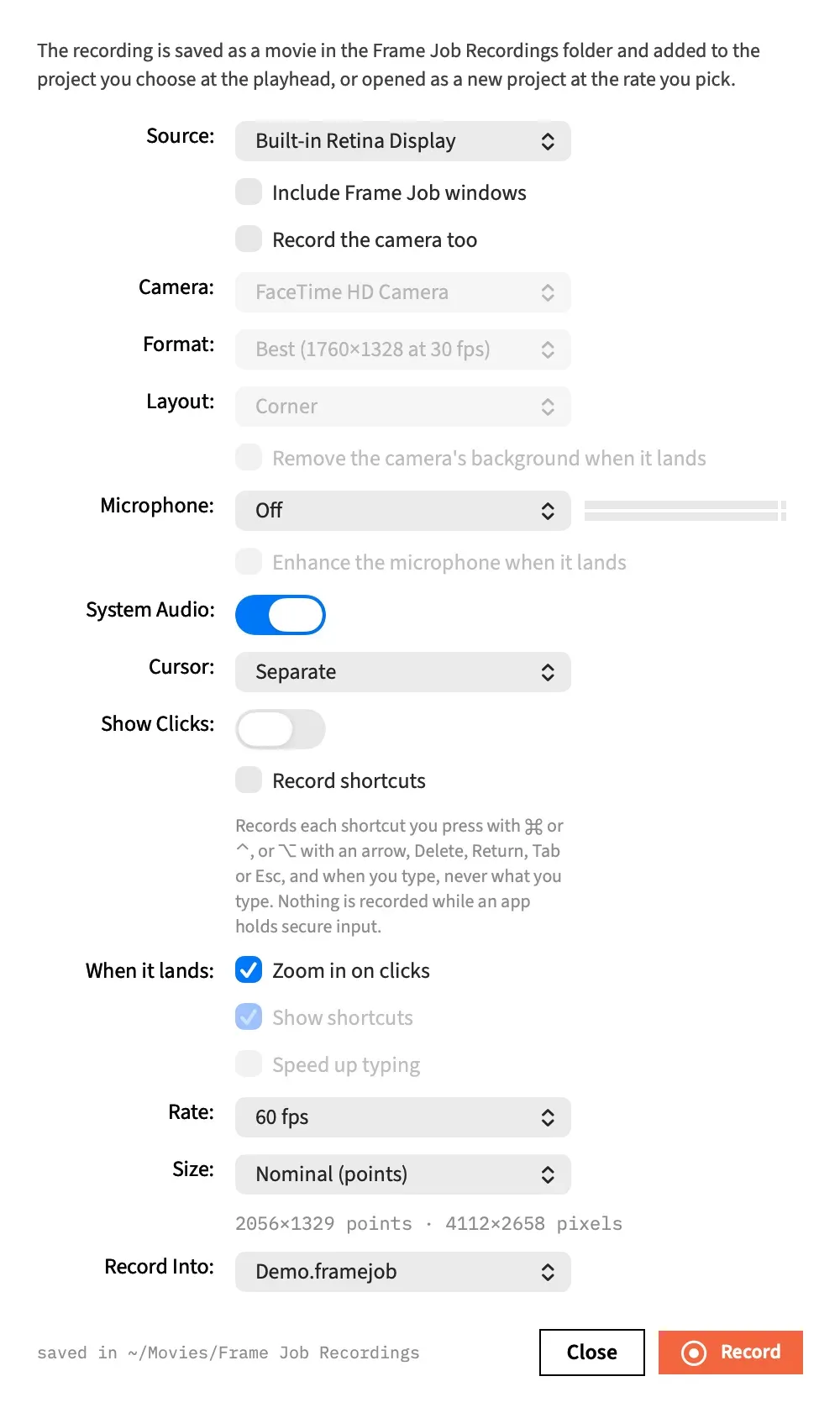
The boxes on the recorder panel run the clean-up you’d otherwise do by hand. The recording lands exactly as it would without them, and then each ticked box runs its command on what landed, each as its own undo step.
- Menu
- File ▸ New Recording…
- Keys
- ⌥⌘N
- Where
- New Recording panel ▸ When it lands:
- Needs
- Show shortcuts and Speed up typing need Record shortcuts, which needs macOS's Input Monitoring permission.
- Agent tools
record_screenenhance_voiceauto_zoomadd_shortcut_overlaysspeed_up_typing
Choose what runs
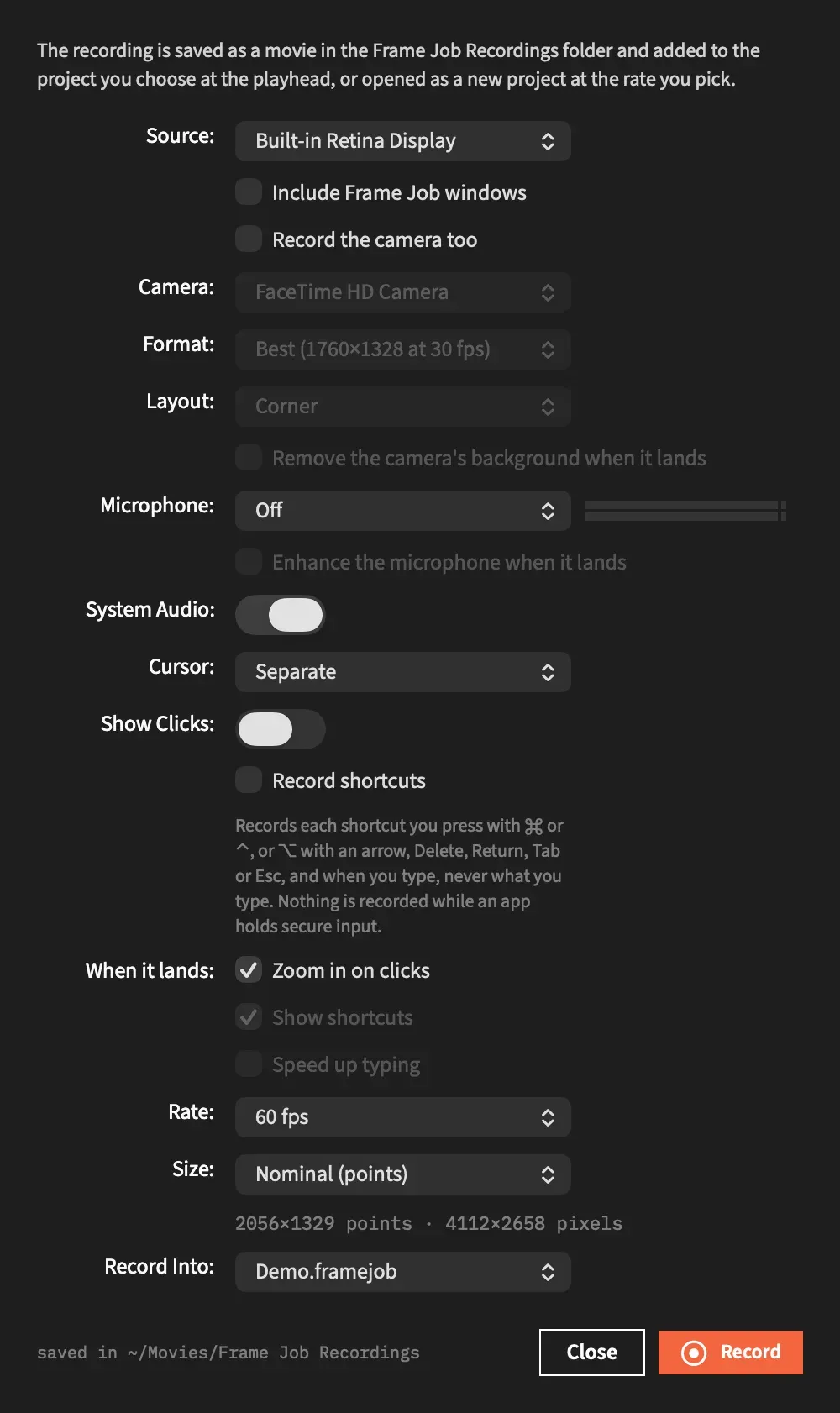
Section titled “Choose what runs”Tick the boxes on the panel before you press Record.
| Box | Runs | On | Default | Available when |
|---|---|---|---|---|
| Remove the camera’s background when it lands | Clip ▸ Remove Background | The camera’s clips | Off | Record the camera too is ticked beside a display or a window |
| Enhance the microphone when it lands | Clip ▸ Enhance Voice | The microphone’s clips | Off | A microphone is chosen, on any source |
| Zoom in on clicks | Clip ▸ Auto Zoom… | The screen clips | On | The source is a display or a window |
| Show shortcuts | Clip ▸ Add Shortcut Overlays | The screen clips | On | The source is a display or a window, with Record shortcuts ticked |
| Speed up typing | Clip ▸ Speed Up Typing… | The screen clips | Off | The source is a display or a window, with Record shortcuts ticked |
A greyed box keeps its value for next time, and every box is greyed while a recording is under way. The panel remembers all five between uses.
The screen clips are the clips of each stretch’s movie that has a cursor file. No other clip is touched, and a voice-over or a camera on its own has none.
The order they run in
Section titled “The order they run in”The steps always run in this order, whichever you tick:
- Remove Background, straight after the landing.
- Enhance Voice, once the sound has been analysed.
- Auto Zoom.
- Add Shortcut Overlays.
- Speed Up Typing, once the speech has been detected.
Each is its own undo step, named as in this list, and they all come after the landing’s. Edit ▸ Undo takes them off one at a time, last first, and keeps the recording.
The order matters. Zooms are planned on whole clips before the speed-up splits them, and the speed-up leaves each overlay at its pace.
Each command uses the settings its own menu command would, and only Enhance Voice shows a sheet. Nothing asks you a question.
Remove the camera’s background
Section titled “Remove the camera’s background”Remove the camera’s background when it lands runs Remove Background on the camera’s clips straight after the landing, with nothing to wait for. If no camera clip landed, it does nothing and says nothing. Record a camera beside the screen has the rest.
Enhance the microphone
Section titled “Enhance the microphone”Enhance the microphone when it lands runs Enhance Voice on each stretch’s microphone file, or on a voice-over’s files. It never touches the picture, a camera or the system audio.
Enhance Voice needs the sound’s loudness and speech analysed first, so it waits for that after the files land. It then runs under the Measuring Sound sheet, at the target loudness of the Normalize row, and its settings appear in the clip’s Sound tab.
Choosing Cancel on the sheet leaves the clips as they landed.
Edit ▸ Undo Enhance Voice takes the processing off and keeps the recording. The next undo is Remove Background if that ran, then the landing’s own step: Add Recording in an open project, and in a new project a step such as Add Microphone, or nothing when the recording is a single file.
If a second recording lands in the same project while the first is still waiting, its clips join the wait and the wait starts again.
Zoom in on clicks
Section titled “Zoom in on clicks”Zoom in on clicks runs Auto Zoom with the values the Auto Zoom sheet last used. Zoom on typing is turned on when the recording has typing, and off when it hasn’t.
Show shortcuts
Section titled “Show shortcuts”Show shortcuts runs Add Shortcut Overlays with its usual settings: at the bottom of the picture, in the dark theme.
Speed up typing
Section titled “Speed up typing”Speed up typing runs Speed Up Typing with the values its sheet last used. It waits until the speech has been detected, so typing you talk over keeps its pace.
A speed-up that would leave a clip silent above ×12 is never applied here, because the panel can’t ask you first. The foot of the inspector says so instead. Choose Clip ▸ Speed Up Typing… yourself to be asked. See Sound at high speed.
What the steps wait for
Section titled “What the steps wait for”Enhance Voice, Auto Zoom, Add Shortcut Overlays and Speed Up Typing each hold off while:
- you’re dragging in the project
- a sheet is up on its window
- you’re inside a different nest from the one the recording landed in
They carry on by themselves once that’s over. Each waits for up to 5 minutes. The clock starts at the landing or when the step before it ran. For the first step after Enhance Voice, it starts when Enhance Voice stops waiting.
When a step can’t run
Section titled “When a step can’t run”A problem shows at the foot of the inspector, with no beep and no sheet. A step with nothing to do says nothing at all: a recording with no cursor file, a recording with no microphone clip, or no click, shortcut or typing stretch long enough changes nothing and shows no message.
| The inspector says | What happened | What runs next |
|---|---|---|
| “Enhance Voice did not run on the recording: its microphone was not ready to measure within 5 minutes. Select its clip and choose Clip ▸ Enhance Voice.” | The sound wasn’t analysed in time, or the project stayed busy. | The other steps |
| “Nothing could be enhanced. …” | There was nothing to measure, for example a silent microphone. The sentence gives the reason. | The other steps |
| “… did not run on the recording: the project was busy for 5 minutes. Select its clips and choose Clip ▸ …” | You were dragging, a sheet was up, or you were in another nest for the whole wait. | Nothing. Run the rest yourself. |
| “Speed Up Typing did not run on the recording: its speech was not detected within 5 minutes. Select its clips and choose Clip ▸ Speed Up Typing….” | Speech detection didn’t finish in time, or the project stayed busy. | It’s the last step. |
| “Clip … now plays above ×12, so its audio is left out: it is silent in the preview and the export.” | The speed-up would take that clip past ×12, so Frame Job didn’t make it. Nothing changed: the clip, which can be on another track, keeps its speed and its sound. Choose Clip ▸ Speed Up Typing… to be asked. | It’s the last step. |
| Any other sentence | The command wouldn’t run. This is the sentence it would show from its own menu item. | The next step |
A cursor file that can’t be read is reported the same way, and none of the steps that use it runs after that.
With an agent
Section titled “With an agent”record_screen can run the same steps, through its camera_cutout, enhance, auto_zoom, shortcut_overlays and speed_up_typing arguments, with some differences:
- Every step is off unless the agent asks for it, Zoom in on clicks included.
- Every step needs the recording placed on the timeline, so none works with
place: false. enhanceneedsmicrophone: trueor a voice-over.shortcut_overlaysandspeed_up_typingneedkeys: "shortcuts".auto_zoom,shortcut_overlaysandspeed_up_typingcan’t be used with a voice-over or a camera on its own.- Enhance Voice runs at −16 LUFS, not at the Normalize row’s target. The agent can call
enhance_voiceafterwards for another target. - The other steps use the tools’ own defaults, never the values a sheet remembers.
- A speed-up that leaves a clip silent above ×12 is applied, and the agent is told.
The call’s answer holds each step’s own answer, or a sentence under enhance_error, auto_zoom_error and so on when the step couldn’t run. See Record with record_screen.