
The Layout section
The Layout section is the inspector’s way to make a camera layout switch. It lays out the selected clip as the camera and, unlike the menu, lets you choose how long the switch takes.
- Menu
- Clip ▸ Camera Layout ▸
- Where
- Clip tab ▸ Picture ▸ Layout
- Needs
- Nothing for a layout. A crop centres on the person only when Remove Background has already made the camera's masks, on your Mac.
- Agent tools
switch_layout
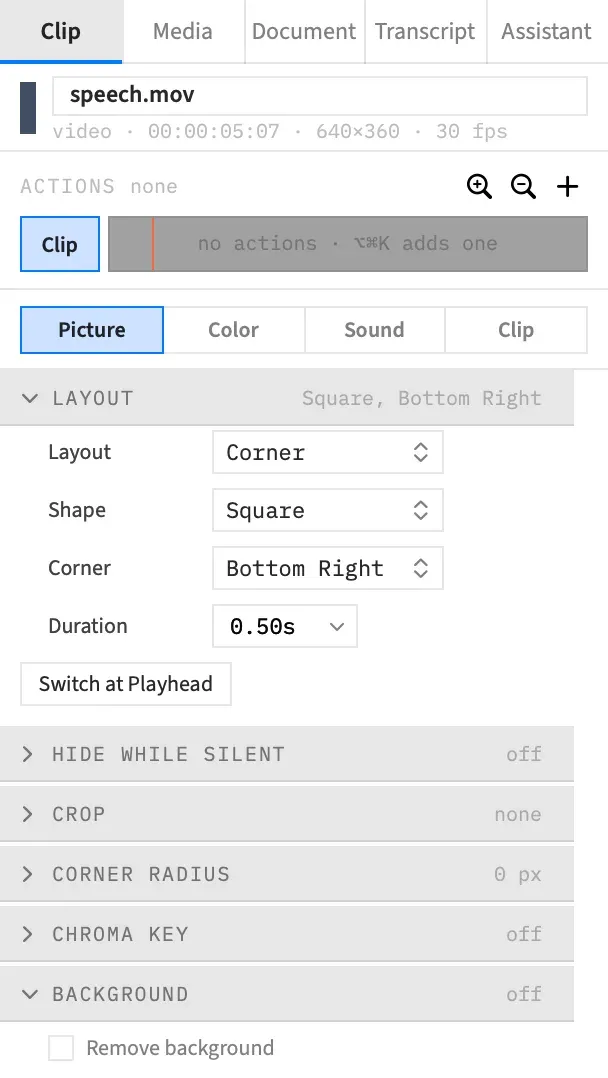
Switch at Playhead
Section titled “Switch at Playhead”-
Select the camera clip, and only that clip. It needs to be a clip of a video file with a picture. An image, a still or a nest gets no Layout section, though the menu can lay one out.
-
Open Layout in the Clip tab’s Picture sub-tab. It comes after Transform and Behind Subject, and it’s shut until you open it.
-
Set the controls.
-
Move the playhead onto the clip, to where the switch should start.
-
Press Switch at Playhead.
This does exactly what Clip ▸ Camera Layout ▸ does, with this clip as the camera and the clip drawing behind it as the screen. It’s one undo step, Camera Layout. Everything in The switch and How far a layout reaches applies.
The button is off while a sheet is open. Pressed with the playhead off the clip, the foot of the inspector says the clip doesn’t play there and nothing changes.
The controls
Section titled “The controls”| Control | What it does | Default | Choices |
|---|---|---|---|
| Layout | The layout to switch to. | Corner | Corner, Side by Side, Stacked, Camera Full, Screen Only |
| Shape | The corner picture’s shape. Square is the menu’s Corner ▸, Rounded its Rounded Corner ▸. Greyed for any layout but Corner. | Square | Square, Rounded, Circle |
| Corner | Which canvas corner the camera sits in. Greyed for any layout but Corner. | Bottom Right | Bottom Right, Bottom Left, Top Right, Top Left |
| Duration | How long the switch takes. | 0.5 s | 0.01 to 10 s |
The section’s header sums up what it would switch to: “Square, Bottom Right”, or “Side by Side”.
Type a Duration, or pick 0.25, 0.5, 1 or 2 from the arrow in the field. A typed number outside the range goes to the nearest end of it. The switch is then rounded to whole frames, and a length under half a frame rounds to nothing, so Frame Job shows an error and doesn’t switch. That’s 0.01 s on a 30 fps project. At a clip’s first frame the switch cuts, whatever the Duration.
These choices belong to the section, not to the project. They stay while the window is open, they aren’t saved and they aren’t undo steps, so nothing changes until you press Switch at Playhead. There’s no Reset.
The crop centred on the person
Section titled “The crop centred on the person”Circle, Side by Side and Stacked crop the camera. When the camera’s person masks already exist for every frame the clip plays, the crop centres on the person, at the middle of where the masks find them, averaged over the clip. This works from the menu and the section alike.
Remove Background makes the masks, on your Mac, and they stay in the project’s cache. You can turn Remove Background off again afterwards. A layout never starts that analysis itself. With no masks, or masks for only part of the clip, the crop centres on the picture. A camera that’s an image clip centres on the picture, masks or not.
Frame Job reads the masks for a moment before it switches. If the project changes in that moment, it beeps and makes no switch. Choose the layout again.
A layout meets a zoom
Section titled “A layout meets a zoom”A switch never fights a zoom. Frame Job won’t switch when a clip it would move holds a zoom or another moving action after the playhead, because the two would pull the clip in different directions.
A moving action is any action that changes position, scale, crop, corner radius or opacity, other than a layout action. On the clip under the playhead, only an action that ends after the playhead counts, so moving the playhead past the end of a zoom clears the way. On a later clip in the layout’s reach, any moving action counts.
There’s one exception. In Corner, Camera Full and Screen Only, a screen still at its full placement stays where it is, so its zooms keep playing and the switch goes ahead. Side by Side and Stacked always move the screen.
When a nest would let the switch go ahead, Frame Job offers one. Otherwise the foot of the inspector names the clip and the action, and nothing changes. To make the switch anyway, move the playhead past the end of that action if it’s on the clip under the playhead, or remove the action, then switch again.
Lay out the clips in a nest?
Section titled “Lay out the clips in a nest?”This sheet shows the reason the switch couldn’t be made, then offers to put those clips in a nest first. The layout then moves the nest, and the zoom keeps playing inside it.
- Nest and Switch makes the nest and the layout. One undo step, Camera Layout, takes both back.
- Cancel or Esc changes nothing.
What goes in the nest is the clip at the playhead and the later clips in the layout’s reach, apart from a clip that holds the next switch. Only the side that stopped the switch is nested, so a screen that zooms is nested and its camera isn’t. If both the camera and the screen hold a moving action, each gets a nest of its own.
There’s no offer when:
- one of those clips is already laid out, because a nest would lay it out twice. That includes a clip that sits anywhere but its full placement, such as a camera a recording landed in the corner
- the camera holds the moving action and you chose Rounded Corner or Circle, because a nest clip shows square corners only
When the camera itself goes into a nest, its crop centres on the nest’s picture rather than the person.
With an agent
Section titled “With an agent”An agent is never shown the sheet. It asks for the nest in the same switch_layout call, and Frame Job won’t do that when one of the clips is already laid out.
An agent can also centre the camera’s crop on a point of its own choosing, and that point stays as sent even when the camera goes into a nest. If it doesn’t choose one, the crop is filled from the masks as it is for the menu, and the call’s answer gives the centre it used. See Tools: framing and vertical.