
Move, resize or remove an action
You can change when an action happens, how long it takes and how it eases, by dragging its band or typing in the action lane. Removing an action leaves the clip where it is.
- Menu
- Edit ▸ Delete
- Keys
- ⌫
- Where
- The action band on the timelineClip tab ▸ action lane
- Agent tools
set_actionremove_action
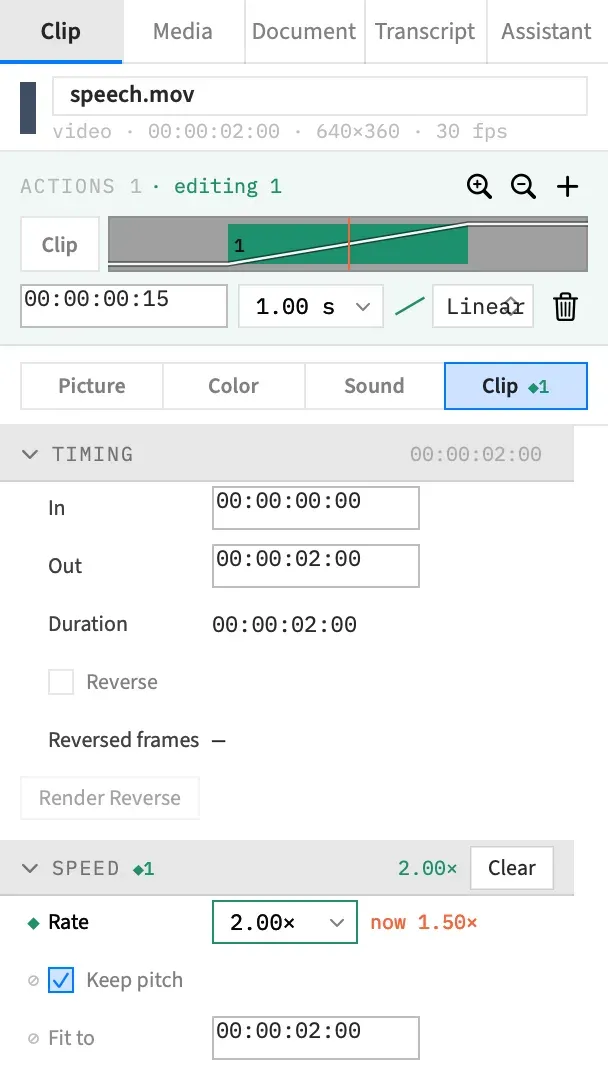
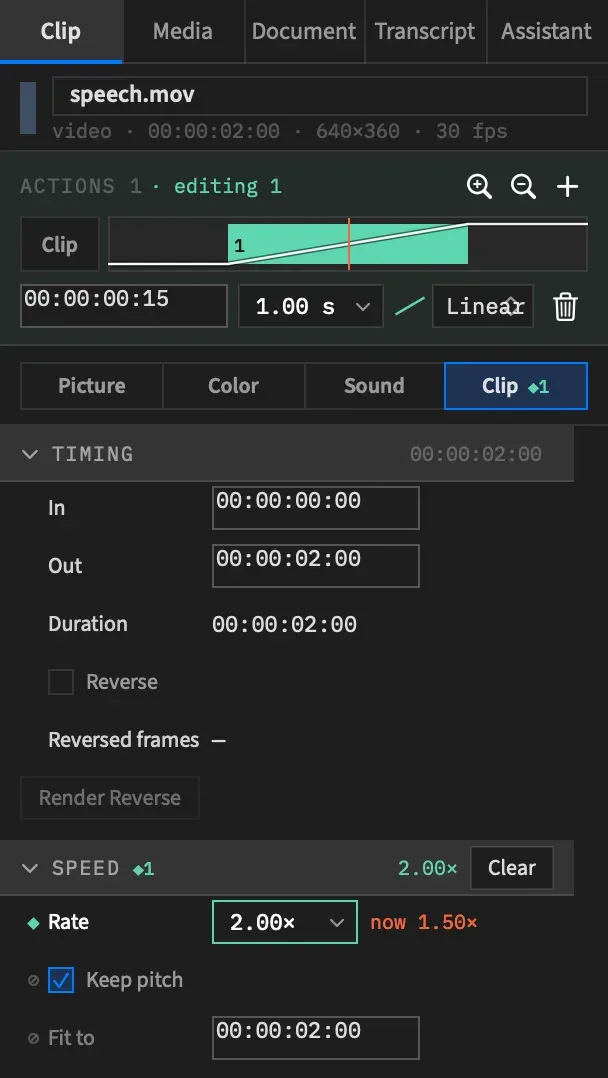
Move an action
Section titled “Move an action”Drag the body of a band, on the timeline or in the Clip tab’s action lane, to move the action within its clip. The pointer is an open hand over the body, and a dashed outline marks where the band started.
When you let go, the action is selected and the playhead sits at its new end, or one frame short of it when the action ends with the clip. The whole drag is one undo step, Move Action.
Resize an action
Section titled “Resize an action”Drag either end of a band to move that end of the action. Each end’s grip is its outer 5 pt. The grips appear when you hover over the band, and the pointer becomes a left-right arrow over them.
The action stays selected and the playhead goes to its new end, as with a move. The whole drag is one undo step, Resize Action.
A band 15 pt wide or narrower has no grips and only moves. Zoom the timeline in, or type a length.
Where a drag stops
Section titled “Where a drag stops”A band drag snaps to whole frames and keeps the action at least one frame long. It stops at the neighbouring actions and at the clip’s ends. It doesn’t snap to the playhead or to other edits.
If Frame Job wouldn’t allow a position, the band stops there and shows no message. A Speed action stops where the clip would run out of media, for example.
An action that a trim left running past the clip’s end can move earlier or get shorter, but can’t end any later than it already does.
On the timeline, a band on a locked track doesn’t drag, and clicking it selects the clip, not the action. Select the action in the Clip tab’s lane instead.
The drag readout
Section titled “The drag readout”While you drag, a small readout gives the band’s new place.
| You’re dragging | The readout shows | Example |
|---|---|---|
| The body, or the start grip | The new start, the new end, and how far the start has moved in seconds and frames | 00:00:01:00 → 00:00:03:00 +0:12 |
| The end grip | How much the length has changed, in frames | len −6f |
On the timeline the readout floats above the clip and gives timeline times. In the Clip tab’s lane it replaces the header text and gives times from the clip’s own start, to match the Start field.
Drag in the Clip tab’s lane
Section titled “Drag in the Clip tab’s lane”The lane moves and resizes bands as the timeline does, with the same limits. It differs in three ways:
- It selects the action when you let go, where the timeline selects when you press. A click and a drop both select, and both move the playhead to the action’s end.
- A locked track doesn’t stop a click or a drag here.
- It shows a zero-length action, which the timeline doesn’t draw.
Type a start, length or curve
Section titled “Type a start, length or curve”The action lane’s detail row shows while an action is selected.
| Control | What it does | Limits |
|---|---|---|
| Start | Where the action starts, as a timecode from the clip’s own start, not the timeline’s. | Capped at the clip’s length and snapped to a frame. |
| Length | How long the action takes, in seconds, with quick picks of 0.25, 0.5, 1 and 2. | 0.01 to 36,000 s, then capped at the clip’s length and snapped to a frame. |
| Curve | How the action eases from its start to its end state. A small glyph of the curve sits beside the pop-up. | Linear, In, Out or In Out. |
| Trash button | Removes the action. |
Linear runs at a constant speed. In starts slowly and ends fast, Out starts fast and ends slowly, and In Out is slow at both ends.
Each change is one undo step: Move Action, Resize Action or Action Curve.
A Start that isn’t a timecode beeps and goes back to the old value. A Length under half a frame rounds to nothing, and Frame Job shows an error alert instead.
Length is capped at the whole clip, not at the room left after the action’s start, so a long enough value can still run past the clip’s end, and Frame Job won’t take that. The next section has the reasons it gives.
When an edit is refused
Section titled “When an edit is refused”If Frame Job won’t take a typed Start or Length, or an end value, it beeps and shows the reason at the foot of the inspector, after “Refused: “. The message stays until the project next changes or you click it. See When an edit is refused for how to read it.
| Frame Job won’t do this when | What to do |
|---|---|
| The action would end past the clip’s end, and later than it did before | Shorten it or move it earlier. |
| The action would overlap another action on the clip | Move or shorten one of them. |
| A Speed action would make the clip run out of media | Use the latest clip end the message names. |
| The edit would change a Speed action on a clip that’s linked to another | Choose Attach Audio first, as the message says. See Detach and Attach Audio. |
A band drag never shows this message. The band stops instead.
Remove an action
Section titled “Remove an action”Select the action, then press ⌫, choose Edit ▸ Delete, or click the trash button in the action lane. Only the action goes, as one undo step, Remove Action.
The clip keeps its own properties and loses what the action did to them.
A Speed action can’t be removed if the clip would then run out of media. The message names the latest clip end that fits. See Build a ramp by hand. On a clip that’s linked to another, choose Attach Audio before you remove a Speed action.
Ripple Delete still deletes the clip
Section titled “Ripple Delete still deletes the clip”Good to know
Section titled “Good to know”- Moving, resizing or removing a Speed action re-times the captions on a Captions track that sit wholly inside a clip with sound, in the same undo step. The step’s name gains “and Re-time Captions”. A caption whose speech the clip no longer plays is removed. See Captions follow a speed change.
- With words selected in the Transcript tab, ⌫ removes those words, not the action.
- In the Clip tab’s lane, a zero-length action draws as a band 2 pt wide. You can click it to select it, but it doesn’t drag. The timeline doesn’t draw it at all.
- Clicking a band on a clip in a multi-clip selection selects that clip alone.
With an agent
Section titled “With an agent”set_action moves an action, changes its length or changes its curve in one step, and remove_action removes it. Both need the clip and the action. Give set_action any of start, duration and curve, and what you leave out keeps its value. The curves are linear, ease_in, ease_out and ease_in_out.
Where a band stops, an agent’s edit that goes too far fails, with the same reason a typed value gets. When a Speed action changes or goes, the answer lists the captions it re-timed in captions_retimed and those it took out in captions_removed. See set_action and remove_action.