
Remove Silences
Remove Silences finds the dead air in a spoken recording, shows you what it would cut, and takes it all out as one undo step, closing the timeline over each cut. Use it on a screencast, a tutorial, a podcast or a talking-head take.
- Menu
- Clip ▸ Remove Silences…
- Needs
- Nothing. Voice detection runs on your Mac, with no key and no upload.
- Agent tools
detect_silenceripple_delete_ranges
Remove the silences
Section titled “Remove the silences”-
To measure only some clips, select them first. The sheet then opens on Selected clips.
-
Choose Clip ▸ Remove Silences…. It’s available when the timeline has a clip with its sound on. If there turns out to be nothing to measure, Frame Job beeps instead of opening the sheet.
-
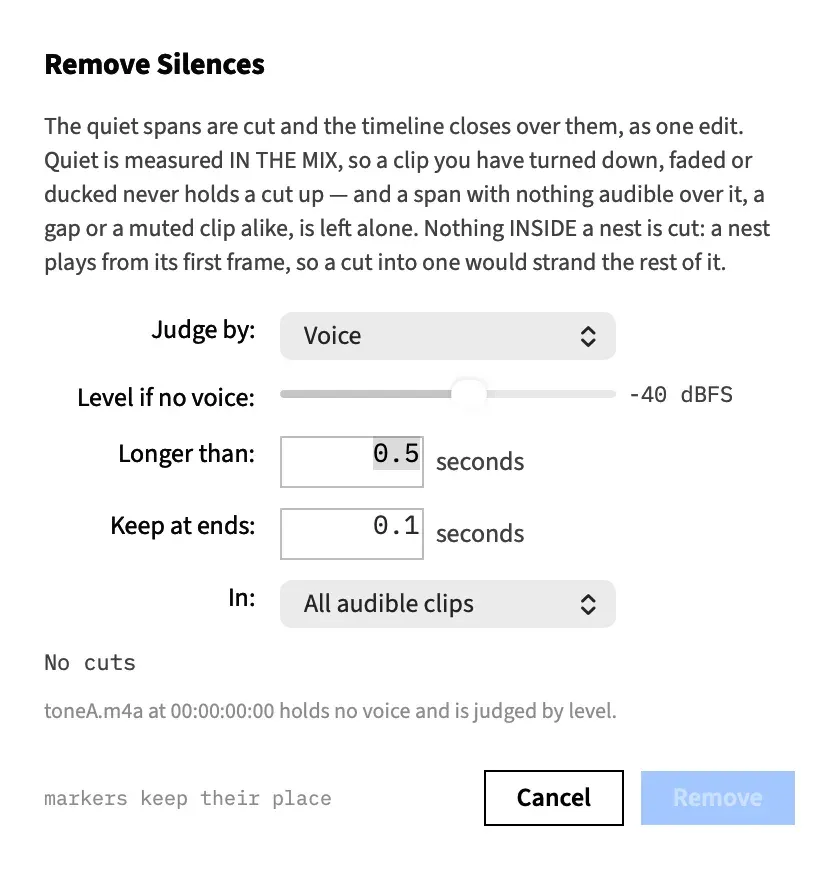
Check what’s shaded on the timeline, and read the count in the sheet, for example “23 cuts · removes 00:00:04:12”. Both update as you change a control. With nothing to cut the count reads “No cuts” and Remove is dimmed.
-
Adjust the controls until the cuts look right.
-
Choose Remove. Everything shaded is cut and the timeline closes up. ⌘Z puts it all back. Choose Cancel to leave the timeline as it was.
The sheet opens on its defaults every time. It doesn’t remember your last settings.
The controls
Section titled “The controls”| Control | What it does | Default | Range |
|---|---|---|---|
| Judge by: | How a moment is tested. See What counts as silent. | Voice, or Level if the voice model can’t be used | Voice, Level |
| Quieter than: or Level if no voice: | The level that counts as quiet. The row reads Quieter than: in Level mode and Level if no voice: in Voice mode. | −40 dBFS | −80 to −10 dBFS |
| Longer than: | The shortest quiet stretch worth cutting. Shorter pauses, such as the gap between two words, stay. | 0.5 s | 0.05 to 10 s |
| Keep at ends: | How much of each quiet stretch to keep at each end, so speech doesn’t start or stop abruptly. | 0.1 s | 0 to 2 s |
| In: | Whether to look at Selected clips or All audible clips. | Selected clips when the selection has something audible, otherwise All audible clips |
The level row is a slider in whole decibels, with its value beside it. In Level mode, sound at or below it is quiet. In Voice mode, it judges clips that hold no voice, and a clip the mix turns down to it or lower is quiet whatever it contains.
Selected clips is greyed out when nothing selected makes a sound, and a selection of muted clips counts as nothing audible, as does a selected nest. Choose it to stop a music bed under a voice-over from holding the cuts up.
Longer than: measures the stretch as you hear it, before Keep at ends: takes its share. A stretch no longer than twice Keep at ends: isn’t cut. Cuts then round to whole frames, so up to a frame more of room tone can remain at each end. Raise Keep at ends: if a word gets clipped.
The two number fields take up to two decimal places. A number outside the range stays in the field and Remove beeps until you fix it. The count and the shading follow the slider as it moves, and a number field when you leave it.
What the sheet tells you
Section titled “What the sheet tells you”The sheet explains itself under the count. It can show more than one of these at once.
| The sheet says | What it means |
|---|---|
| “Nothing in this timeline is audible, so nothing was analysed.” | Nothing the sheet is measuring makes a sound. With Selected clips it reads “Nothing the selected clips play is audible in the mix, so nothing was analysed.” |
| “The waveform is still being analysed for …” or “Speech is still being analysed for …” | Frame Job hasn’t finished with the files it names, which often happens straight after an import. Leave the sheet open and it updates as each one finishes. |
| “Nothing inside is proposed for removal yet.” | Follows the line above: nothing in those files can be cut until their analysis is ready. |
| “Anything inside it that holds no voice is left alone until it lands…” | Follows the waveform line in Voice mode: speech can already be judged, but a clip with no voice has to wait for the waveform. It may add that the mix already turns a clip down far enough to be quiet. |
| “What is proposed inside … is quiet in the MIX…” | The named clips are still waiting for analysis, but they’ve been turned down, faded or ducked far enough to be quiet, so those cuts stand whatever the analysis finds. |
| “Quiet inside a nest is left alone…” | A quiet stretch at least as long as Longer than: ran across a nest. There may be dead air inside it, so a low count doesn’t mean there’s none. Open the nest with ⌘↓ and remove its silences there. With several nests it reads “Quiet inside 2 nests…”. |
Relinking a file starts its analysis again. If an agent relinks one while the sheet is open, the sheet clears the old results at once and updates when the new ones are ready.
Good to know
Section titled “Good to know”- A gap with nothing audible in it is left alone, and so is a stretch where only a muted clip plays. Remove Silences takes dead air out of a recording, not the gaps you placed between clips. Close Gap does that.
- With Selected clips, a moment none of those clips covers is never cut.
- The cut reaches every unlocked track, not only the clips you measured, and markers stay where they are. See A ripple across every unlocked track.
- Nothing inside a nest is cut, because a nest plays from its first frame and a cut into one would strand the rest of it. Transitions are protected too.
- A quiet stretch broken up by a nest or a transition is measured in its pieces.
With an agent
Section titled “With an agent”detect_silence reads the same ranges the sheet would cut and changes nothing. Pass them to ripple_delete_ranges to make the cut. See detect_silence and ripple_delete_ranges.
An agent isn’t held to the limits of the sheet’s controls, and it can also set how sure the voice model must be, which the sheet doesn’t offer. To look inside a nest, it opens the nest with set_scope and reads again.