
Your AssemblyAI key
Your AssemblyAI key turns on cloud transcription, and AssemblyAI bills your account directly. It lives in Settings, so it’s the same for every project, and you can set it with no project open. For how keys work across Frame Job, see AI features and your own keys.
- Menu
- Frame Job ▸ Settings…
- Keys
- ⌘,
- Where
- Settings ▸ Transcription
- Needs
- An AssemblyAI account.
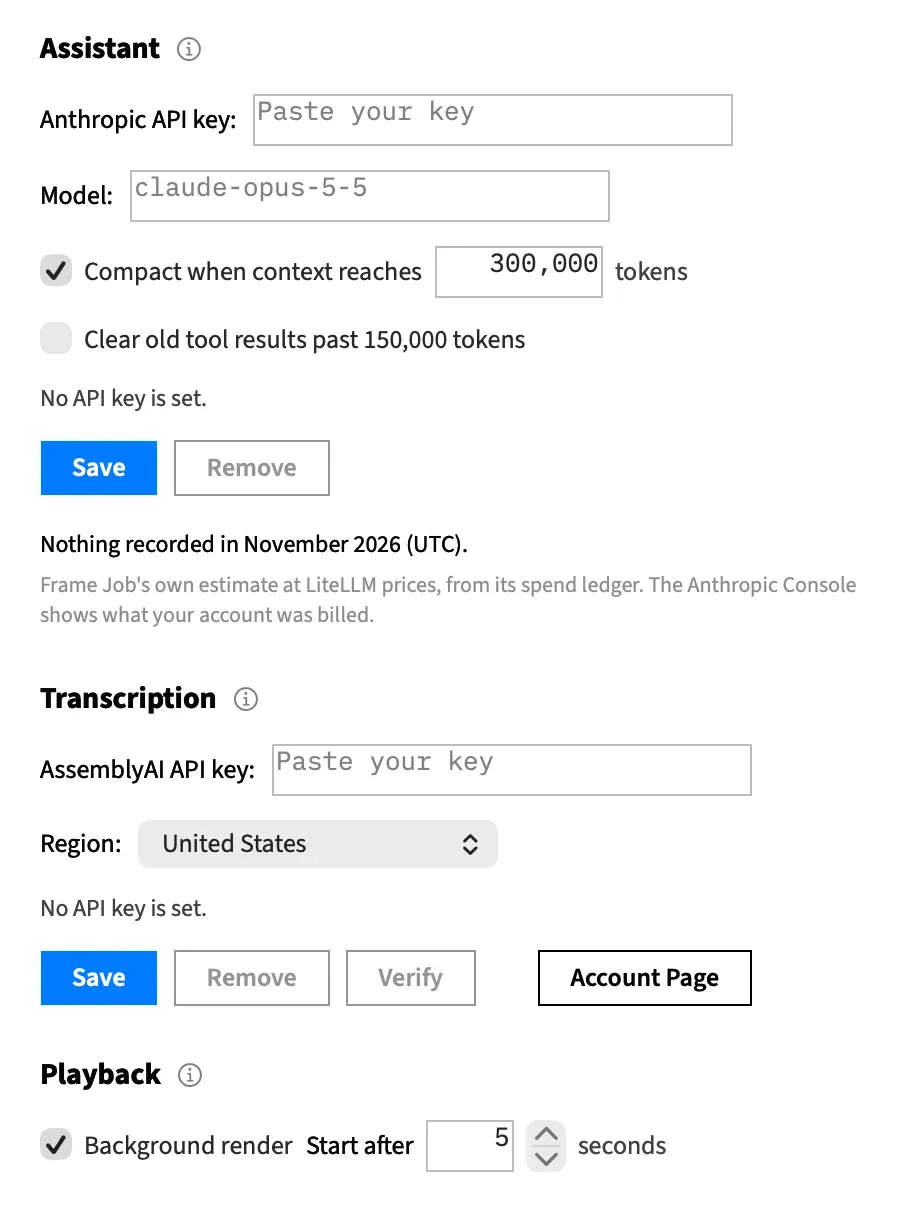
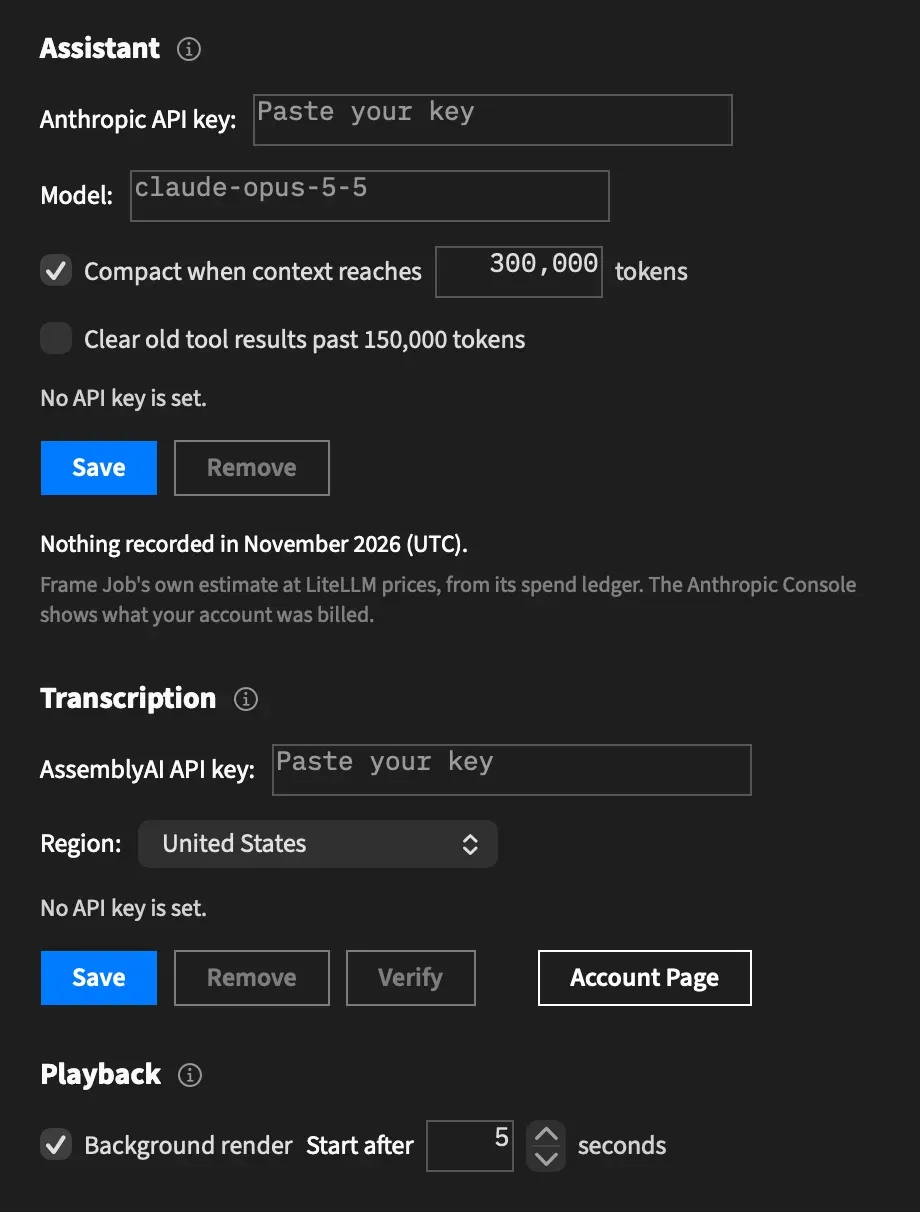
Save your AssemblyAI key
Section titled “Save your AssemblyAI key”-
Choose Frame Job ▸ Settings… (⌘,) and find Transcription.
-
Choose Account Page to get a key from your AssemblyAI dashboard.
-
Paste the key into AssemblyAI API key:.
-
Choose Save, or press ↩.
-
Choose Verify to check that it works.
The line under Region: says “Key saved.”, and the field empties. From then on the field shows a fixed row of dots, the same length whatever your key is. The key itself never goes back in the field, so it can’t be read or copied out of the window.
With no key anywhere, the line reads “No API key is set.” in ordinary grey. That isn’t an error. Save with an empty field beeps and does nothing.
If the key file can’t be written, the line reads “The API key could not be saved:” and gives the reason. The field is emptied anyway, so paste the key again once it’s fixed.
Check the key
Section titled “Check the key”Verify makes AssemblyAI’s cheapest signed-in request, with your key and region, to see if the key works. It doesn’t transcribe or bill anything.
It checks the key typed in the field, even if you haven’t saved it, then the saved key, then the environment’s. A typed key is only checked, so choose Save as well to keep it. A run never uses a key that’s only typed.
| The line says | What it means |
|---|---|
| “Checking…” | The request is on its way. |
| “Key accepted” | AssemblyAI accepted the key in this region. |
| “No API key is set.” | There was no key to check. |
| “Settings changed since this check began. Verify again.” | You changed the key or the region during the check, so its answer no longer applies. |
| AssemblyAI’s message, such as “AssemblyAI refused the API key — check it in Frame Job ▸ Settings” | The check failed, and the message says why. “No network connection” is another. |
Verify is greyed when there’s no key at all, and while a check of the same key and region is running.
Choose a region
Section titled “Choose a region”Region: chooses the AssemblyAI data centre your audio goes to: United States, the default, or European Union. It’s saved as soon as you pick it, and an open sheet updates straight away. The Generate Captions and Remove Filler Words sheets name the region before you upload.
A transcript made in one region can’t be seen from the other, so pick the region your account uses. A pending delete only succeeds in the region it was made in.
Changing the region doesn’t upload anything again. Transcripts already kept in a project stay usable.
Open your AssemblyAI account
Section titled “Open your AssemblyAI account”Account Page opens your AssemblyAI dashboard in your browser, at https://www.assemblyai.com/dashboard. That’s where you get a key and see what you’ve spent.
Remove the key
Section titled “Remove the key”Remove deletes the saved key and says “Key removed.” It’s greyed unless a key is saved.
If the removal fails, the key stays saved and the line says why.
Where the key is kept
Section titled “Where the key is kept”The key is saved in a file only your account can read, not in the Keychain:
~/Library/Application Support/Frame Job/assemblyai-key
The file’s mode is 0600, and it sits beside anthropic-key, the Assistant’s key. Any program running as you can read it, so treat that file like a password. The key is never passed on the command line.
Use a key from the environment
Section titled “Use a key from the environment”If no key is saved, Frame Job also accepts one from the RC_ASSEMBLYAI_KEY environment variable, which is useful when you launch it from a terminal.
- A saved key always wins over the variable.
- An empty variable counts as no key.
- Verify checks the variable’s key when nothing is typed or saved.
- Remove stays greyed, because nothing is saved.
See Where Frame Job keeps its files.
What the key turns on
Section titled “What the key turns on”| Feature | Without a key |
|---|---|
| The AssemblyAI engine of Generate Captions | Generate is greyed, unless every file is already transcribed. |
| Remove Filler Words, which finds fillers only through AssemblyAI | The menu item is greyed and reads Remove Filler Words… (needs your AssemblyAI key), unless a file the command would read already has a transcript made with filler words. See Transcripts for filler words for what works without one. |
Captions made on this Mac need no key.
Saving or removing a key, or changing the region, reaches an open Generate Captions sheet straight away, so Generate can come on without reopening it.
What the info button says
Section titled “What the info button says”The ⓘ beside the Transcription heading explains three things:
- What leaves your Mac. With AssemblyAI chosen in the Generate Captions sheet, and for Transcribe in Remove Filler Words, the audio of those files is uploaded, transcribed, read back and then deleted from AssemblyAI. A delete that didn’t land is retried at the start of the next run. Nothing is uploaded until you press Generate or Transcribe, and captions made on this Mac never leave it.
- The rate. AssemblyAI’s published rate as Frame Job last read it: $0.21 an hour of audio, and $0.02 more with Speakers: on, read on 2026-09-17.
- The key. It’s kept in a file only you can read and is never shown again once it’s saved.
What goes to AssemblyAI has the full story.
Only a person sets the key
Section titled “Only a person sets the key”No agent tool can read or change the key or the region, and an agent can’t pass a key of its own. Only you set them, here. An agent’s transcribe call uses your saved key, or the environment’s. With neither, it stops with the same “No AssemblyAI API key is set.” sentence, unless every file is already transcribed.