
The recorder panel
The New Recording panel holds every recording choice in one place: record a display, a window, a camera or the microphone, straight into a project.
- Menu
- File ▸ New Recording…
- Keys
- ⌥⌘N
- Where
- New Recording… on the Welcome window
- Needs
- The macOS permission for what you record, asked for when you press Record.
- Agent tools
record_screen
Open the panel
Section titled “Open the panel”Choose File ▸ New Recording… or press ⌥⌘N, or click New Recording… on the Welcome window. You don’t need a project open, and the menu item is always available.
There’s one panel for the whole app. A recording doesn’t belong to a project window, so it carries on if you close one.
While a recording starts or runs, paused included, the same menu item reads File ▸ Stop Recording and ⌥⌘N stops the recording. The Welcome window’s button never stops one: during a screen recording you started in the panel it beeps, and during a camera recording, a voice-over or an agent’s recording it shows the panel.
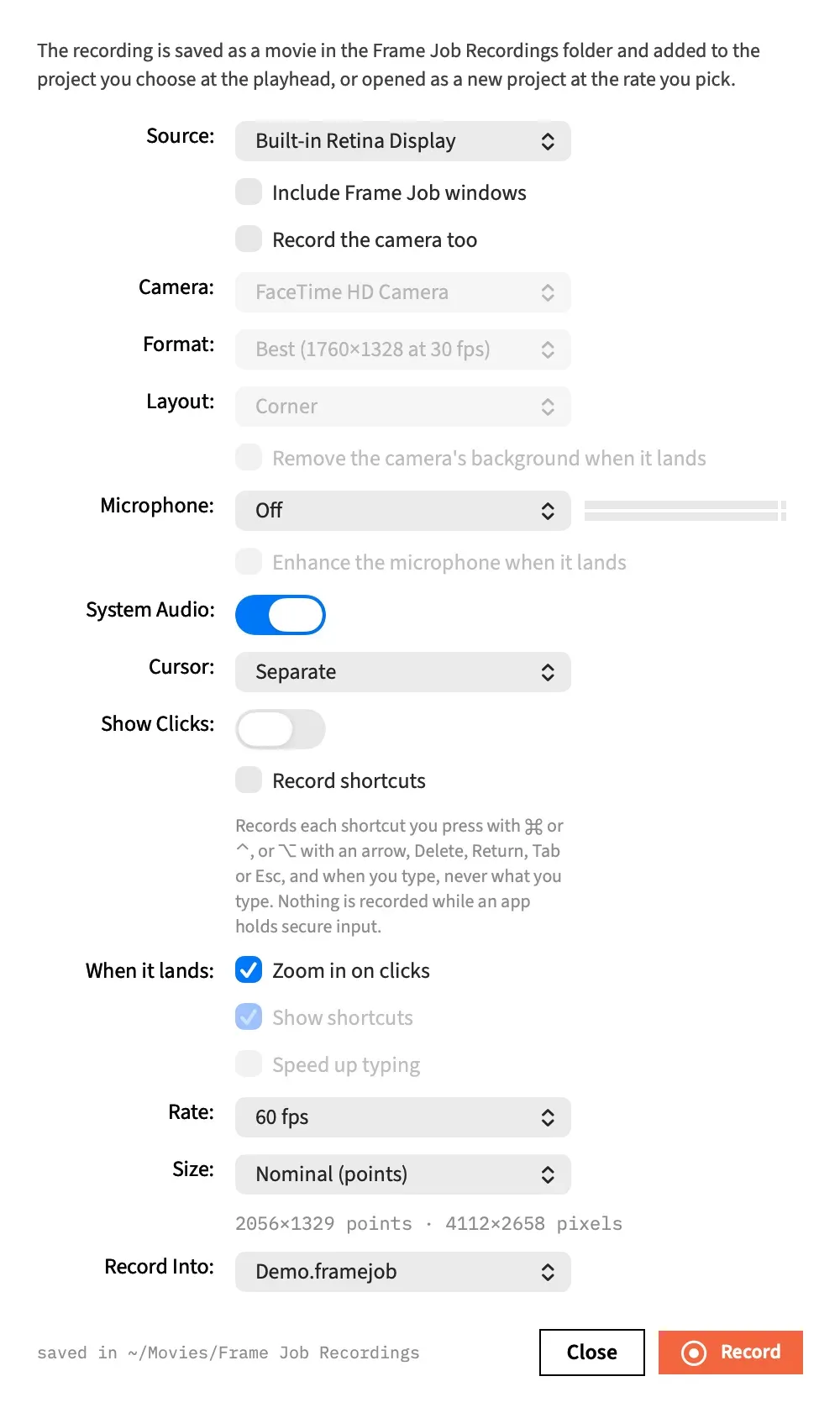
Make a recording
Section titled “Make a recording”-
Choose what to record in Source.
-
Choose where it goes in Record Into.
-
Set any other controls. Rows that don’t apply to your source are greyed out.
-
Press Record. Frame Job checks the permissions that source needs, then counts down from 3.
-
Stop when you’re done. See Start, pause and stop.
Close closes the panel without recording.
A recording is saved as an ordinary movie or audio file in ~/Movies/Frame Job Recordings, then imported like any other media, so every edit, effect and export works on it. When you stop, it lands: it’s placed at the playhead of the project you chose, or opens as a new project.
Choose a source
Section titled “Choose a source”Source lists one row for each connected display, by name, and then three more.
| Row | What it records |
|---|---|
| A display’s name | The whole display. |
| Window… | One window, which you pick with macOS’s window picker. |
| Camera | A camera on its own, with no screen. |
| Microphone Only | A voice-over: the microphone with no picture. |
It starts on the display you used last, or the main display if there isn’t one. Every display is listed even before Frame Job has the Screen Recording permission, so the panel can open and tell you what’s missing.
To record a camera as well as the screen, keep a display or Window… as the source and tick Record the camera too. See Record a camera beside the screen.
Choose where it lands
Section titled “Choose where it lands”Record Into lists New Project first, then every open project by name. It starts on the project in front, or New Project when none is open.
The row follows whichever project is in front until you choose a row yourself. After that it keeps your choice for as long as that project stays open, and if you close the project it goes back to following the one in front. If you choose New Project, it stays there.
The list updates every second while the panel is idle. From the moment you press Record until the recording has landed it’s frozen, so clicking into another project during a recording doesn’t change where the recording goes.
Record Into is never remembered between launches.
The controls
Section titled “The controls”These are the panel’s rows in order, with what each starts on before you’ve changed anything.
| Control | What it does | Default |
|---|---|---|
| Source | What to record. | The main display |
| Include Frame Job windows | Puts Frame Job’s own windows into a display recording and into the window picker’s list. | Off |
| Record the camera too | Records a camera beside the screen. | Off |
| Camera | Which camera to record. | The Mac’s preferred camera |
| Format | The camera’s size and frame rate. | Best |
| The camera preview | A live picture of the camera. This row has no label, and appears only when a camera is wanted. | |
| Layout | Where the camera lands beside the screen. | Corner |
| Remove the camera’s background when it lands | Runs Clip ▸ Remove Background on the camera’s clips. | Off |
| Microphone | Off, or a connected microphone, with a level meter beside it. | Off |
| Enhance the microphone when it lands | Runs Enhance Voice on the microphone’s clips. | Off |
| System Audio | Records what the Mac plays. | On |
| Cursor | Whether the pointer is drawn into the movie: Separate or In the picture. | Separate |
| Show Clicks | Marks each mouse click. | Off |
| Record shortcuts | Records the shortcuts you press, and when you type, but never what you type. | Off |
| When it lands: Zoom in on clicks | Runs Auto Zoom on the screen clips. | On |
| Show shortcuts | Adds shortcut overlays. Needs Record shortcuts. | On |
| Speed up typing | Runs Speed Up Typing. Needs Record shortcuts. | Off |
| Rate | The most frames per second the file may hold, and a new project’s frame rate. | 60 fps |
| Size | Records at points or pixels. | Nominal (points) |
| Record Into | Where the recording lands. | The project in front, else New Project |
What greys out
Section titled “What greys out”Rows that don’t apply to the chosen source grey out and keep their values, so nothing jumps and your settings are still there when you switch back.
| When | Greyed out |
|---|---|
| Source is Microphone Only | Include Frame Job windows, Record the camera too, Camera, Format, Layout, the background box, System Audio, Cursor, Show Clicks, Record shortcuts, the three When it lands: boxes and Size. Rate stays live, because it sets a new project’s frame rate. |
| Source is Camera | The same rows, except Camera and Format, which go live. Rate greys out as well, because a camera records at its format’s rate. |
| Record the camera too is off, with a display or window | Camera, Format, Layout and the background box. |
| Microphone is Off | Enhance the microphone when it lands. |
| Record shortcuts is off | Show shortcuts and Speed up typing. |
Microphone and Record Into stay live for every source.
Every control locks from the press of Record until the recording has landed.
The note under Size
Section titled “The note under Size”A line under Size tells you what you’ll get from the chosen source.
| Source | The note reads |
|---|---|
| A display | Both its sizes, for example 1728×1117 points · 3456×2234 pixels |
| A picked window | “the picked window’s own size” |
| Microphone Only | “no picture — the microphone alone” |
| Camera, with Format on Best | For example 1760×1328 at 30 fps — the camera's best format |
| Camera, with a format chosen | For example 1920×1080 at 30 fps — the chosen format |
| Camera, with none connected | “no camera connected” |
The footnote
Section titled “The footnote”The text at the bottom left of the panel shows where recordings are saved, for example saved in ~/Movies/Frame Job Recordings.
When the panel stays up during a recording, as it does for a camera or a voice-over, the footnote shows the time instead: the coral ● and the elapsed time while recording, or ❚❚ and the time held still while paused.
What the panel remembers
Section titled “What the panel remembers”The panel reopens as you left it, between launches. It keeps:
- the display, the microphone, the camera and the camera format
- System Audio, Show Clicks and Cursor
- Rate and Size
- every box: Include Frame Job windows, Record the camera too, Remove the camera’s background when it lands, Enhance the microphone when it lands, Record shortcuts and the three When it lands: boxes
- Layout
A few things work differently:
- Cursor is remembered only once you choose it. Until then it shows Separate, and a choice you make holds for every source.
- The camera format is one choice for every camera. A camera that doesn’t have it shows Best.
- A picked window, and Camera or Microphone Only as the Source row, last until you quit. The camera itself is remembered.
- Record Into isn’t remembered.
A display that’s no longer connected falls back to the main display, a microphone to Off, and a camera to the default camera.
Keys in the panel
Section titled “Keys in the panel”Return presses Record and Esc presses Close.
Record changes as a recording goes on, and Return goes with it. During the countdown Return presses Cancel, and while a camera or a voice-over records it presses Stop. Esc always closes the panel, which ends a countdown but leaves a running recording going.
Opened with Frame Job active, the panel takes the keyboard. Opened while another app is in front, it leaves the keyboard with that app, so Return goes there.
How the panel floats
Section titled “How the panel floats”The panel is built to sit beside whatever you’re about to record.
- It stays above other windows, and it doesn’t hide when you switch to another app.
- Clicking it doesn’t make Frame Job the active app, so your project windows don’t jump over the app you’re recording.
- Opened while Frame Job is in the background, it comes to the front without taking the keyboard, so your typing stays where it was.
- It opens in the centre of the screen. Drag it anywhere, and it stays there until you quit.
- It pushes itself back onto its display when the countdown or a note makes it taller. That way Cancel never ends up under the Dock. Its top-left corner stays put unless the screen edge forces a move.
For a display or a window, the panel leaves the screen once the recording starts.
With an agent
Section titled “With an agent”An agent doesn’t use the panel. record_screen records for a set time, from 1 to 600 seconds, with no panel and no countdown, and returns once the recording has landed.
- The recording lands at the playhead on the front track of whatever is open, nest included, or on a new track in front when that one has no room. With no project open, it opens as a new untitled project.
- The tool never asks for a permission and never opens the window picker. If a permission is missing, the call stops with a message naming it and the System Settings pane to go to, so grant it once from the panel. A Frame Job launched from a terminal runs under the terminal’s permissions.
- The Assistant can’t call it.
Record with record_screen has every argument, and the order its checks run in.