
Shape fill, stroke and size
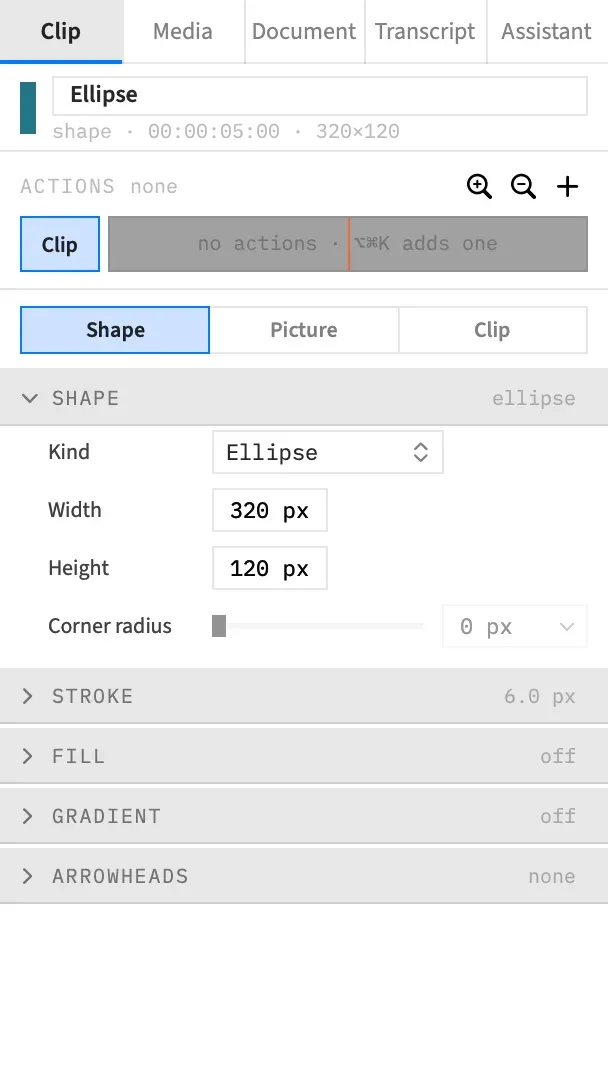
The Shape sub-tab sets what a shape clip is and how it’s painted. Where it sits, how large it’s scaled and how see-through it is as a whole are on the Picture sub-tab, in Transform.
- Where
- Clip tab ▸ Shape
- Agent tools
set_shape
Change the kind
Section titled “Change the kind”Kind switches the shape between Rectangle, Ellipse, Line and Arrow. It changes only the kind, so everything else stays as it was.
Rows that don’t apply to the new kind are greyed, not lost, so flipping the kind back finds them as you left them.
| Row | Available for |
|---|---|
| Corner radius | Rectangle |
| The Gradient section | Rectangle, Ellipse |
| The Arrowheads section | Line, Arrow |
A shape switched to Arrow keeps its own arrowhead setting, so a rectangle switched to Arrow has no head until you tick one. Only a shape added as an Arrow starts with a head.
Set the size
Section titled “Set the size”Width and Height set the shape’s box in pixels, from 1 to 20,000 px each. A new shape is 320 × 120 px. A number typed outside the range is brought back to the nearest limit. However large the box is, a shape is drawn at no more than 8,192 px on a side.
Dragging a handle on the canvas changes the same two numbers. Scale in Transform is different: it enlarges the finished drawing, stroke included.
Round a rectangle’s corners
Section titled “Round a rectangle’s corners”Corner radius rounds a rectangle’s corners, from 0 to 2,000 px, with quick picks at 0, 4, 8, 16, 32 and 64. The default is 0. It’s greyed for other kinds.
A radius can’t go past half the box’s shorter side. At that point the short ends are fully round, and a larger number looks the same.
The Shape section’s Reset puts the corner radius back to 0, and leaves the kind and the box alone.
Draw an outline
Section titled “Draw an outline”The Stroke section draws an outline around the shape. A new shape has one.
| Control | What it does | Default | Range |
|---|---|---|---|
| Stroke | Turns the outline on or off. | On | |
| Width | How thick it is. Quick picks 1, 2, 4, 6, 12 and 24. | 6 px | 0.5 to 200 px |
| Color | Its colour. | White |
Width and Color are greyed while the stroke is off. Turning the stroke off forgets its width and colour, so turning it on again gives 6 px white. Reset also goes back to 6 px white rather than turning the stroke off.
On a rectangle or ellipse the stroke sits inside the box, so a thicker stroke doesn’t make the shape bigger.
When the section is closed, its header reads the width, such as “6.0 px”, or “off”.
Fill the shape
Section titled “Fill the shape”The Fill section paints the inside of a rectangle or ellipse with a flat colour. A new shape has no fill.
| Control | What it does | Default | Range |
|---|---|---|---|
| Fill | Turns the fill on or off. | Off | |
| Color | The fill’s colour. | White, once turned on | |
| Opacity | How solid the fill is. Quick picks 0, 25, 50, 75 and 100. | 100 % | 0 to 100 % |
Color and Opacity are greyed while the fill is off. Turning the fill off forgets its colour, so turning it on again gives opaque white. Reset turns the fill off.
Opacity belongs to the fill alone, so it doesn’t fade the stroke. To fade the whole shape, use Opacity in Transform.
When the section is closed, its header reads the fill’s opacity, such as “100%”, or “off”.
For a colour ramp in place of a flat colour, see Gradient fills. A gradient covers the fill while it’s on, and turning it off brings the fill back.
Add arrowheads
Section titled “Add arrowheads”The Arrowheads section has two separate boxes, Arrowhead at start and Arrowhead at end. They’re available for lines and arrows, and greyed for rectangles and ellipses.
When the section is closed, its header reads “both”, “start”, “end” or “none”. See Lines and arrows for moving the ends.
A line or arrow is drawn with its stroke, so a Line with Stroke off shows nothing. Fill paints nothing on a line or arrow, although its rows stay available. The one exception is an Arrow with Stroke off, whose heads take the fill colour.
Why shape colours don’t animate
Section titled “Why shape colours don’t animate”An action can’t change a shape’s kind, size, corner radius, stroke, fill, gradient or arrowheads. These rows always change the clip itself, so while an action is selected each one shows ⊘, and each section says “Actions don’t animate this. Edits here change the clip.”
A shape’s position, scale and opacity animate like any clip’s. To move or fade a shape, select an action and use the Transform rows on the Picture sub-tab. See What an action can animate.
With an agent
Section titled “With an agent”set_shape changes any of these settings in one call and leaves the rest as they are, including a line’s two ends. Setting stroke or fill to null removes it. A shape’s position and scale aren’t part of it: those go through set_video. To change a shape inside a nest, see Editing inside a nest. For every key, see Tools: text, shapes and clip names.