
Graphic properties
A module decides what can be changed about a graphic, such as a title, a colour or a size. Each of those is a property with its own row in the Properties section, so you can change what a graphic shows without touching its code.
- Keys
- ↩⇧↩
- Where
- Clip tab ▸ Graphic ▸ Properties
- Agent tools
set_graphic
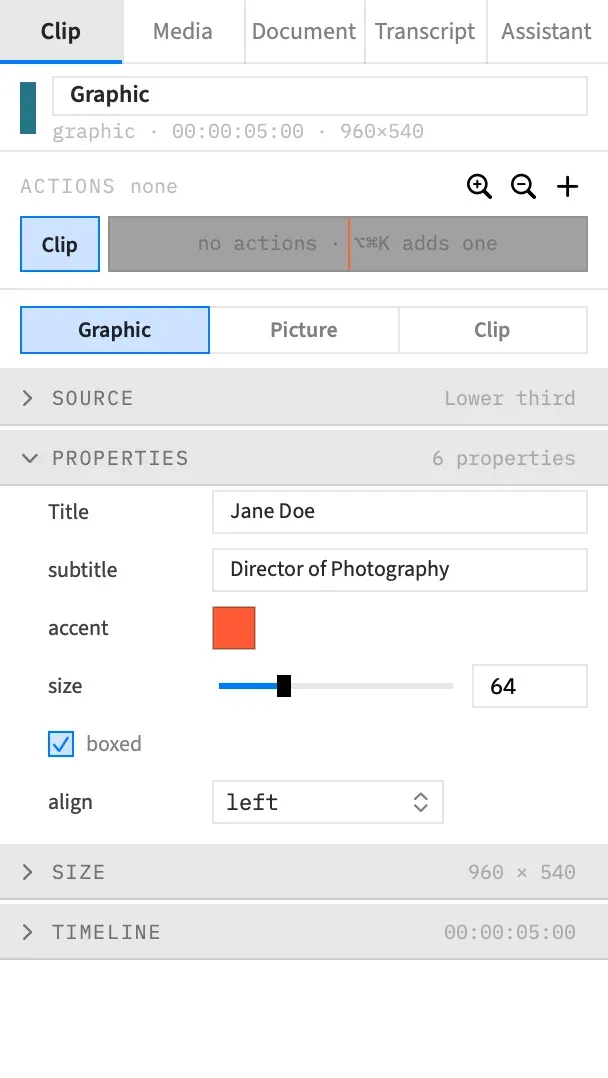
Property rows
Section titled “Property rows”Properties shows one row for each property the module defines, in the module’s own order. A row’s label is the one the module gives it, or the property’s key when it gives none, and resting the pointer on the row shows the module’s help text. The section starts open, and its summary counts the rows, such as 6 properties.
Every row is a normal inspector row. A change is one undo step, and you can right-click a row’s label to reset it. See Inspector fields.
If there are no rows, the section says why:
| It says | What it means |
|---|---|
| “The module declares no properties.” | The graphic has nothing to set. |
No module named "lower-third" in graphics/ — see Source. Stored values are listed below. |
The module is missing, so Frame Job can’t read its properties until it’s back. The sentence gives the module’s own name. See Diagnostics. The clip’s values are kept and listed as leftover values. |
| “The module did not compile — see Source. Stored values are listed below.” | The module doesn’t compile, so Frame Job can’t read its properties until it’s fixed. See Diagnostics. The clip’s values are kept and listed as leftover values. |
A module gives each property one of six types, and the type sets the control. The headings below use the names a module uses.
Number
Section titled “Number”A value field, with a slider beside it when the module gives both a minimum and a maximum. A number past the range is held to the end of the range.
The field shows two decimals when the module’s step is below 1. With no step, it shows two decimals when the default or a bound has a fraction. Otherwise it shows whole numbers.
String
Section titled “String”Text, in a one-line field the width of the inspector. Long text scrolls inside it.
When the module marks the property as multi-line, it’s a text area instead: ↩ applies and ⇧↩ starts a new line.
A property holds at most 4,096 characters.
Boolean
Section titled “Boolean”A checkbox, for something that’s either on or off.
A pop-up, for a choice from a fixed list. A module offers 1 to 32 options.
A colour swatch. Click it to open the macOS colour panel. A colour you can see through keeps its opacity. Frame Job stores the colour as #rrggbb, or as #rrggbbaa when it isn’t fully opaque.
A pop-up of pictures. It lists None, then every picture in the project’s graphics, then any picture name that’s referred to but missing from the folder. A missing name comes from the selected clips, the selected action’s end or the module’s default, so a missing picture still shows by name.
None gives the module no picture, even when it has a default one.
To add a picture to the list, choose File ▸ Add Image to Graphics… first. See Fonts and pictures in graphics.
A Reset button appears on the section’s header while a row differs from the module’s default. Click it to clear every value stored on the selected clips, so the module draws its own defaults. It’s one undo step, named Reset Graphic Properties.
To put back one row, right-click its label and choose Reset to default.
While an action is selected, the rows edit the action’s end, not the clip, except a property the module marks animate: false. The header has no Reset then. It shows Clear once the action sets one of the rows, and right-clicking a row offers Set end value to default. See Animate graphic properties.
Values at the default
Section titled “Values at the default”With no action selected, setting a value back to the module’s default clears it from the clip. The clip then follows the module’s default if that changes later.
A colour counts as the default when its channels match, however the module spelled it.
The exception is a property an action on the clip animates. There, Frame Job keeps the default as a stored value, so the animation keeps its start.
Editing several clips
Section titled “Editing several clips”With several clips of one module selected, a change to a row applies to all of them, as one undo step. A row whose clips disagree shows the first clip’s value with a mixed badge. See Edit several clips at once.
Properties appears only when all the selected clips share one module. Clips of different modules can’t be edited together. An agent can’t set their properties in one go either, unless the same call moves them all to one module. See Several modules selected.
Leftover values
Section titled “Leftover values”A clip can hold a value for a property the module no longer has, for example after you rename a property in the module. The value stays, listed below the rows with its key dimmed, its value beside it, and ⌫ to remove it.
The clip still draws. The value is passed to the module, and Source shows the warning props.<key> is not in the schema; it is passed through.
⌫ removes the value from every selected clip, as one undo step named Remove Graphic Property.
With no compiled module, every stored value is listed this way. An action’s end has leftover rows of its own, marked as the action’s. See Animate graphic properties.
Good to know
Section titled “Good to know”A stored value that no longer suits its property, such as a choice the module has dropped from an Enum, isn’t listed as a leftover. The clip draws the module’s default, and Source shows a warning naming the property.
With an agent
Section titled “With an agent”set_graphic changes the same values, on any number of clips of one module, as one undo step. Setting a property to null clears it from the clips, except a property an action on the clip animates, which is set to the module’s default.