
Text clips
A text clip puts words on the canvas: a title, a name strap, a line of explanation. It sits on a track like any other clip, and it has no source file behind it.
- Keys
- T
- Where
- The Add Text button in the timeline barClip tab ▸ Text ▸ Content
- Agent tools
add_text_clipset_text
Add a text clip
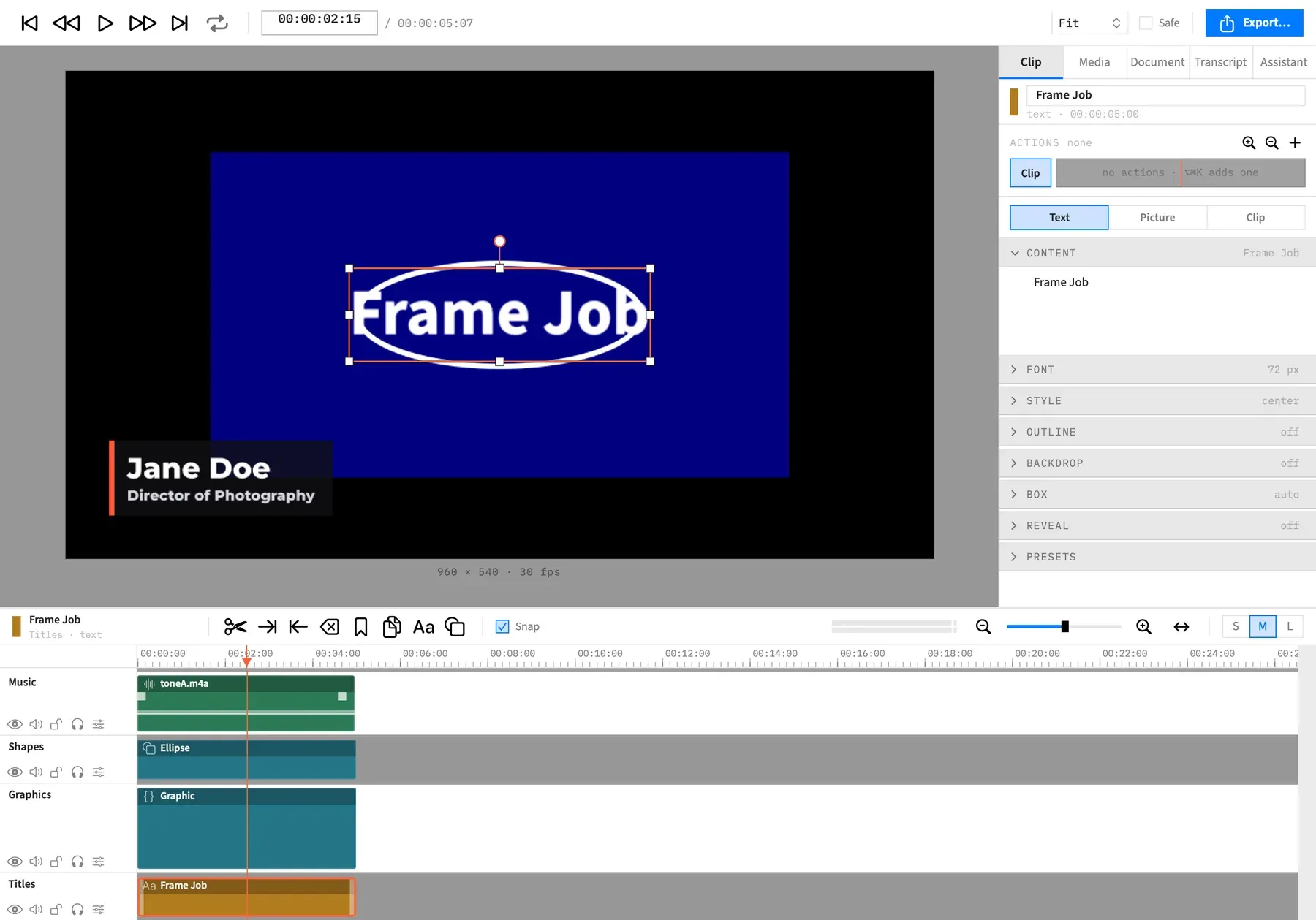
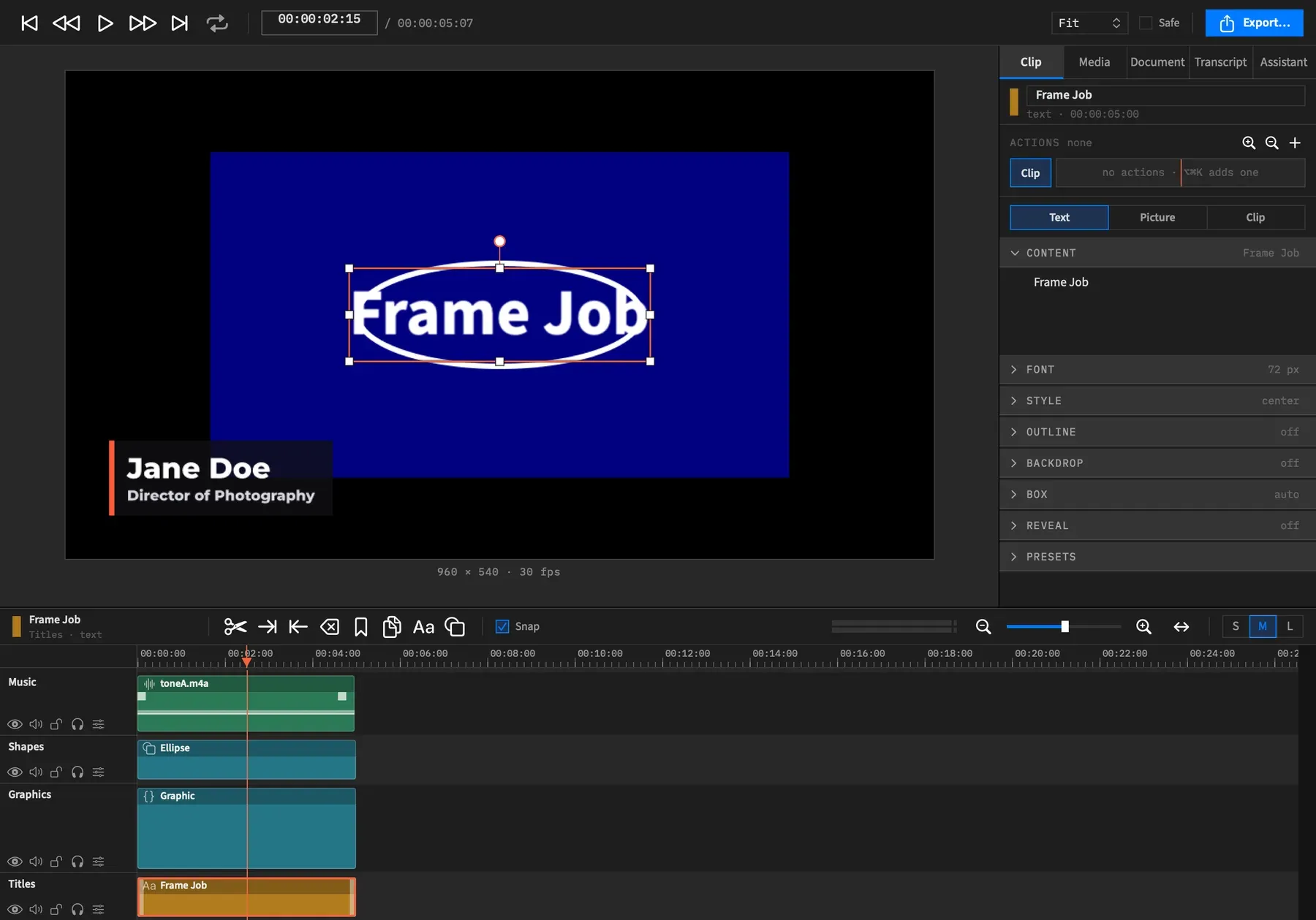
Section titled “Add a text clip”Press T, or click Add Text in the timeline bar, the Aa button. There’s no menu item for it.
The new clip reads “Title” in Source Sans 3 Bold at 72 px, in white, centred on the canvas, and it lasts 5 seconds. For a look sized to your canvas, use a preset.
It lands at the playhead on the front-most track if it fits there, and on a new track in front of everything if it doesn’t. Either way it’s one undo step, Add Text. With a nest open, the front-most track is the nest’s own.
The clip comes in selected, so the canvas shows its handles and the Clip tab opens on its Text sub-tab. If the inspector is showing Transcript or Assistant, it stays there.
Change the length
Section titled “Change the length”Five seconds is only where a text clip starts. With no source file to run out of, you can trim it to any length.
Write the words
Section titled “Write the words”There are two places to type:
- On the canvas. Double-click the clip in the preview. See Edit text on the canvas.
- In the inspector. Select the clip and use the Content section at the top of the Text sub-tab. It’s the one Text section that starts open. Its header shows the first line of the text, or “empty”.
In the Content box:
| Key | What it does |
|---|---|
| Return | Applies the text, and the single-letter shortcuts work again |
| Tab | Applies the text the same way, unless Full Keyboard Access is on in System Settings |
| ⇧Return, ⌘Return, ⌥Return or ⌃Return | Starts a new line |
A click elsewhere in the window, below its title bar, applies the text too. Changing the words is one undo step, Edit Text. If they haven’t changed, there’s no undo step.
With an action selected, Content sets the words at that action’s end. Words don’t ease from one to another, so the text switches when the action ends.
Style the clip
Section titled “Style the clip”The Text sub-tab has the rest of a clip’s look, and each section has its own page:
| Section | Page |
|---|---|
| Font and Style | Font and text style |
| Outline and Backdrop | Text outline and backdrop |
| Box | Text box and wrapping |
| Reveal | Text reveals |
| Presets | Text presets |
The sub-tab shows only when every selected clip is a text clip. With several selected, a change goes to all of them.
Place it and add effects
Section titled “Place it and add effects”A text clip also has a Picture sub-tab, with these sections in this order:
- Transform, for position, scale, rotation and opacity
- Behind Subject, which isn’t shown while a nest is open
- Hide While Silent
- Shadow
- Filters
- Reflection
- Spotlight
- Obscure
Crop, Corner Radius, Chroma Key and Background aren’t offered, because they work on a clip’s source pixels. A text clip has no Color or Sound sub-tab.
With an agent
Section titled “With an agent”add_text_clip needs a track and a time. It can also set the length, 5 seconds if left out, and the words and the whole look in the same call. Unlike T, it doesn’t fall back to a new track: if the clip would overlap another, Frame Job won’t add it.
set_text changes any mix of a clip’s words and typography in one undo step. An agent isn’t held to the ranges of the inspector’s fields, so a size above 800 px is fine, for example. Position and scale go through set_video. Word timings sent for a caption must match its number of words, or the call fails and gives both numbers. See Tools: adding clips and Tools: text, shapes and clip names.
Good to know
Section titled “Good to know”A caption is a text clip too. If one is timed word by word, editing it keeps the timings while the number of words stays the same. Change the number of words and it loses its timing, so its words no longer change as they’re spoken, and Content notes “Not timed — regenerate to time it again”. See Captions are text clips and Edit captions.