
The canvas
The canvas is the fixed frame every clip is drawn into. It’s where you place a clip’s picture, and every export starts from it.
- Where
- The preview paneDocument tab, for its size, rate and background
- Agent tools
render_frameset_videoset_selection
What the canvas shows
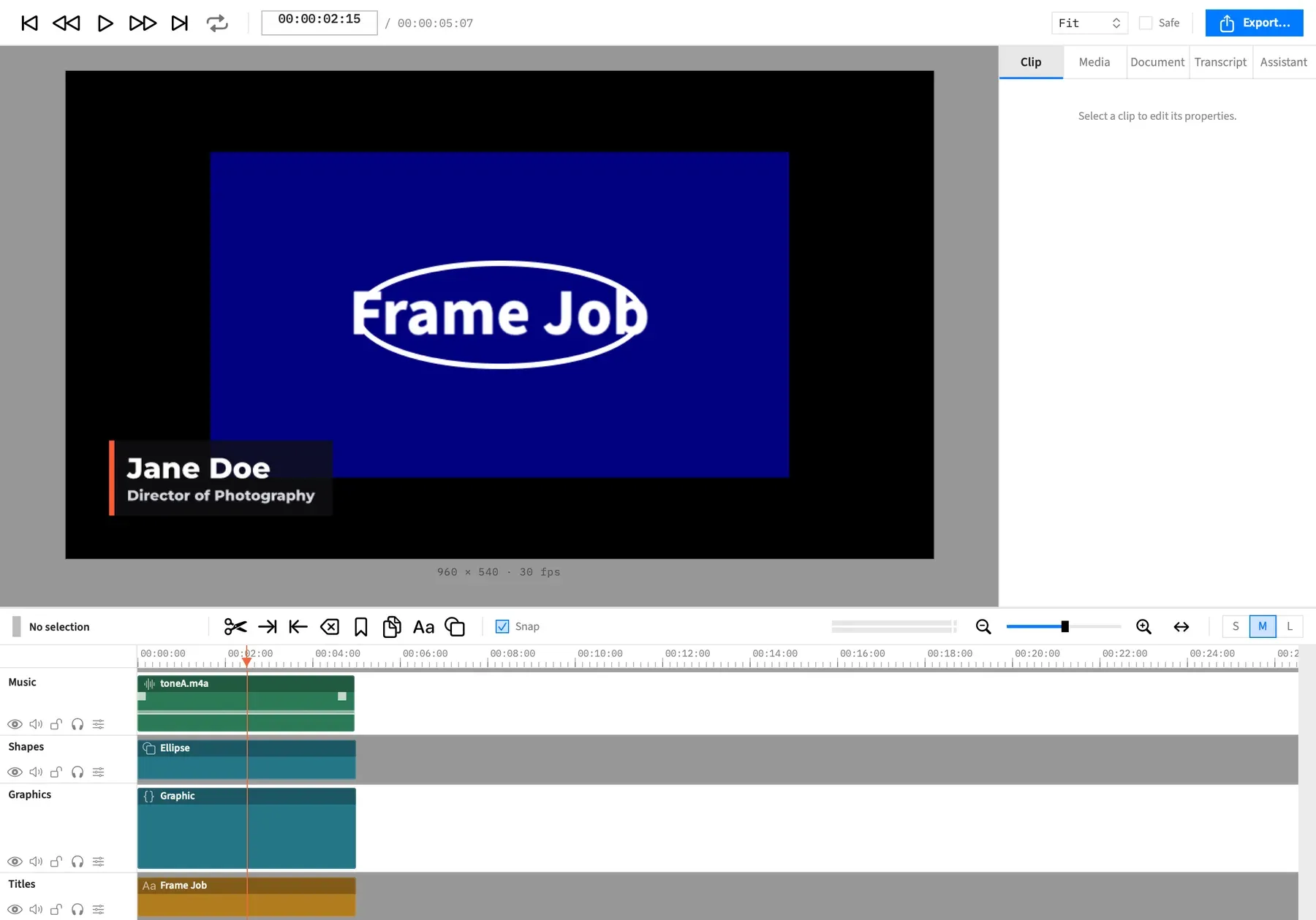
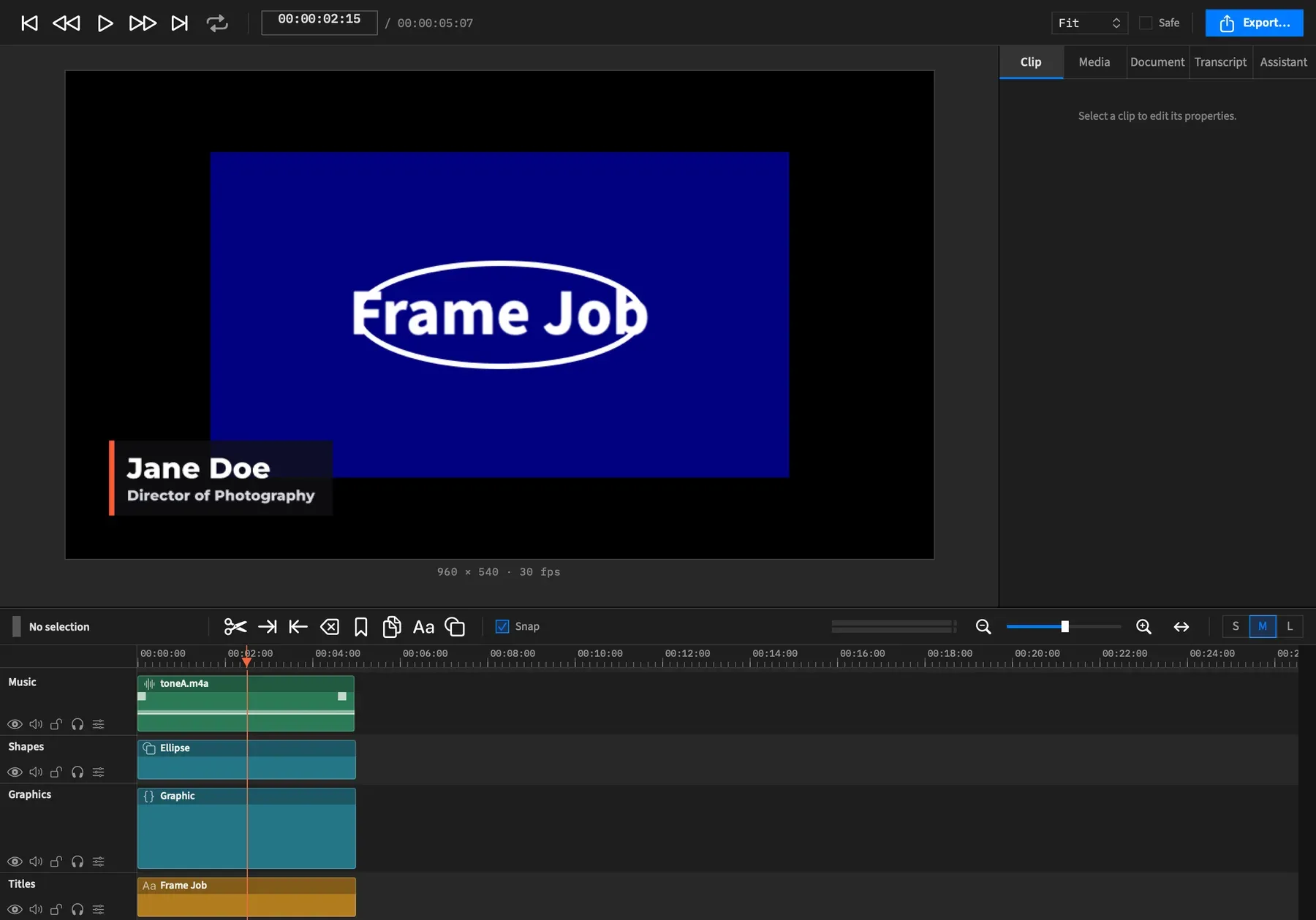
Section titled “What the canvas shows”The canvas shows the composition at the playhead, at the project’s size, centred in the preview pane with a margin of 24 points round it. A thin line marks its edge, so a black canvas still shows against the area around it. Handles and guides stay on the picture however you zoom or pan.
A clip smaller than the canvas leaves whatever is behind it showing, down to the background colour. A clip larger than the canvas is cut off at its edge.
You don’t set the canvas up here. Its size is on Canvas size, and its rate and background colour are on the Document tab.
The caption
Section titled “The caption”The small line under the picture states the canvas size and frame rate, for example 1920 × 1080 · 30 fps.
Layers
Section titled “Layers”Tracks stack back to front, so a track higher in the timeline draws in front of the ones below it. A track doesn’t hold one kind of clip: video, image, freeze frame, text, shape, graphic and nest clips can share a track, and you place them all with the same Picture sections, apart from the exceptions on their own pages. All of them take the same drags on the canvas, though a nest clip doesn’t crop.
An adjustment clip has no picture of its own, so it has no box on the canvas. Select it on the timeline. See Adjustment clips.
A nest clip has one box, the rectangle it’s placed in, with the same outline and handles as any clip. A click selects it only where something inside it draws, so a click on an empty part of that rectangle reaches the clip behind. That matters for a nest made with ⌘G, which fills the canvas whatever it holds: a small picture inside it is the part to click, and its outline is the whole canvas. Open it to work on the clips inside.
Working on the canvas
Section titled “Working on the canvas”Drag on the picture and the placement changes. The Picture tab shows the same placement as numbers.
| To | Do this | More |
|---|---|---|
| Select a clip | Click it. | Select on the canvas |
| Move a clip | Drag inside its box. | Move |
| Resize a clip | Drag one of the eight square handles. | Scale |
| Rotate a clip | Drag the round grip above the top edge. | Rotate |
| Crop a clip | Press C, or double-click a video clip, image clip or freeze frame. | Crop |
| Change a title’s words | Double-click a text clip. | Edit text on the canvas |
| Move one end of a line or arrow | Drag its round end handle. | Lines and arrows |
Press Esc during a drag to cancel it.
With an action selected
Section titled “With an action selected”While an action is selected on the clip, a move, scale, rotate or crop drag changes that action’s end state, as the inspector’s fields do. The box on screen still shows the frame at the playhead. See Select an action.
Two things always change the clip itself: resizing a shape’s box and dragging a line’s end. Several clips selected at once have no selected action, so a drag on them changes the clips too.
With one clip selected and no action selected, a gesture past an action that has ended and holds what the gesture changes is refused, and the foot of the inspector names the action to select. See Move, scale and rotate.
Hidden and locked tracks
Section titled “Hidden and locked tracks”Clips on a hidden track aren’t drawn, so you can’t click them. A clip with its picture turned off draws nothing either, and can’t be clicked.
Clips on a locked track are drawn, but you can’t select or move them on the canvas. A click passes through to whatever is behind.
- A locked clip you select on the timeline shows its outline on the canvas, with no handles.
- If the front-most selected clip is locked, nothing gets handles, even when an unlocked clip is selected behind it.
- A drag of several clips leaves any on a locked track where they are.
Canvas modes
Section titled “Canvas modes”Some tools wait for a click or a drag on the picture. While one is on, the pointer is a crosshair, a hint at the top of the preview says what to do, and every click on the picture goes to that tool.
| Mode | Turn it on with | The hint reads |
|---|---|---|
| Zoom to Region | Z, or the Zoom to Region button above the action lane | “Drag a rectangle to zoom to it · ⇧ fills · Esc to cancel” |
| Place on Canvas | Place on Canvas in the Obscure section | “Drag a rectangle to obscure · Esc to cancel” |
| Pick from Canvas, for a chroma key | Pick from Canvas in the Chroma Key section | “Click to pick the key color · Esc to cancel” |
| Pick from Canvas, for a qualifier | Pick from Canvas in the Qualifier section | “Click to pick the color to qualify · Esc to cancel” |
Only one mode can be on at a time, and turning one on ends any other. A mode ends when:
- you finish the drag or the pick
- you press Esc, which changes nothing
- you press its key or button a second time
- the selection changes so that it’s no longer aimed at the same clips
- for Zoom to Region and Place on Canvas, the playhead leaves the clip
Zoom to Region and Place on Canvas need exactly one selected clip that’s drawing at the playhead, has a box on the canvas and isn’t on a locked track. Otherwise Frame Job beeps and the mode doesn’t start. The Place on Canvas button is greyed while the clip has four regions. The two pick modes beep the same way when nothing selected can use them.
A pick that lands outside the canvas beeps and the mode stays on. So does a rectangle less than 6 canvas pixels wide or high.
With an agent
Section titled “With an agent”render_frame writes the frame at a moment as a picture file, through the same path an export takes, so an agent can look at what it made. See Check the picture: render_frame.
set_video changes a clip’s placement, as a drag does, and set_selection selects clips, as a click does. See Tools: picture and grade and Tools: playhead, range and selection.