
Follow Subject
Follow Subject keeps the person in shot when a clip’s picture doesn’t fit the canvas, such as a landscape recording on a 1080 × 1920 vertical canvas. It finds the subject, moves the frame with it, and writes each move as an ordinary action you can change.
- Menu
- Clip ▸ Follow Subject…
- Where
- Each move, on the clip's action lane
- Needs
- Nothing. Faces, people and shot changes are found on your Mac, with no key and no upload.
- Agent tools
reframe_clip
Frame clips on their subject
Section titled “Frame clips on their subject”-
Set the canvas you want first, in the Document tab. Follow Subject doesn’t change the canvas.
-
Select the clips to frame.
-
Choose Clip ▸ Follow Subject…. It’s available when a selected clip plays a movie and no sheet is open, inside a nest too. There’s no keyboard shortcut.
-
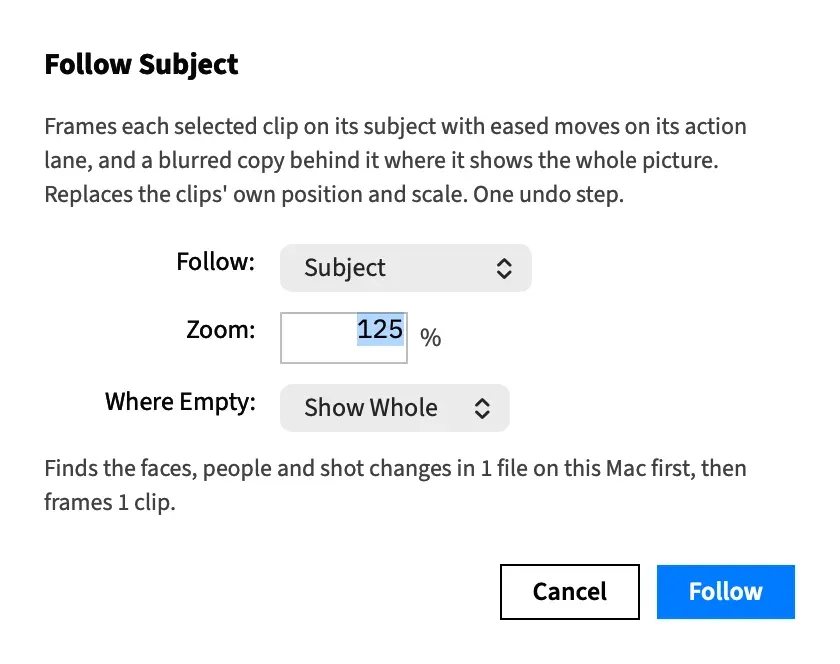
Set Follow, Zoom and Where Empty.
-
Read the summary under the controls, which says what will happen.
-
Choose Follow (Return), or Cancel (Esc) to leave everything as it was.
A still, a picture, a nest, text, a shape, a graphic or an adjustment clip in the selection is left alone, with no line in the summary.
The controls
Section titled “The controls”Follow
Section titled “Follow”Follow chooses what the frame stays on.
| Choice | What the frame follows |
|---|---|
| Subject | A face, or where there’s none a person, or where there’s neither the region the eye goes to. This is the default. |
| Faces | Faces only |
| People | People only |
| Salient Region | Salient regions only |
| Center | Nothing. The frame holds on the middle of the picture for the whole clip, with no analysis needed. |
Zoom sets how tight the frame is, in whole percents from 100 to 400. A value outside that range is brought back to it when you leave the field. At 100 % the picture is the smallest it can be and still cover the canvas.
It starts at 100 %. If the first selected clip’s picture is within 1 % of the canvas’s shape, it starts at 125 % instead, because at 100 % such a picture fills the canvas exactly and the frame has no room to move.
Zoom enlarges the picture, and so does putting a landscape picture on a tall canvas. A 1080p source on a 1080 × 1920 canvas is already enlarged ×1.78 at 100 %.
Where Empty
Section titled “Where Empty”Where Empty sets what the frame shows while there’s nothing to follow.
| Choice | What shows |
|---|---|
| Show Whole | The whole picture, with a blurred copy filling the canvas around it. This is the default. |
| Center | The middle of the picture, at the same zoom |
It’s dimmed while Follow is Center.
What’s remembered
Section titled “What’s remembered”Follow and Where Empty are remembered for next time, and Make Vertical Version shares them. They’re saved when you choose Follow, even if you then stop the analysis, and never on Cancel. If Make Vertical Version last used Speaker, which this sheet doesn’t offer, Follow opens on Subject. Zoom isn’t remembered.
The summary
Section titled “The summary”Under the controls, the sheet says what Follow will do. It updates as you change a control, and after you leave the Zoom field.
| The sheet says | What it means |
|---|---|
| “Frames 2 clips.” | How many clips will change. |
| “Adds a Backgrounds track for the blurred copy.” | Some of the framing shows the whole picture, so a blurred copy goes behind it. |
| “Adds 1 more track behind it where clips overlap.” | Two selected clips overlap in time, so their copies need separate tracks. |
| “2 actions re-eased at a cut.” | A shot change landed inside actions the clip already had, and each was split there and eased again on either side. See It starts from the whole picture. |
| “1 action carries a framing move.” | A move couldn’t fit between the clip’s own actions, so one of them carries it. |
| “Clip 3 is already framed this way.” | That clip wouldn’t change. |
| “Clip 3: …” | That clip can’t be framed, and this is why. See Clips it cannot frame. |
| “Reading the analysis…” | Frame Job is loading what it found earlier. Follow is dimmed until it’s done. |
| “Finds the faces, people and shot changes in 1 file on this Mac first, then frames 1 clip.” | The analysis comes first. |
Follow is dimmed when nothing would change.
“Clip 3” uses Frame Job’s own number for the clip, which isn’t its position on the timeline.
Analysis first
Section titled “Analysis first”When the clips haven’t been analysed, choosing Follow closes the sheet and opens the Analyzing sheet while Frame Job finds what it needs on your Mac. It then frames the clips by itself.
The Analyzing sheet has a row for each file and each kind of analysis still to be made: Shot changes, Faces, and People and salient regions. Only the part of each file the clip plays is read, plus a second either side.
Stop changes nothing. Center needs no analysis, so it frames at once.
Frame Job beeps and frames nothing in these cases, and says why at the foot of the inspector, after Refused:
| The inspector says | What happened |
|---|---|
| “the project changed while Follow Subject was analyzing, so nothing was framed. Choose Follow Subject again.” | The project changed, or you went into or out of a nest, while the analysis ran. What was found is kept, so a second try doesn’t start over. |
| “The faces analysis of “interview.mov” failed: …” | An analysis couldn’t finish. The sentence names the kind and the file. |
It starts from the whole picture
Section titled “It starts from the whole picture”Each clip is framed from the whole picture. Its own positions and scales are replaced, both the clip’s base values and any an action sets. An action left with nothing to do is removed. The clip’s volume and its other actions stay, and so does its crop, which the frame stays inside.
The moves then fit around the actions that remain:
- A move goes in a gap between them.
- A move that would overlap an action starts up to 0.5 s earlier to clear it.
- A move that still can’t clear is carried by the action it overlaps, along that action’s curve.
- A shot change that lands inside an action splits it into three: the part before, the one frame of the cut, and the part after. A steady (linear) action plays as it did, and an eased one is eased again on each side.
- A speed action, or an action a trim left running past the clip’s end, is never cut. It carries the change instead.
How following moves
Section titled “How following moves”While it follows, the frame stays inside the picture, so nothing past the picture’s edge shows.
Which subject it follows
Section titled “Which subject it follows”When several faces or people are in view, Frame Job scores each on how steadily it’s there, how big it is and how central it is, over the second either side and within the shot.
It stays with its choice. Another subject takes over only after scoring at least 25 % better for 2 s, so two similar faces don’t trade the frame back and forth. With Subject, a person’s body stands in for their face while the face can’t be found.
Frame Job samples the picture ten times a second, and only the first eight of each kind in a sample count. For faces, that’s the eight furthest left.
Where the subject sits
Section titled “Where the subject sits”| Subject | Where it sits |
|---|---|
| A face | In the middle of the frame, or 38 % of the way down on a frame taller than wide, leaving room below for the rest of the person |
| A person | With the top of their box 12 % of the way down the frame |
| A salient region | In the middle of the frame |
This is where the frame aims. Near the picture’s edge it stops at the edge, so the subject sits off from these marks.
Easing and staying put
Section titled “Easing and staying put”The frame eases onto the subject and moves only when the subject leaves the middle of the frame, so a speaker who sways stays put. The middle counts as 15 % of the frame’s width and 12 % of its height either side.
A move travels at 0.8 frame widths a second and takes at least 0.4 s. No move starts within 0.5 s of the last one’s end, unless the subject has left the frame altogether.
At a shot change
Section titled “At a shot change”The frame cuts with the picture, landing on the first frame of the new shot. It’s placed on where the subject sits over the new shot’s first second. No move runs across a cut.
When the subject is lost
Section titled “When the subject is lost”The frame holds for a second, so a blink or a turned head changes nothing. It then follows someone else in the shot if there’s anyone. If not, it eases over 0.8 s to your Where Empty choice.
It comes back once a subject has been in view for 0.6 s.
A clip with nobody in view during its first second opens on Where Empty. A clip with nothing to follow at all stays on Where Empty for its whole length.
Two people
Section titled “Two people”The frame holds two faces or two people together when both fit in it. Each box is widened by 15 % before they’re tested against the frame. Salient regions aren’t paired.
The blurred Backgrounds track
Section titled “The blurred Backgrounds track”Where the frame shows the whole picture, the canvas shows around it. So a blurred copy of the clip goes on a new track named Backgrounds at the back, for the clip’s whole length. That’s the same copy Clip ▸ Add Blurred Background makes: picture only, filling the canvas.
No track is added when no clip needs one. That’s always so when Follow or Where Empty is Center. Where two selected clips overlap in time, the second copy goes on a further new track behind Backgrounds.
A clip with speed actions keeps them on its copy, so the copy shows the same frames.
Every move is an action
Section titled “Every move is an action”Every move is an ordinary action on the clip’s action lane. To nudge where a frame ends, select the action and drag the picture on the canvas. You can move, resize or remove it as you would any other.
Edit ▸ Undo Follow Subject takes the whole command back in one step, every clip and track included. What was found stays in the cache.
Screen recordings are skipped
Section titled “Screen recordings are skipped”A screen recording Frame Job made, with its cursor file, isn’t followed by faces. Follow Subject leaves it unanalysed and lists it under the summary:
Clip 3: clip 3’s media has a cursor file, so it follows the cursor, not faces; frame it with cursor, center, fit or keep
Of those, the sheet offers Center. Make Vertical Version follows the pointer instead, and an agent can follow it too.
Clips it cannot frame
Section titled “Clips it cannot frame”A selected movie clip that can’t be followed gets a line under the summary, and the others are still framed. With no clip left to frame, the summary shows only those lines and Follow stays dimmed.
| Clip | The line says | What you can do |
|---|---|---|
| On a matte track | “clip 3 is on a matte track, which framing would move; only keep reframes it” | Change the track’s matte setting or move the clip |
| Cut by a matte | “clip 3 is cut by the matte on track 7, which framing would move it out of; only keep reframes it” | The same |
| Rotated | “clip 3 is turned 15°, and framing works on an upright picture; only keep reframes it” | Set its rotation back to 0° |
| Turned by an action | “clip 3’s action 12 turns it, and framing works on an upright picture; only keep reframes it” | Take rotation out of that action |
| Spinning | “clip 3 spins in its motion, and framing works on an upright picture; only keep reframes it” | Clear the spin preset |
| Cropped or scaled to nothing | “clip 3’s crop or scale leaves no picture to frame” | Fix its crop or scale |
| With a cursor file | See above | Choose Center |
| With no analysis under it | “clip 3 has no subjects to follow; analyze it first” | Lengthen the clip. Frame Job samples a file ten times a second, so a very short clip can fall between two samples. |
“keep” and the other lowercase words in these lines are an agent’s options. See Reframe a clip (agents).
A clip with nobody in it isn’t one of these. It’s framed on your Where Empty choice.
When an analysis has to run first, the sheet can’t list these lines yet. Afterwards the clips that can be framed are framed, and the rest stay as they were with no message. If none can be, Frame Job beeps and shows the lines at the foot of the inspector.
Good to know
Section titled “Good to know”- If a selected clip’s file is missing or can’t be read, the summary says so and Follow stays dimmed for all of them. Relink it, or choose Center, which doesn’t read the file.
- Follow Subject doesn’t frame stills or pictures. Make Vertical Version can centre them.
- Running Follow Subject again on a clip whose frame shows the whole picture adds another Backgrounds track and another copy, and the first copy stays. Undo the first run, or delete the old copy.
- Inside a nest, the nest’s canvas is the canvas, and the Backgrounds track goes in the nest.
- A clip’s speed, speed ramps and reversal are all taken into account, so the frame moves with what the clip shows.
With an agent
Section titled “With an agent”reframe_clip frames one clip at a time. Follow Subject is that tool run on each selected clip, starting from the whole picture, with a Backgrounds track behind. The sheet’s Where Empty is the tool’s where_empty: fit for Show Whole, which is the default, or center.
An agent has more choices than the sheet. It can show the whole picture, rescale a clip from the canvas it was made for, follow a recorded pointer or follow whoever’s talking, and it can compose the framing into a clip’s own moves instead of replacing them. See Reframe a clip (agents) and Tools: framing and vertical.