
The Document tab
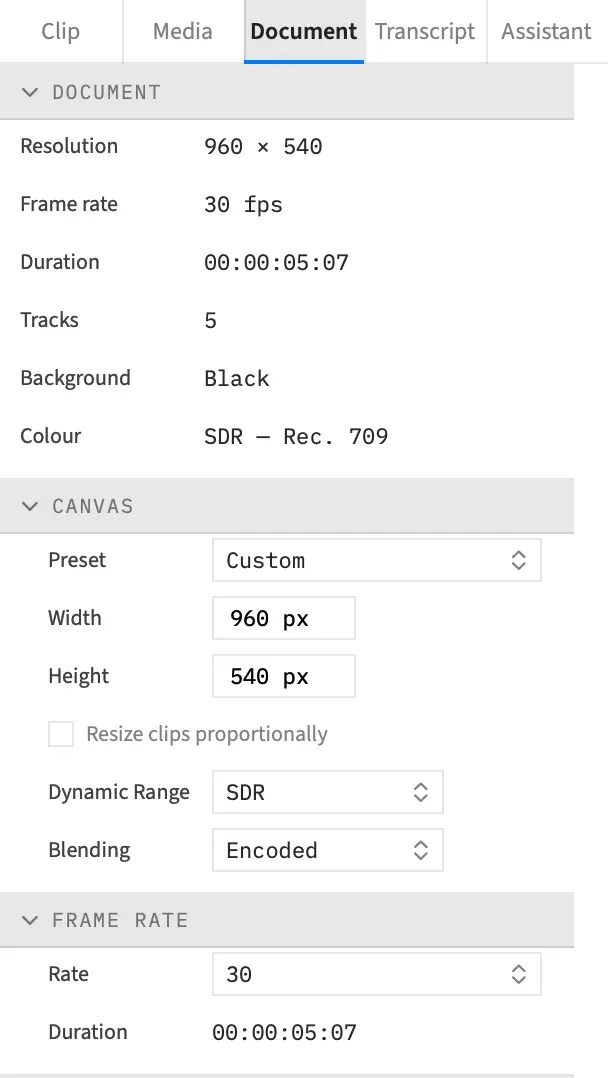
The Document tab holds what belongs to the project as a whole rather than to one clip: its size, its frame rate, its background and its markers. The canvas you set here is the fixed frame every clip is composited into, and every export starts from its size.
- Where
- Inspector ▸ Document
- Agent tools
set_canvasget_project
Open the tab
Section titled “Open the tab”Click Document at the top of the inspector. Selecting a clip on the timeline moves the inspector to the Clip tab, so come back here when you’ve finished with the clip.
What’s in the tab
Section titled “What’s in the tab”The tab has five sections, from top to bottom.
| Section | What it’s for |
|---|---|
| Document | A read-out of the project. See below. |
| Canvas | Canvas size, then the project’s dynamic range and blending. |
| Frame Rate | The project frame rate and the timeline’s length. |
| Appearance | The background colour, timecode format and Fit new clips to canvas. |
| Markers | Every marker in the project, in time order. |
The Document summary
Section titled “The Document summary”The first section tells you what the project is before you change anything. Its rows are read-only and update as you work.
| Row | What it shows |
|---|---|
| Resolution | The canvas size in pixels, such as 1920 × 1080. |
| Frame rate | The project’s real rate, such as 29.97 fps, even when the Rate popup can’t list it. |
| Duration | The timeline’s length, in the project’s timecode format. |
| Tracks | How many tracks the project has. |
| Background | Black, White, a #RRGGBB value or Transparent. A colour that’s only partly opaque also shows its opacity as a percentage, such as #336699 · 50%. |
| Colour | SDR — Rec. 709 or HDR — Rec. 2100 HLG. |
How changes behave
Section titled “How changes behave”You can undo any change you make here to the project. The exception is Resize clips proportionally, which is a preference on this Mac rather than part of the project, so undo doesn’t touch it.
The tab always shows the whole project. With a nest open it keeps working, and it changes the project rather than the nest. A nest keeps the size it was made at, whatever you do to the canvas.
With an agent
Section titled “With an agent”set_canvas changes the size, rate, background, timecode format, Fit new clips to canvas, dynamic range and blending in one call. It must name at least one of them, and anything it doesn’t name keeps its value. It works on the whole project, so a call addressed to a nest fails, while a call made with a nest open through set_scope changes the project, as the tab does. get_project reads the settings back. See Tools: tracks, markers and canvas.