
Rename, delete and restore graphics
Each graphic in a project is a module, a file of code that any number of clips can share. These commands look after those files: rename one, delete one, go back to earlier code, or split a clip off onto its own copy.
- Menu
- File ▸ Rename Graphic…File ▸ Delete Graphic…File ▸ Restore Graphic Version…
- Where
- Clip tab ▸ Graphic ▸ Source ▸ Duplicate as New Graphic…
- Agent tools
rename_graphicdelete_graphicrestore_graphicwrite_graphicset_graphic
The three File items have no keyboard shortcut. Each opens a small sheet with a Graphic: pop-up.
Rename Graphic
Section titled “Rename Graphic”Renaming a module changes its file name, and every clip drawn by it follows the new name, on the timeline and inside nests.
-
Choose File ▸ Rename Graphic…. The sheet opens on the selected clip’s module when one clip is selected, otherwise on the first module.
-
Pick the module from Graphic: if it’s a different one. The New name: field starts with the chosen module’s name, and changes when you pick another.
-
Type the new name and choose Rename.
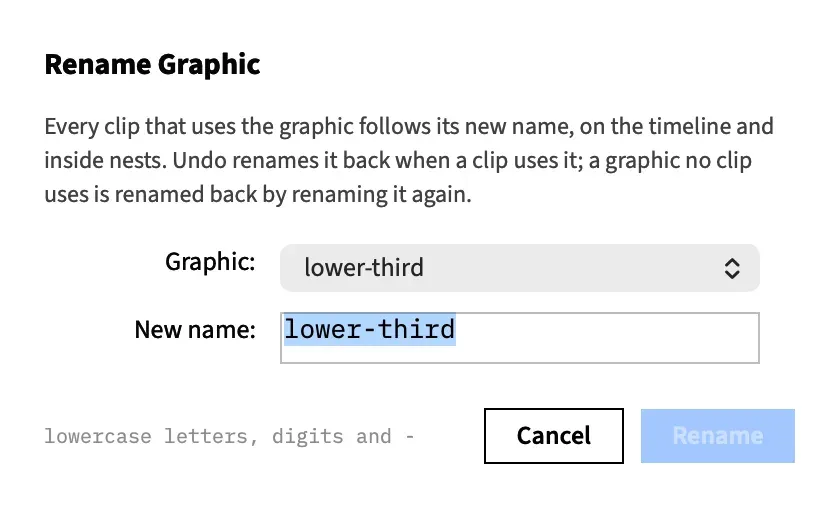
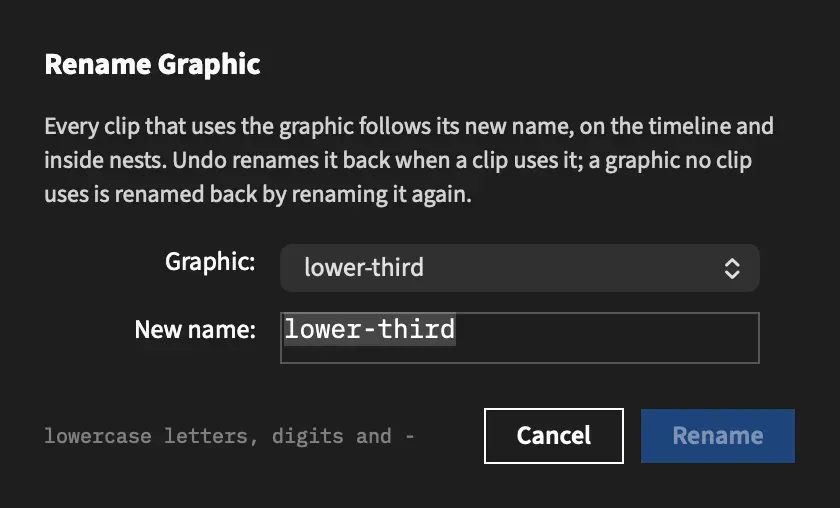
A name is lowercase letters, digits and -, starting with a letter or a digit, and at most 63 characters. Rename stays dimmed until the name isn’t empty and differs from the current one.
The module’s kept versions move with it. If the new name belonged to a deleted module, the two sets of versions join under that name. Past 10, the oldest are dropped for good, and those are the deleted module’s.
The item is dimmed in a project with no graphics and while a nest is open, because a rename reaches every clip in the project. Leave the nest with ⌘↑ first.
Undo a rename
Section titled “Undo a rename”When a clip uses the module, a rename is one undo step, Rename Graphic. Edit ▸ Undo puts the clips back and moves the module’s file back to its old name with them, and Edit ▸ Redo moves both forward again.
A module no clip uses makes no undo step. To go back, rename it again.
Frame Job remembers the last 32 renames in a project to do this. An undo further back than that can leave a clip naming a module that has no file, and the clip draws the error card.
Delete Graphic
Section titled “Delete Graphic”Deleting removes a module that no clip uses. Its code is kept, so you can bring it back.
-
Delete the clips drawn by the module, or switch them to another one. See Switch clips to another module.
-
Choose File ▸ Delete Graphic…. The sheet always opens on the first module in the list.
-
Pick the module from Graphic: and choose Delete.
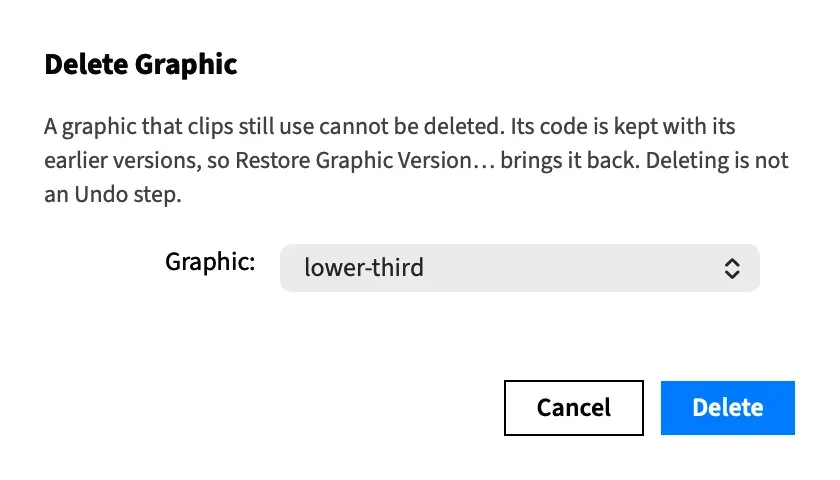
Delete is the only confirmation. There’s no second question, and deleting isn’t an undo step and doesn’t mark the project as edited.
Clips count wherever they are, on the timeline or in a nest. Fonts and pictures are left alone. The item is dimmed in a project with no graphics.
Switch clips to another module
Section titled “Switch clips to another module”The inspector can’t point clips at a different module that already exists. Duplicate as New Graphic… only switches them to a new copy. To move clips to an existing module, delete the clips and insert that module again, or ask an agent to do it.
Restore Graphic Version
Section titled “Restore Graphic Version”Restoring puts back the newest kept version of a module’s code, and it works on deleted modules too.
-
Choose File ▸ Restore Graphic Version…. The sheet opens on the selected clip’s module when one clip is selected and that module has a kept version, otherwise on the first in the list.
-
Pick the module from Graphic:. The pop-up lists every name with a kept version, and a deleted one reads like
lower-third (deleted). Under it, the sheet says how many are kept, such as “3 versions kept”. -
Choose Restore.
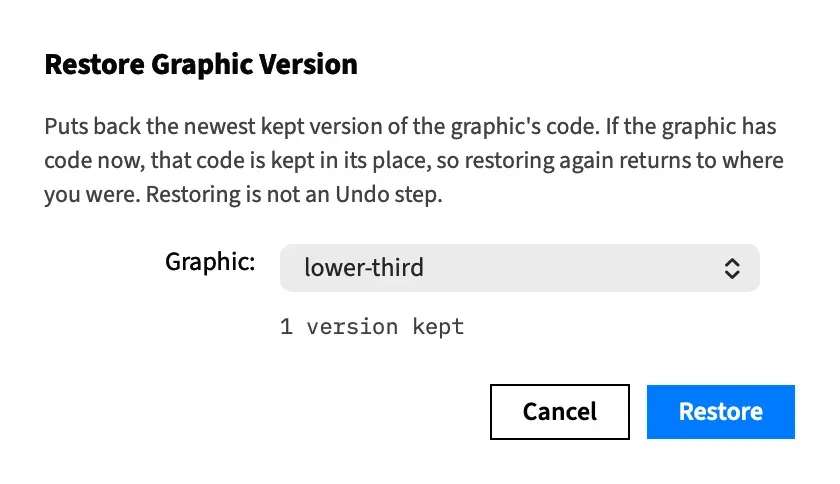
There’s no list of versions to pick from. The sheet always restores the newest.
The code a restore replaces is kept in its turn, and it becomes the newest. So restoring again returns to where you were, and the sheet swaps between those two rather than stepping further back. An agent can ask for any kept version.
Restoring isn’t an undo step and doesn’t mark the project as edited. The item is dimmed when no version of any graphic is kept. For when a version is kept, see Kept versions.
Duplicate as New Graphic
Section titled “Duplicate as New Graphic”Clips that share a module all change when it does. This writes a copy of the module under a new name and switches the selected clips to it, so you can change one clip’s look and leave the rest alone.
-
Select the clips to split off.
-
In the Source section of the Graphic sub-tab, choose Duplicate as New Graphic….
-
Type a module name. The field suggests
<name>-copy, or<name>-copy-2and so on when that’s taken. -
Choose Duplicate.
Writing the copy can’t be undone, but switching the clips can, as one step, Duplicate Graphic. Undo puts the clips back on the original and leaves the copy in the folder. Use Delete Graphic to remove it.
The button is dimmed when the module file is missing. When the selected clips are drawn by different modules, Source doesn’t offer it.
When Frame Job won’t do it
Section titled “When Frame Job won’t do it”On success, a sheet closes without a message. When Frame Job can’t do what you asked it beeps, shows the reason in the sheet in its own words, and the sheet stays open so you can change your choice or choose Cancel.
| Item | The sheet says | What it means |
|---|---|---|
| Rename | graphic name "My Title" is not a module name… |
The name breaks the rule above. |
| Rename | graphics/title.js already exists |
Another module has that name. |
| Rename | The name "title" is already drawn by clip 4 on the timeline… |
Clips left behind by a deleted module still use that name. Delete those clips or switch them first. |
| Delete | The graphic "title" is still drawn by clips 4 and 9 on the timeline and clip 12 in nest 7… |
The sheet names every clip that uses it. Delete them or switch them to another module first. |
| Restore | …was changed outside Frame Job and no longer holds the revision in its name; it is not restored… |
The kept file doesn’t match what Frame Job stored, so nothing is written. |
Duplicate as New Graphic… reports the same two naming problems in an alert. Its clips stay as they were.
With an agent
Section titled “With an agent”rename_graphic, delete_graphic and restore_graphic do what the sheets do, and give the same reasons when they can’t. restore_graphic can name any kept version, not only the newest.
An agent duplicates a graphic with write_graphic of the module’s code under the new name, then set_graphic. set_graphic can also point clips at a module that already exists, which the inspector can’t do. An agent can’t rename a module while a nest is open either.
See Tools: graphic fonts, pictures and packages and Tools: graphics.