
Animate graphic properties
A graphic’s properties can change over time, in the same way an action moves a clip’s position or fades its opacity. Use this to slide a bar’s size, change an accent colour, or swap a line of text part way through a clip.
- Menu
- Clip ▸ Add Action
- Keys
- ⌥⌘K
- Where
- Clip tab ▸ Graphic ▸ Properties, with an action selected
- Agent tools
add_actionset_action_endset_graphic
Animate with an action
Section titled “Animate with an action”-
Select the graphic clip, move the playhead to where the change should start, and choose Clip ▸ Add Action (⌥⌘K).
-
With the action selected, open the Graphic sub-tab.
-
In Properties, set the values the graphic should end at. Each row you change gets a ◆.
-
Move the playhead through the action, or play it, to see the change.
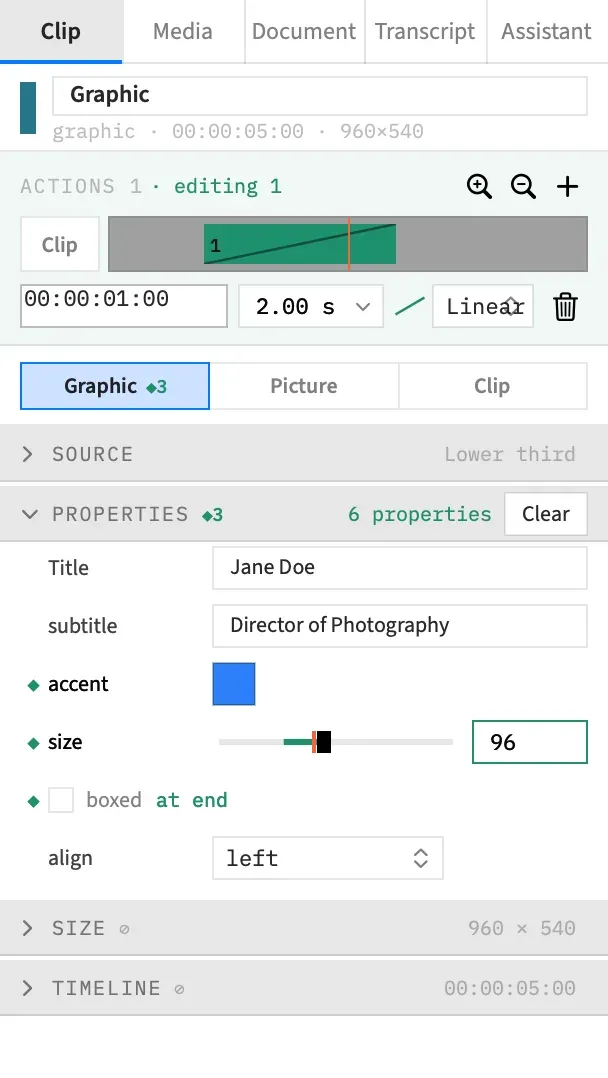
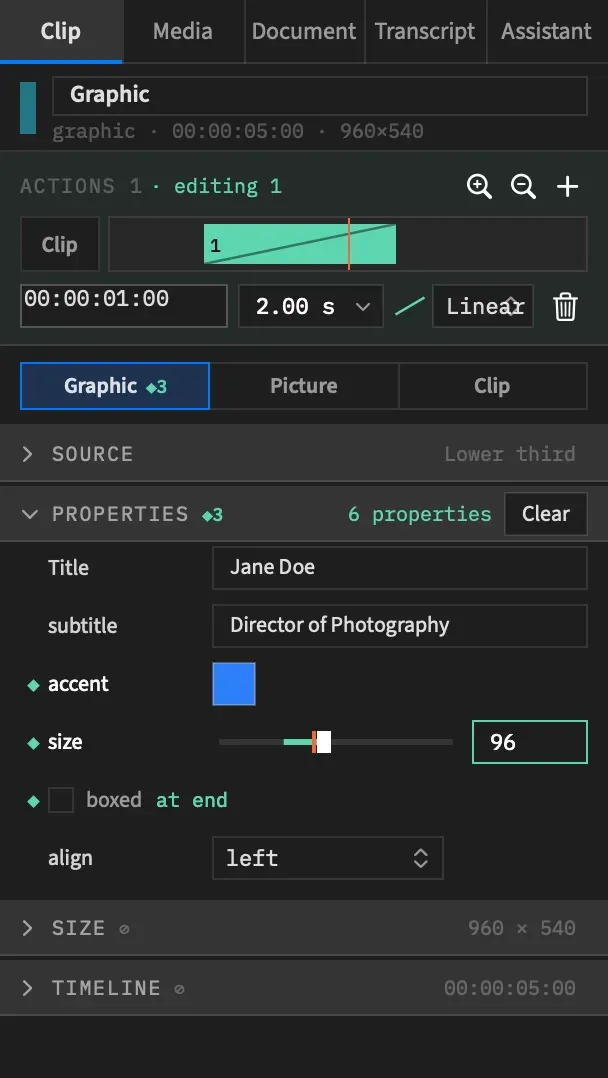
While an action is selected, the Properties rows edit the action’s end, not the clip. A value you set is kept as you set it, even when it equals the module’s default. Size and Timeline always edit the clip, and they show ⊘.
The graphic gets the current values on every frame, and any animation the module does for itself still runs on top.
To stop animating a property, take it out of the action. See Set what an action animates to. To change when the action runs, how long it takes or its curve, see Move, resize or remove an action.
What ramps
Section titled “What ramps”Numbers and colours move along the action’s curve from start to end.
A number arrives with decimals. Going from 64 to 129, it’s 96.5 halfway, and it’s never rounded or snapped to the property’s step.
A colour blends through OKLab, which keeps the middle of the blend clean, and its transparency blends as a separate value. #ff0000 to #0000ff is #8c53a2 halfway, and #ffffff to #00000000 is #63636380, a half-transparent grey.
While a property moves, every frame has to be drawn anew. A graphic that had settled costs a full draw per frame for the length of the action. See Graphics playback and memory.
What switches
Section titled “What switches”Text, checkboxes, pop-ups and pictures can’t blend. They hold their value through the action, then change to the end’s value as the action ends. Their rows say “at end”.
For a picture, choosing None in the pop-up means no picture from the end of the action.
Where an animated property starts
Section titled “Where an animated property starts”An action starts from the value in force when it begins. That’s the clip’s own value, or what an earlier action finished on.
If the clip holds no value for a property, the first action to name it starts from the module’s default at that moment. That default is written into the clip in the same undo step, so changing the default later doesn’t move the animation. A picture property with no default starts with no picture.
Resetting the clip’s own value for a property an action animates sets it to the default, so the action still has somewhere to start from.
Stop a property animating
Section titled “Stop a property animating”A module can mark any property with animate: false, and you can’t then make an action animate it. It’s for anything a ramp would break, such as a count, a layout mode or a data series. The bundled templates use it for counts and data series.
The property’s row shows ⊘, and it edits the clip even while an action is selected.
If you write modules, it’s one more key on the schema entry. It must be true or false, and anything else stops the module compiling. Leaving it out means true.
export const schema = { count: { type: "number", default: 5, min: 1, max: 20, step: 1, animate: false },};See The module API or Help ▸ Graphics Reference.
Values and the module
Section titled “Values and the module”Each value you put in an action is checked against the module as it is now, including any minimum and maximum, and one that doesn’t fit isn’t accepted. That has a few effects when the module changes after you’ve animated it:
- A value already stored isn’t checked again, so narrowing a range later leaves the old end value in place.
- If an action names a property the module no longer declares, or no longer lets animate, the row shows dimmed with ⌫. Choose it to take the property out of the action.
- While the module is missing or won’t compile, the Properties section has no rows to edit. A missing module reads
No module named "lower-third" in graphics/ — see Source. Stored values are listed below., with its own name. One that won’t compile reads “The module did not compile — see Source. Stored values are listed below.” You can still take values out of the action with ⌫.
The badge
Section titled “The badge”The Graphic sub-tab shows a ◆N badge counting how many properties the selected action animates. The Properties section header shows the same count. See Read the sections and sub-tabs.
On the timeline, an action’s band names a graphic’s animated properties along with anything else the action changes, when the track is tall enough to show the label.
With an agent
Section titled “With an agent”An agent works the same way. It calls add_action, then set_action_end with the end values as {graphic: {props: {…}}}. A property set to null comes out of the action, and graphic: null takes them all out. It never sends the module’s schema, because Frame Job reads that itself.
It can’t set a value on a property marked animate: false that way, and sets it on the clip with set_graphic instead. See Tools: animation.