
Change a clip's speed
The Speed sheet plays the selected clips at one new constant rate, and shows you the length that results before you apply it.
- Menu
- Clip ▸ Speed…
- Where
- Clip tab ▸ Clip sub-tab ▸ Speed section
- Agent tools
set_speed
Set a new speed
Section titled “Set a new speed”-
Select one or more clips of a video or audio file.
-
Choose Clip ▸ Speed…. The item has no keyboard shortcut.
-
Type a Rate, or pick one from Presets.
-
Read the readout under the controls. It updates when you pick a preset, change Preserve pitch or leave the Rate field.
-
Choose Apply.
Clip ▸ Speed… is available when the selection holds at least one media clip, meaning a clip of a video or audio file. Clips of other kinds in the selection are skipped. See Which clips take speed.
To change one rate without opening a sheet, use Rate in the Speed section.
The Speed sheet
Section titled “The Speed sheet”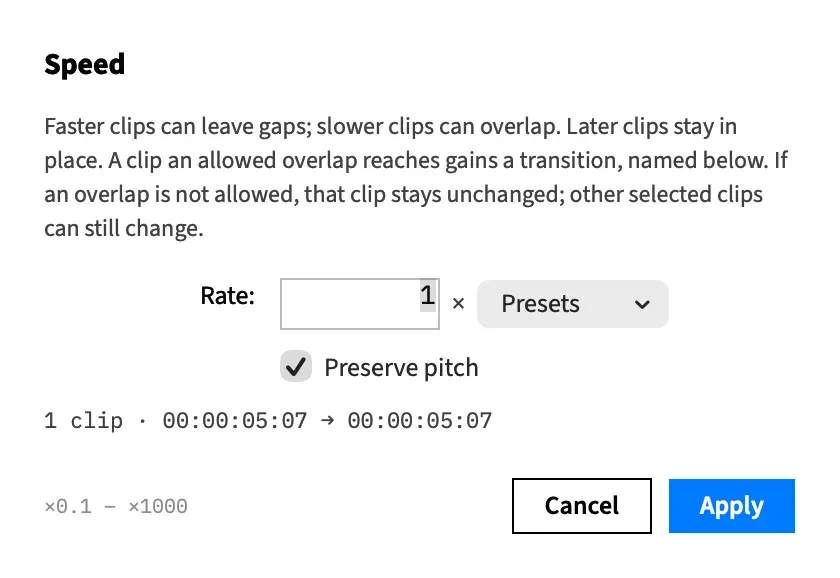
| Control | What it does | Default |
|---|---|---|
| Rate: | The playback rate as a number: 1 is normal, 2 is twice as fast, 0.5 is half speed. It takes up to three decimal places, and the field won’t accept a value outside ×0.1 – ×1000, the range printed beside the sheet’s buttons. | The rate the selected clips share, or ×1 if they differ |
| Presets | Fills in Rate with 0.25×, 0.50×, 1×, 1.5×, 2×, 4×, 10× or 100×. The same list appears on the Speed Ramp and Retime Range sheets. | |
| Preserve pitch | Keeps the sound at its own pitch at the new speed. Turn it off and the pitch rises and falls with the speed, like tape. See Keep pitch. | The first selected clip’s setting, which is on for a new clip |
The readout
Section titled “The readout”Frame Job tries the change before you commit to it, so the readout shows what Apply will do:
- The clip count and the total length before and after, for example
3 clips · 00:00:12:00 → 00:00:06:00. - One line for each clip whose transition starts playing, gets longer or gets shorter:
clip 7 gains a 0.67 s cross dissolveclip 7's cross dissolve grows to 1.50 sclip 7's cross dissolve shrinks to 0.67 s
- When a selected clip has a speed ramp, “Each speed ramp keeps its shape: the rates it names scale with the base rate.”
A clip that couldn’t take the new rate counts at its old length, and the rest of the selection still counts.
Apply the change
Section titled “Apply the change”Apply sets the rate on every listed clip as one undo step, Set Speed. Captions the change re-times are part of the same step, which is then named Set Speed and Re-time Captions. See Captions follow a speed change.
If nothing would change, Apply closes the sheet and adds no undo step.
If the rate takes a clip with sound above ×12, an alert comes first, such as ““interview.mov” will be silent at ×20.”
- Set Speed closes the sheet and applies the change.
- Cancel leaves the sheet up with nothing applied.
See Sound at high speed.
What a speed change does
Section titled “What a speed change does”- The clip’s start stays and its length changes. A faster clip can leave a gap after it, and later clips don’t move up to fill it. Close Gap closes it.
- The new length snaps to a whole frame, and never runs past the end of the file at the new rate. See The new length.
- Actions keep their places as fractions of the clip’s length.
- On a ramped clip the sheet sets the clip’s own rate, its base rate, and scales the whole ramp with it. See Edit a ramped clip.
A speed ramp works the other way round: it leaves the clip where it is and changes how much of the source plays.
A slowed clip overlapping the next
Section titled “A slowed clip overlapping the next”A slower clip gets longer, so it can run into the clip after it. Later clips stay where they are, so the two now overlap.
- If the overlap is allowed, the later clip gets a transition across it, and the readout names that transition.
- If it isn’t allowed, the slowed clip keeps its old speed. Any other selected clips still change.
An overlap is allowed up to half the length of the shorter clip. It isn’t allowed when one of the clips is an adjustment clip, or when the clip would reach a second neighbour on the same side. See Transitions.
Good to know
Section titled “Good to know”- Clips at different rates. The field opens on ×1, and Apply sets every listed clip to the rate in the field, even if you only changed Preserve pitch. Choose Cancel to leave them at their own rates.
- Preserve pitch applies to every listed clip, and changing it alone counts as a change.
- Linked clips. Frame Job won’t change the speed of a clip linked to its detached sound until you attach it. See Linked clips.
- Inside a nest, the sheet works on the clips you’ve selected in the open nest.
With an agent
Section titled “With an agent”set_speed does the same job, one clip at a time. Give it clip and exactly one of rate or duration, the length that Fit to takes. Both or neither is an error, and so is a rate of zero or less. Leave out keep_pitch and the clip’s setting stays as it is.
An agent isn’t asked about ×12: the reply says which clips lost their sound. Its undo step is named Speed. See set_speed.