
Settings
Settings holds what belongs to you and not to a project: how an MCP client reaches Frame Job, your Anthropic key and the Assistant’s model, your AssemblyAI key and region, and whether graphics render while you’re idle.
- Menu
- Frame Job ▸ Settings…
- Keys
- ⌘,
- Where
- Assistant tab ▸ Open Settings…
Opening Settings
Section titled “Opening Settings”Choose Frame Job ▸ Settings… (⌘,). It works with or without a project open, so you can set your keys from the Welcome window before you make anything. It’s a window, not a sheet, and it shows the same settings whichever project is open.
The window has four sections, one under the other: MCP, Assistant, Transcription and Playback. There are no tabs. On a short screen the window stops at the screen’s height and scrolls.
There’s no OK or Cancel. Every control saves as you use it, and a key saves when you press its Save button. While it’s open it’s listed in the Window menu, so you can bring it back from behind other windows.
Other places send you here:
- With no Anthropic key, the Assistant tab shows “Add your Anthropic API key in Settings to use the assistant.” and an Open Settings… button that opens this window.
- With AssemblyAI chosen and no key, the note above the buttons in the Generate Captions sheet, and the Generate button’s tooltip, read “No AssemblyAI API key is set. Set one in Frame Job ▸ Settings… ▸ Transcription.” The sheet doesn’t open Settings for you. If every file already has a transcript it can use, you don’t need a key and there’s no note.
- With no AssemblyAI key and no filler transcript to use, Clip ▸ Remove Filler Words… is greyed, its title ends “(needs your AssemblyAI key)”, and its tooltip is that same sentence.
AI features and your own keys says what each key turns on.
The info buttons
Section titled “The info buttons”The Assistant, Transcription and Playback headings each carry an ⓘ button that explains the section. The MCP section has none, because its text is shown in full.
- Rest the pointer on it for about a third of a second to see the explanation. Moving away closes it.
- Click it to keep the explanation open. Click it again, click anywhere else, press ⎋ or close the window to end it.
VoiceOver reads it as “About Assistant”, and so on for each section. With keyboard navigation on, Space presses it.
This section shows how an MCP client, such as Claude Code, reaches Frame Job. Clients use framejob-mcp, a helper inside the app, which connects over a local socket that only programs you run can open. If Frame Job isn’t running, the first tool call opens it in the background.
Under that text is the full path of the helper inside the copy you’re running. You can select and copy it.
Copy MCP Command puts the line that registers the helper with Claude Code on the clipboard, with the path filled in and quoted for the shell:
claude mcp add --scope user framejob -- '/Applications/Frame Job.app/Contents/Helpers/framejob-mcp'The section then says “Copied. Paste it into Terminal and press Return.”
The path is always the one for the app you opened Settings from, so copy the command again if you move Frame Job. If the helper is missing from this copy, the button is dimmed and the section says “framejob-mcp is missing from this copy of Frame Job.”
The command is for Claude Code. Other clients use the same helper path in their own configuration. See Connect a client.
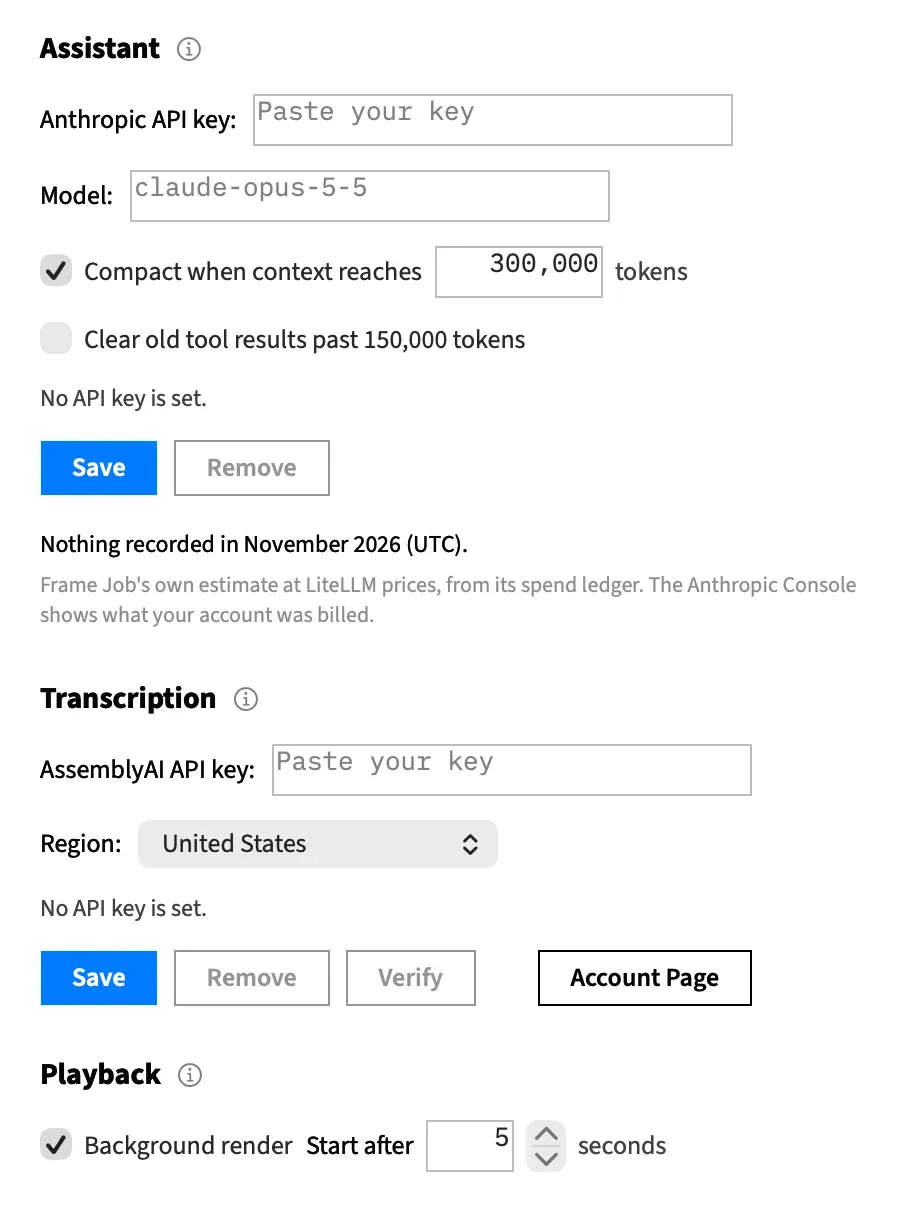
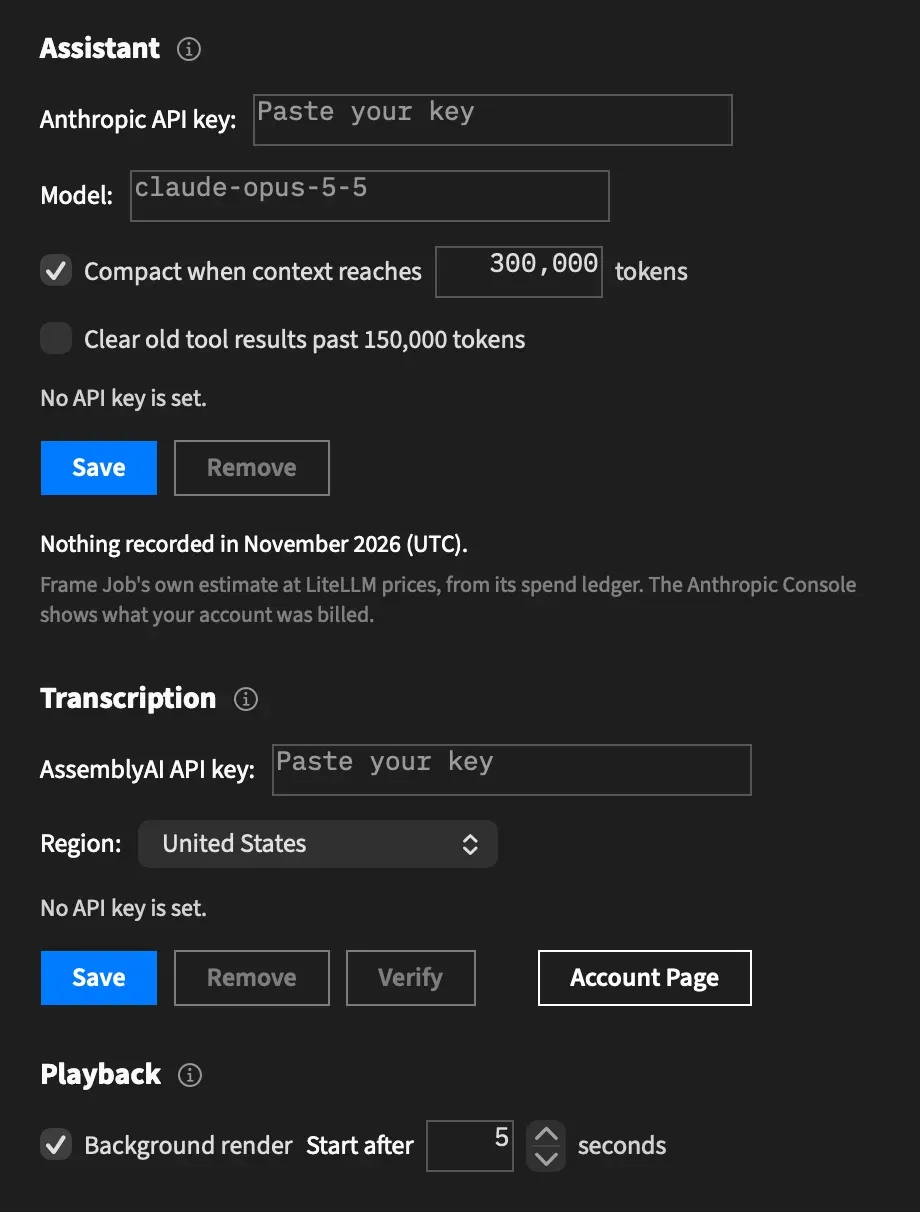
Assistant
Section titled “Assistant”This section holds what the Assistant tab needs: your Anthropic key, the model, and two settings for long conversations. See Set up the Assistant.
| Control | What it does | Default |
|---|---|---|
| Anthropic API key: | A secure field. Paste a key and press Save or ↩. See How the key fields behave. | None |
| Model: | The Anthropic model the Assistant uses, typed as text. Saved when you press ↩ or leave the field. Leave it blank for the default. | claude-opus-5-5 |
| Compact when context reaches … tokens | When a turn ends with the conversation at or past this size, the conversation is replaced by a summary. Untick it to never compact. The number can be 20,000 to 900,000, and the field works only while the box is ticked. | On, 300,000 |
| Clear old tool results past 150,000 tokens | Lets Anthropic drop old tool results from what the model sees, even partway through a turn. It never drops tool search results. | Off |
| Save | Stores the key typed in the field, then empties the field. With the field empty it only beeps. | |
| Remove | Deletes the stored key. Dimmed when no key is stored. |
There’s no Verify button here. Your key is first used when you send a message from the Assistant tab.
A change to the key or the model starts over. Saving or removing the key, or changing the model, ends the conversation in every open window’s Assistant tab, and the next message starts a new one. Pressing ↩ in Model: without changing the model that’s used ends nothing.
A change to the other two keeps going. The compaction and clearing settings apply to every open conversation at once and end none of them. They have no Save button. A compaction number outside 20,000 to 900,000 beeps, and the field goes back to the stored number.
Compaction loses the frames the Assistant rendered earlier, so it renders again when it needs to look. Each clearing also adds to your bill. See Long conversations.
Under the buttons is what the Assistant has cost this month, with a note that the figure is Frame Job’s own estimate. See What it costs.
The ⓘ sums up what’s sent to Anthropic, that it’s billed to your key, that the Assistant asks before saving a project or writing a file to a path it chose, that graphics, fonts and pictures it adds go into the project without asking, where the key is kept, the blank Model: default and the two chat settings.
Transcription
Section titled “Transcription”This section holds your AssemblyAI key and region. File ▸ Generate Captions… uses them with AssemblyAI chosen, and so does Clip ▸ Remove Filler Words…. Captions made on your Mac need no key. See Your AssemblyAI key.
| Control | What it does | Default |
|---|---|---|
| AssemblyAI API key: | A secure field. Paste a key and press Save or ↩. See How the key fields behave. | None |
| Region: | United States or European Union. Saved as soon as you pick it. | United States |
| Save | Stores the key typed in the field, then empties the field. With the field empty it only beeps. | |
| Remove | Deletes the stored key. Dimmed when no key is stored. | |
| Verify | Makes AssemblyAI’s cheapest signed-in request, with the key and region, to check they work. | |
| Account Page | Opens AssemblyAI’s dashboard in your browser, where you get a key and see what you’ve spent. |
A transcript made in one region can’t be seen from the other, so pick the region your AssemblyAI account uses. A stored region Frame Job doesn’t recognise counts as United States.
Verify checks a key you’ve typed and not saved, otherwise the stored key, otherwise a key from the environment. It’s dimmed with no key at all, and while a check of the same key and region is running. The line under the controls gives the answer:
| The line says | What it means |
|---|---|
| “Checking…” | The check is running. |
| “Key accepted” | AssemblyAI took the key in this region. |
| “Settings changed since this check began. Verify again.” | You changed the key or the region during the check, so its answer no longer applies. |
| Any other sentence, such as “AssemblyAI refused the API key — check it in Frame Job ▸ Settings” or “No network connection” | The check failed, and the sentence says why. |
Saving or removing the key, or changing the region, reaches an open Generate Captions sheet straight away, so you don’t need to reopen it.
The ⓘ explains what’s uploaded, when it’s deleted and what AssemblyAI charges. See What goes to AssemblyAI.
Playback
Section titled “Playback”This section controls whether Frame Job draws graphics ahead of time while you’re idle, so they play smoothly from the start.
| Control | What it does | Default |
|---|---|---|
| Background render | While you leave Frame Job alone, it draws the graphics after the playhead in the window you used last. | On |
| Start after … seconds | How long you must be idle first, as a whole number from 1 to 60. Type it or use the stepper. Dimmed while Background render is off. | 5 |
The box and the stepper save the moment you use them, and a typed number saves when you press ↩ or leave the field. A number outside 1 to 60 beeps, and the field goes back to the stored number.
Anything you do in Frame Job stops the drawing at once and starts the wait again from zero: a key, a click, a scroll, an edit, play or a seek. An agent’s calls count when they edit a project or move a playhead, and a call that only reads doesn’t. Moving the pointer alone doesn’t count, and neither does what you do in other apps.
Background render never runs while a window is playing, and it keeps the processor busy while it runs. Its frames are held in memory, at most a quarter of your Mac’s and less when memory is short, until the window closes or newer frames replace them. It draws pictures only and changes nothing about the sound. See Graphics playback and memory.
How the key fields behave
Section titled “How the key fields behave”The Anthropic and AssemblyAI fields work the same way. A saved key is never shown again.
- With a key stored, the field shows a row of dots as its placeholder. The row is always the same length, so it says nothing about your key, and the key itself is never put in the field.
- With no key stored, the field reads “Paste your key”.
The line under the controls reports what happened:
| The line says | What it means |
|---|---|
| “Key saved.” or “Key removed.” | The press worked. |
| “No API key is set.” | There’s no key in the field, in storage or in the environment. It’s in ordinary grey, because this isn’t an error. |
| “The API key could not be saved: …” | The key file couldn’t be written, and the end of the line gives the reason. The field is still emptied. A Remove that fails shows the same sentence with its own reason, and the stored key stays. |
Where Frame Job keeps its files says where the keys are stored, and how a key can come from the environment.
Agents and Settings
Section titled “Agents and Settings”No agent tool reads or writes anything in Settings. Your keys, the model, the region and Background render are set only by you, in this window.
An agent’s cloud tools, transcribe with the AssemblyAI engine and transcribe_for_fillers, do use the key and region saved here, so you have to set the key first. Without one they stop at the point they would send, with “No AssemblyAI API key is set. Set one in Frame Job ▸ Settings… ▸ Transcription.” A file that already has a transcript they can use needs no key. See How an agent reaches Frame Job.