
The preview
The preview shows the frame under the playhead, so you can see what you’re making while you edit and play.
- Menu
- View ▸ Safe AreasView ▸ Show UngradedView ▸ Show SelectionView ▸ Show SDR VersionView ▸ Show SubjectsView ▸ ScopesView ▸ Loudness Meter
- Keys
- ⌃⌘U⌃⌘W⌃⌘L
- Where
- The editor window, top left, above the timeline
What it shows
Section titled “What it shows”The picture keeps the canvas’s shape, letterboxed to fit the pane to the left of the inspector. Under it, a small caption gives the canvas size and frame rate, for example 1920 × 1080 · 30 fps.
The preview is also where you work on the picture: selecting clips, then moving, scaling, rotating and cropping them. That’s covered in The canvas, and zooming it in Zoom and pan the preview.
Two settings change how the preview is drawn, and neither touches an export:
- Preview Quality draws it smaller, so heavy projects play more smoothly.
- The Preview Window shows the same picture in a second window, for another display.
Colour on your display
Section titled “Colour on your display”Frame Job has no display settings of its own. The preview is a macOS video layer: the picture goes to it in the project’s colour, Rec. 709 or BT.2100 HLG, and macOS draws it for your display. So what you see depends on the display and its colour profile. There’s no viewer LUT and no calibration setting.
The scopes read the picture itself, not your display, so trust them over your eye. An HDR (HLG) project’s highlights only look brighter than white on a display that can show them. For why a file can look different in another player, see Colour labels.
Preview tags
Section titled “Preview tags”Small tags in the top-left corner of the pane tell you when the picture isn’t the plain one. Each shows only while its View item is on.
| Tag | Means | View item |
|---|---|---|
| Ungraded | The picture shows no clip’s grade. | Show Ungraded |
| Selection | The picture shows which pixels the selected adjustment clip’s qualifier picks. | Show Selection |
| SDR Version | The picture shows the project’s SDR version. | Show SDR Version |
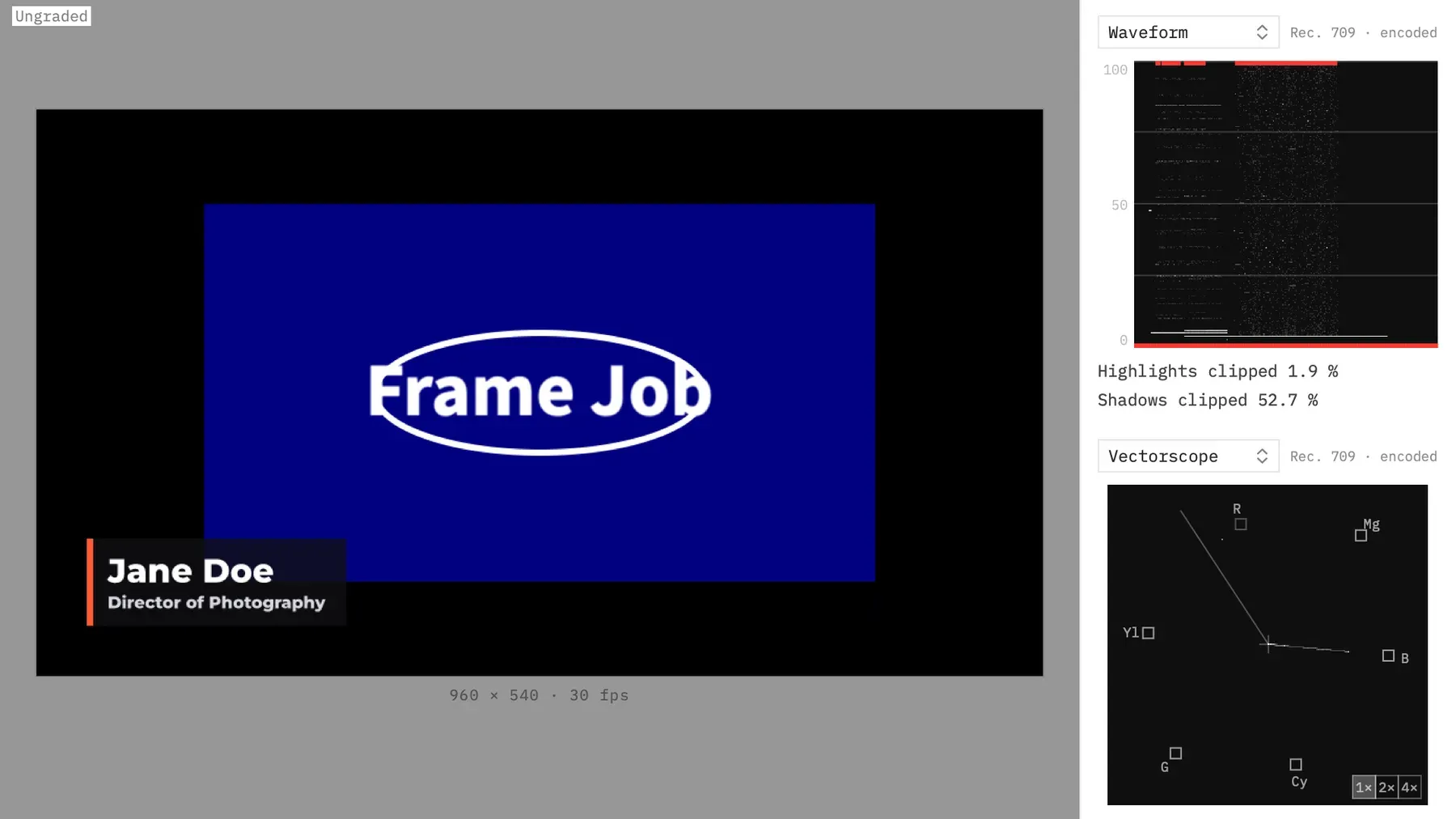
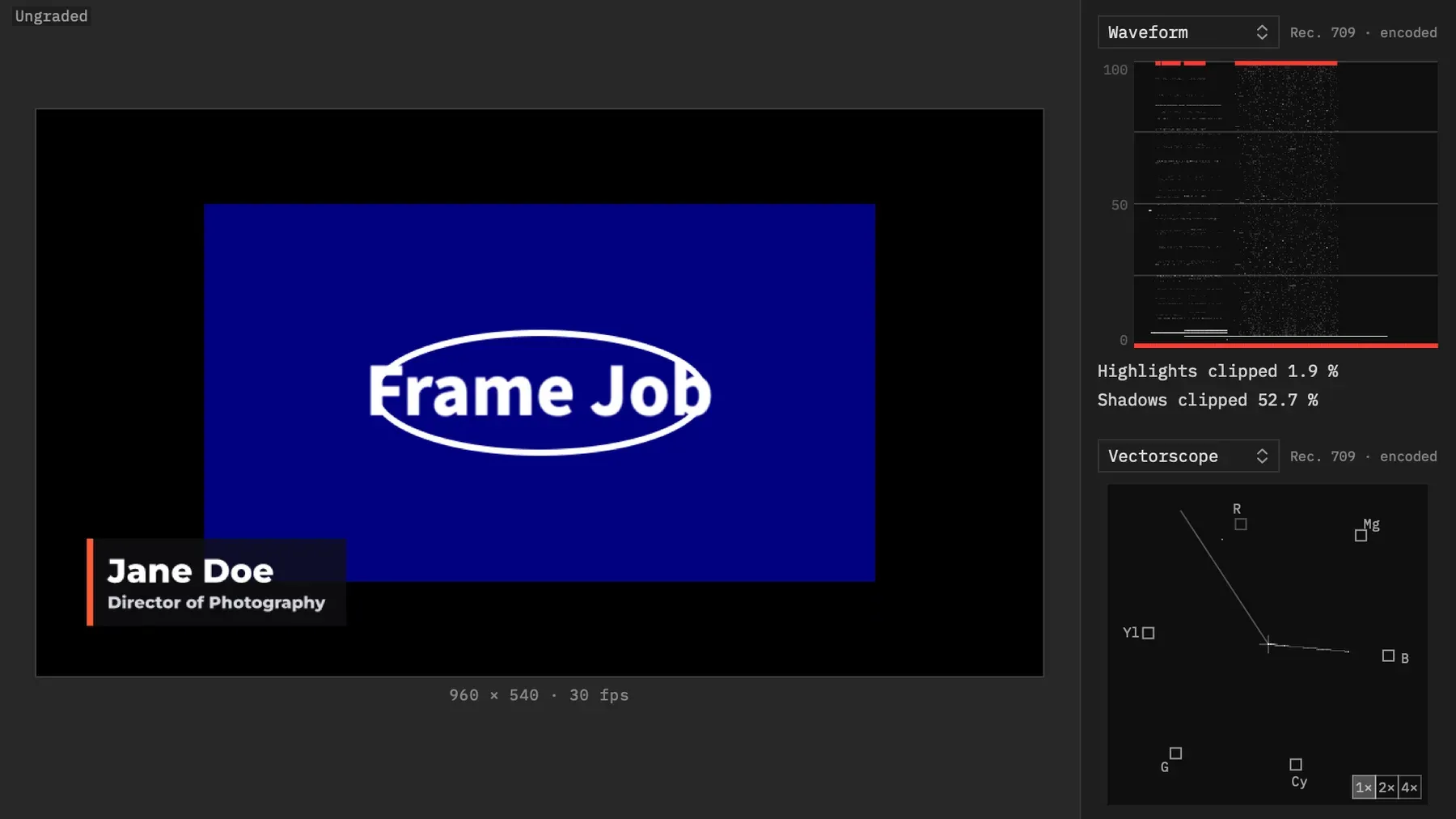
The tags sit in that order, and a hidden tag leaves no space, so Selection moves into the corner when Ungraded is off. SDR Version shows in an SDR project too, where the picture doesn’t change.
Other View items
Section titled “Other View items”The View menu holds the other switches for the preview. Each has its own page.
| Item | Keys | What it does | Remembered |
|---|---|---|---|
| Safe Areas | Shows the title-safe and action-safe guides, the same as the toolbar’s Safe box. Checked when on. | Yes | |
| Show Ungraded | ⌃⌘U | Shows the picture as if no clip were graded. | No |
| Show Selection | Shows what an adjustment clip’s qualifier picks. It needs a selected adjustment clip to turn on. | No | |
| Show SDR Version | Shows an HDR project’s SDR version. | No | |
| Show Subjects | Draws the faces, people and salient regions found for the selected clip. | No | |
| Scopes | ⌃⌘W | Shows the scopes panel beside the picture. | No |
| Loudness Meter | ⌃⌘L | Shows the live loudness column beside the picture. | No |
Remembered means between launches, for every project. The items that aren’t remembered start off in each new window, as the Preview Window does, and none of these changes an export.
View ▸ Assistant (⌃⌘A) sits nearby but doesn’t change the picture. It opens the inspector’s Assistant tab, beside the preview. See Chat with the Assistant.