
The Graphic sub-tab
Select a graphic clip and the inspector’s Clip tab gains a Graphic sub-tab. It’s where you set what the graphic shows, see which module draws it, and find out what’s wrong when it doesn’t draw as it should.
- Where
- Clip tab ▸ Graphic
- Agent tools
set_graphicget_graphic
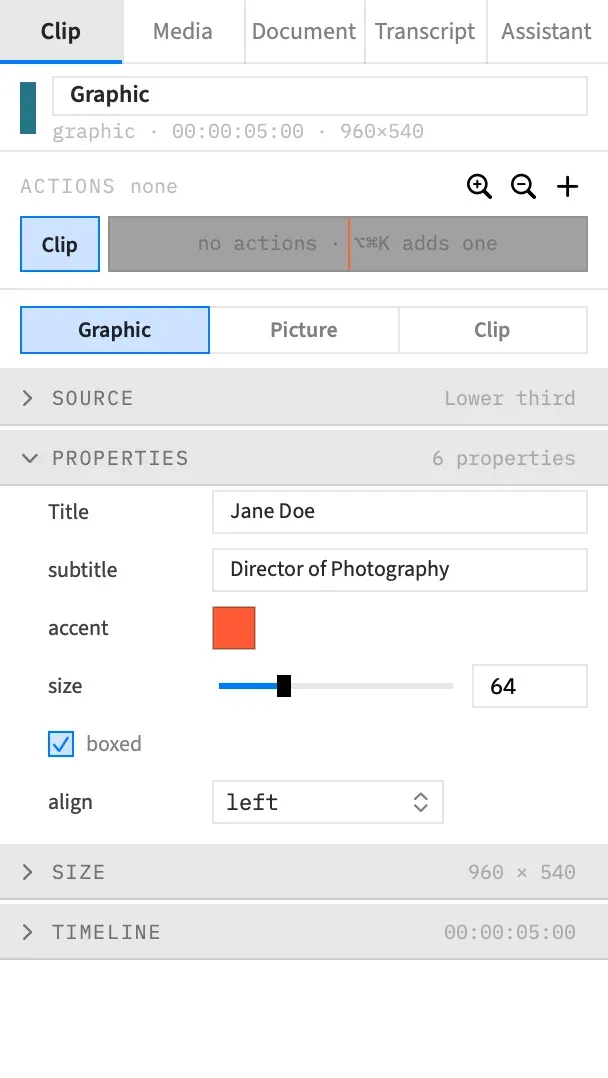
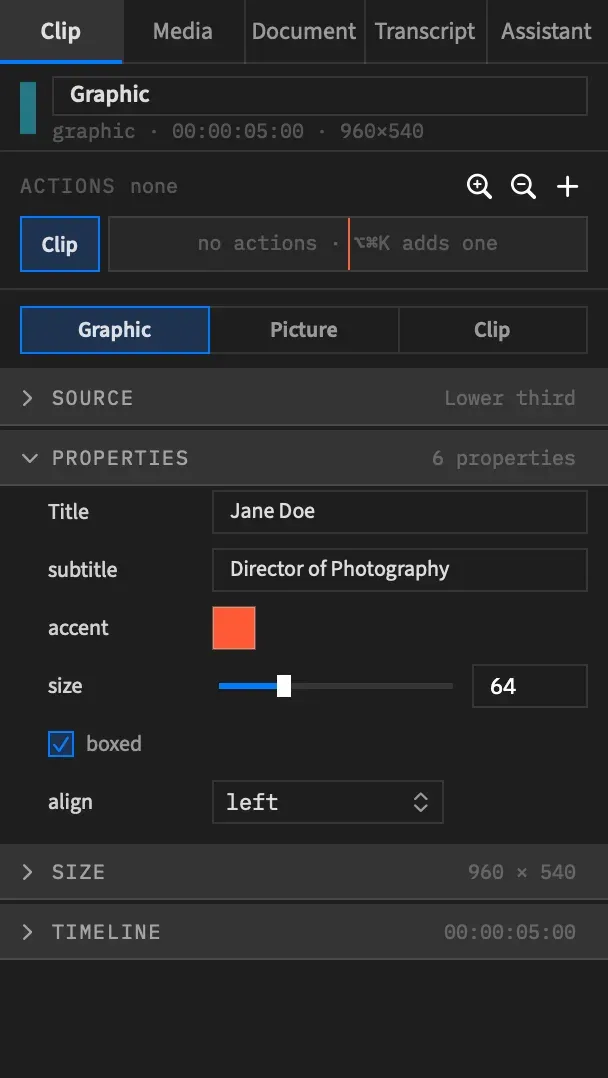
The Graphic sub-tab
Section titled “The Graphic sub-tab”A graphic clip’s sub-tabs are Graphic, Picture and Clip, in that order. Graphic appears only when every selected clip is a graphic clip, so any other kind of clip in the selection removes it.
| Section | What it’s for | Summary when collapsed | Starts | Shows |
|---|---|---|---|---|
| Source | What draws the clip, and what the module reports about it | The error or warning count, or the module’s display name | Collapsed | Always |
| Properties | What the graphic shows | The number of properties | Open | When every selected clip is drawn by one module |
| Size | The graphic’s width and height | W × H |
Collapsed | Always |
| Timeline | The graphic’s own timeline | Its length | Collapsed | With one clip selected |
There’s no Color sub-tab. To grade a graphic, put an adjustment clip above it.
The Picture sub-tab
Section titled “The Picture sub-tab”A graphic has the same layer settings as other clips, so you can move, scale and fade it: Transform (position, scale, rotation and opacity), Behind Subject, Hide While Silent, Shadow, Filters, Reflection, Spotlight and Obscure.
It has no Crop, Corner Radius or Chroma Key section. On a matte track, crop mode still works on the canvas.
The Clip sub-tab
Section titled “The Clip sub-tab”Clip has the clip’s Timing when one clip is selected, Transition when the clip overlaps the one before it, and Motion presets.
There’s no Speed section. A graphic has no speed control or speed ramp, because its timing comes from the module and its Length.
Source
Section titled “Source”Source says what draws the clip. Its summary, when collapsed, is 1 error or 2 warnings if there’s anything to report, and otherwise the module’s display name.
Name, File and Revision
Section titled “Name, File and Revision”| Row | What it shows |
|---|---|
| Name | The module’s display name, or its file name when it has none |
| File | The module’s file, <name>.js |
| Revision | The first eight characters of the SHA-256 of the file’s text, which change whenever the text does, or missing when the file is gone |
Open in Editor
Section titled “Open in Editor”Open in Editor opens the module in the app your Mac uses for .js files. Save there and the preview redraws within a moment. See Edit a module.
Reveal in Finder
Section titled “Reveal in Finder”Reveal in Finder shows the module’s file in a Finder window.
Below these two, Duplicate as New Graphic… makes a copy of the module for the selected clips. See Rename, delete and restore graphics.
Diagnostics
Section titled “Diagnostics”Under the buttons, Source lists what the module says about the clip, under a heading for each stage:
- Compiling the module appears when there’s something to report: the compile error, or any warnings the module gave as it loaded.
- No errors or warnings at the clip’s first frame means that frame drew cleanly. Checked at the clip’s first frame is followed by what that frame reported. Neither appears when the module didn’t compile.
The first frame is drawn at the clip’s own size, so a missing font, a picture that isn’t in the project or a size mismatch shows here. With several clips of one module selected, the check uses the first of them.
Each row reads line L, column C — message, line L — message when it has no column, or the message alone when it has no place in the file. An error is in the stronger text colour and a warning is muted.
While you drag a control, the list holds still. It updates when you let go.
Open a diagnostic
Section titled “Open a diagnostic”Click a diagnostic, or its Open button, to open the module in your editor. This opens the file, not the line, so note the line number first.
In the graphics folder
Section titled “In the graphics folder”In the graphics folder lists what Frame Job skipped or couldn’t watch when it scanned the project’s graphics folder:
- A module or picture with a bad name.
- An empty picture.
- A font that doesn’t load.
- A file that couldn’t be watched.
Each row has a Reveal button, and clicking it or the row shows the graphics folder in Finder, not the file. These rows count as warnings in the section’s summary.
A missing module
Section titled “A missing module”When the module’s file is gone, Open in Editor, Reveal in Finder and Duplicate as New Graphic… are dimmed, Revision reads missing, and Source shows the error No module named "<name>" in graphics/.
If Frame Job kept an earlier version, you can restore it.
Several modules selected
Section titled “Several modules selected”When the selected clips are drawn by different modules, Source starts open and its summary counts them, such as 2 modules. It names them and says:
Drawn by different modules: lower-third, title-card
Select one module’s clips to edit its properties.
The rows, buttons and diagnostics are gone until you do. Size stays editable, because it doesn’t depend on the module. Properties needs one module and Timeline needs one clip.
Switching clips to another module
Section titled “Switching clips to another module”The inspector can’t point clips at a different module that already exists. Duplicate as New Graphic… only switches them to a new copy.
To move clips to an existing module, delete them and insert that module again. An agent can do it in one step: set_graphic with the clips and the new module’s name draws them from that module, which must be in the project’s graphics folder and compile.