
System audio and the microphone
A recording can carry two sounds: what your Mac plays, and your voice. Frame Job keeps them apart, so you can set the level of each on its own after the recording lands.
- Menu
- File ▸ New Recording…
- Keys
- ⌥⌘N
- Where
- New Recording panel ▸ System AudioNew Recording panel ▸ Microphone
- Needs
- System Audio: the Screen Recording permissionMicrophone: the Microphone permission
- Agent tools
record_screen
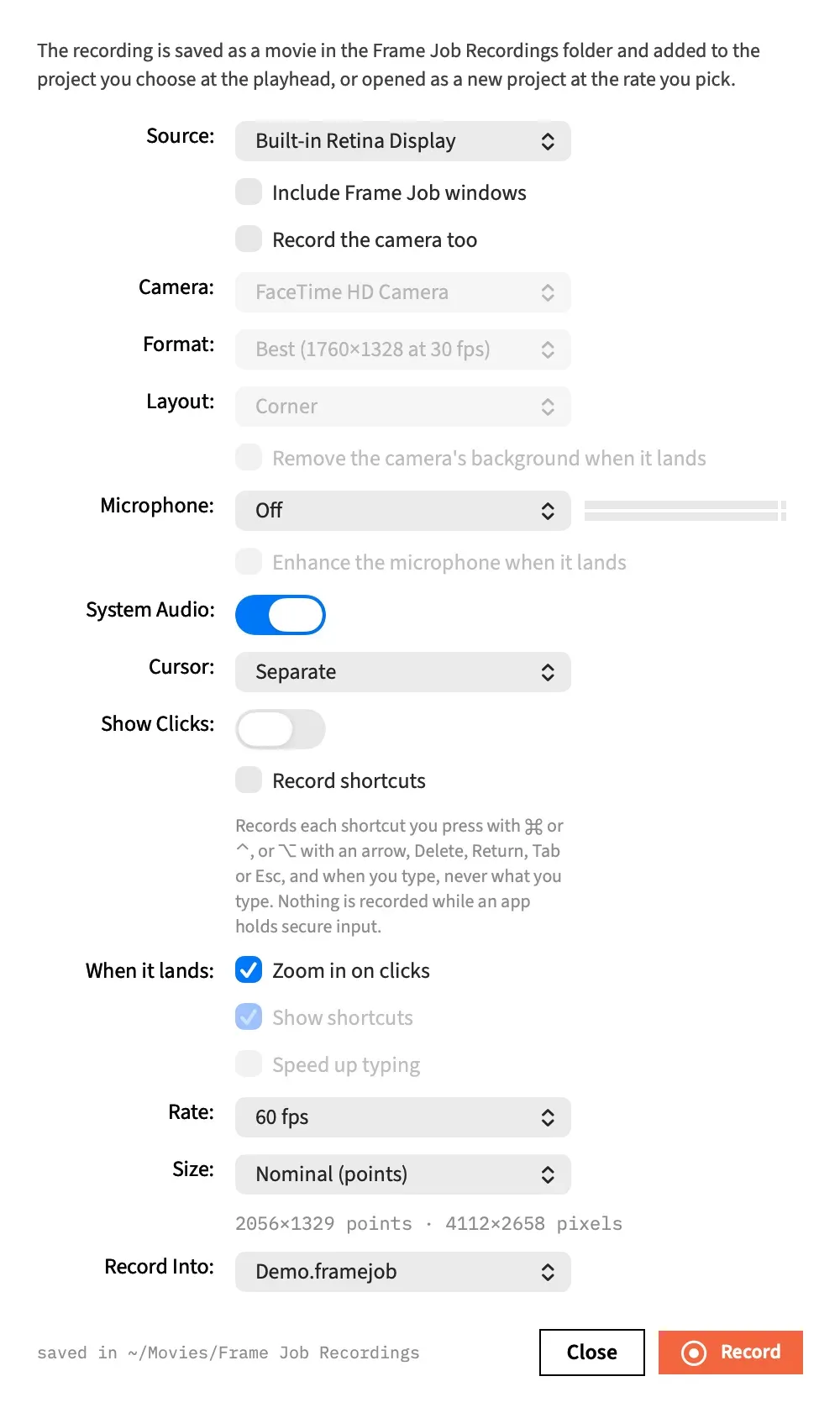
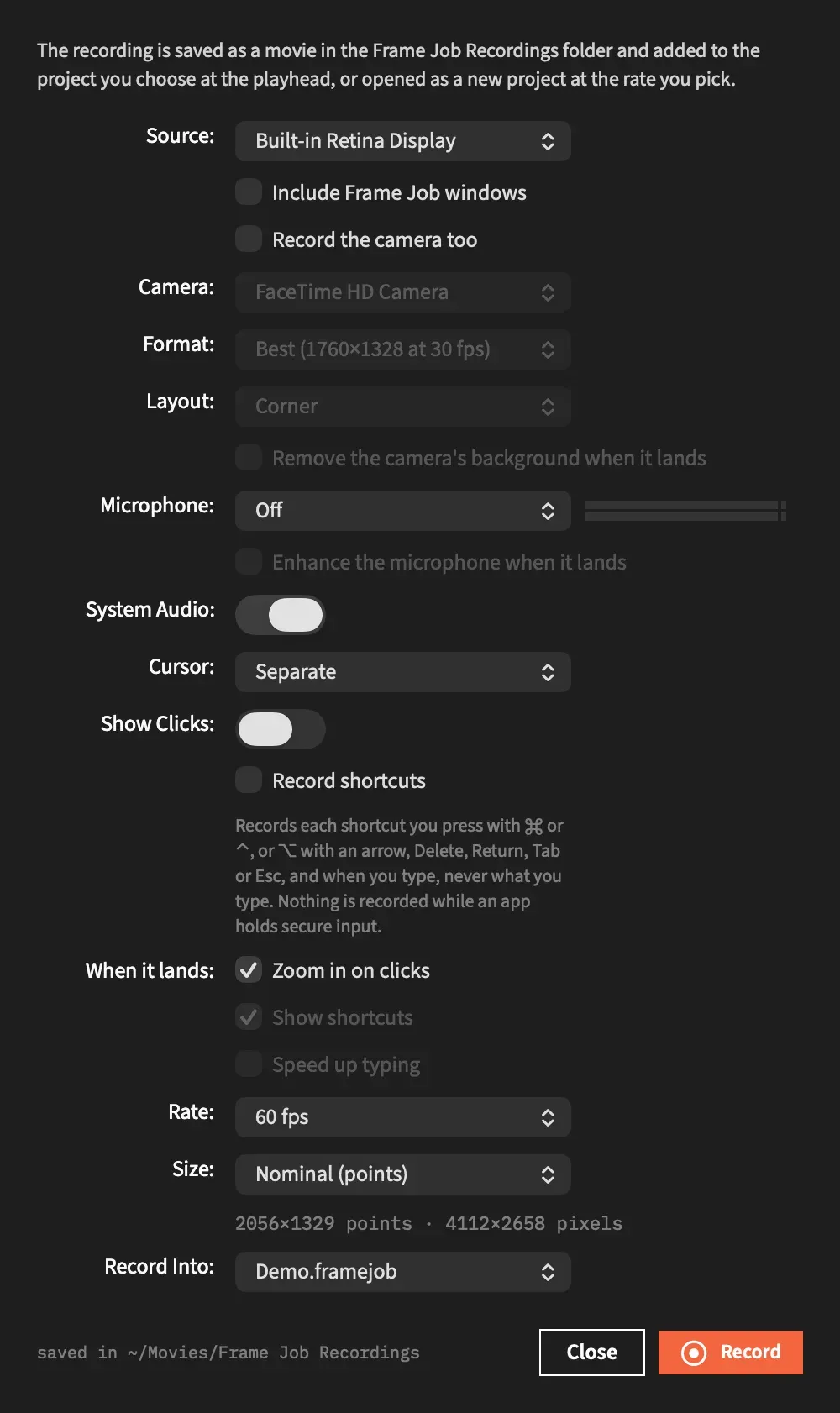
Record what your Mac plays
Section titled “Record what your Mac plays”System Audio records the sound from every app but Frame Job, as the movie’s own stereo 48 kHz sound track. It’s on until you turn it off, and Frame Job remembers your choice.
With it off, the movie has no sound track at all. The switch applies to the screen, so Camera and Microphone Only in Source grey it out, keeping its value.
Play the timeline while you record
Section titled “Play the timeline while you record”Frame Job’s own sound is never recorded, whether or not Include Frame Job windows is on. You can play your timeline during a recording and its sound won’t be in the file.
Record your voice
Section titled “Record your voice”Choose a microphone in Microphone. Off comes first and is the default, then every connected microphone by name. Frame Job remembers your choice, and falls back to Off if that microphone isn’t connected.
It works with every source. With a picture, the voice goes into a second file beside the movie, named after it with (Microphone) added, and never into the movie. With a microphone chosen, pressing Record also checks the Microphone permission.
To clean your voice up as it lands, tick Enhance the microphone when it lands. To record your voice with no picture, see Record a voice-over.
Check your level
Section titled “Check your level”A meter sits beside Microphone. It starts moving at the countdown, not when you choose the microphone, so the 3, 2, 1 is your chance to check your level before the recording starts.
It stays live through the recording, and goes silent while paused. For a display or a window the panel leaves the screen once recording begins, so you only see the meter during the countdown. For a camera on its own or a voice-over, the panel stays up and so does the meter.
Your first words are kept
Section titled “Your first words are kept”The microphone starts during the countdown, not when the recording does, so your first words are in the file. A camera’s capture starts early the same way. Both are let go if you cancel the countdown, close the panel, or the start fails.
How the microphone lands
Section titled “How the microphone lands”Each file lands on one new track at the back, named Microphone, lined up with its picture, so your voice and the computer’s sound have separate volumes.
Frame Job measures how far apart the two files started, for each stretch of a paused recording separately, and places the clip to match. The alignment is exact to half a frame.
If your voice started before its clip could, at the very start of the timeline or right after the previous microphone clip, the clip’s head is trimmed rather than the clip being placed late.
If no voice can be placed, no empty track is added. Where a recording lands covers the undo steps.
If the microphone stops
Section titled “If the microphone stops”A microphone that fails doesn’t stop a screen or camera recording. The picture keeps going, the meter goes silent, and the panel’s note reads “The microphone stopped: … The picture is still recording.” That stretch’s microphone file isn’t added to the project. It stays on disk, and the note names it when the recording lands.
A voice-over is different. With nothing else recording, it ends there.
Plug devices in and take them out
Section titled “Plug devices in and take them out”The Camera, Format and Microphone lists follow the devices you plug in or take away.
- Changes apply only while the panel is idle, so nothing moves during a countdown, a recording or a landing. A change that waited applies when the panel goes idle.
- A change made while the panel was closed is picked up when it next shows.
- A microphone you take away falls back to Off. A camera falls back to the default camera, or to None connected when there’s no camera left.
- When a device comes back it’s chosen again, and a camera comes back with its stored format.
- Plugging in or removing a device doesn’t change what the panel remembers. The next control you change saves whatever the lists show at that moment, so a device that’s away at that point is forgotten. The one exception is None connected, which leaves the remembered camera alone.
- A list is rebuilt only when its own devices changed, so a menu you have open isn’t disturbed by an unrelated device.
With an agent
Section titled “With an agent”An agent turns each sound on or off rather than choosing a device. Its microphone is your Mac’s default microphone, off unless it asks. It can’t ask for the Microphone permission either: that takes one press of Record in the panel. A microphone that fails doesn’t fail an agent’s recording, and the result says why. See Record with record_screen.