
Transcribe on this Mac
On this Mac is the free engine for Generate Captions. It recognises speech with the recogniser built into your Mac, so it costs nothing, needs no key, and your audio never leaves the machine.
- Menu
- File ▸ Generate Captions…
- Where
- Generate Captions sheet ▸ Engine: ▸ On this Mac
- Needs
- The language's speech model, installed on this Mac. No key, and nothing is uploaded.
- Agent tools
transcribeget_transcript
Transcribe on this Mac
Section titled “Transcribe on this Mac”-
Choose File ▸ Generate Captions….
-
Set Engine: to On this Mac. The sheet remembers the engine you chose last.
-
Check Language:. If it reads “— not installed”, download the language first.
-
Choose Generate.
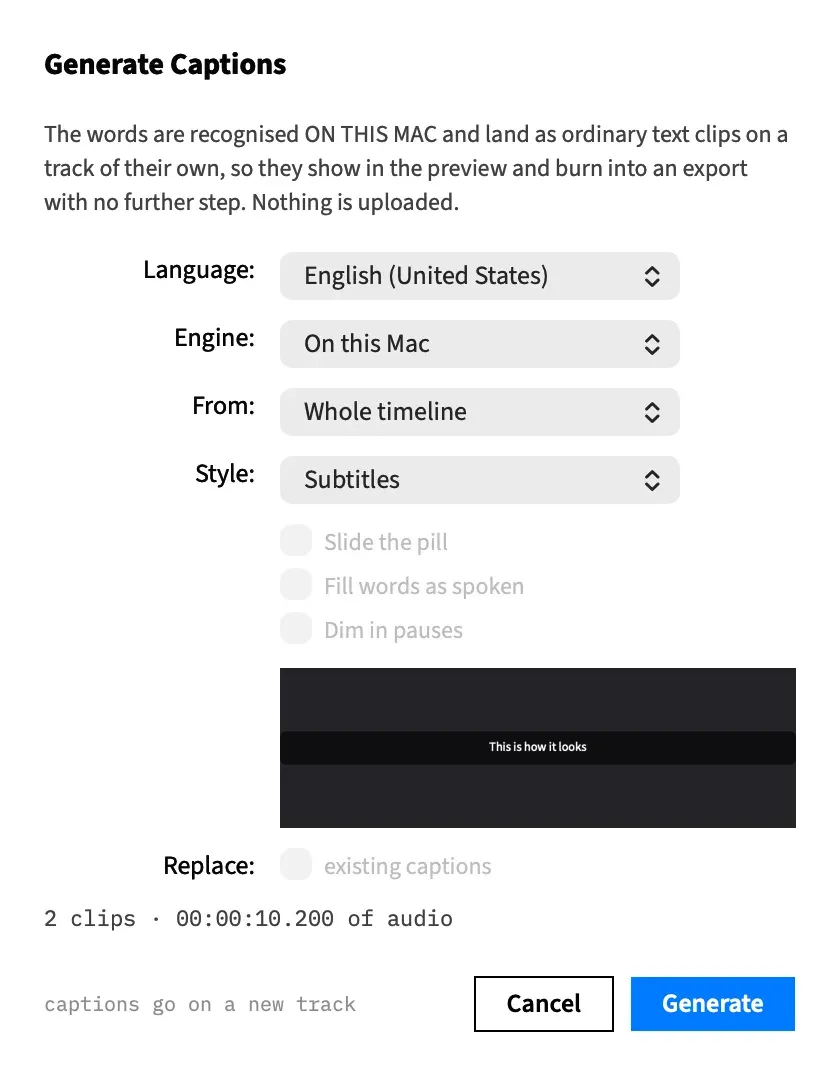
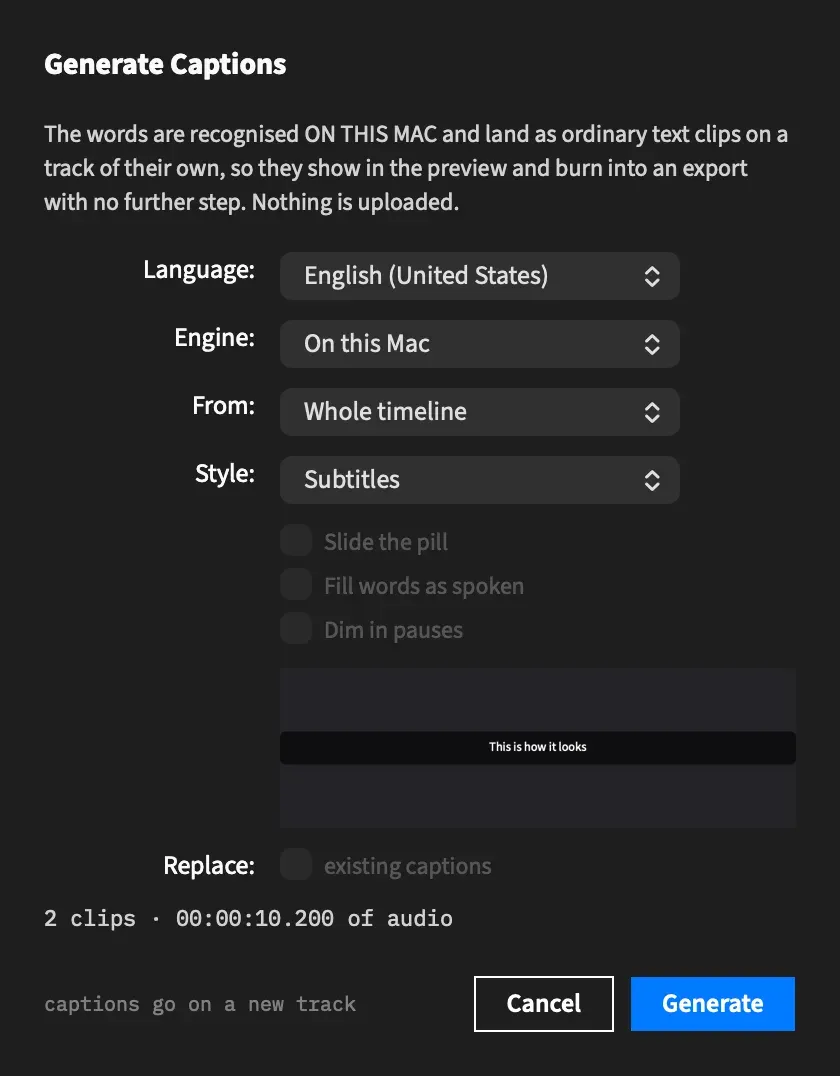
The sheet says what it’s about to do: “The words are recognised ON THIS MAC and land as ordinary text clips on a track of their own, so they show in the preview and burn into an export with no further step. Nothing is uploaded.”
Frame Job extracts the part of the media each clip plays, and recognises that. There’s no length limit, and macOS shows no permission prompt. The recogniser reads an extracted audio file and never touches the microphone.
Generate Captions covers the rest of the sheet: which clips to caption, the style and the progress card. The other engine is AssemblyAI, which runs in the cloud on your own key.
Choose a language
Section titled “Choose a language”Language: lists every language this Mac’s recogniser supports, by name, so the list differs from Mac to Mac. It opens on your Mac’s own language, or the nearest one on the list.
A language whose speech model isn’t on this Mac reads “— not installed”. Generate stays greyed until the chosen language is installed.
If the recogniser names no language at all, the pop-up reads No on-device language and the note under the summary says “This Mac’s speech engine named no language with an on-device speech model. Reopen this sheet to ask it again.” Setting Engine: to AssemblyAI still works in that state.
Download a speech language
Section titled “Download a speech language”Speech models are installed per Mac, not per project, and this sheet is the only place Frame Job installs one.
-
Choose a language marked “— not installed”. A Download button appears under Language:.
-
Choose Download.
-
Wait for the row to finish. It shows a bar and “Downloading language…”.
When the download finishes, the language is installed and selected, and Generate comes on.
The bar moves without a figure until the download reports its size. Only then does the row add a percentage, such as “Downloading French… 40%”. It never shows a size.
While the download runs:
- Language: and Engine: are locked, and Generate stays greyed.
- Download becomes Cancel, which is greyed until the download has started reporting. Choosing it stops the download with no message.
- The Cancel at the bottom of the sheet closes the sheet and leaves the download running. You lose the bar and the way to stop it.
If the download fails, the note reads “The download did not finish:” and gives the reason. The Download button is back, so you can try again.
Every run recognises the audio again
Section titled “Every run recognises the audio again”Nothing is kept between runs for captions made on this Mac. Each run, restyling included, recognises the audio from the start. That’s free, but it takes the time again.
The sheet’s preview never shows on-device words either. It shows the first words of a kept AssemblyAI transcript if the clip has one, and “This is how it looks” if not.
The Transcript tab does keep the words it recognises on this Mac, but those are separate, and captions never use them.
The pause note
Section titled “The pause note”With On this Mac chosen and a word style picked, a note under the look boxes reads “On-device words rarely carry a pause; this shows mostly with AssemblyAI.” It shows whether or not Dim in pauses is ticked.
The recogniser starts each word early, so the word after a pause starts inside the silence, and few gaps are left for Dim in pauses to act on. The look still works, but you’ll see it rarely.
With an agent
Section titled “With an agent”transcribe uses this engine by default, whatever the sheet last chose.
An agent can’t install a language, and transcribe never downloads one. A language tag that speech recognition doesn’t know stops the call with “check the tag’s spelling” and the tags it does know. A tag it knows with no model on this Mac stops the call with “A person has to install it”, the steps in this sheet, and the languages that are ready. Nothing changes in either case. get_transcript works to the same rules. See transcribe.