
Subtitles
The Subtitles style turns speech into classic two-line cues, the kind you’d see on a film or a broadcast. Each cue is a text clip in the Caption preset.
- Menu
- File ▸ Generate Captions…
- Where
- The Generate Captions sheet ▸ Style: ▸ Subtitles
- Needs
- Speaker colours need AssemblyAI.
- Agent tools
transcribe
Make subtitles
Section titled “Make subtitles”-
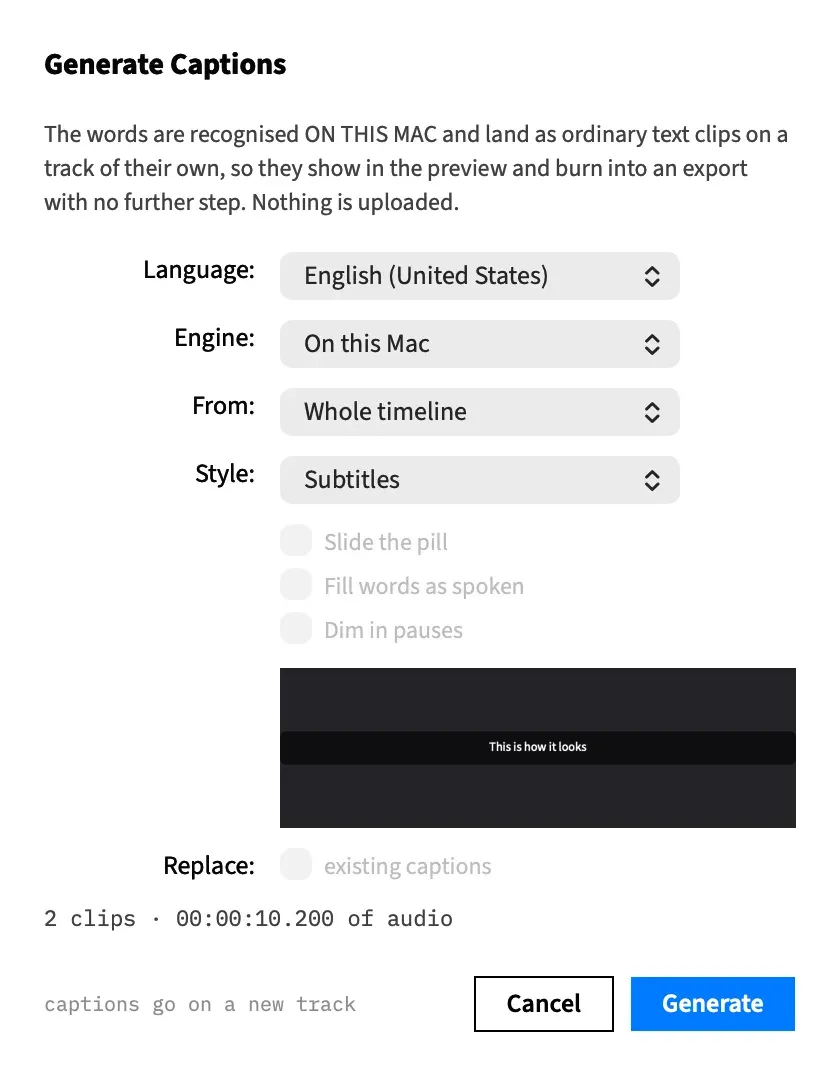
Choose File ▸ Generate Captions….
-
Set Language:, Engine: and From:. Generate Captions explains each one.
-
Set Style: to Subtitles. The sheet opens on the last style you chose, and on Subtitles the first time.
-
Choose Generate.
The cues land on a new track at the front of the stack, called Captions, or Captions 2 and so on if that name is taken. The whole run is one undo step, Generate Captions.
The Subtitles style
Section titled “The Subtitles style”Frame Job builds each cue from the recognised words by these rules:
| Rule | Limit |
|---|---|
| Lines in a cue | At most 2 |
| Characters on a line | At most 42 |
| Time on screen | At most 6 seconds, up to the end of the cue’s last word |
| Gap between cues | At least one frame |
| Speakers in a cue | One. A change of speaker always starts a new cue. |
A cue starts on its first word and ends with its last, so it doesn’t stay up through a long silence. A word too long for a line is left whole, never hyphenated, and wraps inside the caption box.
Speaker colours
Section titled “Speaker colours”Each speaker’s cues can take their own colour, so a viewer can tell who’s talking.
-
Set Engine: to AssemblyAI. The Speakers: row is hidden with On this Mac, and a new AssemblyAI transcription needs your key.
-
Tick Speakers:, which reads “split by speaker, coloured in Subtitles”.
-
Set Style: to Subtitles and choose Generate.
Speakers take their colours in the order they first appear in the run: white, yellow, cyan, green, then round again. The fifth speaker is white like the first. The colours are a fixed table with no setting. To change one afterwards, select those cues and set the colour under Text in the Clip tab.
Speakers are told apart within each media file, so the first speaker in one file and the first speaker in another count as two people and take two colours.
Speaker colours only apply to the Subtitles style. In a word caption style, a change of speaker starts a new page and the colours stay as the style draws them.
The Caption preset
Section titled “The Caption preset”Every cue is drawn in the Caption text preset, whether it was generated or imported from a caption file.
| Setting | Value |
|---|---|
| Typeface | Source Sans 3 Regular |
| Size | 3.5% of the canvas’s shorter side |
| Alignment | Centred |
| Colour | White, unless a speaker colour applies |
| Backdrop | Black at 60%, with 12 px of padding and 8 px corners |
| Wraps at | 80% of the canvas width |
| Position on a wide or square canvas | The box is centred 38% of the frame height below the middle |
| Position on a canvas taller than wide | The box is centred a quarter of the frame height below the middle |
On a 1920 × 1080 canvas that’s 38 px text that wraps at 1,536 px. On a 1080 × 1920 canvas it’s the same 38 px text, wrapping at 864 px. A canvas taller than wide, such as 9:16 or 4:5, also puts the box higher in the frame.
A narrow canvas can wrap a cue past two lines, because the wrap happens inside the box after the cue is built. On a canvas taller than wide, Frame Job counts these and tells you once the captions are placed:
3 captions wrap to more than two lines on this canvas.
After generating, this appears on the sheet, which stays open with Close. After importing, it’s an alert. The captions are placed either way.
Good to know
Section titled “Good to know”- An imported caption file keeps its own line breaks and timing. The rules in The Subtitles style only apply to generated cues.
- Replace: is greyed out with Subtitles chosen. To swap a word caption track for Subtitles, generate the new track, then remove the old one.
- Re-lay Captions for This Canvas keeps a Subtitles track as placed. To re-wrap one for a new canvas, generate it again on that canvas.
- A cue has no word timing, so the looks don’t apply. All three boxes are greyed out with Subtitles chosen.
- Subtitles are text in the picture, not a track a player can switch off. To ship a separate file, use Export Captions….
With an agent
Section titled “With an agent”transcribe makes Subtitles (style: subtitles) unless it asks for another style, whatever the sheet last chose. See transcribe.