
Matte tracks
A matte track cuts the track directly behind it. Its own clips are never drawn. Instead, what they show decides where the track behind can be seen, which turns a title or a shape into a window onto your footage.
- Menu
- Track ▸ Matte
- Where
- Right-click a track's header or the empty part of its lane ▸ Matte
- Agent tools
set_trackadd_adjustment_clip
What a matte does
Section titled “What a matte does”Any clip that draws can be a matte: text, a shape, a graphic, an image, a movie or a nest.
A matte belongs to the track, not the clip. Move a clip off the track and it’s an ordinary clip again, and move one on and it becomes part of the matte.
Only the track directly behind is cut, so tracks further back and the canvas show through the hole. Adding, moving or removing a track can change which track that is.
The cut applies to everything the clip behind draws. Its drop shadow follows the shape that’s left, and its reflection is cut where it lands. It all works in the preview, in rendered frames, at every Preview Quality and in every export.
Setting a matte
Section titled “Setting a matte”-
Put the clips that will do the cutting, such as a text clip, on the track directly in front of the track you want to cut. On the timeline, that’s the track directly above it.
-
Select one of those clips, or right-click that track’s header.
-
Choose a mode from Track ▸ Matte, or from the Matte submenu of the track’s context menu.
Track ▸ Matte works on the track holding the first selected clip, or the front-most track when nothing is selected. The context menu works on the track you clicked. Right-click or ⌃-click its header or the empty part of its lane to open it.
A checkmark shows the track’s mode. Choosing the mode it already has beeps and makes no undo step. There’s no key for a matte, and the undo step is called Track Matte.
The modes
Section titled “The modes”| Mode | The track behind shows where the matte clip is |
|---|---|
| Off | Not a matte. This is an ordinary track, and every track’s default. |
| Alpha | Opaque |
| Inverted Alpha | Transparent |
| Luma | Bright |
| Inverted Luma | Dark |
Brightness is Rec. 709 luma, and transparent counts as black, so a half-transparent white counts as half bright.
Everything outside a matte clip’s box is transparent. So at any moment a matte clip is playing, Alpha and Luma hide the track behind outside the clip, and Inverted Alpha and Inverted Luma show it there.
For text, a shape or anything else with see-through parts, start with Alpha. A movie or a photo usually fills its box, so Alpha would only give you a rectangle. Use Luma for those, so their light and dark areas do the cutting.
Where the matte track has no clip, the track behind shows uncut, whatever the mode.
A matte is read moment by moment and no clip is tied to another, so splitting, moving, deleting or pasting can’t break a link between them.
Turning a matte off
Section titled “Turning a matte off”To turn a cut off for a while, use Hide Video on the matte track, or turn off a matte clip’s picture. Either way the track behind shows whole, as it does in a gap. To end the matte for good, choose Off.
Nothing to cut
Section titled “Nothing to cut”A matte with no target cuts nothing, and its clips still draw nothing. That happens on the back-most track, and on a track directly in front of another matte track. So two matte tracks in a row don’t combine: only the one nearest the track behind cuts anything.
Matte properties
Section titled “Matte properties”A matte clip is drawn like any other clip, into the matte instead of onto the canvas, so most of its settings shape the cut:
- position, scale, rotation and crop
- corner radius and opacity
- colour, chroma key and filters
- spotlight and obscured regions
- motion presets and actions
- transitions between two matte clips
Animate the clip and the cut moves with it, so a moving title can wipe footage on.
A matte clip’s blend mode, drop shadow and reflection have no effect. They’re kept, and apply again when the track stops being a matte.
Motion Blur has no effect either, on a matte clip or on a clip a matte is cutting. Both draw sharp.
A matte clip isn’t drawn, but it’s still there on the canvas. Click inside its box to select it, and drag it like any clip.
A matte clip’s sound still plays. A matte only changes the picture, so Mute Audio silences the track as it would any other, and Hide Video doesn’t.
Adjustment clips
Section titled “Adjustment clips”An adjustment clip on a track cut by a matte grades only inside the matte. This is how you confine a grade to one area: put the adjustment clip on a track, and make the track directly in front of it a matte.
An adjustment clip on a matte track does nothing, and the Clip tab says so. Its settings are kept.
The note on the Clip tab
Section titled “The note on the Clip tab”When every selected clip is on a matte track and those tracks share one mode, every sub-tab of the Clip tab shows a note under its strip. Every control stays live, and its value comes back into play when the track stops being a matte.
| Selection | Note |
|---|---|
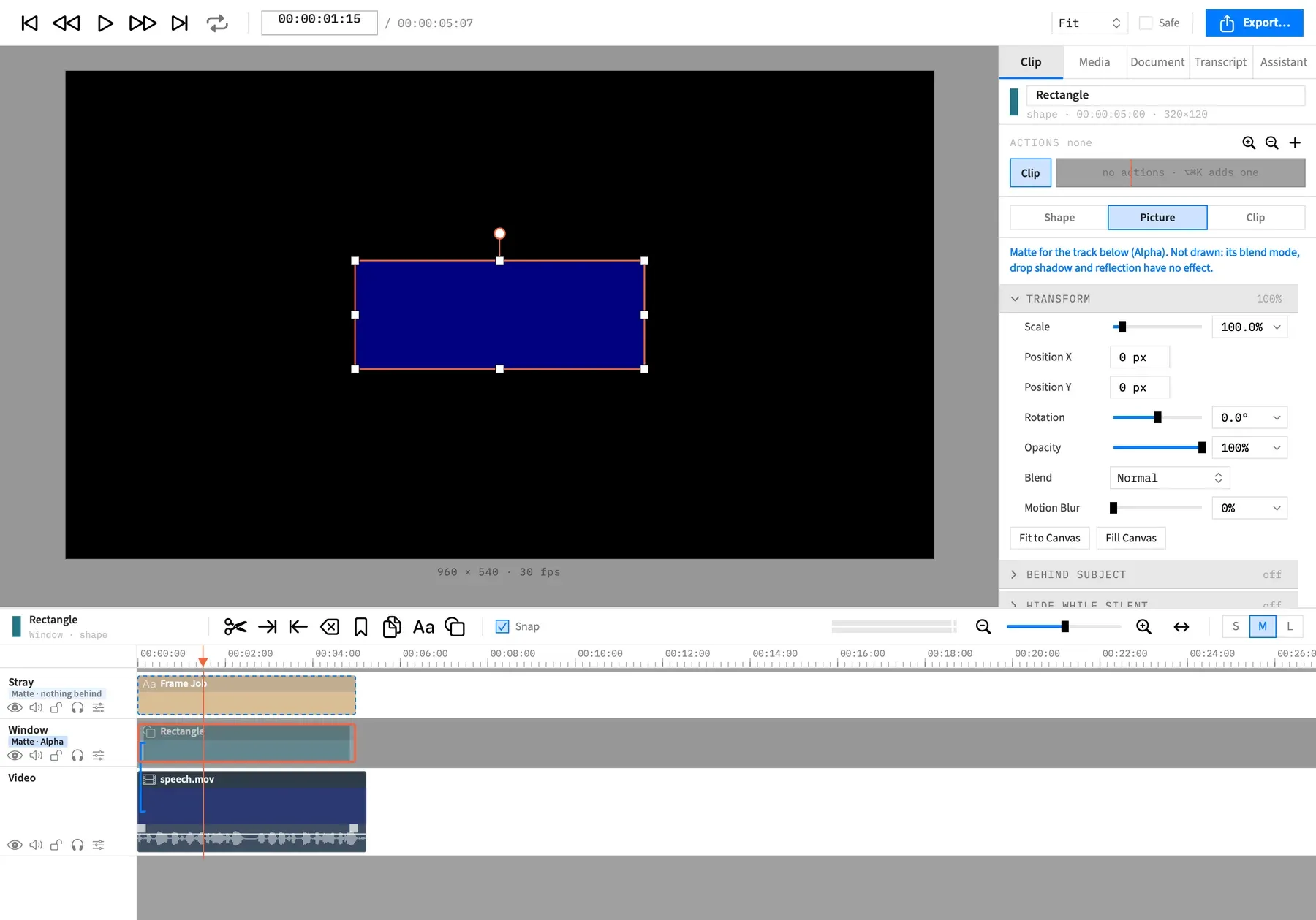
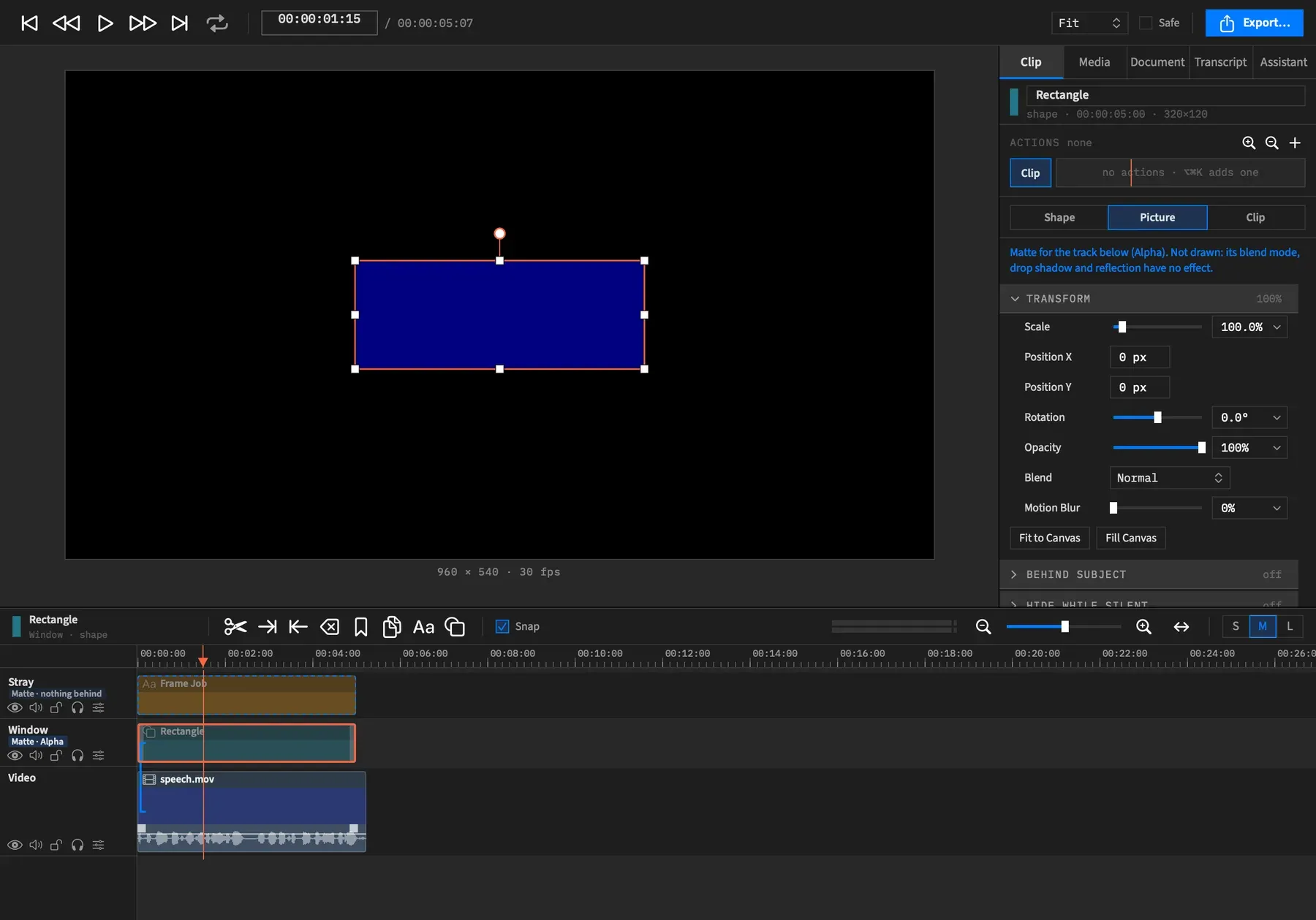
| Clips on a matte track that has a track to cut | “Matte for the track below (Alpha). Not drawn: its blend mode, drop shadow and reflection have no effect.” The note names the track’s mode. |
| Clips on a matte track with nothing to cut | “Nothing is behind this matte track, so it cuts nothing.” |
| Only adjustment clips, on matte tracks of any mode | “An adjustment clip on a matte track has no effect.” |
On the timeline
Section titled “On the timeline”A matte track’s header carries a tag such as “Matte · Alpha”, under the track name. With nothing to cut, the tag is dimmed and reads “Matte · nothing behind”.
On a short row the tag shares the name’s line, and it shortens to “Matte” when the name would lose its room.
The track’s clips are drawn at half opacity with dashed outlines, and a bracket joins the track to the track it cuts. A matte that cuts nothing keeps its dashed outlines and has no bracket.
With an agent
Section titled “With an agent”set_track sets a track’s matte to none, alpha, alpha_inverted, luma or luma_inverted. See Tools: tracks, markers and canvas. add_adjustment_clip adds the adjustment clip, as in Tools: adding clips.