
Record shortcuts
Record shortcuts notes each keyboard shortcut you press during a screen recording, and when you type, so Frame Job can show those shortcuts on screen and speed up the typing afterwards. It never records what you type.
- Menu
- File ▸ New Recording…
- Where
- New Recording panel ▸ Record shortcuts
- Needs
- macOS's Input Monitoring permission, and a display or a window as the source.
- Agent tools
record_screenget_cursor_events
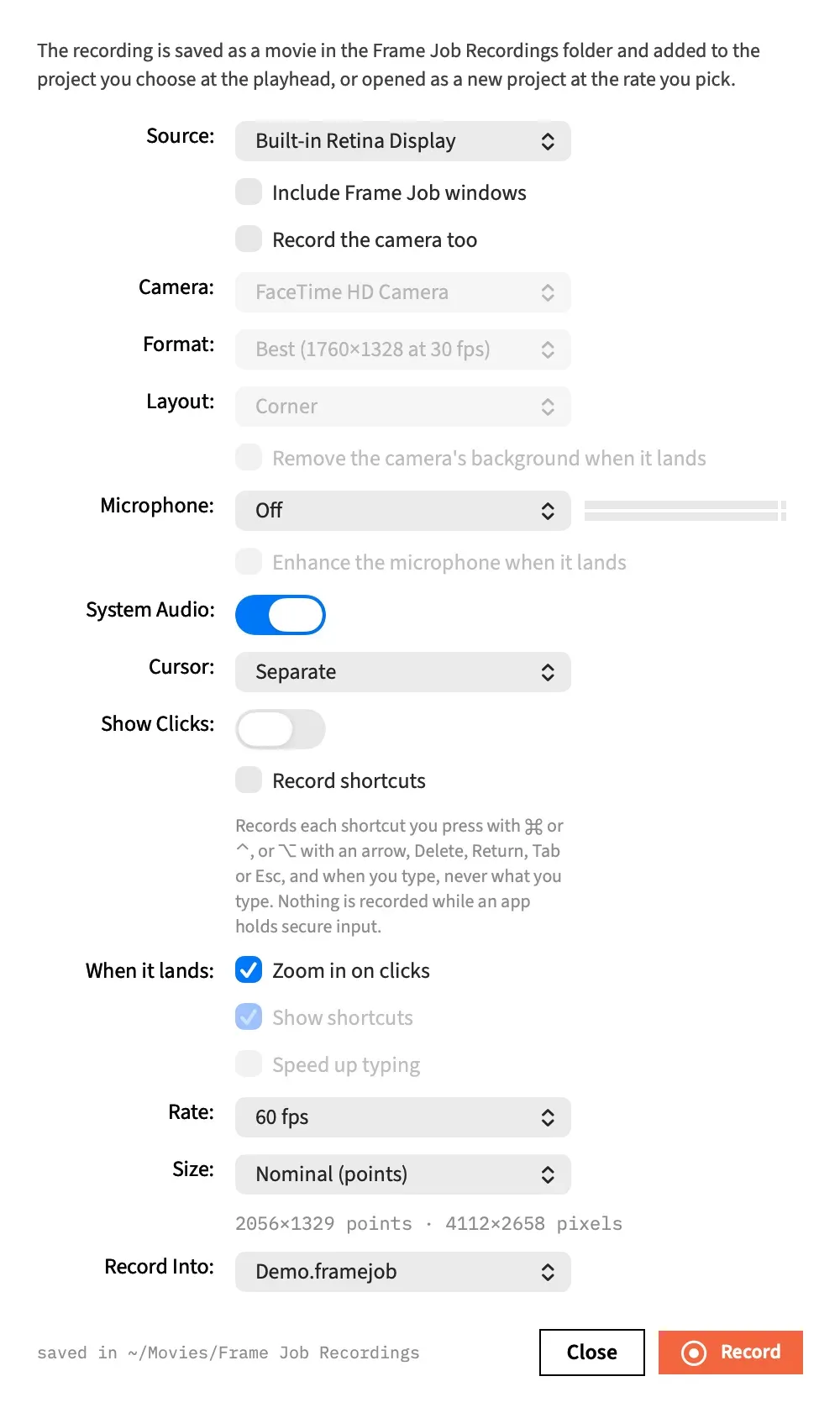
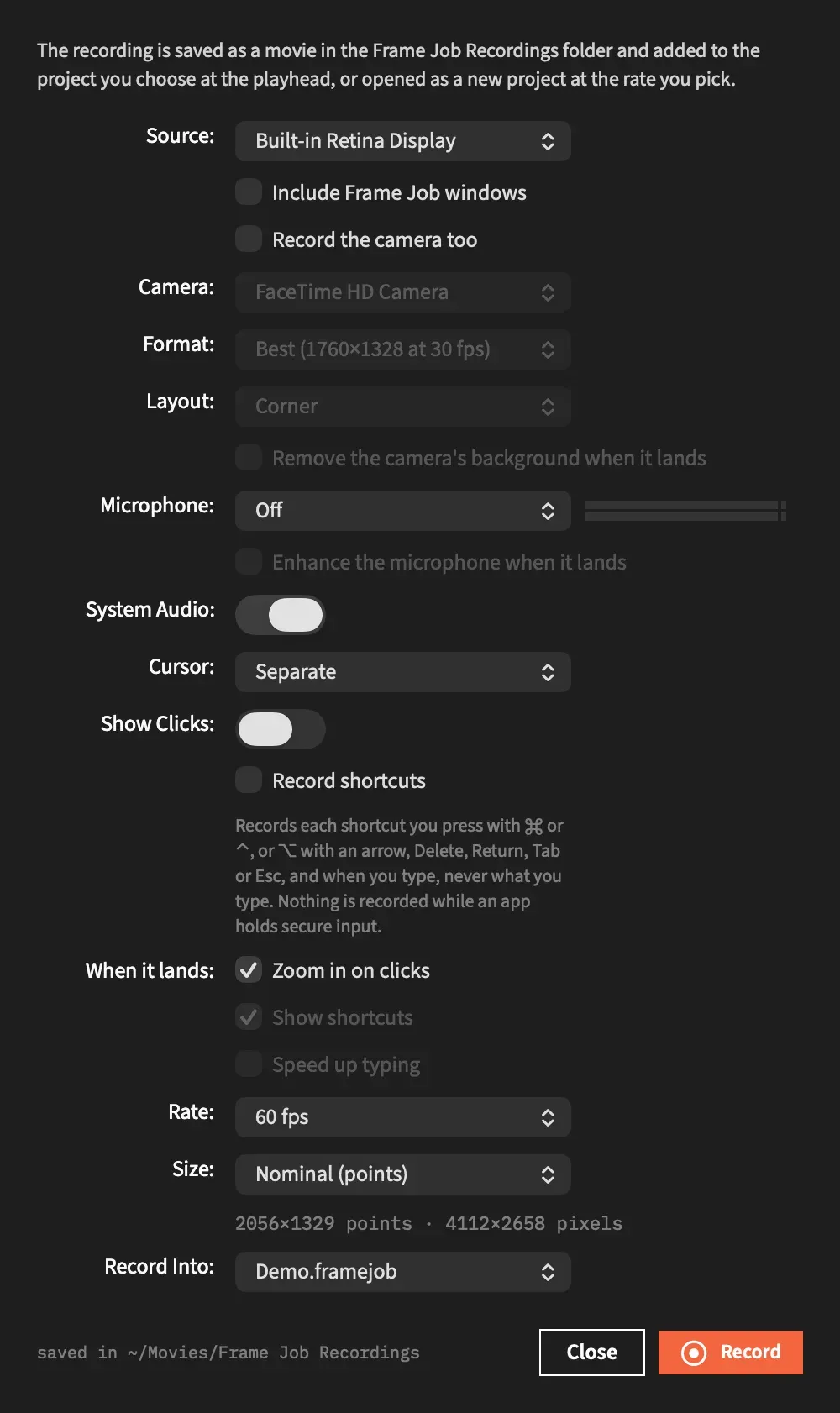
Turn it on
Section titled “Turn it on”-
Choose File ▸ New Recording….
-
Set Source: to a display or a window.
-
Tick Record shortcuts. It’s off to begin with, and the panel remembers your choice for the next recording.
-
Press Record. The first time, you’ll need to grant Input Monitoring.
A note under the box says what it records. The box is greyed out for Camera and Microphone Only, which have no screen to go with the keys. It keeps its tick for when you go back to a screen source.
While keys are being recorded, the menu-bar item shows a keyboard mark before the time, and its menu opens with a dimmed “Recording keyboard shortcuts” row. Everything lands in the recording’s cursor files.
Grant Input Monitoring
Section titled “Grant Input Monitoring”Recording keys needs macOS’s Input Monitoring permission. macOS shows no prompt for it, and Frame Job isn’t in that pane’s list until you add it, so pressing Record without the permission stops the recording from starting and opens System Settings for you.
-
Press Record. System Settings opens at Privacy & Security ▸ Input Monitoring, and the panel’s note says what to do.
-
Turn Frame Job on. If it isn’t in the list, add it with +.
-
Back in the panel, press Record again. You don’t need to relaunch.
Frame Job asks for this after Screen Recording, and before the camera and the microphone. See Recording permissions for all of them, and for what changes if you started Frame Job from a terminal.
What counts as a shortcut
Section titled “What counts as a shortcut”A key press is a shortcut when you hold:
- ⌘ or ⌃ with any key.
- ⌥ with an arrow, Delete, Forward Delete, Return, Enter, Tab or Esc.
⇧ on its own never makes a shortcut, and neither does ⌥ with any other key, because that types a character: ⌥E starts an é.
A shortcut is stored with its keys spelled out, such as cmd+shift+4. The modifiers come first, in the order cmd, ctrl, opt, shift. The key comes last: a named key such as return, tab, space, left or f5, or otherwise the character the key types with no modifier, in lower case. + itself is spelled plus.
What happens to everything else
Section titled “What happens to everything else”Every other key press is stored as a typing mark, which is a moment in time and nothing more. It doesn’t say which key it was. Frame Job doesn’t read the character of a typed key at all, and there’s no mode that records what you type.
A key held down until it repeats gives typing marks too, even if it began as a shortcut. Holding ⌘Z is one shortcut and then a run of typing marks.
When nothing is recorded
Section titled “When nothing is recorded”Nothing at all is recorded while any app holds secure input, as a password field does: no shortcut, and not even a typing mark.
A password field that doesn’t turn on secure input is different. Its keys are recorded as typing marks only, with no characters.
Keys you press while the recording is paused aren’t recorded.
What you can do with the keys
Section titled “What you can do with the keys”| Feature | What it uses | Where |
|---|---|---|
| Shortcut overlays | The shortcuts, shown on screen as you pressed them. | Clip ▸ Add Shortcut Overlays, or Show shortcuts in the panel |
| Speed Up Typing | The typing marks, to find the stretches to speed up. | Clip ▸ Speed Up Typing…, or Speed up typing in the panel |
| Auto Zoom | The typing marks, to zoom in where you typed. | Zoom on typing in Clip ▸ Auto Zoom… |
Show shortcuts and Speed up typing are in the panel’s When it lands: rows, and they’re greyed out unless Record shortcuts is ticked, because the cursor file would have no keys for them to use.
With an agent
Section titled “With an agent”record_screen records keys when it’s given keys: "shortcuts". The default is off. It never asks macOS for the permission. Without Input Monitoring it won’t start, and it names the System Settings pane, so someone has to grant it in the panel first. It won’t record keys from a voice-over or a camera on its own. get_cursor_events reads the shortcuts and stretches of typing back. See Record with record_screen.